
How to Export and Import Bookmarks in Firefox
Information
Bookmarks, also known as Favorites in Internet Explorer, are a convenient way to organize and find webpages that you visit frequently.
This will show you how to export (backup) and import (restore) your bookmarks in Firefox.
This will show you how to export (backup) and import (restore) your bookmarks in Firefox.
OPTION ONE
To Export (Backup) Bookmarks from Firefox
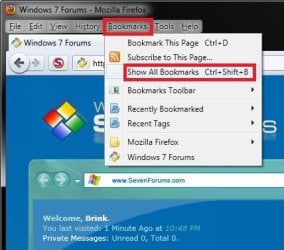
1. Open Firefox, click on Bookmarks (Menu bar), and click on Show All Bookmarks. (see screenshot below)
NOTE: You could also press Ctrl+Shift+B in Firefox instead.
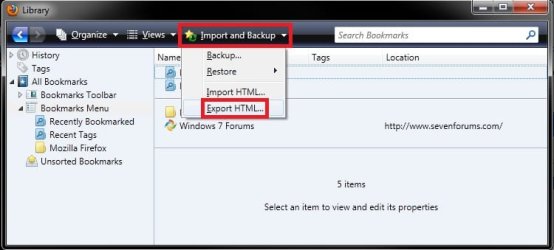
2. In the Firefox Library window, click on the Import and Backup toolbar button, then click on Export HTML. (see screenshot below)
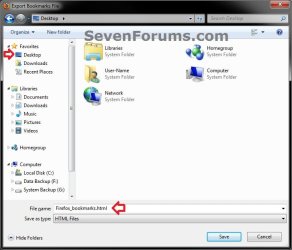
3. Navigate to your Desktop, type in a name (ex: Firefox_Bookmarks), then click on the Save button. (see screenshot below)
NOTE: You can name the HTML file anything that will help make it easier for you to know what it's for and when it was created later.
4. Close both the Firefox and Firefox Library windows above.
5. Move the exported HTML file to where you like for safe keeping as your Firefox Bookmarks backup.
NOTE: This HTML file is your Firefox bookmarks.
OPTION TWO
To Import (Restore) Bookmarks to Firefox
1. Open Firefox, click on Bookmarks (Menu bar), and click on Show All Bookmarks. (see screenshot below)
NOTE: You could also press Ctrl+Shift+B in Firefox instead.
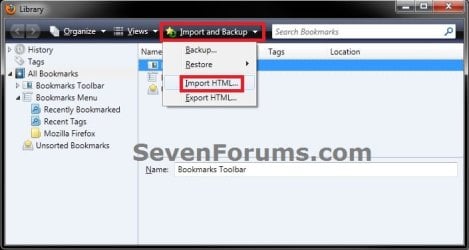
2. In the Firefox Library window, click on the Import and Backup toolbar button, then click on Import HTML. (see screenshot below)
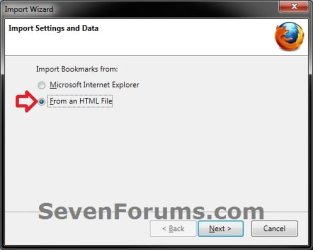
3. Select (dot) From a HTML file, and click on Next. (see screenshot below)
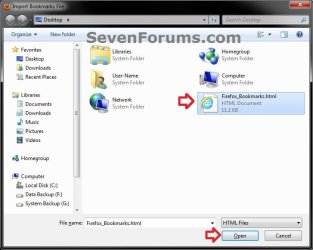
4. Navigate to where you have saved the exported HTML file (ex: Firefox_Bookmarks) from OPTION ONE above, select it, and click on Open. (see screenshot below)
5. The exported bookmarks have now been imported into Firefox.
6. You can now close the Firefox Library window. (see screenshot below step 2)
That's it,
Shawn
Last edited:


