Folder and document management in Windows 7

PaulPat

New member
Local time
10:55 PM
Messages
5
I need assistance in understanding the folder management and library system in Windows 7. I will say at the outset that I am not a techie by any stretch of the imagination so a reply in plain English would be much appreciated as well as some patience with my lack of knowledge !
In Windows XP, folder and document management were simple. You set up a folder within the network structure or library and saved a document to that folder. To retrieve that saved document, you could either go the folder in the network structure and double click on the required document or if in the most recently used, open from that list.
When you saved the amended document with Save As, the system clearly showed the document’s path i.e. for example, C/User name/Folder name/Document name.
All seems different and far more complicated with Windows 7 and it is understanding Windows 7 methodology that I need help with.
The view below of the Libraries network - C\Users\Ruth contains 21 folders and documents re User Ruth:


This view below for User Ruth/My Documents shows 289 documents


1. What are the differences between the above two libraries ?
2. Why do some saved documents appear in both libraries but other documents appear in one library only?
3. Is there a Time lapse between saving a document to one library and it appearing in both libraries ?
4. Taking the Excel document Recordsofpayment14-15 as an example, when using Save As, the first of the two above library displays as the Save path. It is the second library display above where this spreadsheet should be saved. How do I get the second library option to display to save?

Thanks for your help
Paul
27/5/14

PS I have attempted to paste images of the Library network using the Snipping Tool but I cannot get them to show in this post
 

My Computer My Computer

Computer type
PC/Desktop
Computer Manufacturer/Model Number
Dell
OS
Windows 7 Home Premium 32bit
Antivirus
McAfee
Hard to understand the problem without pics. Click on Go Advanced and use the Manage Attachments feature.
 

My Computer My Computer

Computer type
PC/Desktop
Computer Manufacturer/Model Number
PC Specialist Custom
OS
Windows 7 Pro 64 bit
CPU
Intel i5
Motherboard
ASUS® H81M-PLUS
Memory
8GB KINGSTON DUAL-DDR3 1600MHz
Graphics Card(s)
2GB AMD RADEON™ R7 250
Hard Drives
120GB KINGSTON V300 SSD
1TB WD CAVIAR BLACK WD1003FZEX
Hello Paul, and welcome to Seven Forums.

The tutorial link below can help show you how to upload and attach a screenshot showing this in a post here.
Libraries and folders are different. Libraries let you access and arrange items from one or more folders quickly without moving them from their original location. Libraries themselves don't store your files or folders. Instead, they point to different locations on a hard disk or external drive attached to your computer. This gives you easy access to a category of files no matter where they are stored. For instance, if you have music files on your hard disk and on an external drive, you can access all of your music files from within the "Music" library.

Until I see a screenshot of what you mean, I believe that your library is just grouped by folder path. Clicking on "Group by" and "(None)" will have all the included folders in the library show their content together in the library instead.
For now, take a look at all the listed "Libraries" and "Library" tutorials listed in the tutorial index below to see if they may help.
Hope this helps for now, :)
Shawn
 

My Computer My Computer

Computer type
PC/Desktop
Computer Manufacturer/Model Number
Self built custom
OS
64-bit Windows 11 Pro for Workstations
CPU
Intel i7-8700K OC'd to 5 GHz
Motherboard
ASUS ROG Maximus XI Formula Z390
Memory
64 GB (4x16GB) G.SKILL TridentZ RGB DDR4 3600 MHz
Graphics Card(s)
ASUS ROG-STRIX-GTX1080TI-O11G-GAMING
Sound Card
Integrated
Monitor(s) Displays
2 x Samsung Odyssey G7 27"
Screen Resolution
2560x1440
Hard Drives
1TB Samsung 990 PRO M.2,
4TB Samsung 990 PRO PRO M.2,
TerraMaster F8 SSD Plus NAS
PSU
Seasonic Prime Titanium 850W
Case
Thermaltake Core P3
Cooling
Corsair Hydro H115i
Keyboard
Logitech wireless K800
Mouse
Logitech MX Master 4
Internet Speed
2 Gb/s Download and 100 Mb/s Upload
Antivirus
Malwarebyte Anti-Malware Premium
Browser
Google Chrome
Other Info
Logitech Z625 speaker system,
Logitech BRIO 4K Pro webcam,
HP Color LaserJet Pro MFP M477fdn,
APC SMART-UPS RT 1000 XL - SURT1000XLI,
Galaxy S23 Plus phone
I have repeated the original post with the screenshots now included.

I need assistance in understanding the folder management and library system in Windows 7. I will say at the outset that I am not a techie by any stretch of the imagination so a reply in plain English would be much appreciated as well as some patience with my lack of knowledge !
In Windows XP, folder and document management were simple. You set up a folder within the network structure or library and saved a document to that folder. To retrieve that saved document, you could either go the folder in the network structure and double click on the required document or if in the most recently used, open from that list.
When you saved the amended document with Save As, the system clearly showed the document’s path i.e. for example, C/User name/Folder name/Document name.
All seems different and far more complicated with Windows 7 and it is understanding Windows 7 methodology that I need help with.
The view below of the Libraries network - C\Users\Ruth contains 21 folders and documents re User Ruth:

Libraries 3View attachment Libraries 3.docx


This view below for User Ruth/My Documents shows 289 documents

Libraries 4
View attachment Libraries 4.docx

1. What are the differences between the above two libraries ?
2. Why do some saved documents appear in both libraries but other documents appear in one library only?
3. Is there a Time lapse between saving a document to one library and it appearing in both libraries ?
4. Taking the Excel document Recordsofpayment14-15 as an example, when using Save As, the first of the two above library displays as the Save path. It is the second library display above where this spreadsheet should be saved. How do I get the second library option to display to save?

Thanks for your help
Paul
 

My Computer My Computer

Computer type
PC/Desktop
Computer Manufacturer/Model Number
Dell
OS
Windows 7 Home Premium 32bit
Antivirus
McAfee

My Computer My Computer

Computer type
PC/Desktop
Computer Manufacturer/Model Number
Self built custom
OS
64-bit Windows 11 Pro for Workstations
CPU
Intel i7-8700K OC'd to 5 GHz
Motherboard
ASUS ROG Maximus XI Formula Z390
Memory
64 GB (4x16GB) G.SKILL TridentZ RGB DDR4 3600 MHz
Graphics Card(s)
ASUS ROG-STRIX-GTX1080TI-O11G-GAMING
Sound Card
Integrated
Monitor(s) Displays
2 x Samsung Odyssey G7 27"
Screen Resolution
2560x1440
Hard Drives
1TB Samsung 990 PRO M.2,
4TB Samsung 990 PRO PRO M.2,
TerraMaster F8 SSD Plus NAS
PSU
Seasonic Prime Titanium 850W
Case
Thermaltake Core P3
Cooling
Corsair Hydro H115i
Keyboard
Logitech wireless K800
Mouse
Logitech MX Master 4
Internet Speed
2 Gb/s Download and 100 Mb/s Upload
Antivirus
Malwarebyte Anti-Malware Premium
Browser
Google Chrome
Other Info
Logitech Z625 speaker system,
Logitech BRIO 4K Pro webcam,
HP Color LaserJet Pro MFP M477fdn,
APC SMART-UPS RT 1000 XL - SURT1000XLI,
Galaxy S23 Plus phone
Paul, it is much easier to use the snipping tool to mark out the area you want, save to desktop as PNG or JPG, and attach the file to your post. The way you are doing it at present requires the reader to have a modern version of Microsoft Office, or other software that can read Office files, in order to be able to see your attachments.
 

My Computer My Computer

Computer type
PC/Desktop
Computer Manufacturer/Model Number
PC Specialist Custom
OS
Windows 7 Pro 64 bit
CPU
Intel i5
Motherboard
ASUS® H81M-PLUS
Memory
8GB KINGSTON DUAL-DDR3 1600MHz
Graphics Card(s)
2GB AMD RADEON™ R7 250
Hard Drives
120GB KINGSTON V300 SSD
1TB WD CAVIAR BLACK WD1003FZEX
A library in Windows 7 or later is not a storage location. Instead it is a shortcut which when opened in File Explorer shows content of pre-selected folders in one view. By default Windows has four libraries (Documents, Music, Pictures and Videos), each of these libraries contain by default both the user's own and the Public user's (shared with all users) respective folders.

By default, for instance the user Sam's Documents library shows the content of C:\Users\Sam\My Documents and C:\Users\Public\Public Documents. Let's say user Sam has stored only one document in his personal Documents folder, called Letter_to_Mom.doc, and also the Public Documents folder contains only one file called Mom's_letter_to_the_Family.doc. Now if Sam looks the content of C:\Users\Sam\My Documents, he can only see one file, the Letter_to_Mom.doc, but if he opens his Documents library, he can see both Letter_to_Mom.doc and Mom's_letter_to_the_Family.doc because the library shows everything in all folders included in that library.

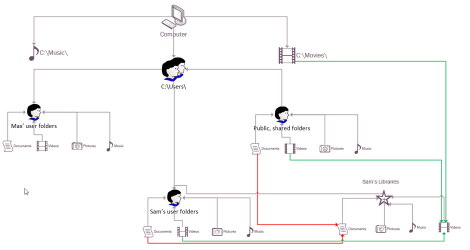
An example Windows setup: We have two users, Max and Sam, plus the Public (common) user. User files are stored in C:\Users\Max, C:\Users\Sam and C:\Users\Public. Additionally the computer has two folders for shared movie and music files, C:\Music and C:\Movies.

Sam has set up his Documents library to contain folders C:\Users\Sam\My Documents and C:\Users\Public\Public Documents (red lines in screenshot below), and his Video library to contain folders C:\Users\Sam\My Videos, C:\Users\Public\Public Videos and C:\Movies (green lines in screenshot below):

2014-05-28_13h35_43.png
(Click image to enlarge.)​


When Sam now opens his Videos library, he sees all content in all three folders included in this library. If he only wants to see videos stored in his own personal My Videos folder but not those in Public Videos and C:\Movies, he needs to open his personal My Videos folder instead of the Videos library.

Editing the settings of a library Sam can now select which folders will be included in it, and when a library is selected as the Save As location, in which of the folders it includes the saved content is stored. Tutorials:
Kari
 

My Computer My Computer

Computer type
Laptop
Computer Manufacturer/Model Number
HP ENVY 17-1150eg
OS
Windows 10 Pro x64 EN-GB
CPU
1.6 GHz Intel Core i7-720QM Processor
Memory
6 GB
Graphics Card(s)
ATI Mobility Radeon HD 5850 Graphics
Sound Card
Beats sound system with integrated subwoofer
Monitor(s) Displays
17" laptop display, 22" LED and 32" Full HD TV through HDMI
Screen Resolution
1600*900 (1), 1920*1080 (2&3)
Hard Drives
Internal: 2 x 500 GB SATA Hard Disk Drive 7200 rpm
External: 2TB for backups, 3TB USB3 network drive for media
Cooling
As Envy runs a bit warm, I have it on a Cooler Master pad
Keyboard
Logitech diNovo Media Desktop Laser (bluetooth)
Mouse
Logitech Performance Mouse MX
Internet Speed
50/10 Mbps VDSL
Antivirus
Windows Defender 4.3.9431.0
Browser
Maxthon 3.5.2., IE11
Libraries sure are a neat and simple feature!
 

My Computer My Computer

Computer type
PC/Desktop
OS
Windows 10 x64
CPU
Intel i5-3570K
Motherboard
Asus Maximus V Gene
Memory
Crucial 16GB
Graphics Card(s)
nVidia Geforce 660 GTX
Sound Card
onboard
Monitor(s) Displays
NEC 2490WUXi2
Screen Resolution
1920x1200
Hard Drives
Crucial M4 256GB
PSU
Corsair 650TX
Case
Fractal Design - Define Mini
Keyboard
Filco Majestouch Tenkeyless Black MX
Mouse
Logitech MBJ58
Back
Top