
Folder - Delete from Command Prompt

How to Delete a Folder in Windows from the Command Prompt


   Information
This will show you how to permanently delete a Folder in Vista, Windows 7, or Windows 8 using the RD or RMDIR command from within a command prompt.

This can be handy if you cannot delete the folder using the normal methods.

   Note
While you can run this command in a non-elevated or elevated command prompt, you would get the best results using a elevated command prompt.

   Warning
The folder will be deleted immediately and not placed in the Recycle Bin first. Deleting a folder using this command will also delete all of it's contents as well as the folder. Be sure to backup anything you want to keep in the folder first.


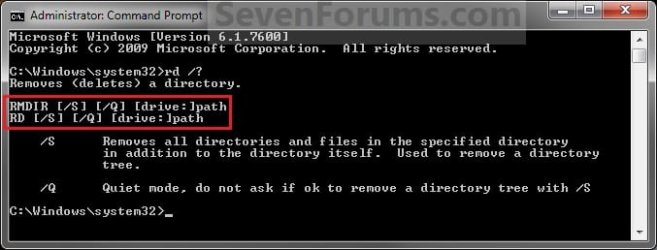
EXAMPLE: RD and RMDIR Command
NOTE: You can use either the RD or RMDIR command in the command prompt. They are the same command.
About_RD_RMDIR.jpg


Here's How:
1. Do step 2 or 3 below for where you would like to use a command prompt at.


2. To Use a Elevated Command Prompt in Windows
A) Open an Elevated command prompt in Vista/Windows 7 or Windows 8, and go to step 4 below.
3. To Use a Command Prompt at Boot
A) Open a command prompt at boot in Vista/Windows 7 or Windows 8, and go to step 4 below.

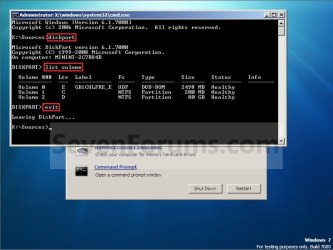
B) In the command prompt, type diskpart and press Enter. (see screenshot below)

C) In the command prompt, type list volume and press Enter. (see screenshot below)
NOTE: This will let you see what the drive letter is for the drive that you want to delete the folder in since it may not always be the same drive letter that it is in Windows.

D) After making note of the drive letter, type exit and press Enter. (see screenshot below)
Command-1.jpg
4. In the command prompt, type the command below and press enter.
NOTE: Substitute Full Path of Folder within quotes below with your folder's full path within quotes instead.

Code:
RD /S /Q "[COLOR=red][B]Full Path of Folder[/B][/COLOR]"

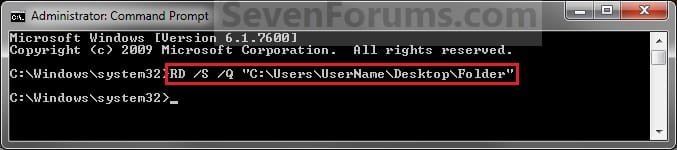
NOTE: For example, if I wanted to delete a folder named Folder on my desktop, I would type this command below.

Code:
RD /S /Q "C:\Users\UserName\Desktop\Folder"
Elevated_Command_Prompt.jpg
5. The folder should now be deleted.

6. Close the command prompt.
NOTE: If you used a command prompt at boot, then also close the System Recovery Options window and restart the computer.
That's it,
Shawn


Last edited:
I have tried this several ways...and it doesn't work for me. I have an unwanted folder under Libraries, Pictures, My Pictures that I can't get rid of. I'd be happy to let you work with me on TeamViewer or VNC if you want to look at it. Greg

Hello Greg, and welcome to Seven Forums. :)

Since this is in a library, are you able to use the method in the tutorial below to remove the folder?

http://www.sevenforums.com/tutorials/586-library-remove-included-folder.html
 

My Computer

Computer type
PC/Desktop
Computer Manufacturer/Model Number
Self built custom
OS
64-bit Windows 11 Pro for Workstations
CPU
Intel i7-8700K OC'd to 5 GHz
Motherboard
ASUS ROG Maximus XI Formula Z390
Memory
64 GB (4x16GB) G.SKILL TridentZ RGB DDR4 3600 MHz
Graphics Card(s)
ASUS ROG-STRIX-GTX1080TI-O11G-GAMING
Sound Card
Integrated
Monitor(s) Displays
2 x Samsung Odyssey G7 27"
Screen Resolution
2560x1440
Hard Drives
1TB Samsung 990 PRO M.2,
4TB Samsung 990 PRO PRO M.2,
TerraMaster F8 SSD Plus NAS
PSU
Seasonic Prime Titanium 850W
Case
Thermaltake Core P3
Cooling
Corsair Hydro H115i
Keyboard
Logitech wireless K800
Mouse
Logitech MX Master 4
Internet Speed
2 Gb/s Download and 100 Mb/s Upload
Antivirus
Malwarebyte Anti-Malware Premium
Browser
Google Chrome
Other Info
Logitech Z625 speaker system,
Logitech BRIO 4K Pro webcam,
HP Color LaserJet Pro MFP M477fdn,
APC SMART-UPS RT 1000 XL - SURT1000XLI,
Galaxy S23 Plus phone
Inability to delete folder


I gothrough that process...click start, user name, Libraries, Pictures,properties...click on include folder...I see the "includedfolder"...highlight it, click remove. It goes away in the box...hitOK...close everything. Check Windows Explorer and the empty folder isstill there...tried using elevated command prompt with RD /S /Q "C:\Users\Greg\Appdata\Roaming\Microsoft\Windows\Libraries\Pictures\My Pictures\2015_06_23"and it says it can't find the file path. So I don't know what I'm doingwrong. Greg


My Computer

Computer type
PC/Desktop
Computer Manufacturer/Model Number
HP
OS
Windows 7 Home Premium 64 bit
CPU
Intel Core i7 [email protected] GHz
Memory
8 GB
Hard Drives
454 GB RAID
Antivirus
Trend Micro Internet Security
Browser
Chrome or I.E. 11
In that case see if restoring the default libraries may toggle the ghost folder to be gone afterwards.

http://www.sevenforums.com/tutorials/581-libraries-restore-default.html

If not, then see if creating a new folder with the same name at the location that is displayed in the library to see if you may be able to remove it from the library afterwards.
 

My Computer

Computer type
PC/Desktop
Computer Manufacturer/Model Number
Self built custom
OS
64-bit Windows 11 Pro for Workstations
CPU
Intel i7-8700K OC'd to 5 GHz
Motherboard
ASUS ROG Maximus XI Formula Z390
Memory
64 GB (4x16GB) G.SKILL TridentZ RGB DDR4 3600 MHz
Graphics Card(s)
ASUS ROG-STRIX-GTX1080TI-O11G-GAMING
Sound Card
Integrated
Monitor(s) Displays
2 x Samsung Odyssey G7 27"
Screen Resolution
2560x1440
Hard Drives
1TB Samsung 990 PRO M.2,
4TB Samsung 990 PRO PRO M.2,
TerraMaster F8 SSD Plus NAS
PSU
Seasonic Prime Titanium 850W
Case
Thermaltake Core P3
Cooling
Corsair Hydro H115i
Keyboard
Logitech wireless K800
Mouse
Logitech MX Master 4
Internet Speed
2 Gb/s Download and 100 Mb/s Upload
Antivirus
Malwarebyte Anti-Malware Premium
Browser
Google Chrome
Other Info
Logitech Z625 speaker system,
Logitech BRIO 4K Pro webcam,
HP Color LaserJet Pro MFP M477fdn,
APC SMART-UPS RT 1000 XL - SURT1000XLI,
Galaxy S23 Plus phone
can it permanently delete (like Shift+del) a folder with further filled folder inside?
i.e;C:\Program Files\iPod , C:\Program Files\iPod\bin which contains two files
So with
Code:
RD /S /Q "C:\Program Files\iPod"
will I be able to achieve my goal?
I wanted to automate removal of that folder after all iTunes upgrades with a script. How can I do this using a script? which format do I use for script? Open notepad, copy code, then save it as CMD or BAT?
 

My Computer

Computer type
PC/Desktop
OS
Windows 7 Ultimate; SP1
CPU
Pentinum Dual Core CPU E5300 @ 2.60GHz
Graphics Card(s)
Intel G33/31 Chipset Family
Sound Card
Realtek
Monitor(s) Displays
HP Compaq W185q
Screen Resolution
1366 x 768
Hard Drives
500 GB Seagate Internal HDD
&
1 TB External HDD x 2 (Seagate+Transcend)
Case
HP Compaq
Internet Speed
50 Kb/ps :"(
Hello, :)

Yes, you could copy that command into Notepad and save it as a .bat file. You could then use "Run as administrator" on the .bat file whenever you wanted to delete that folder.
 

My Computer

Computer type
PC/Desktop
Computer Manufacturer/Model Number
Self built custom
OS
64-bit Windows 11 Pro for Workstations
CPU
Intel i7-8700K OC'd to 5 GHz
Motherboard
ASUS ROG Maximus XI Formula Z390
Memory
64 GB (4x16GB) G.SKILL TridentZ RGB DDR4 3600 MHz
Graphics Card(s)
ASUS ROG-STRIX-GTX1080TI-O11G-GAMING
Sound Card
Integrated
Monitor(s) Displays
2 x Samsung Odyssey G7 27"
Screen Resolution
2560x1440
Hard Drives
1TB Samsung 990 PRO M.2,
4TB Samsung 990 PRO PRO M.2,
TerraMaster F8 SSD Plus NAS
PSU
Seasonic Prime Titanium 850W
Case
Thermaltake Core P3
Cooling
Corsair Hydro H115i
Keyboard
Logitech wireless K800
Mouse
Logitech MX Master 4
Internet Speed
2 Gb/s Download and 100 Mb/s Upload
Antivirus
Malwarebyte Anti-Malware Premium
Browser
Google Chrome
Other Info
Logitech Z625 speaker system,
Logitech BRIO 4K Pro webcam,
HP Color LaserJet Pro MFP M477fdn,
APC SMART-UPS RT 1000 XL - SURT1000XLI,
Galaxy S23 Plus phone
Back
Top