Solved FOOTER PROBLEM in Word 2007

maranatha4u

New member
Member
VIP
Local time
7:49 AM
Messages
157
Location
Lakeland, Florida USA
I'm doing a LONG document in Word 2007, and I cannot understand how to do the first few pages on the footer with an i and then ii for the second page (and, then on the third page to start it as Page 1 and so on throughout the document). After I do the first two pages with i and ii, when I try to start the third page numerically (as Page 1), it REMOVES the header designations (i & ii from my first two pages and starts page 1 on the very first page (which should be the i page). REALLY FRUSTRATING! :mad: I wouldn't have to do this in the first place if I could only convert the attached PDF into a Word doc. This is all my teacher wants. I tried a few PDF-To-Word conversion sites, but I haven't found one yet that didn't reproduce the bullets on the finished Word doc (somehow, this area is messed up). Can anyone offer any help, please?
 

Attachments

My Computer My Computer

Computer Manufacturer/Model Number
Dell Optiplex 760
OS
Windows 7 Pro, 64-bit
Maybe something here to try to convert your PDF to Word:
How to convert PDF to Word

Please let us know if something works for you. :)
 

My Computer My Computer

Computer type
PC/Desktop
Computer Manufacturer/Model Number
Packard Bell
OS
Windows 7 Home Premium 64bit
CPU
Intel(R) Core(TM) i3-2120 CPU @ 3.30GHz
Motherboard
Packard Bell IPISB-AG
Memory
3.00 GB
Graphics Card(s)
(1) Intel(R) HD Graphics (2) VNC Mirror Driver
Sound Card
Realtek High Definition Audio
Monitor(s) Displays
AIO LCD
Screen Resolution
1920 x 1080
Hard Drives
WDC WD10EADX-22TDHB0 ATA Device
Fixed hard disk media
4 partitions
931.51 GB
Keyboard
Wireless
Mouse
Wireless
Antivirus
Microsoft Security Essentials
Browser
IE; Firefox
Other Info
Also:
Samsung N220 Plus Netbook - Windows 7 Home
HP laptop
iPad 5
Hello, Irene!

I just wanted to take the time to thank you for your reply here, as you've been the only one who has.

I tried the text links in the reply you had given me, but when the conversion process started, the finished result was indeed a Word doc; however, the areas in the PDF which had bullets were not "developed" correctly in the Word doc. In fact, all the free conversion sites shared this same problem - the bullets of the PDF just didn't come out right into the Word document. And, when I try to modify the error marks on the Word doc where the bullets should have been, trying to get a bullet there, it won't accept it . . . or, messes up the surrounding text area to some degree. This has been a real "challenge" to say the least. But, Irene, I'll keep trying; and thank you so much again for your willingness to help me.
 

Attachments

My Computer My Computer

Computer Manufacturer/Model Number
Dell Optiplex 760
OS
Windows 7 Pro, 64-bit
I'm doing a LONG document in Word 2007, and I cannot understand how to do the first few pages on the footer with an i and then ii for the second page (and, then on the third page to start it as Page 1 and so on throughout the document). After I do the first two pages with i and ii, when I try to start the third page numerically (as Page 1), it REMOVES the header designations (i & ii from my first two pages and starts page 1 on the very first page (which should be the i page). REALLY FRUSTRATING! :mad:


No problem having page number format as "i, ii, iii, ..." then switching to a different format starting at the number you wish such as "1, 2, 3, ..." - two key points to remember: section breaks and NOT selecting "Continous from previous section" (need to select radio button "Start at:" then select the starting page number).

As I understand, you wanted two beginning pages with page number format of "i, ii, ..." then on the third physical page change the numbering to format "1,2,3, ...) beginning at page 1. Here is how I would do it in Word 2010 (should be same/similar in 2007):

> Begin a new document

> To insert page numbering into the footer:

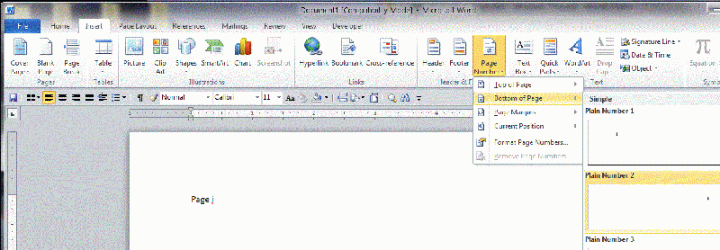
1) Select (click on) the Insert tab

2) Click on the Page Number drop list icon

3) Scroll down to Bottom of Page

4) Slide over and scroll down to then click on the place/style desired (Plain Number 2 in this example); the page number is inserted into the footer of your document
PageNumbering-a.GIF

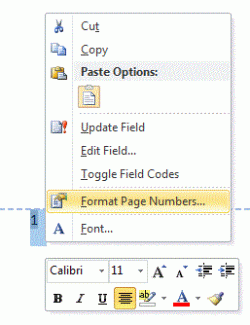
5) Select the page number in your footer

6) Right click on the selection and select Format Page Numbers...; the Page Number Format dialog box opens
PageNumbering-b.GIF

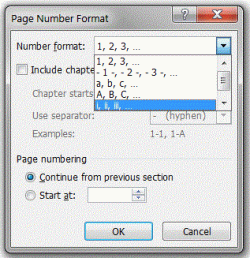
7) Click the Number format: drop list arrow and select the number style desired (here I selected i, ii, iii, ...)
> Note: Page numbering > Continue from previous section radio button is selected by default; leave as-is OR click the Start at: radio button and set the starting number to "1" in the spin box)
PageNumbering-c.GIF

8) Click the OK button

9) Double-click in the body of the document to "leave" from the footer.
> Suggestion: add a carriage return (line break) by pressing the Enter key on your keybaord (this makes it easier to add content in a few minutes)
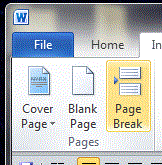
10) Click the Page Break icon to insert a new page; a new page is inserted with page number "ii" in the footer
> Suggestion: add a carriage return (line break) by pressing the Enter key on your keybaord (this makes it easier to add content in a few minutes)
PageNumbering-d.GIF

11) Select (click on) the Page Layout tab

12) Click on the Breaks drop list down arrow

13) Scroll down to and select (click on) Section Breaks > Next Page
> A new section break AND new page is inserted
> The new page has page number "iii"
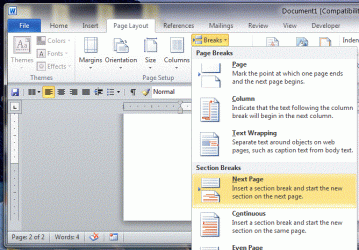
PageNumbering-e.GIF

14) Double click (to select) the footer number "iii"

15) Right click on the selected footer page number and select (click on) Format Page Numbers...; the Page Number Format dialog box opens
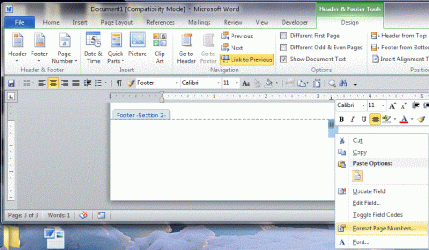
PageNumbering-f.GIF

16) Click the Number format: drop list arrow and select the number style desired (here I selected 1, 2, 3, ...)
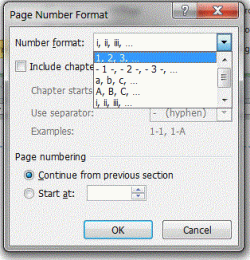
PageNumbering-h.GIF

17) Click the Page numbering > Start at: radio button (to deselect Continue from previous section) and set the starting number to "1" in the spin box
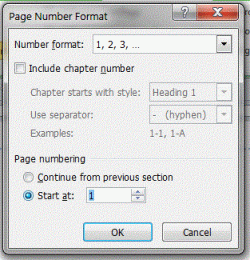
PageNumbering-i.GIF

18) Click the OK button; the section number style and start number changes to what you set

PageNumbering-j.GIF

19) Double-click in the body of the document to "leave" from the footer.


Done!

Regards,
GEWB

 

My Computer My Computer

Computer type
PC/Desktop
Computer Manufacturer/Model Number
(7 different computers booting up to 10 systems)
OS
Linux Mint / XP / Win7 Home, Pro, Ultimate / Win8.1 / Win10
Other Info
Four desktops, two laptops, one notebook and one tablet
Great answer GEWB! I've been trying to figure out how to do this for a very long time. Rep + to you!
 

My Computer My Computer

Computer Manufacturer/Model Number
HP Pavillion dv5t (generation 1)
OS
Vista 64 bit and 32 bit (SP2)
CPU
Intel(R) Core(TM)2 Duo Processor T9400 (2.53 GHz
Memory
4GB DDR2 System Memory (2 Dimm)
Graphics Card(s)
512 MB NVIDIA GeForce 9600M GT
Monitor(s) Displays
15.4" diagonal WSXGA+ High-Definition HP BrightView Widescre
Screen Resolution
1680 x 1050
Hard Drives
320GB 5400RPM SATA Hard Drive with HP ProtectSmart Hard Drive Protection
Keyboard
Built-in HP
Mouse
Built in - Synaptics TouchPad V6.5 on PS/2 Port
Internet Speed
Max
Other Info
~ Intel Next-Gen Wireless-N Mini-card w/Bluetooth ~ Blu-Ray ROM DVD+/-R/RW ~ Integ. HDTV Hybrid Tuner ~ 12 Cell Battery ~ MS Office (Home Premium) 2007 ~
Thank You Again

THANK YOU SO MUCH, GEWB! I just now finished the document with the elaborate instructions you had told me (about the footer problem), and it has WORKED PERFECTLY! The first two pages were i and ii and then the page numbering started on the third page - precisely what I wanted to accomplish.

I just wanted to thank you again for your kind help. You're the ONLY ONE who knew what I was trying to convey. Thank you again and God bless . . .

Larry Hild

 
Last edited by a moderator:

My Computer My Computer

Computer Manufacturer/Model Number
Dell Optiplex 760
OS
Windows 7 Pro, 64-bit
Back
Top