FREE Great Programs for Windows 7

Status
Not open for further replies.
FileNotes Windows Tagger

FileNotes Windows Tagger
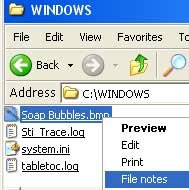
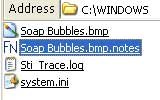
filenotesrightclick.jpg filenotecreated.jpgYou right click on any file and select “File notes”. Notepad opens up a file with “.notes” extension. You write inside any notes that you wish to remember for example “nice background” and then you save the file. The .notes file is saved in the same directory.
 

My Computer

OS
Windows 7 Professional x64 x86 VISTA XP 98SE 95 3.x
CPU
Intel(R) Core(TM)2 Quad CPU Q9400 @ 2.66GHz
Memory
8 GB
Screen Resolution
1920 x 1200
PSU
OCZ Fatal1ty OCZ550FTY 550W ATX12V v2.2 25A on each rail
I tried the filenotes ( Tagger ) program immediately as I look for some time to tag somehow my ( very many ) .exe files.

But on my system the program doesn't work smoothly with .exe files.

It may somehow depend on the rights which are established on the directory
the .exe file is in. I found that if I give complete access to a user called
"Jeder" ( in german ) - means "Everybody" then the .notes file is created.

Otherwise on saving a .txt file is given in the file dialog, no .notes file and
also in a directory different from the one the .exe is in. Very mysterious !

Any suggestion ?
 

My Computer

Computer Manufacturer/Model Number
Fujitsu Siemens
OS
Windows 7 Home Premium
CPU
Intel Q6600
Motherboard
MSI G31M V2 (MS-7379)
Memory
3 GB
Graphics Card(s)
NVIDIA GeForce 8600 GS
Monitor(s) Displays
1
Screen Resolution
1680x1050
Hard Drives
1 local 500GB, 2 external 320GB, 500GB
Keyboard
PS/2
Mouse
PS/2
Other Info
Win 7 HP 32Bit, Upgrade Vista HP OEM, WinCE 6.0 and Debian Linux on ARM 8505, PC Linux OS
Is it possible to disable the user account control notification for just the FileNotes Windows Tagger and still run this program as an administrator?
 

My Computer

OS
Windows 7 Professional x64 x86 VISTA XP 98SE 95 3.x
CPU
Intel(R) Core(TM)2 Quad CPU Q9400 @ 2.66GHz
Memory
8 GB
Screen Resolution
1920 x 1200
PSU
OCZ Fatal1ty OCZ550FTY 550W ATX12V v2.2 25A on each rail
Is it possible to disable the user account control notification for just the FileNotes Windows Tagger and still run this program as an administrator?


If you are the only user on your computer and you know what you are doing, then just turn User Account Control off. If you are not sure, then you shouldn't turn it off.

As far as I know it is not possible to turn it off for one specified program. Bit pointless as well, running as administrator effectively bypasses UAC.

If you set the program to run as an administrator, and you are an administrator, then you don't need to do anything else.

Be careful when allowing programs to run with administrator rights, only do it for programs you know and trust. Don't just give any software you downloaded such rights without carefully checking it. If you bypass security mechanisms without due care then you WILL come to grief, it is merely a matter of time.......

This particular program "Filenotes" manipulates the registry in order to be able to work. Programs that do that can be dangerous.

These are the registry files it loads/changes, you can look at these with a text editor like notepad etc.;

Code:
REGEDIT4

[-HKEY_CLASSES_ROOT\*\shell\filenotes]

[-HKEY_CLASSES_ROOT\.notes]
Code:
REGEDIT4

[HKEY_CLASSES_ROOT\*\shell\filenotes]
@="File notes"

[HKEY_CLASSES_ROOT\*\shell\filenotes\command]
@="C:\\filenotes\\filenotes.exe %1"

[HKEY_CLASSES_ROOT\.notes]
[HKEY_CLASSES_ROOT\.notes\DefaultIcon]
@="C:\\filenotes\\filenotes.ico"
[HKEY_CLASSES_ROOT\.notes\shell]
[HKEY_CLASSES_ROOT\.notes\shell\open]

[HKEY_CLASSES_ROOT\.notes\shell\open\command]
@="\"C:\\filenotes\\filenotes.exe\"  /openassociated \"%1\""

[HKEY_CLASSES_ROOT\.notes\PersistentHandler]
@="{5e941d80-bf96-11cd-b579-08002b30bfeb}"
Code:
REGEDIT4

[HKEY_CLASSES_ROOT\*\shell\filenotes]
@="File notes"

[HKEY_CLASSES_ROOT\*\shell\filenotes\command]
@="C:\\filenotes\\filenotes.exe %1"

[HKEY_CLASSES_ROOT\.notes]

[HKEY_CLASSES_ROOT\.notes\DefaultIcon]
@="C:\\filenotes\\filenotes.ico,0"

[HKEY_CLASSES_ROOT\.notes\shell]

[HKEY_CLASSES_ROOT\.notes\shell\open]

[HKEY_CLASSES_ROOT\.notes\shell\open\command]
@="\"C:\\filenotes\\filenotes.exe\" \"%1\""

[HKEY_CLASSES_ROOT\.notes\PersistentHandler]
@="{5e941d80-bf96-11cd-b579-08002b30bfeb}"
Code:
REGEDIT4

[HKEY_LOCAL_MACHINE\SYSTEM\CurrentControlSet\Control\ContentIndex]
"FilterFilesWithUnknownExtensions"=dword:00000001
The other files in the archive are;


Installation Instructions from; http://geoland.org/2007/01/filenotes-windows-tagger/

Installing FileNotes

  1. Download the zip archive
  2. Unzip the contents in the C drive (alternativelly drag the filenotes dir to the C: drive)
  3. double click on the notes_open_associated_file.reg file and press confirm the registry addition (press yes on the confirmation box that appears – this confirm that its OK to add the information on the registry)
  4. that’s it
Unistalling FileNotes

  1. double click on the clean_registry.reg file and confirm the registry addition
  2. erase the filenotes folder with all the contents
Known issues

  • If windows search does not appear to search within the .notes files you can double click the winXP_fix_Run_if_search_cannot_see_inside_notes.reg file and confirm the registry addition. Look at the microsoft knowledge base for more info.
The relevant files must be in C:\root or this wont run at all.

It wont do any damage, it just wont work.

Programs which require you to install to the root and also to manipulate the registry are generally inadvisable, and I am also generally wary of programs which have bad spelling and similar sloppy errors in them. This is not a good recommendation for the programmer.

On no account should you try to alter your default programs!!! To try and make this work.

If you install it correctly it does work.

Regards....Mike Connor

 

My Computer

OS
Several, including Windows 7 x64 Ultimate
I ran this program on three different machines. It works, but it seems to be rather flaky. In a number of cases it hung the machine requiring a forced log off.

Just for info.

Regards....Mike Connor
 

My Computer

OS
Several, including Windows 7 x64 Ultimate
I ran this program on three different machines. It works, but it seems to be rather flaky. In a number of cases it hung the machine requiring a forced log off.

Just for info.

Regards....Mike Connor

Did it work well consistently on any one machine?
 

My Computer

OS
Windows 7 Professional x64 x86 VISTA XP 98SE 95 3.x
CPU
Intel(R) Core(TM)2 Quad CPU Q9400 @ 2.66GHz
Memory
8 GB
Screen Resolution
1920 x 1200
PSU
OCZ Fatal1ty OCZ550FTY 550W ATX12V v2.2 25A on each rail
I ran this program on three different machines. It works, but it seems to be rather flaky. In a number of cases it hung the machine requiring a forced log off.

Just for info.

Regards....Mike Connor

Did it work well consistently on any one machine?

It works fine as long as no resident program tries to do anything. If you try to take a screen shot, or swap a desktop or anything like that while it is running, it hangs the machine.


For most normal purposes it should be OK.

Regards....Mike Connor
 

My Computer

OS
Several, including Windows 7 x64 Ultimate
I ran this program on three different machines. It works, but it seems to be rather flaky. In a number of cases it hung the machine requiring a forced log off.

Just for info.

Regards....Mike Connor

Did it work well consistently on any one machine?

It works fine as long as no resident program tries to do anything. If you try to take a screen shot, or swap a desktop or anything like that while it is running, it hangs the machine.For most normal purposes it should be OK.

Regards....Mike Connor

Works OK for me (W7 64bit) doing a screen shot.
 

My Computer

OS
Windows 7 Professional x64 x86 VISTA XP 98SE 95 3.x
CPU
Intel(R) Core(TM)2 Quad CPU Q9400 @ 2.66GHz
Memory
8 GB
Screen Resolution
1920 x 1200
PSU
OCZ Fatal1ty OCZ550FTY 550W ATX12V v2.2 25A on each rail
All it basically does is copy the program name for you and open Notepad. You could do that easily yourself, so I don't think it's really worth the bother.

Regards....Mike Connor
 

My Computer

OS
Several, including Windows 7 x64 Ultimate
Plus it also creates the .notes file next to the file. But if you rarely use or have a need for this feature then going through the trouble of debugging your system may not be worth the bother.
 

My Computer

OS
Windows 7 Professional x64 x86 VISTA XP 98SE 95 3.x
CPU
Intel(R) Core(TM)2 Quad CPU Q9400 @ 2.66GHz
Memory
8 GB
Screen Resolution
1920 x 1200
PSU
OCZ Fatal1ty OCZ550FTY 550W ATX12V v2.2 25A on each rail
Plus it also creates the .notes file next to file. But if you rarely use or have a need for this feature then going through the trouble of debugging your system may not be worth the bother.


True, and if you want to do exactly what that program does without any bother at all, just use this;

Code:
Windows Registry Editor Version 5.00

[HKEY_CLASSES_ROOT\*\Shell\Text]
@="Filenote..."

[HKEY_CLASSES_ROOT\*\Shell\Text\Command]
@="Notepad %1%.txt"
Does exactly the same thing without any of the rigmarole! :)

Copy that code and save it as "Filenote.reg" doubleclick on it, it will be sent to the registry.

Wont interfere with any other programs, doesn't need anything else at all. Just right click on any file to get the function.

This is what it does;

Adds "Filenote..." to the context menu;


If you click on that entry with a file selected it asks you if you want to create the relevant text file, or show or overwrite the existing file;


Regards....Mike Connor
 

My Computer

OS
Several, including Windows 7 x64 Ultimate
Yes, I tried this, but to save the resulting .txt file you have to navigate to the appropriate folder whereas FileNotes Windows Tagger is automatically ready to be saved in the same folder.
 

My Computer

OS
Windows 7 Professional x64 x86 VISTA XP 98SE 95 3.x
CPU
Intel(R) Core(TM)2 Quad CPU Q9400 @ 2.66GHz
Memory
8 GB
Screen Resolution
1920 x 1200
PSU
OCZ Fatal1ty OCZ550FTY 550W ATX12V v2.2 25A on each rail
Yes, I tried this, but to save the resulting .txt file you have to navigate to the appropriate folder whereas FileNotes Windows Tagger is automatically ready to be saved in the same folder.

Not true, if you click on "save" the file is immediately saved to the same folder;


The Icon is different because I have a different text editor as a default program, but it's just a normal text file. You can use any editor you like as long as it is in the system path, and you could,(for instance), simply copy and paste the whole blurb including images from a download site to the file if you used an editor capable of doing so. Like this one;

http://www.polyedit.com/free.html

<http://www.polyedit.com/free.html>

Regards...Mike Connor
 

My Computer

OS
Several, including Windows 7 x64 Ultimate
Yes, I tried this, but to save the resulting .txt file you have to navigate to the appropriate folder whereas FileNotes Windows Tagger is automatically ready to be saved in the same folder.

Not true, if you click on "save" the file is immediately saved to the same folder;

Regards...Mike Connor

That is not the case if you do this for a file in Program Files or Program Files (x86).:(
 

My Computer

OS
Windows 7 Professional x64 x86 VISTA XP 98SE 95 3.x
CPU
Intel(R) Core(TM)2 Quad CPU Q9400 @ 2.66GHz
Memory
8 GB
Screen Resolution
1920 x 1200
PSU
OCZ Fatal1ty OCZ550FTY 550W ATX12V v2.2 25A on each rail
Yes, I tried this, but to save the resulting .txt file you have to navigate to the appropriate folder whereas FileNotes Windows Tagger is automatically ready to be saved in the same folder.

Not true, if you click on "save" the file is immediately saved to the same folder;

Regards...Mike Connor

That is not the case if you do this for a file in Program Files or Program Files (x86).:(

It works anywhere for any file. This is a test in "Program Files (x86)"


Regards...Mike Connor
 

My Computer

OS
Several, including Windows 7 x64 Ultimate
Not true, if you click on "save" the file is immediately saved to the same folder;

Regards...Mike Connor

That is not the case if you do this for a file in Program Files or Program Files (x86).:(

It works anywhere for any file. This is a test in "Program Files (x86)"
Regards...Mike Connor

When you click on "save" the file is immediately saved to the same folder (withought having to navigate) for a file in Program Files (x86)? Do you have UAC disabled?
 

My Computer

OS
Windows 7 Professional x64 x86 VISTA XP 98SE 95 3.x
CPU
Intel(R) Core(TM)2 Quad CPU Q9400 @ 2.66GHz
Memory
8 GB
Screen Resolution
1920 x 1200
PSU
OCZ Fatal1ty OCZ550FTY 550W ATX12V v2.2 25A on each rail
That is not the case if you do this for a file in Program Files or Program Files (x86).:(

It works anywhere for any file. This is a test in "Program Files (x86)"
Regards...Mike Connor

When you click on "save" the file is immediately saved to the same folder (withought having to navigate) for a file in Program Files (x86)? Do you have UAC disabled?

Yes.

If you want to use it with UAC enabled then use Notepad elevated, ( Run as Administrator);


Set permissions as required, and it will work the same.

Regards...Mike Connor
 

My Computer

OS
Several, including Windows 7 x64 Ultimate
Then that is why it works for Mike and not for polycue

With UAC Enabled, certain parts of the drive are marked as not accessible by standard user, And prompts for raising access level. Root of C:\ and Program Files are not standard user accessible areas for security reasons.

Which is another reason I would not recommend the app discussed here.
 

My Computer

Computer Manufacturer/Model Number
Self Built
OS
Win 7 Ultimate 32bit
CPU
C2D E6600 2.4Ghz
Motherboard
Intel D965WH
Memory
4G Kingston KHX5400D2
Graphics Card(s)
EVGA GTX 570 HD SC (012-P3-1573-KR)
Sound Card
On-Board
Monitor(s) Displays
Samsung 226BW
Screen Resolution
1680 x 1050
Hard Drives
2 x 250 Seagate Barracuda
2 x 500 Seagate Barracuda (Raid1)
PSU
Corsair TX750W
Case
In-Win C589
Cooling
Stock Intel Cooling
Status
Not open for further replies.
Back
Top