
How to Fix Gadgets not Displaying Correctly in Windows 7
Information
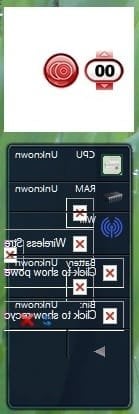
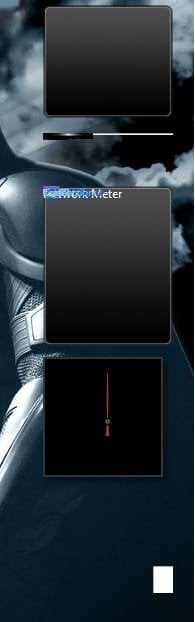
If you have gadgets that are displaying on your Windows 7 desktop improperly as black, white, blank, or just messed up, then this will show you how to fix them.
You must be logged in as an administrator to be able to do this tutorial.
You must be logged in as an administrator to be able to do this tutorial.
Note
If you have a 3rd party firewall program installed, then also check to make sure that the gadgets are allowed in the firewall and are not being blocked in that program's exception settings.
EXAMPLE: Gadgets not displaying correctly
OPTION ONE
Automatically Using a BAT File Download
NOTE: This does the same thing as in OPTION TWO below, but automatically. 1. Click on the Download button below to download the file below. Reset_Gadgets.bat
Download
2. Click on Save (if prompted), and save the .bat file to your desktop.
3. Right click on the downloaded .bat file and click on Run as administrator.
4. If prompted by UAC, then click on Yes.
5. You will see a command prompt flash open and close as the .bat file runs.
6. When finished, restart the computer to apply.
7. Check to see if the gadgets on your desktop are displaying correctly now. If not, then try uninstalling and reinstalling any gadgets that are still not displaying properly, or do a System Restore using a restore point dated before the problem.
OPTION TWO
Manually in an Elevated Command Prompt
NOTE: This does the same thing as in OPTION ONE above, but manually. 1. Open an elevated command prompt (right click - Run as administrator)
2. In the elevated command prompt, copy and paste each command below and press Enter one t a time. After each time your press Enter, you will need to click on OK before doing the next command.
Code:
[LIST]
[*]taskkill /im sidebar.exe /f
[*]regsvr32 msxml3.dll
[*]regsvr32 scrrun.dll
[*]regsvr32 jscript.dll
[*]regsvr32 atl.dll
[*]Regsvr32 "%ProgramFiles%\Windows Sidebar\sbdrop.dll"
[*]Regsvr32 "%ProgramFiles%\Windows Sidebar\wlsrvc.dll"
[*]reg delete "HKEY_CURRENT_USER\Software\Microsoft\Windows\CurrentVersion\Internet Settings\Zones" /f
[*]"%ProgramFiles%\Windows Sidebar\sidebar.exe"
[/LIST]4. Check to see if the gadgets on your desktop are displaying correctly now. If not, then try uninstalling and reinstalling the still bad gadget, or do a System Restore using a restore point dated before the problem.
That's it,
Shawn
Related Tutorials
- How to Add or Remove Desktop Gadgets in Windows 7
- How to Reinstate the Vista Sidebar on Windows 7
- How to Hide or Show Desktop Gadgets in Windows 7
- How to Enable or Disable Gadgets in Windows 7
- How to Turn Windows 7 Gadgets Feature On or Off
- How to Allow or Prevent User Installed Gadgets in Windows 7
- How to Allow or Prevent Installation of Unsigned Gadgets in Windows 7
- How to Restore the Default Windows 7 Gadgets
- Trick to Moving Gadgets in Windows 7 Closer Together
- How to Customize Existing Windows 7 Gadgets
- How to Create a Gadgets Shortcut in Windows 7
- How to Change the "Get more gadgets online" Link in Windows 7
- How to Add or Remove "Gadgets" from Desktop Context Menu in Windows
Attachments
Last edited:
 really i appreciate your help. keep doing that


 i was very :banghead: of it;