Solved GPT Win 8 Dual boot installation killed Win 7 MBR boot option.

BrokeIC

Banned
Local time
10:40 AM
Messages
54
I've had Win 7 Pro on my laptop for over a year. I installed a 2nd hard drive to it recently and today I installed Windows 8 Pro on the 2nd hard drive. It's been a roller coaster of good & bad luck.

The first install went fine, until I tried to install the Windows 8.1 upgrade from the Windows store, then things went bad and I had to go into Windows 7 and eventually delete the Windows 8 volume and change it from MBR to GPT because of UEFI (no secure boot enabled thankfully). Gawd what a stretch of error messages telling me I can't install Windows 8 on the blank hard drive because it was or wasn't MBR or GPT, or the automagically made partitions weren't in the right order.

After spending over 7 hours twice in a row installing Windows 8, I finally find out that there's no boot option for Windows 7 anymore.

The only clue I have is to use a Windows 7 repair disk and use diskpart.exe and make the Win 7 drive "active" but that's a little foreign to me at this point.
 

My Computer My Computer

At a glance

Windows 7 Professional x648 GB
Computer type
Laptop
Computer Manufacturer/Model Number
HP
OS
Windows 7 Professional x64
Memory
8 GB
Screen Resolution
1024x768 External monitor
Hard Drives
1 TB
Keyboard
External USB
Mouse
Wireless external mouse
Internet Speed
10 Mbps/1 Mbps
Antivirus
Avast! 8
Browser
Chrome
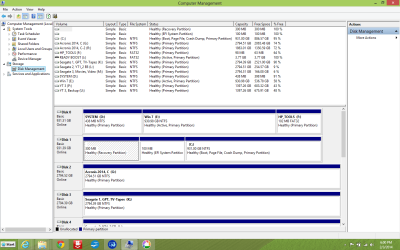
I'm looking in Computer Management / Disk Management from within Windows 8.

Disk 0: SYSTEM D: 438 MB NTFS (lengthened from 199 MB with EaseUS because Acronis 2014 thought it too small while crashing), Healthy (Active, Primary Partition); Win 7 E: 930.98 GB NTFS Healthy (Primary Partition); HP_TOOLS F: 102 MB FAT 32 Healthy (Primary Partition)

Disk 1: 300 MB Healthy (Recovery Partition) {no letter}; 100 MB Healthy (EFI System Partition) {no letter}; C: 931.00 GB NTFS Healthy (Boot, Page File, Crash Dump, Primary Partition)

And several other external disks which don't deserve mention today.
 

My Computer My Computer

At a glance

Windows 7 Professional x648 GB
Computer type
Laptop
Computer Manufacturer/Model Number
HP
OS
Windows 7 Professional x64
Memory
8 GB
Screen Resolution
1024x768 External monitor
Hard Drives
1 TB
Keyboard
External USB
Mouse
Wireless external mouse
Internet Speed
10 Mbps/1 Mbps
Antivirus
Avast! 8
Browser
Chrome
Set the UEFI/BIOS firmware to LEGACY OS boot & Secure Boot DISABLED, see if Windows 7 x64 LEGACY will boot.
 

My Computer My Computer

At a glance

ME/XP/Vista/Win7
OS
ME/XP/Vista/Win7
It was switched to legacy before I tried to install Windows 8, maybe installing Windows 8 switched it to UEFI? I haven't checked yet, that would require a reboot.
 

My Computer My Computer

At a glance

Windows 7 Professional x648 GB
Computer type
Laptop
Computer Manufacturer/Model Number
HP
OS
Windows 7 Professional x64
Memory
8 GB
Screen Resolution
1024x768 External monitor
Hard Drives
1 TB
Keyboard
External USB
Mouse
Wireless external mouse
Internet Speed
10 Mbps/1 Mbps
Antivirus
Avast! 8
Browser
Chrome
Disk 1: 300 MB Healthy (Recovery Partition) {no letter}; 100 MB Healthy (EFI System Partition) {no letter}; C: 931.00 GB NTFS Healthy (Boot, Page File, Crash Dump, Primary Partition)

Windows 8 x64 UEFI, will not boot in legacy mode.

It was switched to legacy before I tried to install Windows 8, maybe installing Windows 8 switched it?
 

My Computer My Computer

At a glance

ME/XP/Vista/Win7
OS
ME/XP/Vista/Win7
It was in Legacy mode like I left it. I even tried a couple boots in UEFI mode and there was little difference except it was quicker to get to the Win 8 lock welcome screen, and it disconnected my external monitor, & external mouse & keyboard until I got past the lock screen, I wasn't paying close enough attention to that feature.

I did see the boot options on my first installation of Win 8 before 8.1 wiped out the entire works.

I know the boot options did work when both drives were MBR, but now with one drive being GPT, that seems to throw a monkey wrench into the dual boot scheme. It wouldn't let me install on an MBR drive a second time even after a wipe, just my luck.
 

My Computer My Computer

At a glance

Windows 7 Professional x648 GB
Computer type
Laptop
Computer Manufacturer/Model Number
HP
OS
Windows 7 Professional x64
Memory
8 GB
Screen Resolution
1024x768 External monitor
Hard Drives
1 TB
Keyboard
External USB
Mouse
Wireless external mouse
Internet Speed
10 Mbps/1 Mbps
Antivirus
Avast! 8
Browser
Chrome
It was not necessary to reinstall Win8 to UEFI BIOS, since you could have kept Win8 UEFI and preserved your boot menu. You can still Clean Install - Windows 8 to UEFI after disabling Legacy and booting the installer as a UEFI device.

Each BIOS is slightly different but to boot both UEFI and LEgacy you need a Legacy or CSM setting Enabled or Both.

Have you tried installing EasyBCD (click Download - no Name or Email required) to Windows 8 to add Win7 to a Dual Boot menu.

Will Win7 boot by triggering its HD with the BIOS Boot Menu key? THis is actually a better way to Dual Boot separate HD OS"s, setting preferred to boot first and then using BBM key to boot the other.

If problems persist post back a screenshot from Win8 of Disk Management - Post a Screen Capture Image
 
I've tried a little bit of bcdedit from the command line following this articleHow to Add OS to Windows Boot Manager | eHow and it did give me back the boot menu for Windows 8/7, but I must have made a mistake because it still won't GO to Windows 7.

I think my mistakes were in Step 4 I referred to device partition=D (which is a small SYSTEM partition), and step 5 couldn't be entered correctly at all. I tried osdevice partition=D: and osdevice partition=E: but I haven't tried osdevice partition=C: yet; but is says osdevice partition=C: in the bootloader anyway for that entry.

Windows 7 shows up in msconfig under Boot, but maybe the pathway is askance.
 

My Computer My Computer

At a glance

Windows 7 Professional x648 GB
Computer type
Laptop
Computer Manufacturer/Model Number
HP
OS
Windows 7 Professional x64
Memory
8 GB
Screen Resolution
1024x768 External monitor
Hard Drives
1 TB
Keyboard
External USB
Mouse
Wireless external mouse
Internet Speed
10 Mbps/1 Mbps
Antivirus
Avast! 8
Browser
Chrome
I would disconnect the Windows 7 HDD when installing Windows 8.1 on the other HDD. Then you get no bootloader conflicts. Switch between the 2 systems with the BIOS boot sequence (F12 or ESC during boot).
 

My Computer My Computer

At a glance

Vista, Windows7, Mint Mate, Zorin, Windows 8from 1.6GHz Duo to i7
Computer Manufacturer/Model Number
HP, Dell, Gateway, Toshiba - 4 laptops and 2 desktops
OS
Vista, Windows7, Mint Mate, Zorin, Windows 8
CPU
from 1.6GHz Duo to i7
Monitor(s) Displays
2x HP w2207
Hard Drives
5x HDD, 7x SSD, 12x Externals
Keyboard
with trackball - no mices
Mouse
Trackball mice
Internet Speed
DSL 6000
Were you going to try the steps I gave you which have worked in countless thousands of cases here?

Install EasyBCD, delete any Win7 listing that was added, then add it again. Reboot.

If that fails post back a Disk Mgmt screenshot screenshot also already requested so we can advise you better.
 
I played around with the EasyBCD program in both Win 8 & Win 7. I did get into Win 7 with the help of the Win 7 Repair Disk, but it didn't work twice in a row, and everything comes to a dead stop trying to get into Win 7. I took photos of a couple error messages. So I'm following up on that by starting to read this article Winload.exe is missing or corrupt - Recover CD does not boot
 

My Computer My Computer

At a glance

Windows 7 Professional x648 GB
Computer type
Laptop
Computer Manufacturer/Model Number
HP
OS
Windows 7 Professional x64
Memory
8 GB
Screen Resolution
1024x768 External monitor
Hard Drives
1 TB
Keyboard
External USB
Mouse
Wireless external mouse
Internet Speed
10 Mbps/1 Mbps
Antivirus
Avast! 8
Browser
Chrome
This thread is about as close to solved as wiping both hard drives, reinstalling both operating systems, and trying my luck getting Acronis to fill in the gap.
 

My Computer My Computer

At a glance

Windows 7 Professional x648 GB
Computer type
Laptop
Computer Manufacturer/Model Number
HP
OS
Windows 7 Professional x64
Memory
8 GB
Screen Resolution
1024x768 External monitor
Hard Drives
1 TB
Keyboard
External USB
Mouse
Wireless external mouse
Internet Speed
10 Mbps/1 Mbps
Antivirus
Avast! 8
Browser
Chrome
Dude, you're not approaching it systematically. When you don't know what's happening, go step-by-step. Follow gregrocker's advice, and I assure you you'll get both operating systems working better than before... Currently you're keeping 2 disks connected, which will definitely cause problems in recovery. The current BEST ways of fixing windows booting issues involve an install disc, and all other hard disks disconnected. If you CAN'T disconnect your hard disk, come back and Greg or I will give you detailed instructions to do it fully manually, whence it doesn't matter what disks are connected.

Also, your profile pic is somewhat annoying, at least to me, and most likely to others. The reason should be apparent to you. Take it as a request to change it to just about anything else.
 

My Computer My Computer

At a glance

Windows 7 Home Premium x64Intel Core 2 Quad Q6600 G0Transcend JM800QLU-2G x 2 (2x2GB)Sapphire Radeon HD6850 1GB
Computer type
PC/Desktop
Computer Manufacturer/Model Number
Custom
OS
Windows 7 Home Premium x64
CPU
Intel Core 2 Quad Q6600 G0
Motherboard
MSI P45 Platinum MS-7512
Memory
Transcend JM800QLU-2G x 2 (2x2GB)
Graphics Card(s)
Sapphire Radeon HD6850 1GB
Hard Drives
Seagate ST3360320AS in Transcend Storejet Ultra35 eSATA
Seagate ST31000524AS
PSU
Corsair GS600
Cooling
Stock
Mouse
Logitech Wired M500 USB
Internet Speed
15Mbps
Antivirus
Microsoft Security Essentials
Browser
Google Chrome
Also, tell us : Do you want both your operating systems to be booting in UEFI from GPT disks? That is also fairly easily done, and it's much less fragile. Will involve a step of converting the GPT disk, slightly risky. Let Greg chime in on the best way to deal with this though, he has lot more experience. Just wanted to know what your preference is..
 

My Computer My Computer

At a glance

Windows 7 Home Premium x64Intel Core 2 Quad Q6600 G0Transcend JM800QLU-2G x 2 (2x2GB)Sapphire Radeon HD6850 1GB
Computer type
PC/Desktop
Computer Manufacturer/Model Number
Custom
OS
Windows 7 Home Premium x64
CPU
Intel Core 2 Quad Q6600 G0
Motherboard
MSI P45 Platinum MS-7512
Memory
Transcend JM800QLU-2G x 2 (2x2GB)
Graphics Card(s)
Sapphire Radeon HD6850 1GB
Hard Drives
Seagate ST3360320AS in Transcend Storejet Ultra35 eSATA
Seagate ST31000524AS
PSU
Corsair GS600
Cooling
Stock
Mouse
Logitech Wired M500 USB
Internet Speed
15Mbps
Antivirus
Microsoft Security Essentials
Browser
Google Chrome
Were you going to try the steps I gave you which have worked in countless thousands of cases here?

Install EasyBCD, delete any Win7 listing that was added, then add it again. Reboot.

If that fails post back a Disk Mgmt screenshot screenshot also already requested so we can advise you better.

EasyBCD will make a dual of Windows 7 Legacy & Windows 8 x64 UEFI.
 

My Computer My Computer

At a glance

ME/XP/Vista/Win7
OS
ME/XP/Vista/Win7
Please folllow the steps given. You came here for our help, we solve problems like this here every day. So why will you not complete the steps I gave you?
 
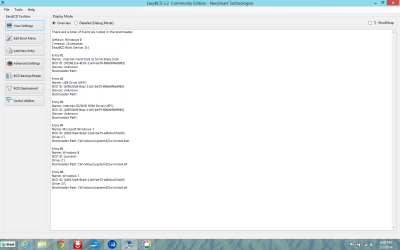
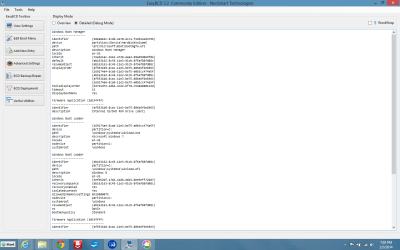
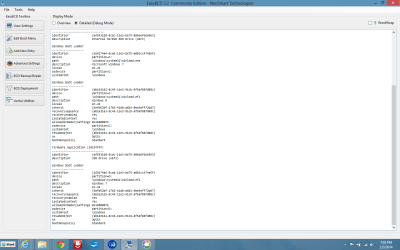
Here's a screen shot of what BCD says right now. I've just spent 2 hours trying to get Picasa on Win 8 to use the Print Screen function, have to use Windows + Print Screen to get this.

When I boot up I get a black screen with white print and 3 choices. Microsoft Windows 7 (which doesn't lead me anywhere, and what was set by me in the BCD program, I should delete the entry), Windows 8 (the default choice and it works), and Windows 7 (which is what I tried to type up in bcdedit to get the Windows 8 boot menu choice back, which it did, but it could not fix & repair the computer enough to boot into Windows 7. So now from this black screen bootup & picking the 3rd choice of, Windows 7, I get an HP logo and a Windows 8 busy signal and a couple screens saying Preparing Automatic Repair, Diagnosing Your PC, Attempting repairs, and Automatic Repair couldn't repair your PC (shutdown, or Advanced Options). Advanced Options are (from a Windows 8 type screen) System Restore, System Image Recovery, Automatic Repair, Command Prompt, UEFI Firmware Settings, Startup Settings.

I went to Command Prompt but that is quite a bit outside my expertise. I can take photos there, but they are still on my camera.
 

Attachments

  • Screenshot (9).png
    Screenshot (9).png
    53.4 KB · Views: 2
  • Screenshot (10).png
    Screenshot (10).png
    48.3 KB · Views: 1
  • Screenshot (11).png
    Screenshot (11).png
    46.8 KB · Views: 1

My Computer My Computer

At a glance

Windows 7 Professional x648 GB
Computer type
Laptop
Computer Manufacturer/Model Number
HP
OS
Windows 7 Professional x64
Memory
8 GB
Screen Resolution
1024x768 External monitor
Hard Drives
1 TB
Keyboard
External USB
Mouse
Wireless external mouse
Internet Speed
10 Mbps/1 Mbps
Antivirus
Avast! 8
Browser
Chrome
Here's a screenshot of Computer Management.

I changed the Active Volume from D: to E: on the Win 7 drive in Command Prompt, it didn't seem to change anything, but I may revert it back later.
 

Attachments

  • Screenshot (1).png
    Screenshot (1).png
    54.9 KB · Views: 6

My Computer My Computer

At a glance

Windows 7 Professional x648 GB
Computer type
Laptop
Computer Manufacturer/Model Number
HP
OS
Windows 7 Professional x64
Memory
8 GB
Screen Resolution
1024x768 External monitor
Hard Drives
1 TB
Keyboard
External USB
Mouse
Wireless external mouse
Internet Speed
10 Mbps/1 Mbps
Antivirus
Avast! 8
Browser
Chrome
Just a random thought..maybe Windows 8 doesn't have permission to use the bcd file on Windows 7? Damn permissions.
 

My Computer My Computer

At a glance

Windows 7 Professional x648 GB
Computer type
Laptop
Computer Manufacturer/Model Number
HP
OS
Windows 7 Professional x64
Memory
8 GB
Screen Resolution
1024x768 External monitor
Hard Drives
1 TB
Keyboard
External USB
Mouse
Wireless external mouse
Internet Speed
10 Mbps/1 Mbps
Antivirus
Avast! 8
Browser
Chrome
To boot Disk 0 Windows 7 Legacy install, set UEFI/BIOS firmware to LEGACY OS mode,

To boot Disk 1 Windows 8 x64 UEFI install , set UEFI/BIOS firmware to UEFI OS mode.

Than boot the HDD you want to boot from the One Boot Time Menu, make sure you change OS mode each time to suit.
 

My Computer My Computer

At a glance

ME/XP/Vista/Win7
OS
ME/XP/Vista/Win7
Back
Top