
How to Turn the Guest Account On or Off in Windows 7
Information
If you want someone to have temporary access to your computer, you can turn on the guest account. A guest account is an account for users who don't have a permanent account on your computer or domain. It allows people to use your computer without having access to your personal files. People using the guest account can't install software or hardware, change settings, or create a password.
The guest account is not available on Windows 7 Starter.
This tutorial will show you how to turn the guest account on or off in Windows 7.
You must be logged in as an administrator to be able to do the steps in this tutorial.
The guest account is not available on Windows 7 Starter.
This tutorial will show you how to turn the guest account on or off in Windows 7.
You must be logged in as an administrator to be able to do the steps in this tutorial.
Warning
Since the guest account allows a user to log on to a network, browse the Internet, and shut down the computer, you should turn off the guest account when it isn't being used.
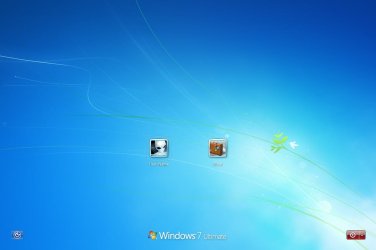
EXAMPLE: Log On Screen with Guest Account Turned On
OPTION ONE
To Turn On or Off Guest Account in User Accounts
1. Open the Control Panel (icons view), and click on the User Accounts icon.
2. Click on the Manage another account link. (see screenshot below)

3. If prompted by UAC, then click on Yes.
4. Click on the listed Guest account, and do step 5 or 6 below for what you would like to do. (see screenshot below)
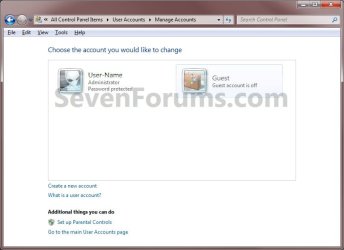
5. To Turn On the Guest Account
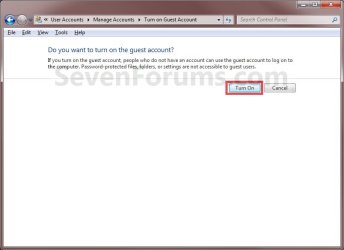
A) Click on the Turn On button. (See screenshot below)
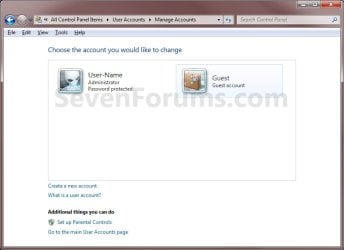
B) The guest account is now turned on. Close the User Accounts window. (See screenshot below)
6. To Turn Off the Guest Account
NOTE: This is the default setting.
A) Click on the Turn off the guest account link. (See screenshot below)
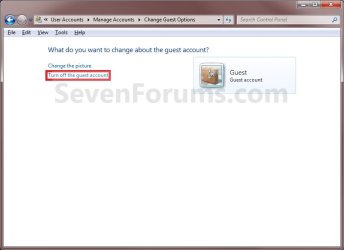
B) The guest account is now turned off. Close the User Accounts window. (See screenshot below)
OPTION TWO
To Turn On or Off Guest Account in Command Prompt
1. Open an elevated command prompt, and do step 5 or 6 below for what you would like to do.
2. To Turn On the Guest Account
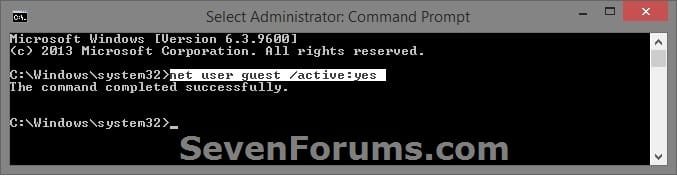
A) In the elevated command prompt, copy and paste the command below, press Enter, and go to step 4 below. (see screenshot below)
NOTE: If you had previously renamed the "Guest" account's name, then you will need to substitute Guest in the command below with the new name instead.
net user Guest /active:yes
3. To Turn Off the Guest Account
NOTE: This is the default setting.
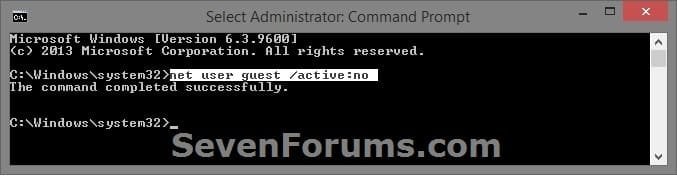
A) In the elevated command prompt, copy and paste the command below, press Enter, and go to step 4 below. (see screenshot below)
NOTE: If you had previously renamed the "Guest" account's name, then you will need to substitute Guest in the command below with the new name instead.
net user Guest /active:no
4. You can now close the elevated command prompt if you like.
That's it,
Shawn
Related Tutorials
- How to Create a Password for a Windows 7 User Account
- How to Enable or Disable the Windows 7 Built-in Administrator Account
- How to Rename the Windows 7 Guest Account
- How to Create a User Account in Windows 7
- How to Delete a User Account in Windows 7
- How to Enable or Disable a User Account in Windows 7
Last edited:


