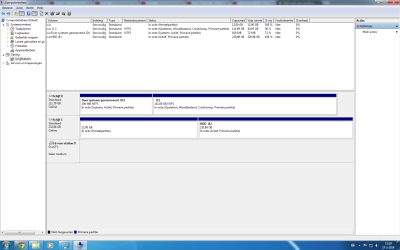
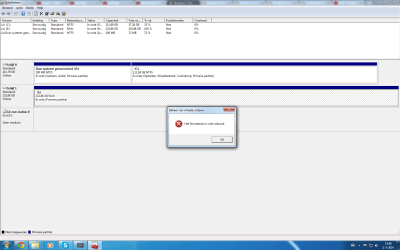
Although it's not typical to have two ACTIVE partitions, this is often what happens when a drive previously used as a boot drive is re-purposed and installed into a new machine as a second "data" drive. This isn't really problematic because the BIOS boot sequence shows the correct #1 drive in the new machine as the one to go to, in order to then find the ACTIVE partition and start the boot process.
The second ACTIVE partition (on the second "data" drive") doesn't participate in this story, so while I agree it's not normal and can't do anything good, it's really benign and harmless.
Of course this will all be moot once the second "data" drive is simply re-formatted as one large partition, which by default will NOT BE MARKED ACTIVE.
More interesting is the fact that the 100MB "system reserved" (ACTIVE partition on drive 0) partition has been given a drive letter of D. Sure, this also is normally benign and harmless, but it's not what Windows would do. The 100MB size says it was produced by a standard Windows install-from-scratch onto an initially completely empty drive (i.e. the new SSD), but it should not have gotten a drive letter of anything. The "system reserved" ACTIVE partition (where Boot Manager is placed) is normally left without a drive letter, to protect against accidental corruption or damage or alteration while running under Windows (booted from C).
So, did you manually assign that drive letter of D? I'm guessing you must have.
And are you sure you're looking at your E partition for "changes" and "data" saved to it, and not by accident actually looking at D??
For security, I would recommend
removing the drive letter of D from the "system reserved" partition. You can also just run DISKMGMT.MSC, right-click on that partition, and choose "change drive letter..." and push the REMOVE button on the dialog.
Also, suggest you install
Partition Wizard as an excellent tool. It is used (with its VERY INTUITIVE GUI presentation) in place of DISKMGMT and DISKPART for most tasks that these two Windows components would also have been used for. But with Partition Wizard it's VERY HARD TO MAKE A MISTAKE, and the operations are GUI-intuitive through its right-click context menus and list of available operations on the left side of the screen.
Also, you create your list of operations (one or more, in sequence) to be performed, and then when you're finally all set you push the APPLY button. Nothing happens until APPLY, and you have UNDO available if you want to make revisions or deletions to your list of operations.
Again, this highly recommended program could handle your desire to just delete the two partitions on the second "data" drive, and create one NTFS partition. It could also remove the drive letter from D.