help creating a Mail Merge address database

Snookie

New member
Member
Local time
4:03 PM
Messages
55
Location
England
I am trying to create a database of addresses that can be used to populate labels created by Word 2007.

This would be so much easier than the method I use at the moment which entails copy and paste over and over again.

Help please ... I see that in Word 2007 > Mailings > Select Recipients > Type New List

OK but how do I save that list in a format that I can edit and access for future labels mailings?

It is saved as an .odc file and that seems to be a blocker as far as Excel 2007 is concerned.

I am at a loss and need help from an expert!

I am using Office Home & Student 2007 with Windows 7
 

My Computer My Computer

OS
Windows 7 Home Premium 32bit
CPU
Intel Core 2 Quad 2.33Ghz x4 1333FSB (Q8200)
Memory
3GB
Graphics Card(s)
PCI Express 1GB NVidia 9600X
Sound Card
Sound Blaster X-Fi Xtreme Audio
Monitor(s) Displays
LG Flatron L1942P
Screen Resolution
1280 x 1024
Hard Drives
500GB S-ATA
Maxtor 200GB External
Western Digital 500GB My Book External
Keyboard
Saitek Eclipse
Mouse
Microsoft Optical Wheel Mouse
Internet Speed
Could be better

My Computer My Computer

Computer type
PC/Desktop
Computer Manufacturer/Model Number
Packard Bell
OS
Windows 7 Home Premium 64bit
CPU
Intel(R) Core(TM) i3-2120 CPU @ 3.30GHz
Motherboard
Packard Bell IPISB-AG
Memory
3.00 GB
Graphics Card(s)
(1) Intel(R) HD Graphics (2) VNC Mirror Driver
Sound Card
Realtek High Definition Audio
Monitor(s) Displays
AIO LCD
Screen Resolution
1920 x 1080
Hard Drives
WDC WD10EADX-22TDHB0 ATA Device
Fixed hard disk media
4 partitions
931.51 GB
Keyboard
Wireless
Mouse
Wireless
Antivirus
Microsoft Security Essentials
Browser
IE; Firefox
Other Info
Also:
Samsung N220 Plus Netbook - Windows 7 Home
HP laptop
iPad 5
Thank you Irene, that is going to require some quiet study :geek: but will hopefully get me sorted.

Appreciated,
Snookie
 

My Computer My Computer

OS
Windows 7 Home Premium 32bit
CPU
Intel Core 2 Quad 2.33Ghz x4 1333FSB (Q8200)
Memory
3GB
Graphics Card(s)
PCI Express 1GB NVidia 9600X
Sound Card
Sound Blaster X-Fi Xtreme Audio
Monitor(s) Displays
LG Flatron L1942P
Screen Resolution
1280 x 1024
Hard Drives
500GB S-ATA
Maxtor 200GB External
Western Digital 500GB My Book External
Keyboard
Saitek Eclipse
Mouse
Microsoft Optical Wheel Mouse
Internet Speed
Could be better
Thank you Irene, that is going to require some quiet study :geek: but will hopefully get me sorted.

Appreciated,
Snookie

Good luck ;)
~ let us know if we can help any further.
 

My Computer My Computer

Computer type
PC/Desktop
Computer Manufacturer/Model Number
Packard Bell
OS
Windows 7 Home Premium 64bit
CPU
Intel(R) Core(TM) i3-2120 CPU @ 3.30GHz
Motherboard
Packard Bell IPISB-AG
Memory
3.00 GB
Graphics Card(s)
(1) Intel(R) HD Graphics (2) VNC Mirror Driver
Sound Card
Realtek High Definition Audio
Monitor(s) Displays
AIO LCD
Screen Resolution
1920 x 1080
Hard Drives
WDC WD10EADX-22TDHB0 ATA Device
Fixed hard disk media
4 partitions
931.51 GB
Keyboard
Wireless
Mouse
Wireless
Antivirus
Microsoft Security Essentials
Browser
IE; Firefox
Other Info
Also:
Samsung N220 Plus Netbook - Windows 7 Home
HP laptop
iPad 5
Got so far but then stuck!

Hi Irene,

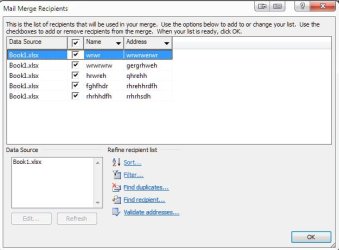
I have created an address database in Excel, which I have saved as an .xlsx file in My Data Sources Folder. This is much easier to update directly through Excel than the recipient list database created within Word itself.

So far so good, my problems start when I try to get the selected Addresses onto a sheet of labels.

This is what I have done , in Word 2007, click Mailings > Start Mail Merge > Labels.
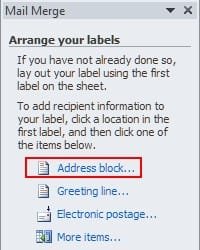
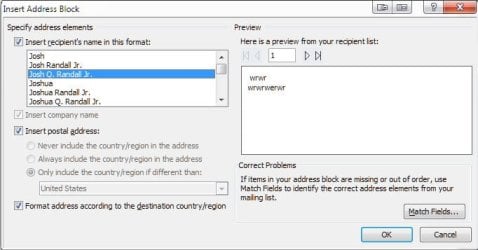
Then Select Recipients > Use Existing List, then click Address Block.

This puts the first name into the first label. Now is there a way that I can get the rest of the addresses into the following labels without inserting them each individually by clicking each label and putting the Address block in manually each time so the label sheet looks like <<Next Record>><<Address Block>>

It seems to be rather hit and miss which address appears on which label when I preview the results so I'm sure I'm doing something wrong somewhere :confused:
 

My Computer My Computer

OS
Windows 7 Home Premium 32bit
CPU
Intel Core 2 Quad 2.33Ghz x4 1333FSB (Q8200)
Memory
3GB
Graphics Card(s)
PCI Express 1GB NVidia 9600X
Sound Card
Sound Blaster X-Fi Xtreme Audio
Monitor(s) Displays
LG Flatron L1942P
Screen Resolution
1280 x 1024
Hard Drives
500GB S-ATA
Maxtor 200GB External
Western Digital 500GB My Book External
Keyboard
Saitek Eclipse
Mouse
Microsoft Optical Wheel Mouse
Internet Speed
Could be better

My Computer My Computer

Computer type
PC/Desktop
Computer Manufacturer/Model Number
Packard Bell
OS
Windows 7 Home Premium 64bit
CPU
Intel(R) Core(TM) i3-2120 CPU @ 3.30GHz
Motherboard
Packard Bell IPISB-AG
Memory
3.00 GB
Graphics Card(s)
(1) Intel(R) HD Graphics (2) VNC Mirror Driver
Sound Card
Realtek High Definition Audio
Monitor(s) Displays
AIO LCD
Screen Resolution
1920 x 1080
Hard Drives
WDC WD10EADX-22TDHB0 ATA Device
Fixed hard disk media
4 partitions
931.51 GB
Keyboard
Wireless
Mouse
Wireless
Antivirus
Microsoft Security Essentials
Browser
IE; Firefox
Other Info
Also:
Samsung N220 Plus Netbook - Windows 7 Home
HP laptop
iPad 5
Oh dear its still not working ....
I need somebody to tell me exactly what to click in Word 2007 ... The Mail Merge Helper seems to confuse matters, I find it easier to click the commands I need directly from the ribbon.

This is what keeps happening whatever I do ..

Once I have set up the Labels, selected the recipients, checked the fields match and click Address Block, it inserts, <<AddressBlock>> to the top left hand label on a page of 14 labels, 13 of which now display <<NextRecord>>.

OK I have selected 30 Addresses in the Database, so I then click Update Labels, strangely this adds ...
<<NextRecord>><<AddressBlock>> only to top right hand label and the bottom two on the page, leaving all the rest with just <<NextRecord>>

Whereas the Knowledgebase article would suggest that the whole page should read
<<NextRecord>><<AddressBlock>> on each label.

When I click Preview Labels, there are only 4 addresses displayed on the page, two at the top and two at the bottom and a Print Preview shows 3 pages with this layout.

HELP!!! What in the name of sanity am I doing wrong??? :picnic: .... my head hurts
 
Last edited:

My Computer My Computer

OS
Windows 7 Home Premium 32bit
CPU
Intel Core 2 Quad 2.33Ghz x4 1333FSB (Q8200)
Memory
3GB
Graphics Card(s)
PCI Express 1GB NVidia 9600X
Sound Card
Sound Blaster X-Fi Xtreme Audio
Monitor(s) Displays
LG Flatron L1942P
Screen Resolution
1280 x 1024
Hard Drives
500GB S-ATA
Maxtor 200GB External
Western Digital 500GB My Book External
Keyboard
Saitek Eclipse
Mouse
Microsoft Optical Wheel Mouse
Internet Speed
Could be better
Have you tried actually printing just the first page on say plain paper, just to see how it looks?
 

My Computer My Computer

Computer type
PC/Desktop
Computer Manufacturer/Model Number
Packard Bell
OS
Windows 7 Home Premium 64bit
CPU
Intel(R) Core(TM) i3-2120 CPU @ 3.30GHz
Motherboard
Packard Bell IPISB-AG
Memory
3.00 GB
Graphics Card(s)
(1) Intel(R) HD Graphics (2) VNC Mirror Driver
Sound Card
Realtek High Definition Audio
Monitor(s) Displays
AIO LCD
Screen Resolution
1920 x 1080
Hard Drives
WDC WD10EADX-22TDHB0 ATA Device
Fixed hard disk media
4 partitions
931.51 GB
Keyboard
Wireless
Mouse
Wireless
Antivirus
Microsoft Security Essentials
Browser
IE; Firefox
Other Info
Also:
Samsung N220 Plus Netbook - Windows 7 Home
HP laptop
iPad 5
Yes, and the plot thickens ... :rolleyes: I have tried twice with differing results.
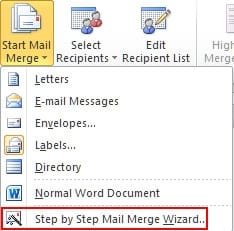
Start Mail Merge
Select Labels
Select Recipients
Edit Recipient List ... to keep it simple I selected 10 addresses
Address Block & check fields matched

Then despite only having 10 addresses selected, when I clicked Update Labels the page looked like this .....

<<AddressBlock>> <<Next Record>><<AddressBlock>>
<<Next Record>> <<Next Record>>
<<Next Record>><<AddressBlock>> <<Next Record>><<AddressBlock>>

Finish and Merge ...

When I actually printed it out I was presented with a page which on the first attempt only displayed the last address in my selection, but at the top left position on the page!!

On the second attempt, having closed Word and starting the whole process over again when I printedit at least gave me the first two addresses in the correct positions at the top of the page, but nothing else .... and it still persists in doing this even if I try Finish & Merge > Edit individual Documents and select From 1 to 10 :picnic: Argh!!!!
 

My Computer My Computer

OS
Windows 7 Home Premium 32bit
CPU
Intel Core 2 Quad 2.33Ghz x4 1333FSB (Q8200)
Memory
3GB
Graphics Card(s)
PCI Express 1GB NVidia 9600X
Sound Card
Sound Blaster X-Fi Xtreme Audio
Monitor(s) Displays
LG Flatron L1942P
Screen Resolution
1280 x 1024
Hard Drives
500GB S-ATA
Maxtor 200GB External
Western Digital 500GB My Book External
Keyboard
Saitek Eclipse
Mouse
Microsoft Optical Wheel Mouse
Internet Speed
Could be better
I'm not sure what you are doing wrong. It appears you have been doing things correctly. Here's how I do it in Word 2010 with an Excel file (don't mind the gobbledygook in the Excel fields, I just made it up for fun - don't forget to have your column headings in the first row of the Excel file):

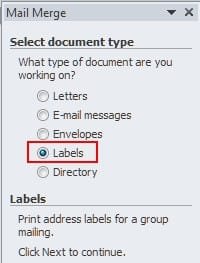
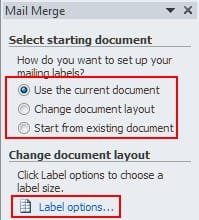
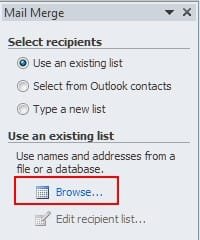
Select "Start Mail Merge" then "Step by Step Mail Merge Wizard". After that, select the document type and then how you want to handle the document (I usually select "Use the current document" or "Change document layout") then select the label type you want to use in "Label options...". After that, browse to your Excel file.

ScreenShot00255.jpg ScreenShot00256.jpg
ScreenShot00257.jpg ScreenShot00258.jpg

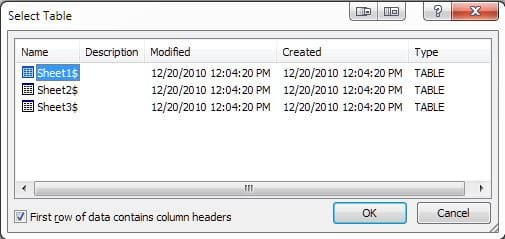
After selecting the Excel file you want, a dialog will pop up allowing you to select the sheet within the Excel file (if you have more than one) and another box will allow you to select the recipients in the list you want to include on the labels:

ScreenShot00264.jpg

ScreenShot00259.jpg

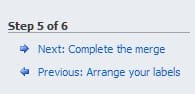
In the next step, select the "Address Block" option, then choose the format you desire. Before moving on, click the "Update all labels" button:

ScreenShot00260.jpg

ScreenShot00261.jpg

ScreenShot00265.jpg

You can then preview your labels and get ready to print:

ScreenShot00262.jpg ScreenShot00263.jpg
 

My Computer My Computer

Computer Manufacturer/Model Number
Toshiba L355D
OS
Windows 7 Ultimate x64 SP1
CPU
Core2 Duo
Motherboard
Intel
Memory
4 GB
Graphics Card(s)
GM965 on-board
Sound Card
RealTek on-board
Monitor(s) Displays
19"+17"(laptop)
Screen Resolution
1440x900 (x 2)
Hard Drives
500GB Ext. 200GB Internal
PSU
N/A
Case
N/A
Cooling
N/A
That is a wonderful visual guide, mikedl. :)
 

My Computer My Computer

Computer type
PC/Desktop
Computer Manufacturer/Model Number
Packard Bell
OS
Windows 7 Home Premium 64bit
CPU
Intel(R) Core(TM) i3-2120 CPU @ 3.30GHz
Motherboard
Packard Bell IPISB-AG
Memory
3.00 GB
Graphics Card(s)
(1) Intel(R) HD Graphics (2) VNC Mirror Driver
Sound Card
Realtek High Definition Audio
Monitor(s) Displays
AIO LCD
Screen Resolution
1920 x 1080
Hard Drives
WDC WD10EADX-22TDHB0 ATA Device
Fixed hard disk media
4 partitions
931.51 GB
Keyboard
Wireless
Mouse
Wireless
Antivirus
Microsoft Security Essentials
Browser
IE; Firefox
Other Info
Also:
Samsung N220 Plus Netbook - Windows 7 Home
HP laptop
iPad 5
Thanks, Irene. :)

I just wish I could figure out why it doesn't seem to be working for Snookie. :o
 

My Computer My Computer

Computer Manufacturer/Model Number
Toshiba L355D
OS
Windows 7 Ultimate x64 SP1
CPU
Core2 Duo
Motherboard
Intel
Memory
4 GB
Graphics Card(s)
GM965 on-board
Sound Card
RealTek on-board
Monitor(s) Displays
19"+17"(laptop)
Screen Resolution
1440x900 (x 2)
Hard Drives
500GB Ext. 200GB Internal
PSU
N/A
Case
N/A
Cooling
N/A
Very kind of you to produce such a helpful visual guide mikedl

I haven followed the Step by Step Mail Merge Wizard to the letter but am only getting two labels printed out at the top of the page, despite being able to click through and view all the 10 addresses selected in the Address Block window (for getting to grips with this)

I just cannot fathom it out. This is driving me NUTS!!!!

The only difference I can see is in the setup of my database, which is an .xlsx
file, it opens with the Sheet number as you have illustrated, the only difference being that (Although I have formatted it as a Letter sized document in landscape) it shows 50 sheet rows in total which gives 19 blank ones in addition to my list of addresses, so I laboriously have to untick them all. Whatever I do the page is set to have 50 sheet Rows!!
 
Last edited:

My Computer My Computer

OS
Windows 7 Home Premium 32bit
CPU
Intel Core 2 Quad 2.33Ghz x4 1333FSB (Q8200)
Memory
3GB
Graphics Card(s)
PCI Express 1GB NVidia 9600X
Sound Card
Sound Blaster X-Fi Xtreme Audio
Monitor(s) Displays
LG Flatron L1942P
Screen Resolution
1280 x 1024
Hard Drives
500GB S-ATA
Maxtor 200GB External
Western Digital 500GB My Book External
Keyboard
Saitek Eclipse
Mouse
Microsoft Optical Wheel Mouse
Internet Speed
Could be better
The problem seems to rest with the Update Labels function, it is not catching the records properly.

I have spent all afternoon trying to get it to work, but failed dismally. In a last resort I did a Google search and it would appear I am not alone, a "fix" is mentioned in the form of a new macro, but I am totally lost on how to do this, so would greatly appreciate help, explaining in simple terms what I do ...

Here is the site :
mail merge label problem word 2007

The same problem as I have is described here also with reference to recording a macro ....
Mail Merge Labels in Word 2007

Reference the Excel .xslx database file, the sortcut has a :lock: on it. Is this normal? I notice a few files have this and wonder what it means as I can edit the file so surely it can't be locked?

Hope you all have a good Christmas and are not snowed in if you are in the UK :grouphug:
 

My Computer My Computer

OS
Windows 7 Home Premium 32bit
CPU
Intel Core 2 Quad 2.33Ghz x4 1333FSB (Q8200)
Memory
3GB
Graphics Card(s)
PCI Express 1GB NVidia 9600X
Sound Card
Sound Blaster X-Fi Xtreme Audio
Monitor(s) Displays
LG Flatron L1942P
Screen Resolution
1280 x 1024
Hard Drives
500GB S-ATA
Maxtor 200GB External
Western Digital 500GB My Book External
Keyboard
Saitek Eclipse
Mouse
Microsoft Optical Wheel Mouse
Internet Speed
Could be better
Hi, Snookie. If you want to try the Macro, open a fresh instance of Word and copy the text below (in the "code" box) but don't paste it anywhere yet.
Code:
Sub MailMergePropagateLabel()

Dim atable As Table
Dim i As Long, j As Long
Dim source As Cell, target As Cell
Dim myrange As Range
Set atable = ActiveDocument.Tables(1)
Set source = atable.Cell(1, 1)
Set myrange = source.Range
myrange.Collapse wdCollapseStart
ActiveDocument.Fields.Add Range:=myrange, Text:="Next"
source.Range.Copy
For j = 2 To atable.Columns.Count
Set target = atable.Cell(1, j)
If target.Range.Fields.Count > 0 Then
target.Range.Paste
End If
Next j
For i = 2 To atable.Rows.Count
For j = 1 To atable.Columns.Count
Set target = atable.Cell(i, j)
If target.Range.Fields.Count > 0 Then
target.Range.Paste
End If
Next j
Next i
atable.Cell(1, 1).Range.Fields(1).Delete


End Sub
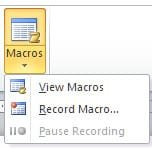
In Word, click the "View" tab then click "Macros" and select "View Macros":

ScreenShot00285.jpg

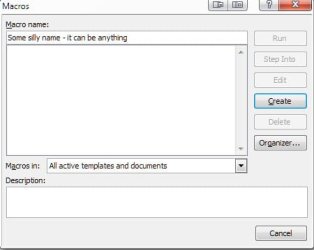
In the next dialog just type anything you want into the "Macro name:" box (it's not important for this exercise but there are some rules about naming Macros so keep the name simple and at only one word) then click the "Create" button:

ScreenShot00286.jpg


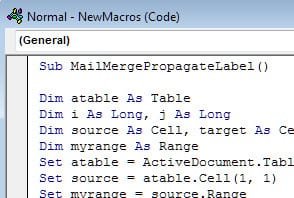
In the editor that pops up, you will see a VBA code window with your made up name and a few other code snippets - delete all of that and paste in the code you copied above:

ScreenShot00287.jpg ScreenShot00288.jpg

Close the VBA editor by clicking the normal close button at the top right of the window (the ubiquitous "x") and if Word asks you if you want to save, click affirmatively (say yes). Close and re-open Word (not really necessary but lets do it anyway), start your merge process and when you reach the step for "Update Labels", click the "Update Labels" button and the Macro should run.

If it doesn't, click the "Macros" button on the "View" ribbon and select "View Macros" as we did above in the first few steps. This time, in the resulting dialog, you will see the name of the Macro you just pasted into the VBA editor. Select it, if it's not already selected, then select "Run" (note: this might not be necessary - just clicking the "Update Labels" button should run this Macro but, just in case, I thought I would include the way to run it manually):

ScreenShot00289.jpg

I hope it works for you, Snookie! :)
 

My Computer My Computer

Computer Manufacturer/Model Number
Toshiba L355D
OS
Windows 7 Ultimate x64 SP1
CPU
Core2 Duo
Motherboard
Intel
Memory
4 GB
Graphics Card(s)
GM965 on-board
Sound Card
RealTek on-board
Monitor(s) Displays
19"+17"(laptop)
Screen Resolution
1440x900 (x 2)
Hard Drives
500GB Ext. 200GB Internal
PSU
N/A
Case
N/A
Cooling
N/A
:thumbsup: IT WORKED!!!!

Thank you so much for explaining what I should do so clearly.

Have a great Christmas,
Snookie
 

My Computer My Computer

OS
Windows 7 Home Premium 32bit
CPU
Intel Core 2 Quad 2.33Ghz x4 1333FSB (Q8200)
Memory
3GB
Graphics Card(s)
PCI Express 1GB NVidia 9600X
Sound Card
Sound Blaster X-Fi Xtreme Audio
Monitor(s) Displays
LG Flatron L1942P
Screen Resolution
1280 x 1024
Hard Drives
500GB S-ATA
Maxtor 200GB External
Western Digital 500GB My Book External
Keyboard
Saitek Eclipse
Mouse
Microsoft Optical Wheel Mouse
Internet Speed
Could be better
:thumbsup: IT WORKED!!!!

Thank you so much for explaining what I should do so clearly.

Have a great Christmas,
Snookie
:dinesh: :dinesh:

(I knew the dinesh emoticon would be useful one day ;) )

Wonderful, Snookie! Seriously, you did most of the work. I just helped a bit. :)

I hope you have a blessed and joyous Christmas, as well, Snookie. :D
 

My Computer My Computer

Computer Manufacturer/Model Number
Toshiba L355D
OS
Windows 7 Ultimate x64 SP1
CPU
Core2 Duo
Motherboard
Intel
Memory
4 GB
Graphics Card(s)
GM965 on-board
Sound Card
RealTek on-board
Monitor(s) Displays
19"+17"(laptop)
Screen Resolution
1440x900 (x 2)
Hard Drives
500GB Ext. 200GB Internal
PSU
N/A
Case
N/A
Cooling
N/A
you helped a lot, Macros are a complete mystery to me.

Love the :dinesh: ....... that's just how I felt when it worked!!
 

My Computer My Computer

OS
Windows 7 Home Premium 32bit
CPU
Intel Core 2 Quad 2.33Ghz x4 1333FSB (Q8200)
Memory
3GB
Graphics Card(s)
PCI Express 1GB NVidia 9600X
Sound Card
Sound Blaster X-Fi Xtreme Audio
Monitor(s) Displays
LG Flatron L1942P
Screen Resolution
1280 x 1024
Hard Drives
500GB S-ATA
Maxtor 200GB External
Western Digital 500GB My Book External
Keyboard
Saitek Eclipse
Mouse
Microsoft Optical Wheel Mouse
Internet Speed
Could be better
Back
Top