
sniff2hack
New member
- Local time
- 12:29 PM
- Messages
- 1
Hello everyone,
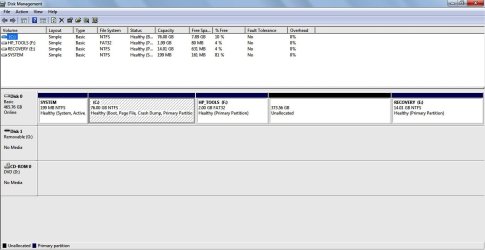
My sister recently bought a HP Laptop.I am just an average user.So without much knowledge I messed up the partitions.I'm attaching a screenshot to show the condition.Now I want to recover the unallocated space either by combining it to C drive or by making it a separate drive (I prefer combing to C).
Now I've searched every forum and gone through every video on youtube but haven't found a solution.Everyone is suggesting that I should delete recovery drive in order to utilize the unallocated space.The thing is I cannot delete it because my sister is already pissed and then things will get worse.
For those who say not possible, I personally believe that in this era where there are so many computer experts out there, someone might have the solution that I'm looking for.
I just want to utilize the unallocated space(preferably combine with C), without deleting anything or any drives... PLEASEEEEEEEEEEEE HELP ME
My sister recently bought a HP Laptop.I am just an average user.So without much knowledge I messed up the partitions.I'm attaching a screenshot to show the condition.Now I want to recover the unallocated space either by combining it to C drive or by making it a separate drive (I prefer combing to C).
Now I've searched every forum and gone through every video on youtube but haven't found a solution.Everyone is suggesting that I should delete recovery drive in order to utilize the unallocated space.The thing is I cannot delete it because my sister is already pissed and then things will get worse.
For those who say not possible, I personally believe that in this era where there are so many computer experts out there, someone might have the solution that I'm looking for.
I just want to utilize the unallocated space(preferably combine with C), without deleting anything or any drives... PLEASEEEEEEEEEEEE HELP ME
Attachments
My Computer
At a glance
windows 7 home basic 64bit
- Computer type
- Laptop
- Computer Manufacturer/Model Number
- HP
- OS
- windows 7 home basic 64bit


