
Hibernate - Enable or Disable

How to Enable or Disable Hibernate in Windows 7 and Windows 8


   Information
Hibernation is a power-saving state designed primarily for laptops. While sleep puts your work and settings in memory and draws a small amount of power, hibernation puts your open documents and programs on your hard disk, and then turns off your computer. Of all the power-saving states in Windows, hibernation uses the least amount of power. On a laptop, use hibernation when you know that you won't use your laptop for an extended period and won't have an opportunity to charge the battery during that time.

This tutorial will show you how to enable or disable hibernate and restore or delete the hiberfil.sys file in Windows 7 and Windows 8.

When hibernate is disabled, the Hibernate option is missing from the Start Menu (Windows 7 only), Shut Down Windows dialog, Power menu (Windows 8 only) and the Advanced Power Plan Options.

You must be logged in as an administrator to be able to do the steps in this tutorial.

   Note

  • By default, the size of the hidden protected OS hibernation file (C:\hiberfil.sys) is 75% of the total amount of installed RAM on your computer.
  • In Windows 7, you can set your computer to either use or not use the Hybrid or Hibernate sleep mode option from the Advanced Power Plan Options.
  • In Windows 7, you will only see Hibernate listed in the Start Menu power button arrow menu if you have Hybrid turned off in the Advanced Power Plan Options.
  • Windows 8/8.1 PCs with InstantGo don't have the hibernate option
  • If you disable hibernate in Windows 8 and 8.1, then it will also disable fast startup.

:note: For Windows 10 instructions please see the following link - Hibernate - Enable or Disable in Windows 10 - Windows 10 Tutorials

CONTENTS:
  • Option One: Enable or Disable Hibernate in Elevated Command Prompt
  • Option Two: Enable or Disable Hibernate using a REG File Download
  • Option Three: Enable or Disable Hibernate in Registry Editor
  • Option Four: To Turn On or Off Hibernate in Advanced Power Options


OPTION ONE

Enable or Disable Hibernate in Elevated Command Prompt


1. Open an elevated command prompt.

2. Do step 3 or step 4 below for what you would like to do.

3. To Enable Hibernate
NOTE: This step will restore the hiberfil.sys file, and the Allow hybrid sleep and Hibernate after Power Options under Sleep.
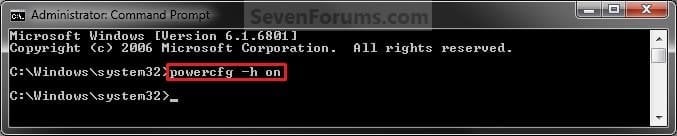
A) In the elevated command prompt, copy and paste the command below, and press Enter. (see screenshot below)
powercfg -h on

Enable.jpg
C) If you would also like to have hibernate turned on, then you will also need do to step 2 in OPTION FOUR below.

D) If you like, you may also wish to add or remove Hibernate from power menus.

E) Go to step 5 below.
4. To Disable Hibernate
NOTE: This step will disable hibernation, delete the hiberfil.sys file, and remove the Allow hybrid sleep and Hibernate after Power Options under Sleep. This will also disable fast startup in Windows 8.
A)In the elevated command prompt, copy and paste the command below, and press Enter. (see screenshot below)
powercfg -h off


Disable.jpg
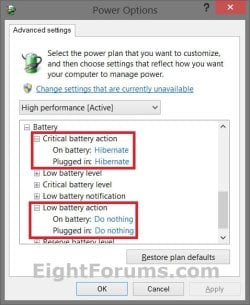
B) Check your Power Options to make sure that the Critical battery action and Low battery action settings under Battery are not set to Hibernate, and go to step 5 below. (see screenshot below)
Battery_Power_Options.jpg
5. You can now close the elevated command prompt if you like.


OPTION TWO

Enable or Disable Hibernate using a REG File Download


1. To Enable Hibernate
NOTE: This step will restore the hiberfil.sys file, and the Allow hybrid sleep and Hibernate after Power Options under Sleep.
A) Click/tap on the Download button below to download the file below, and go to step 3 below.
Enable_Hibernate.reg


Download


2. To Disable Hibernate
NOTE: This step will disable hibernation, delete the hiberfil.sys file, and remove the Allow hybrid sleep and Hibernate after Power Options under Sleep. This will also disable fast startup in Windows 8.
A) Check your Power Options to make sure that the Critical battery action and Low battery action settings under Battery are not set to Hibernate. (see screenshot below)
Battery_Power_Options.jpg
B) Click/tap on the Download button below to download the file below, and go to step 3 below.
Disable_Hibernate.reg

Download


3. Save the .reg file to your desktop.

4. Double click/tap on the downloaded .reg file to merge it.

5. Click/tap on Run, Yes (UAC), Yes, and OK when prompted to approve the merge.

6. Restart the computer to apply the changes.

7. If you would also like to have hibernate turned on, then you will also need do to step 2 in OPTION FOUR below.

8. If you like, you may also wish to add or remove Hibernate from power menus.

9. When finished, you can delete the downloaded .reg file if you like.


OPTION THREE

Enable or Disable Hibernate in Registry Editor


1. Press the Windows + R keys to open the Run dialog, type regedit, and click/tap on OK.

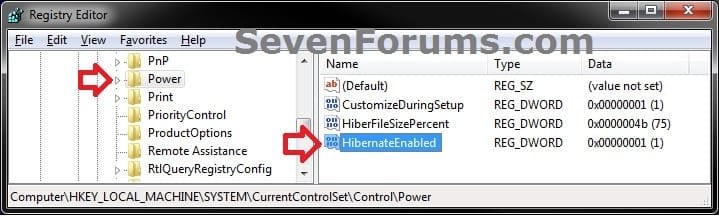
2. In regedit, navigate to the location below. (see screenshot below)
HKEY_LOCAL_MACHINE\SYSTEM\CurrentControlSet\Control\Power
REG-1.jpg
3. In the right pane of the Power key, double click/tap on HibernateEnabled, and do step 4 or 5 below for what you would like to do. (see screenshot above)

4. To Enable Hibernate
NOTE: This step will restore the hiberfil.sys file, and the Allow hybrid sleep and Hibernate after Power Options under Sleep.
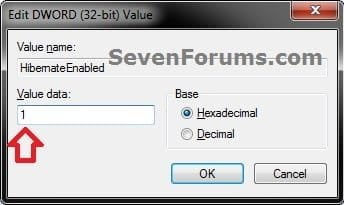
A) Type in 1, click/tap on OK, and go to step 6 below. (see screenshot below)
REG-2.jpg
5. To Disable Hibernate
NOTE: This step will disable hibernation, delete the hiberfil.sys file, and remove the Allow hybrid sleep and Hibernate after Power Options under Sleep. This will also disable fast startup in Windows 8.
A) Type in 0 (zero), and click/tap on OK. (see screenshot above)

B) Check your Power Options to make sure that the Critical battery action and Low battery action settings under Battery are not set to Hibernate, and go to step 6 below. (see screenshot below)
Battery_Power_Options.jpg
6. Close regedit, and restart the computer to apply the changes.

7. If you would also like to have hibernate turned on, then you will also need do to step 2 in OPTION FOUR below.

8. If you like, you may also wish to add or remove Hibernate from power menus.


OPTION FOUR

To Turn Hibernate On or Off in Advanced Power Options


NOTE: This option does not disable hibernate, but only turns it on or off for your power plan.
1. Do either step 2 or step 3 below for what you would like to do.

2. To Turn On Hibernate
NOTE: You could also use a hibernate shortcut to manually put the computer into hibernation instead or in addition to this option.
A) If you have not already, then you will need to enable hibernate using either OPTION ONE, OPTION TWO, or OPTION THREE above first.

B) Open the Advanced Power Plan Settings for your power plan, then expand Sleep. (see screenshot below step 4)

C) Under Hibernate after, set the Setting (Minutes) to how many minutes you want your computer to sit idle for before it goes into hibernation. (see screenshot step 4)

D) Go to step 4.
3. To Turn Off Hibernate
NOTE: If you disabled hibernate using OPTION 1, 2, or 3 above, then there's no need to do this since Hibernate after and Allow hybrid sleep will no longer be listed in your power options.
A) Open the Advanced Power Plan Settings for your power plan, and expand Sleep. (see screenshot below step 4)
B) Under Hibernate after, set the Setting (Minutes) to Never. (see screenshot below step 4)

C) Under Allow hybrid sleep, set Setting to Off. (see screenshot below step 4)

D) Go to step 4.
4. When finished, click/tap on OK. (see screenshot below)
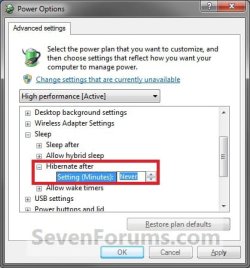
Power_Options.jpg
That's it,
Shawn


Attachments

Last edited:
Joeb....you won't have "Hibernate" as an option listed on your Shutdown button unless in the Power Plan properties you have the "Allow Hybrid Sleep" setting to "Off". When "Hybrid Sleep" is enabled, if the machine goes to "Sleep/Suspend", it will save the computers state to memory like "Hibernate", but is still in the low power mode of "Sleep/Suspend", so in the event of a power outage the computer will still be able to recover to it's former state. Disabling "Hybrid Sleep" will allow you to have both "Sleep/Suspend" and "Hibernate" as separate properties on your shutdown button.

Where is this "Hybrid Sleep" options? Under "advanced setting" in power options, I only have a "Sleep" category and not a "Hibernate" top level category. Hibernate appears to be enabled as I have Hiberfil.sys file, hibernate options in the advanced power options, and it's also in my Shutdown menu.

Why would I not have this in my advanced power options?

Windows 7 Ultimate, final build ( I don't see a build number in System Properties )
 

My Computer

Computer Manufacturer/Model Number
EEE PC 1015PN
OS
Windows 7 Ultimate
CPU
Intel Atom 1.5 GHz
Motherboard
Integrated
Memory
2GB Corsair DDR3
Graphics Card(s)
GMA350/Invidia Ion
Sound Card
Integrated
Monitor(s) Displays
LCD Screen
Screen Resolution
1024x600
Hard Drives
Seagate 500GB SATA3
PSU
Integrated
Case
Integrated
Cooling
Integrated Fan
Keyboard
Integrated
Mouse
Microsoft USB Optical for Notebooks
Internet Speed
Fiber
Hello Jagooch,

If you have the "Hibernate" option like in the screenshots under step 2A (Option One) or step 1 (Option Three) in the tutorial, then that is how it's suppose to be.

If not, then please post a screenshot showing what you have, and we'll be happy to try and help. :)

Hope this helps,
Shawn
 

My Computer

Computer type
PC/Desktop
Computer Manufacturer/Model Number
Self built custom
OS
64-bit Windows 11 Pro for Workstations
CPU
Intel i7-8700K OC'd to 5 GHz
Motherboard
ASUS ROG Maximus XI Formula Z390
Memory
64 GB (4x16GB) G.SKILL TridentZ RGB DDR4 3600 MHz
Graphics Card(s)
ASUS ROG-STRIX-GTX1080TI-O11G-GAMING
Sound Card
Integrated
Monitor(s) Displays
2 x Samsung Odyssey G7 27"
Screen Resolution
2560x1440
Hard Drives
1TB Samsung 990 PRO M.2,
4TB Samsung 990 PRO PRO M.2,
TerraMaster F8 SSD Plus NAS
PSU
Seasonic Prime Titanium 850W
Case
Thermaltake Core P3
Cooling
Corsair Hydro H115i
Keyboard
Logitech wireless K800
Mouse
Logitech MX Master 4
Internet Speed
2 Gb/s Download and 100 Mb/s Upload
Antivirus
Malwarebyte Anti-Malware Premium
Browser
Google Chrome
Other Info
Logitech Z625 speaker system,
Logitech BRIO 4K Pro webcam,
HP Color LaserJet Pro MFP M477fdn,
APC SMART-UPS RT 1000 XL - SURT1000XLI,
Galaxy S23 Plus phone
Hi Shawn, Hope things are all good mate great tut by the way just red thru all 7 pages here. Just want to check 1 thing with you tho, i never use hibernation but i would like to use the sleep function would i be better off just disabling hibernation from the advanced power options? as im guessing if i delete it via the command prompt as in the tut will that also delete the sleep function?

dont mean to sound silly

thanks matey
 

My Computer

OS
Windows 7 64bit
CPU
Phenom IIx4 955 Black Edition
Memory
4GB Kingston 1066mhz DDR2
Graphics Card(s)
Gigabyte 260GTX
Monitor(s) Displays
Samsung syncmaster 2033
Hard Drives
500GB Samsung ATA
500GB Segate ATA
PSU
Antec True blue 750W Modular
Case
Antec 1200
Cooling
Prolimatech Megahalems Performance CPU Cooler/2x Apache Fan
Hello Craney,

Not a silly question at all. :)

Sleep will not be affected by disabling hibernation. I had disabled hibernation to save HDD space since I only use sleep mode.

Hope this helps,
Shawn
 

My Computer

Computer type
PC/Desktop
Computer Manufacturer/Model Number
Self built custom
OS
64-bit Windows 11 Pro for Workstations
CPU
Intel i7-8700K OC'd to 5 GHz
Motherboard
ASUS ROG Maximus XI Formula Z390
Memory
64 GB (4x16GB) G.SKILL TridentZ RGB DDR4 3600 MHz
Graphics Card(s)
ASUS ROG-STRIX-GTX1080TI-O11G-GAMING
Sound Card
Integrated
Monitor(s) Displays
2 x Samsung Odyssey G7 27"
Screen Resolution
2560x1440
Hard Drives
1TB Samsung 990 PRO M.2,
4TB Samsung 990 PRO PRO M.2,
TerraMaster F8 SSD Plus NAS
PSU
Seasonic Prime Titanium 850W
Case
Thermaltake Core P3
Cooling
Corsair Hydro H115i
Keyboard
Logitech wireless K800
Mouse
Logitech MX Master 4
Internet Speed
2 Gb/s Download and 100 Mb/s Upload
Antivirus
Malwarebyte Anti-Malware Premium
Browser
Google Chrome
Other Info
Logitech Z625 speaker system,
Logitech BRIO 4K Pro webcam,
HP Color LaserJet Pro MFP M477fdn,
APC SMART-UPS RT 1000 XL - SURT1000XLI,
Galaxy S23 Plus phone
Thanks shawn for the quick responce, would i be best to delete it via the command prompt to make sure the files are no longer on my system and i never plan to use hibernation.

Thanks again mate really grateful for your advice
 

My Computer

OS
Windows 7 64bit
CPU
Phenom IIx4 955 Black Edition
Memory
4GB Kingston 1066mhz DDR2
Graphics Card(s)
Gigabyte 260GTX
Monitor(s) Displays
Samsung syncmaster 2033
Hard Drives
500GB Samsung ATA
500GB Segate ATA
PSU
Antec True blue 750W Modular
Case
Antec 1200
Cooling
Prolimatech Megahalems Performance CPU Cooler/2x Apache Fan
You're most welcome.

Yeah, Option Two would be best for you to disable hibernate and delete the file to save space. You can always do Option One later if you should decide to use hibernate in the future. :)
 

My Computer

Computer type
PC/Desktop
Computer Manufacturer/Model Number
Self built custom
OS
64-bit Windows 11 Pro for Workstations
CPU
Intel i7-8700K OC'd to 5 GHz
Motherboard
ASUS ROG Maximus XI Formula Z390
Memory
64 GB (4x16GB) G.SKILL TridentZ RGB DDR4 3600 MHz
Graphics Card(s)
ASUS ROG-STRIX-GTX1080TI-O11G-GAMING
Sound Card
Integrated
Monitor(s) Displays
2 x Samsung Odyssey G7 27"
Screen Resolution
2560x1440
Hard Drives
1TB Samsung 990 PRO M.2,
4TB Samsung 990 PRO PRO M.2,
TerraMaster F8 SSD Plus NAS
PSU
Seasonic Prime Titanium 850W
Case
Thermaltake Core P3
Cooling
Corsair Hydro H115i
Keyboard
Logitech wireless K800
Mouse
Logitech MX Master 4
Internet Speed
2 Gb/s Download and 100 Mb/s Upload
Antivirus
Malwarebyte Anti-Malware Premium
Browser
Google Chrome
Other Info
Logitech Z625 speaker system,
Logitech BRIO 4K Pro webcam,
HP Color LaserJet Pro MFP M477fdn,
APC SMART-UPS RT 1000 XL - SURT1000XLI,
Galaxy S23 Plus phone
hi
i have a very big problem with my windows 7 in hibernating
my laptop must be active until 7 am
but it does automatically hibernate at 6:...(not a regular time)
i did whatever you told in the first post(my hibernate in power option windows is never)
but it didn't work
can you suggest anything else to me for solving this problem?
thanks alot
 

My Computer

OS
32 bit-ultimate windows7
Hello Malakeh,

You might double check all the other power plan settings (ex: "Power buttons and lid" and "Battery") to see if one them may be set to hibernate.

Hope this helps,
Shawn
 

My Computer

Computer type
PC/Desktop
Computer Manufacturer/Model Number
Self built custom
OS
64-bit Windows 11 Pro for Workstations
CPU
Intel i7-8700K OC'd to 5 GHz
Motherboard
ASUS ROG Maximus XI Formula Z390
Memory
64 GB (4x16GB) G.SKILL TridentZ RGB DDR4 3600 MHz
Graphics Card(s)
ASUS ROG-STRIX-GTX1080TI-O11G-GAMING
Sound Card
Integrated
Monitor(s) Displays
2 x Samsung Odyssey G7 27"
Screen Resolution
2560x1440
Hard Drives
1TB Samsung 990 PRO M.2,
4TB Samsung 990 PRO PRO M.2,
TerraMaster F8 SSD Plus NAS
PSU
Seasonic Prime Titanium 850W
Case
Thermaltake Core P3
Cooling
Corsair Hydro H115i
Keyboard
Logitech wireless K800
Mouse
Logitech MX Master 4
Internet Speed
2 Gb/s Download and 100 Mb/s Upload
Antivirus
Malwarebyte Anti-Malware Premium
Browser
Google Chrome
Other Info
Logitech Z625 speaker system,
Logitech BRIO 4K Pro webcam,
HP Color LaserJet Pro MFP M477fdn,
APC SMART-UPS RT 1000 XL - SURT1000XLI,
Galaxy S23 Plus phone
Thanks

I stumbled across your forums accidentally. So glad I did!:geek: I just had to reinstall Win7(could've done a repair if I'd found you earlier) and found I had over 24GB of used space on a clean machine. Getting rid of hiberfil helped out some, but still have some crap somewhere.
 
Last edited:

My Computer

Computer type
PC/Desktop
Computer Manufacturer/Model Number
Home Built Desktop By DataTech
OS
Windows 7 Ultimate X64 SP1
CPU
Intel i5-2550K, Differing ~4.4-4.8GHz No built in GPU
Motherboard
ASUS P8Z68-V PRO/GEN3
Memory
16GB G.Skill Sniper 1866MHz @ 2133MHz 2x8GB
Graphics Card(s)
ASUS GTX650TIB-DC2OC-2GD5, (650TI Boost)
Sound Card
Onboard Realtek 5-1
Monitor(s) Displays
Samsung P2570HD
Screen Resolution
1920x1080
Hard Drives
Samsung 840 Pro 256GB SSD for OS, 500GB Seagate Constellation (Enterprise drive) for Data
PSU
Corsair HX650W
Case
Inwin Dragon Rider
Cooling
Hyper 212 EVO w/two Noctua fans, push-pull, @1300 RPM
Keyboard
E-Z Eyes, bright yellow keys with large characters
Mouse
steelseries SENSEI Laser Pro Gaming
Internet Speed
48-51Mbs Mbs down, 11 Mbs up Xfinity Cable
Antivirus
Norton Internet Security 2013
Browser
IE 10, Opera, Pale Moon if needed
Other Info
4 case fans, LG BluRay-RE, ASUS DVD-RW, Mr. Fusion power supply, 1.21 gigawatts.
Your'e most welcome Britton, and welcome to Seven Forums. :)
 

My Computer

Computer type
PC/Desktop
Computer Manufacturer/Model Number
Self built custom
OS
64-bit Windows 11 Pro for Workstations
CPU
Intel i7-8700K OC'd to 5 GHz
Motherboard
ASUS ROG Maximus XI Formula Z390
Memory
64 GB (4x16GB) G.SKILL TridentZ RGB DDR4 3600 MHz
Graphics Card(s)
ASUS ROG-STRIX-GTX1080TI-O11G-GAMING
Sound Card
Integrated
Monitor(s) Displays
2 x Samsung Odyssey G7 27"
Screen Resolution
2560x1440
Hard Drives
1TB Samsung 990 PRO M.2,
4TB Samsung 990 PRO PRO M.2,
TerraMaster F8 SSD Plus NAS
PSU
Seasonic Prime Titanium 850W
Case
Thermaltake Core P3
Cooling
Corsair Hydro H115i
Keyboard
Logitech wireless K800
Mouse
Logitech MX Master 4
Internet Speed
2 Gb/s Download and 100 Mb/s Upload
Antivirus
Malwarebyte Anti-Malware Premium
Browser
Google Chrome
Other Info
Logitech Z625 speaker system,
Logitech BRIO 4K Pro webcam,
HP Color LaserJet Pro MFP M477fdn,
APC SMART-UPS RT 1000 XL - SURT1000XLI,
Galaxy S23 Plus phone
Hello,

Nice tutorial, however i miss one thing and i wonder: does turning off "hybrid sleep" affect power consumption anyhow ? I mean if PC is in sleep mode, does it need more or less power with "hybrid sleep" option off, or it doesn't matter?

If anyone have any clue on this please drop a post.

Because if it doesn't matters i'm going to get rid of hibernation file.
 

My Computer

OS
Win 7 Pro x64
Hello Exiled, and welcome to Seven Forums.

Hybrid allows you to have use both "Sleep" and "Hibernate" together. You could set your computer to say sleep in 10 minutes, then hibernate in 15 minutes. This is really useful for laptops to save power comsumption.

Hope this helps,
Shawn
 

My Computer

Computer type
PC/Desktop
Computer Manufacturer/Model Number
Self built custom
OS
64-bit Windows 11 Pro for Workstations
CPU
Intel i7-8700K OC'd to 5 GHz
Motherboard
ASUS ROG Maximus XI Formula Z390
Memory
64 GB (4x16GB) G.SKILL TridentZ RGB DDR4 3600 MHz
Graphics Card(s)
ASUS ROG-STRIX-GTX1080TI-O11G-GAMING
Sound Card
Integrated
Monitor(s) Displays
2 x Samsung Odyssey G7 27"
Screen Resolution
2560x1440
Hard Drives
1TB Samsung 990 PRO M.2,
4TB Samsung 990 PRO PRO M.2,
TerraMaster F8 SSD Plus NAS
PSU
Seasonic Prime Titanium 850W
Case
Thermaltake Core P3
Cooling
Corsair Hydro H115i
Keyboard
Logitech wireless K800
Mouse
Logitech MX Master 4
Internet Speed
2 Gb/s Download and 100 Mb/s Upload
Antivirus
Malwarebyte Anti-Malware Premium
Browser
Google Chrome
Other Info
Logitech Z625 speaker system,
Logitech BRIO 4K Pro webcam,
HP Color LaserJet Pro MFP M477fdn,
APC SMART-UPS RT 1000 XL - SURT1000XLI,
Galaxy S23 Plus phone
So do i get it right?
You first have to set up the minutes number for sleep in power management options, then same for hibernate, and when PC is in sleep mode, count down for hibernate starts?
It confuses me a bit when you speak about 10min sleep and 15min hibernate. Does it mean after 10 minutes of user being inactive with mice or keyboard computer goes to sleep, and then after 5 minutes (15 for hibernate minus 10 for sleep) or after 25 minutes (15 for hibernate plus 10 for sleep) hibernates ?

Thanks for your answer. :)
 

My Computer

OS
Win 7 Pro x64
Does it mean after 10 minutes of user being inactive with mice or keyboard computer goes to sleep, and then after 5 minutes (15 for hibernate minus 10 for sleep) or after 25 minutes (15 for hibernate plus 10 for sleep) hibernates ?

Yep, you have it right. :)
 

My Computer

Computer type
PC/Desktop
Computer Manufacturer/Model Number
Self built custom
OS
64-bit Windows 11 Pro for Workstations
CPU
Intel i7-8700K OC'd to 5 GHz
Motherboard
ASUS ROG Maximus XI Formula Z390
Memory
64 GB (4x16GB) G.SKILL TridentZ RGB DDR4 3600 MHz
Graphics Card(s)
ASUS ROG-STRIX-GTX1080TI-O11G-GAMING
Sound Card
Integrated
Monitor(s) Displays
2 x Samsung Odyssey G7 27"
Screen Resolution
2560x1440
Hard Drives
1TB Samsung 990 PRO M.2,
4TB Samsung 990 PRO PRO M.2,
TerraMaster F8 SSD Plus NAS
PSU
Seasonic Prime Titanium 850W
Case
Thermaltake Core P3
Cooling
Corsair Hydro H115i
Keyboard
Logitech wireless K800
Mouse
Logitech MX Master 4
Internet Speed
2 Gb/s Download and 100 Mb/s Upload
Antivirus
Malwarebyte Anti-Malware Premium
Browser
Google Chrome
Other Info
Logitech Z625 speaker system,
Logitech BRIO 4K Pro webcam,
HP Color LaserJet Pro MFP M477fdn,
APC SMART-UPS RT 1000 XL - SURT1000XLI,
Galaxy S23 Plus phone
You're most welcome Gamindaishara, and welcome to Seven Forums. :)
 

My Computer

Computer type
PC/Desktop
Computer Manufacturer/Model Number
Self built custom
OS
64-bit Windows 11 Pro for Workstations
CPU
Intel i7-8700K OC'd to 5 GHz
Motherboard
ASUS ROG Maximus XI Formula Z390
Memory
64 GB (4x16GB) G.SKILL TridentZ RGB DDR4 3600 MHz
Graphics Card(s)
ASUS ROG-STRIX-GTX1080TI-O11G-GAMING
Sound Card
Integrated
Monitor(s) Displays
2 x Samsung Odyssey G7 27"
Screen Resolution
2560x1440
Hard Drives
1TB Samsung 990 PRO M.2,
4TB Samsung 990 PRO PRO M.2,
TerraMaster F8 SSD Plus NAS
PSU
Seasonic Prime Titanium 850W
Case
Thermaltake Core P3
Cooling
Corsair Hydro H115i
Keyboard
Logitech wireless K800
Mouse
Logitech MX Master 4
Internet Speed
2 Gb/s Download and 100 Mb/s Upload
Antivirus
Malwarebyte Anti-Malware Premium
Browser
Google Chrome
Other Info
Logitech Z625 speaker system,
Logitech BRIO 4K Pro webcam,
HP Color LaserJet Pro MFP M477fdn,
APC SMART-UPS RT 1000 XL - SURT1000XLI,
Galaxy S23 Plus phone
Hibernation Does Not Work Win7HomePremium

I used CMD Run as Administrator > powercfg.exe /hibernate on or powercfg /hibernate on

This did not work.

I found Enable hibernation on Windows and downloaded Microsoft Fix it 50462
How to disable and re-enable hibernation on a computer that is running Windows

This did not work.

I searched all of Windows 7 folder for the file hiberfil.sys File Not Found

I run Windows XP Pro (sp3), Vista (sp1), Windows 7 Pro and Hibernation Works. Not with Windows 7 Home Premium and if I put Home Premium in sleep mode and bring out of sleep, I am not connected to the Internet (Cable Modem) which as far as I can tell, Network & Sharing does not have an option to Repair Connection, as does XP. Vista or 7 Pro / 7 Home Premium has Troubleshoot Problems running Windows Network Diagnostics does not find a problem.

I can place Windows 7 Pro into Hibernation or Sleep Mode and wake up just fine. The same of Vista and XP Pro.

However, 7 Premium out of Sleep Mode does not re-connect to the Internet. I have to re-boot.

Any suggestions are appreciated....Doc
 

My Computer

Computer Manufacturer/Model Number
Acer Aspire AM3970-U5022
OS
Windows 7 Home Premium 64bit
CPU
Intel Core i3 2100 (3.10GHz)
Motherboard
Intel H67 Express DIMM 240 Pin
Memory
6GB DDR3
Graphics Card(s)
Intel HD Graphics 2000 Dynamic Video Memory Technology 5.0
Sound Card
I hear sound - High Definition Audio
Monitor(s) Displays
ViewSonic VX2000
Screen Resolution
1152x864
Hard Drives
1TB Serial ATA-300 - 5400 rpm
PSU
300-watt
Case
Full Tower
Cooling
Hopefully
Keyboard
Dell Quiet Key
Mouse
Logitech Track
Internet Speed
12Mbps - Cable
Other Info
Do not like Vista or Windows 7, too many glitches
Hello Doc,

The hiberfil.sys file would only be created when you put the computer to hibernate the 1st time after it was enabled.

Is Windows 7 Home Premium on the same computer or different than the others?

If different, then double check your BIOS settings to make sure that you have hibernate (S3) state enabled. The tutorial below can help show you what available sleep/hibernate states you have.

http://www.sevenforums.com/tutorials/153968-sleep-states-see-available-sleep-states.html


I would recommend to create a new thread for the internet issue though to get the best help with it since it's not related to this tutorial.
 

My Computer

Computer type
PC/Desktop
Computer Manufacturer/Model Number
Self built custom
OS
64-bit Windows 11 Pro for Workstations
CPU
Intel i7-8700K OC'd to 5 GHz
Motherboard
ASUS ROG Maximus XI Formula Z390
Memory
64 GB (4x16GB) G.SKILL TridentZ RGB DDR4 3600 MHz
Graphics Card(s)
ASUS ROG-STRIX-GTX1080TI-O11G-GAMING
Sound Card
Integrated
Monitor(s) Displays
2 x Samsung Odyssey G7 27"
Screen Resolution
2560x1440
Hard Drives
1TB Samsung 990 PRO M.2,
4TB Samsung 990 PRO PRO M.2,
TerraMaster F8 SSD Plus NAS
PSU
Seasonic Prime Titanium 850W
Case
Thermaltake Core P3
Cooling
Corsair Hydro H115i
Keyboard
Logitech wireless K800
Mouse
Logitech MX Master 4
Internet Speed
2 Gb/s Download and 100 Mb/s Upload
Antivirus
Malwarebyte Anti-Malware Premium
Browser
Google Chrome
Other Info
Logitech Z625 speaker system,
Logitech BRIO 4K Pro webcam,
HP Color LaserJet Pro MFP M477fdn,
APC SMART-UPS RT 1000 XL - SURT1000XLI,
Galaxy S23 Plus phone
Hibernation Does Not Work Win7HomePremium

Thanks Brink,

I have (S3) state enabled, still will not Hibernate and I thought the subject of this Thread is "How to Enable or Disable Hibernate in Windows 7" which I cannot enable, so I thought someone could help with enabling, since everything I have tried does not work. :cry: I will see how to start a New Thread.

And even at 63, I am always learning...I have been using PC's since 1983. However I did not know
hiberfil.sys was not created until it was first created from a successful hibernation.

Win7 Home Premium 64-bit runs on this PC my Acer, Win 7 Pro on an HP a1419h, Win XP Pro on a Gateway 400VTX Laptop, Compaq 5080US, & Fry's Custom Built (586), Win Home on 2 HP's 513n & a1217n and on a Vista HP dv6000z. I have a Dell 800mz, that runs DOS 6.22, Win98, Win2000, and a Compaq 4540, that runs Win98.

Appreciate your time and suggestions, recommendations....Doc
 

My Computer

Computer Manufacturer/Model Number
Acer Aspire AM3970-U5022
OS
Windows 7 Home Premium 64bit
CPU
Intel Core i3 2100 (3.10GHz)
Motherboard
Intel H67 Express DIMM 240 Pin
Memory
6GB DDR3
Graphics Card(s)
Intel HD Graphics 2000 Dynamic Video Memory Technology 5.0
Sound Card
I hear sound - High Definition Audio
Monitor(s) Displays
ViewSonic VX2000
Screen Resolution
1152x864
Hard Drives
1TB Serial ATA-300 - 5400 rpm
PSU
300-watt
Case
Full Tower
Cooling
Hopefully
Keyboard
Dell Quiet Key
Mouse
Logitech Track
Internet Speed
12Mbps - Cable
Other Info
Do not like Vista or Windows 7, too many glitches
Doc,

The new thread recommendation was only for the internet issue since it's not related to enabling or disabling hibernate. That's all. ;)

Just to clarify, when you say "This did not work", what does it do when you try to enable hibernate with these options?

Also, what happens when you put your Windows 7 Home Premium into hibernate mode?
 

My Computer

Computer type
PC/Desktop
Computer Manufacturer/Model Number
Self built custom
OS
64-bit Windows 11 Pro for Workstations
CPU
Intel i7-8700K OC'd to 5 GHz
Motherboard
ASUS ROG Maximus XI Formula Z390
Memory
64 GB (4x16GB) G.SKILL TridentZ RGB DDR4 3600 MHz
Graphics Card(s)
ASUS ROG-STRIX-GTX1080TI-O11G-GAMING
Sound Card
Integrated
Monitor(s) Displays
2 x Samsung Odyssey G7 27"
Screen Resolution
2560x1440
Hard Drives
1TB Samsung 990 PRO M.2,
4TB Samsung 990 PRO PRO M.2,
TerraMaster F8 SSD Plus NAS
PSU
Seasonic Prime Titanium 850W
Case
Thermaltake Core P3
Cooling
Corsair Hydro H115i
Keyboard
Logitech wireless K800
Mouse
Logitech MX Master 4
Internet Speed
2 Gb/s Download and 100 Mb/s Upload
Antivirus
Malwarebyte Anti-Malware Premium
Browser
Google Chrome
Other Info
Logitech Z625 speaker system,
Logitech BRIO 4K Pro webcam,
HP Color LaserJet Pro MFP M477fdn,
APC SMART-UPS RT 1000 XL - SURT1000XLI,
Galaxy S23 Plus phone
Back
Top