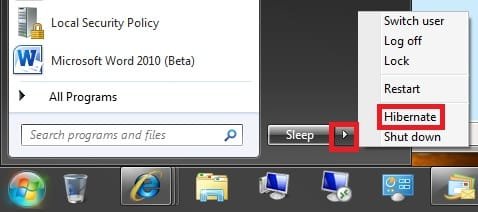
Hibernate - Enable or Disable

How to Enable or Disable Hibernate in Windows 7 and Windows 8


   Information
Hibernation is a power-saving state designed primarily for laptops. While sleep puts your work and settings in memory and draws a small amount of power, hibernation puts your open documents and programs on your hard disk, and then turns off your computer. Of all the power-saving states in Windows, hibernation uses the least amount of power. On a laptop, use hibernation when you know that you won't use your laptop for an extended period and won't have an opportunity to charge the battery during that time.

This tutorial will show you how to enable or disable hibernate and restore or delete the hiberfil.sys file in Windows 7 and Windows 8.

When hibernate is disabled, the Hibernate option is missing from the Start Menu (Windows 7 only), Shut Down Windows dialog, Power menu (Windows 8 only) and the Advanced Power Plan Options.

You must be logged in as an administrator to be able to do the steps in this tutorial.

   Note

  • By default, the size of the hidden protected OS hibernation file (C:\hiberfil.sys) is 75% of the total amount of installed RAM on your computer.
  • In Windows 7, you can set your computer to either use or not use the Hybrid or Hibernate sleep mode option from the Advanced Power Plan Options.
  • In Windows 7, you will only see Hibernate listed in the Start Menu power button arrow menu if you have Hybrid turned off in the Advanced Power Plan Options.
  • Windows 8/8.1 PCs with InstantGo don't have the hibernate option
  • If you disable hibernate in Windows 8 and 8.1, then it will also disable fast startup.

:note: For Windows 10 instructions please see the following link - Hibernate - Enable or Disable in Windows 10 - Windows 10 Tutorials

CONTENTS:
  • Option One: Enable or Disable Hibernate in Elevated Command Prompt
  • Option Two: Enable or Disable Hibernate using a REG File Download
  • Option Three: Enable or Disable Hibernate in Registry Editor
  • Option Four: To Turn On or Off Hibernate in Advanced Power Options


OPTION ONE

Enable or Disable Hibernate in Elevated Command Prompt


1. Open an elevated command prompt.

2. Do step 3 or step 4 below for what you would like to do.

3. To Enable Hibernate
NOTE: This step will restore the hiberfil.sys file, and the Allow hybrid sleep and Hibernate after Power Options under Sleep.
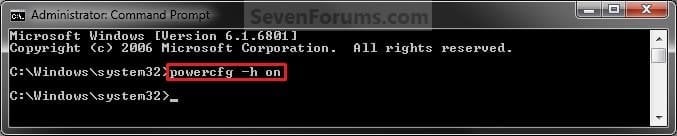
A) In the elevated command prompt, copy and paste the command below, and press Enter. (see screenshot below)
powercfg -h on

Enable.jpg
C) If you would also like to have hibernate turned on, then you will also need do to step 2 in OPTION FOUR below.

D) If you like, you may also wish to add or remove Hibernate from power menus.

E) Go to step 5 below.
4. To Disable Hibernate
NOTE: This step will disable hibernation, delete the hiberfil.sys file, and remove the Allow hybrid sleep and Hibernate after Power Options under Sleep. This will also disable fast startup in Windows 8.
A)In the elevated command prompt, copy and paste the command below, and press Enter. (see screenshot below)
powercfg -h off


Disable.jpg
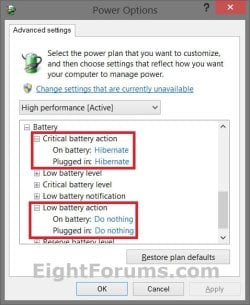
B) Check your Power Options to make sure that the Critical battery action and Low battery action settings under Battery are not set to Hibernate, and go to step 5 below. (see screenshot below)
Battery_Power_Options.jpg
5. You can now close the elevated command prompt if you like.


OPTION TWO

Enable or Disable Hibernate using a REG File Download


1. To Enable Hibernate
NOTE: This step will restore the hiberfil.sys file, and the Allow hybrid sleep and Hibernate after Power Options under Sleep.
A) Click/tap on the Download button below to download the file below, and go to step 3 below.
Enable_Hibernate.reg


Download


2. To Disable Hibernate
NOTE: This step will disable hibernation, delete the hiberfil.sys file, and remove the Allow hybrid sleep and Hibernate after Power Options under Sleep. This will also disable fast startup in Windows 8.
A) Check your Power Options to make sure that the Critical battery action and Low battery action settings under Battery are not set to Hibernate. (see screenshot below)
Battery_Power_Options.jpg
B) Click/tap on the Download button below to download the file below, and go to step 3 below.
Disable_Hibernate.reg

Download


3. Save the .reg file to your desktop.

4. Double click/tap on the downloaded .reg file to merge it.

5. Click/tap on Run, Yes (UAC), Yes, and OK when prompted to approve the merge.

6. Restart the computer to apply the changes.

7. If you would also like to have hibernate turned on, then you will also need do to step 2 in OPTION FOUR below.

8. If you like, you may also wish to add or remove Hibernate from power menus.

9. When finished, you can delete the downloaded .reg file if you like.


OPTION THREE

Enable or Disable Hibernate in Registry Editor


1. Press the Windows + R keys to open the Run dialog, type regedit, and click/tap on OK.

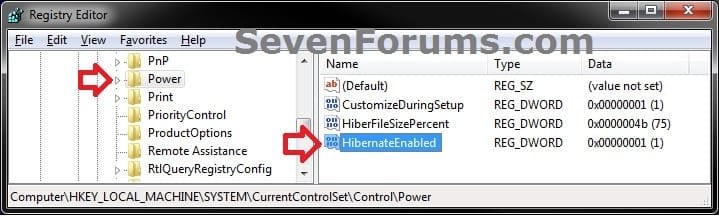
2. In regedit, navigate to the location below. (see screenshot below)
HKEY_LOCAL_MACHINE\SYSTEM\CurrentControlSet\Control\Power
REG-1.jpg
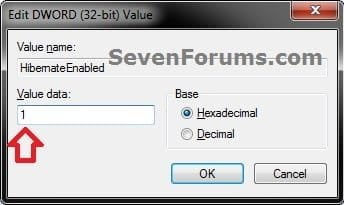
3. In the right pane of the Power key, double click/tap on HibernateEnabled, and do step 4 or 5 below for what you would like to do. (see screenshot above)

4. To Enable Hibernate
NOTE: This step will restore the hiberfil.sys file, and the Allow hybrid sleep and Hibernate after Power Options under Sleep.
A) Type in 1, click/tap on OK, and go to step 6 below. (see screenshot below)
REG-2.jpg
5. To Disable Hibernate
NOTE: This step will disable hibernation, delete the hiberfil.sys file, and remove the Allow hybrid sleep and Hibernate after Power Options under Sleep. This will also disable fast startup in Windows 8.
A) Type in 0 (zero), and click/tap on OK. (see screenshot above)

B) Check your Power Options to make sure that the Critical battery action and Low battery action settings under Battery are not set to Hibernate, and go to step 6 below. (see screenshot below)
Battery_Power_Options.jpg
6. Close regedit, and restart the computer to apply the changes.

7. If you would also like to have hibernate turned on, then you will also need do to step 2 in OPTION FOUR below.

8. If you like, you may also wish to add or remove Hibernate from power menus.


OPTION FOUR

To Turn Hibernate On or Off in Advanced Power Options


NOTE: This option does not disable hibernate, but only turns it on or off for your power plan.
1. Do either step 2 or step 3 below for what you would like to do.

2. To Turn On Hibernate
NOTE: You could also use a hibernate shortcut to manually put the computer into hibernation instead or in addition to this option.
A) If you have not already, then you will need to enable hibernate using either OPTION ONE, OPTION TWO, or OPTION THREE above first.

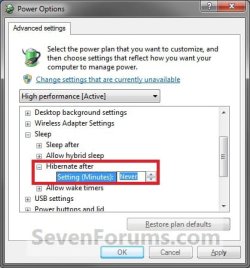
B) Open the Advanced Power Plan Settings for your power plan, then expand Sleep. (see screenshot below step 4)

C) Under Hibernate after, set the Setting (Minutes) to how many minutes you want your computer to sit idle for before it goes into hibernation. (see screenshot step 4)

D) Go to step 4.
3. To Turn Off Hibernate
NOTE: If you disabled hibernate using OPTION 1, 2, or 3 above, then there's no need to do this since Hibernate after and Allow hybrid sleep will no longer be listed in your power options.
A) Open the Advanced Power Plan Settings for your power plan, and expand Sleep. (see screenshot below step 4)
B) Under Hibernate after, set the Setting (Minutes) to Never. (see screenshot below step 4)

C) Under Allow hybrid sleep, set Setting to Off. (see screenshot below step 4)

D) Go to step 4.
4. When finished, click/tap on OK. (see screenshot below)
Power_Options.jpg
That's it,
Shawn


Attachments

Last edited:
Thank you Dek. I have added a note under METHOD ONE to help let people know this quicker. :)
 

My Computer

Computer type
PC/Desktop
Computer Manufacturer/Model Number
Self built custom
OS
64-bit Windows 11 Pro for Workstations
CPU
Intel i7-8700K OC'd to 5 GHz
Motherboard
ASUS ROG Maximus XI Formula Z390
Memory
64 GB (4x16GB) G.SKILL TridentZ RGB DDR4 3600 MHz
Graphics Card(s)
ASUS ROG-STRIX-GTX1080TI-O11G-GAMING
Sound Card
Integrated
Monitor(s) Displays
2 x Samsung Odyssey G7 27"
Screen Resolution
2560x1440
Hard Drives
1TB Samsung 990 PRO M.2,
4TB Samsung 990 PRO PRO M.2,
TerraMaster F8 SSD Plus NAS
PSU
Seasonic Prime Titanium 850W
Case
Thermaltake Core P3
Cooling
Corsair Hydro H115i
Keyboard
Logitech wireless K800
Mouse
Logitech MX Master 4
Internet Speed
2 Gb/s Download and 100 Mb/s Upload
Antivirus
Malwarebyte Anti-Malware Premium
Browser
Google Chrome
Other Info
Logitech Z625 speaker system,
Logitech BRIO 4K Pro webcam,
HP Color LaserJet Pro MFP M477fdn,
APC SMART-UPS RT 1000 XL - SURT1000XLI,
Galaxy S23 Plus phone
This sounds similar to Vista. With Vista however hibernation doesn't work with 6GB of memory (not sure where exactly the cut-off is). To be honest it's the biggest Vista problem I know of. I pre-ordered Windows 7 hoping hibernating is possible with any memory size. Sleeping works fine on vista but I'd much rather be able to turn of the power altogether. Not sure how laptop owners manage with Vista.

Anyway, could you please update the tutorial with a note regarding memory limitations, present or gone since Vista? Thanks very much!
 

My Computer

OS
XP/Vista Win7 on Pre-order
Hello NocturnalOne, and welcome to Vista Forums.

Not sure if that may be a issue for everyone. I have 8GB installed without any problems with sleep or hibernation in Vista and Windows 7. You might check your BIOS settings to see if you have a "Memory Mapping" option to enable to see if that may help.
 
Last edited:

My Computer

Computer type
PC/Desktop
Computer Manufacturer/Model Number
Self built custom
OS
64-bit Windows 11 Pro for Workstations
CPU
Intel i7-8700K OC'd to 5 GHz
Motherboard
ASUS ROG Maximus XI Formula Z390
Memory
64 GB (4x16GB) G.SKILL TridentZ RGB DDR4 3600 MHz
Graphics Card(s)
ASUS ROG-STRIX-GTX1080TI-O11G-GAMING
Sound Card
Integrated
Monitor(s) Displays
2 x Samsung Odyssey G7 27"
Screen Resolution
2560x1440
Hard Drives
1TB Samsung 990 PRO M.2,
4TB Samsung 990 PRO PRO M.2,
TerraMaster F8 SSD Plus NAS
PSU
Seasonic Prime Titanium 850W
Case
Thermaltake Core P3
Cooling
Corsair Hydro H115i
Keyboard
Logitech wireless K800
Mouse
Logitech MX Master 4
Internet Speed
2 Gb/s Download and 100 Mb/s Upload
Antivirus
Malwarebyte Anti-Malware Premium
Browser
Google Chrome
Other Info
Logitech Z625 speaker system,
Logitech BRIO 4K Pro webcam,
HP Color LaserJet Pro MFP M477fdn,
APC SMART-UPS RT 1000 XL - SURT1000XLI,
Galaxy S23 Plus phone
Thanks Brink for responding so quickly. I only got Vista a few months ago when I built a new system with a Core-i7 and 6GB of RAM. XP Pro/Home before that. I enabled hibernation on my system using instructions similar (same?) as yours here. The hiberfil file was created and the system 'pretended' to hibernate but could not boot from the created file. Doing some googling found lots of references to a memory limitation in Vista related to hibernation. Examples:

Vista Machines with More than 4 GB of RAM Have Limited Shut-Down Options - Losing Hibernate - Softpedia

Which refers to this:
You cannot put a computer that has more than 4 GB of memory into hibernation in Windows XP, in Windows Server 2003, in Windows Vista, or in Windows Server 2008

Sleep works fine on my Vista machine but as soon as the power is disconnected it'd toast. I have no idea how your machine with 8GB works properly when MS says it shouldn't work. It's typically the other way around (they say it should work but it doesn't :)

Anyway, I sure hope Win7 resolves this absurd issue. I'll gladly allocate a few GB of disk space to be able to completely power down my machine at night, even if recovering from hibernation takes a bit longer than recovering from sleep (which is fast except that it typically forgets to load the keyboard driver for a minute or so after it comes up).

I should add that I haven't dared to install Vista SP2 yet, still at SP1. Misadventures with installing SP3 on XP have made me a bit nervous about messing with a generally stable system.
 

My Computer

OS
XP/Vista Win7 on Pre-order
This problem is also sometimes fixed by a BIOS update. You might check to see if your motherboard as a newer BIOS version available and if the readme files for it address this issue.
 

My Computer

Computer type
PC/Desktop
Computer Manufacturer/Model Number
Self built custom
OS
64-bit Windows 11 Pro for Workstations
CPU
Intel i7-8700K OC'd to 5 GHz
Motherboard
ASUS ROG Maximus XI Formula Z390
Memory
64 GB (4x16GB) G.SKILL TridentZ RGB DDR4 3600 MHz
Graphics Card(s)
ASUS ROG-STRIX-GTX1080TI-O11G-GAMING
Sound Card
Integrated
Monitor(s) Displays
2 x Samsung Odyssey G7 27"
Screen Resolution
2560x1440
Hard Drives
1TB Samsung 990 PRO M.2,
4TB Samsung 990 PRO PRO M.2,
TerraMaster F8 SSD Plus NAS
PSU
Seasonic Prime Titanium 850W
Case
Thermaltake Core P3
Cooling
Corsair Hydro H115i
Keyboard
Logitech wireless K800
Mouse
Logitech MX Master 4
Internet Speed
2 Gb/s Download and 100 Mb/s Upload
Antivirus
Malwarebyte Anti-Malware Premium
Browser
Google Chrome
Other Info
Logitech Z625 speaker system,
Logitech BRIO 4K Pro webcam,
HP Color LaserJet Pro MFP M477fdn,
APC SMART-UPS RT 1000 XL - SURT1000XLI,
Galaxy S23 Plus phone
You're welcome John, and welcome to Seven Forums. :)

Shawn
 

My Computer

Computer type
PC/Desktop
Computer Manufacturer/Model Number
Self built custom
OS
64-bit Windows 11 Pro for Workstations
CPU
Intel i7-8700K OC'd to 5 GHz
Motherboard
ASUS ROG Maximus XI Formula Z390
Memory
64 GB (4x16GB) G.SKILL TridentZ RGB DDR4 3600 MHz
Graphics Card(s)
ASUS ROG-STRIX-GTX1080TI-O11G-GAMING
Sound Card
Integrated
Monitor(s) Displays
2 x Samsung Odyssey G7 27"
Screen Resolution
2560x1440
Hard Drives
1TB Samsung 990 PRO M.2,
4TB Samsung 990 PRO PRO M.2,
TerraMaster F8 SSD Plus NAS
PSU
Seasonic Prime Titanium 850W
Case
Thermaltake Core P3
Cooling
Corsair Hydro H115i
Keyboard
Logitech wireless K800
Mouse
Logitech MX Master 4
Internet Speed
2 Gb/s Download and 100 Mb/s Upload
Antivirus
Malwarebyte Anti-Malware Premium
Browser
Google Chrome
Other Info
Logitech Z625 speaker system,
Logitech BRIO 4K Pro webcam,
HP Color LaserJet Pro MFP M477fdn,
APC SMART-UPS RT 1000 XL - SURT1000XLI,
Galaxy S23 Plus phone
What's the difference between 'Sleep' and 'Hibernate'?
 

My Computer

Computer type
PC/Desktop
Computer Manufacturer/Model Number
Home Built
OS
Windows 7 Ultimate SP1 64- bit
CPU
Intel Core i7-3770K @3.50ghz
Motherboard
EVGA Z77 FTW
Memory
Kingston Technology 16GB (2x 8GB) 2133MHz DDR3 Non-ECC
Graphics Card(s)
EVGA GTX 670 4gb SC
Sound Card
Nil
Monitor(s) Displays
Samsung 22"
Screen Resolution
1920 x 1080 60hz
Hard Drives
OCZ Vertex 4 SSD 128GB
SAMSUNG Spinpoint F3 HD502HJ 500GB 7200 RPM
PSU
Enermax Platinax EPM1000EWT Special OC Edition
Case
Cooler Master HAF Full Tower nVIDIA Edition
Cooling
CoolerMaster Hyper 212 Plus
Keyboard
HP Wireless Keyboard
Mouse
Corsair Vengeance M90
Internet Speed
20 Mb
Other Info
ASUS DRW-24B1ST/BLK/B/AS Black SATA 24X DVD Burner
Hello Seven,

Sleep - The computer saves the current session to memory (RAM) and goes to a low power state. If you lose power while in sleep, you will lose the current session. When you move the mouse or press a key on the keyboard, the computer will wake back up almost immediately.

Hibernate - The computer saves the current session to the hiberfil.sys file on the hard drive instead of memory, and goes to a near turned off state (less power used than in Sleep mode). It will take the computer a few seconds to save everything to the HDD before entering hibernation, and it takes a bit longer to resume from hibernation as well when you wake the computer up from the mouse or keyboard. However, if you should lose power, you will not lose the current session.

Hope this helps,
Shawn
 

My Computer

Computer type
PC/Desktop
Computer Manufacturer/Model Number
Self built custom
OS
64-bit Windows 11 Pro for Workstations
CPU
Intel i7-8700K OC'd to 5 GHz
Motherboard
ASUS ROG Maximus XI Formula Z390
Memory
64 GB (4x16GB) G.SKILL TridentZ RGB DDR4 3600 MHz
Graphics Card(s)
ASUS ROG-STRIX-GTX1080TI-O11G-GAMING
Sound Card
Integrated
Monitor(s) Displays
2 x Samsung Odyssey G7 27"
Screen Resolution
2560x1440
Hard Drives
1TB Samsung 990 PRO M.2,
4TB Samsung 990 PRO PRO M.2,
TerraMaster F8 SSD Plus NAS
PSU
Seasonic Prime Titanium 850W
Case
Thermaltake Core P3
Cooling
Corsair Hydro H115i
Keyboard
Logitech wireless K800
Mouse
Logitech MX Master 4
Internet Speed
2 Gb/s Download and 100 Mb/s Upload
Antivirus
Malwarebyte Anti-Malware Premium
Browser
Google Chrome
Other Info
Logitech Z625 speaker system,
Logitech BRIO 4K Pro webcam,
HP Color LaserJet Pro MFP M477fdn,
APC SMART-UPS RT 1000 XL - SURT1000XLI,
Galaxy S23 Plus phone
Yes, that helps a lot!
I shall now disable Hibernate as I don't use it.
Thanks
 

My Computer

Computer type
PC/Desktop
Computer Manufacturer/Model Number
Home Built
OS
Windows 7 Ultimate SP1 64- bit
CPU
Intel Core i7-3770K @3.50ghz
Motherboard
EVGA Z77 FTW
Memory
Kingston Technology 16GB (2x 8GB) 2133MHz DDR3 Non-ECC
Graphics Card(s)
EVGA GTX 670 4gb SC
Sound Card
Nil
Monitor(s) Displays
Samsung 22"
Screen Resolution
1920 x 1080 60hz
Hard Drives
OCZ Vertex 4 SSD 128GB
SAMSUNG Spinpoint F3 HD502HJ 500GB 7200 RPM
PSU
Enermax Platinax EPM1000EWT Special OC Edition
Case
Cooler Master HAF Full Tower nVIDIA Edition
Cooling
CoolerMaster Hyper 212 Plus
Keyboard
HP Wireless Keyboard
Mouse
Corsair Vengeance M90
Internet Speed
20 Mb
Other Info
ASUS DRW-24B1ST/BLK/B/AS Black SATA 24X DVD Burner
You're welcome Seven. :)
 

My Computer

Computer type
PC/Desktop
Computer Manufacturer/Model Number
Self built custom
OS
64-bit Windows 11 Pro for Workstations
CPU
Intel i7-8700K OC'd to 5 GHz
Motherboard
ASUS ROG Maximus XI Formula Z390
Memory
64 GB (4x16GB) G.SKILL TridentZ RGB DDR4 3600 MHz
Graphics Card(s)
ASUS ROG-STRIX-GTX1080TI-O11G-GAMING
Sound Card
Integrated
Monitor(s) Displays
2 x Samsung Odyssey G7 27"
Screen Resolution
2560x1440
Hard Drives
1TB Samsung 990 PRO M.2,
4TB Samsung 990 PRO PRO M.2,
TerraMaster F8 SSD Plus NAS
PSU
Seasonic Prime Titanium 850W
Case
Thermaltake Core P3
Cooling
Corsair Hydro H115i
Keyboard
Logitech wireless K800
Mouse
Logitech MX Master 4
Internet Speed
2 Gb/s Download and 100 Mb/s Upload
Antivirus
Malwarebyte Anti-Malware Premium
Browser
Google Chrome
Other Info
Logitech Z625 speaker system,
Logitech BRIO 4K Pro webcam,
HP Color LaserJet Pro MFP M477fdn,
APC SMART-UPS RT 1000 XL - SURT1000XLI,
Galaxy S23 Plus phone
Hibernation Issue - file not deleted

Checked out your ideas on "disabling" Hibernation and those all check off, but still have the system file for it eating up over 2 GB's.

The Windows Clean-up Program is a total loser and has been since MS came out with it. It won't delete many files that clog up your harddrive and continually build up over time in the Local Settings / Temp and even in the Windows / Temp folders.

In my opinion - very useless product until MS can create one that truly will find those files and delete them.

I also don't have the button on Clean-up in the lower left that you have. Maybe an option not in Win7 Home.
 

My Computer

OS
Windows 7 Home
Hello Tlswift, and welcome to Seven Forums.

If you do METHOD ONE in this tutorial, it will also delete the hiberfil.sys file when you disable hibernation.

Disk Cleanup is ok, but you might take a look at CCleaner. It's great at cleaning up junk files.

Hope this helps,
Shawn
 

My Computer

Computer type
PC/Desktop
Computer Manufacturer/Model Number
Self built custom
OS
64-bit Windows 11 Pro for Workstations
CPU
Intel i7-8700K OC'd to 5 GHz
Motherboard
ASUS ROG Maximus XI Formula Z390
Memory
64 GB (4x16GB) G.SKILL TridentZ RGB DDR4 3600 MHz
Graphics Card(s)
ASUS ROG-STRIX-GTX1080TI-O11G-GAMING
Sound Card
Integrated
Monitor(s) Displays
2 x Samsung Odyssey G7 27"
Screen Resolution
2560x1440
Hard Drives
1TB Samsung 990 PRO M.2,
4TB Samsung 990 PRO PRO M.2,
TerraMaster F8 SSD Plus NAS
PSU
Seasonic Prime Titanium 850W
Case
Thermaltake Core P3
Cooling
Corsair Hydro H115i
Keyboard
Logitech wireless K800
Mouse
Logitech MX Master 4
Internet Speed
2 Gb/s Download and 100 Mb/s Upload
Antivirus
Malwarebyte Anti-Malware Premium
Browser
Google Chrome
Other Info
Logitech Z625 speaker system,
Logitech BRIO 4K Pro webcam,
HP Color LaserJet Pro MFP M477fdn,
APC SMART-UPS RT 1000 XL - SURT1000XLI,
Galaxy S23 Plus phone
Hibernation

Thanks Shawn.

I've used CCLeaner before with mixed results. I was not aware that is was good to go for WIN7!

I usually just go in manually and delete all the Temps files I can at the time - it is easier and sometimes CCLeaner can be overly aggressive and delete files that it shouldn't.

If MS is going to offer maintenance programs like Defrag and Cleaner - then make them industrial products - not some wimped out version that is mostly useless.

They did that with Windows Defender. Took a very good product and turned it into crapola.
 

My Computer

OS
Windows 7 Home
I want hibernate as an option on the Shutdown menu on a desktop. I ran the enable command and still don't see it. Is hibernate even an option for desktops or is it only available on laptops? I thought it could be enabled via registry change. (After only a few days I love Win7, so glad I skipped Vista!)
 

My Computer

OS
Windows 7
Hello Joeb, and welcome to Seven Forums.

You should have Hibernate in your Start Menu arrow menu here:
Start_Menu.jpg
...and when you press ALT+F4 after clicking on the desktop.
ALT+F4.jpg
You might also find this hibernate shortcut useful. You can pin or use it anywhere it Windows 7.

Hope this helps,
Shawn
 

My Computer

Computer type
PC/Desktop
Computer Manufacturer/Model Number
Self built custom
OS
64-bit Windows 11 Pro for Workstations
CPU
Intel i7-8700K OC'd to 5 GHz
Motherboard
ASUS ROG Maximus XI Formula Z390
Memory
64 GB (4x16GB) G.SKILL TridentZ RGB DDR4 3600 MHz
Graphics Card(s)
ASUS ROG-STRIX-GTX1080TI-O11G-GAMING
Sound Card
Integrated
Monitor(s) Displays
2 x Samsung Odyssey G7 27"
Screen Resolution
2560x1440
Hard Drives
1TB Samsung 990 PRO M.2,
4TB Samsung 990 PRO PRO M.2,
TerraMaster F8 SSD Plus NAS
PSU
Seasonic Prime Titanium 850W
Case
Thermaltake Core P3
Cooling
Corsair Hydro H115i
Keyboard
Logitech wireless K800
Mouse
Logitech MX Master 4
Internet Speed
2 Gb/s Download and 100 Mb/s Upload
Antivirus
Malwarebyte Anti-Malware Premium
Browser
Google Chrome
Other Info
Logitech Z625 speaker system,
Logitech BRIO 4K Pro webcam,
HP Color LaserJet Pro MFP M477fdn,
APC SMART-UPS RT 1000 XL - SURT1000XLI,
Galaxy S23 Plus phone
No....

Joeb....you won't have "Hibernate" as an option listed on your Shutdown button unless in the Power Plan properties you have the "Allow Hybrid Sleep" setting to "Off". When "Hybrid Sleep" is enabled, if the machine goes to "Sleep/Suspend", it will save the computers state to memory like "Hibernate", but is still in the low power mode of "Sleep/Suspend", so in the event of a power outage the computer will still be able to recover to it's former state. Disabling "Hybrid Sleep" will allow you to have both "Sleep/Suspend" and "Hibernate" as separate properties on your shutdown button.
 

My Computer

Computer Manufacturer/Model Number
Home made
OS
Windows XP
CPU
P4 2.8 GHz
Motherboard
Abit VT7
Memory
3GB DDR PC2700
Graphics Card(s)
Geforce 3
Monitor(s) Displays
Sony G400
Hard Drives
WD 250GB
WD 200GB
Hi shawn: when I go to elevated command prompt .I dont see windows\sustem32 but C:\users\myname ..
do i need to type in systen32 to make the change?

thank you

Pat
 

My Computer

Computer Manufacturer/Model Number
Dell
OS
window 7
Memory
4GB
Hard Drives
Sata
Hello Pat, and welcome to Seven Forums.

If you are seeing that instead, then you are not in a elevated command prompt. Double check to make sure that when you right click on the command prompt shortcut, you click on "Run as administrator". Are you logged in a administrator account?

Hope this helps,
Shawn
 

My Computer

Computer type
PC/Desktop
Computer Manufacturer/Model Number
Self built custom
OS
64-bit Windows 11 Pro for Workstations
CPU
Intel i7-8700K OC'd to 5 GHz
Motherboard
ASUS ROG Maximus XI Formula Z390
Memory
64 GB (4x16GB) G.SKILL TridentZ RGB DDR4 3600 MHz
Graphics Card(s)
ASUS ROG-STRIX-GTX1080TI-O11G-GAMING
Sound Card
Integrated
Monitor(s) Displays
2 x Samsung Odyssey G7 27"
Screen Resolution
2560x1440
Hard Drives
1TB Samsung 990 PRO M.2,
4TB Samsung 990 PRO PRO M.2,
TerraMaster F8 SSD Plus NAS
PSU
Seasonic Prime Titanium 850W
Case
Thermaltake Core P3
Cooling
Corsair Hydro H115i
Keyboard
Logitech wireless K800
Mouse
Logitech MX Master 4
Internet Speed
2 Gb/s Download and 100 Mb/s Upload
Antivirus
Malwarebyte Anti-Malware Premium
Browser
Google Chrome
Other Info
Logitech Z625 speaker system,
Logitech BRIO 4K Pro webcam,
HP Color LaserJet Pro MFP M477fdn,
APC SMART-UPS RT 1000 XL - SURT1000XLI,
Galaxy S23 Plus phone
Thank you Shawn for your reply ...I am going to check that as I learn more about window 7 ...However, plainview comment on Power Plan "allow hybrid setting to off will do the trick ..

Many thks to both ...

Pat
 

My Computer

Computer Manufacturer/Model Number
Dell
OS
window 7
Memory
4GB
Hard Drives
Sata
You're most welcome Pat. :)
 

My Computer

Computer type
PC/Desktop
Computer Manufacturer/Model Number
Self built custom
OS
64-bit Windows 11 Pro for Workstations
CPU
Intel i7-8700K OC'd to 5 GHz
Motherboard
ASUS ROG Maximus XI Formula Z390
Memory
64 GB (4x16GB) G.SKILL TridentZ RGB DDR4 3600 MHz
Graphics Card(s)
ASUS ROG-STRIX-GTX1080TI-O11G-GAMING
Sound Card
Integrated
Monitor(s) Displays
2 x Samsung Odyssey G7 27"
Screen Resolution
2560x1440
Hard Drives
1TB Samsung 990 PRO M.2,
4TB Samsung 990 PRO PRO M.2,
TerraMaster F8 SSD Plus NAS
PSU
Seasonic Prime Titanium 850W
Case
Thermaltake Core P3
Cooling
Corsair Hydro H115i
Keyboard
Logitech wireless K800
Mouse
Logitech MX Master 4
Internet Speed
2 Gb/s Download and 100 Mb/s Upload
Antivirus
Malwarebyte Anti-Malware Premium
Browser
Google Chrome
Other Info
Logitech Z625 speaker system,
Logitech BRIO 4K Pro webcam,
HP Color LaserJet Pro MFP M477fdn,
APC SMART-UPS RT 1000 XL - SURT1000XLI,
Galaxy S23 Plus phone
Back
Top