
Hibernate - Enable or Disable

How to Enable or Disable Hibernate in Windows 7 and Windows 8


   Information
Hibernation is a power-saving state designed primarily for laptops. While sleep puts your work and settings in memory and draws a small amount of power, hibernation puts your open documents and programs on your hard disk, and then turns off your computer. Of all the power-saving states in Windows, hibernation uses the least amount of power. On a laptop, use hibernation when you know that you won't use your laptop for an extended period and won't have an opportunity to charge the battery during that time.

This tutorial will show you how to enable or disable hibernate and restore or delete the hiberfil.sys file in Windows 7 and Windows 8.

When hibernate is disabled, the Hibernate option is missing from the Start Menu (Windows 7 only), Shut Down Windows dialog, Power menu (Windows 8 only) and the Advanced Power Plan Options.

You must be logged in as an administrator to be able to do the steps in this tutorial.

   Note

  • By default, the size of the hidden protected OS hibernation file (C:\hiberfil.sys) is 75% of the total amount of installed RAM on your computer.
  • In Windows 7, you can set your computer to either use or not use the Hybrid or Hibernate sleep mode option from the Advanced Power Plan Options.
  • In Windows 7, you will only see Hibernate listed in the Start Menu power button arrow menu if you have Hybrid turned off in the Advanced Power Plan Options.
  • Windows 8/8.1 PCs with InstantGo don't have the hibernate option
  • If you disable hibernate in Windows 8 and 8.1, then it will also disable fast startup.

:note: For Windows 10 instructions please see the following link - Hibernate - Enable or Disable in Windows 10 - Windows 10 Tutorials

CONTENTS:
  • Option One: Enable or Disable Hibernate in Elevated Command Prompt
  • Option Two: Enable or Disable Hibernate using a REG File Download
  • Option Three: Enable or Disable Hibernate in Registry Editor
  • Option Four: To Turn On or Off Hibernate in Advanced Power Options


OPTION ONE

Enable or Disable Hibernate in Elevated Command Prompt


1. Open an elevated command prompt.

2. Do step 3 or step 4 below for what you would like to do.

3. To Enable Hibernate
NOTE: This step will restore the hiberfil.sys file, and the Allow hybrid sleep and Hibernate after Power Options under Sleep.
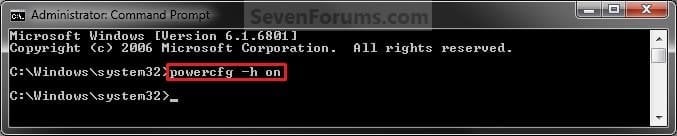
A) In the elevated command prompt, copy and paste the command below, and press Enter. (see screenshot below)
powercfg -h on

Enable.jpg
C) If you would also like to have hibernate turned on, then you will also need do to step 2 in OPTION FOUR below.

D) If you like, you may also wish to add or remove Hibernate from power menus.

E) Go to step 5 below.
4. To Disable Hibernate
NOTE: This step will disable hibernation, delete the hiberfil.sys file, and remove the Allow hybrid sleep and Hibernate after Power Options under Sleep. This will also disable fast startup in Windows 8.
A)In the elevated command prompt, copy and paste the command below, and press Enter. (see screenshot below)
powercfg -h off


Disable.jpg
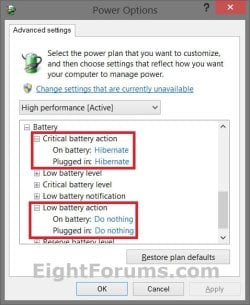
B) Check your Power Options to make sure that the Critical battery action and Low battery action settings under Battery are not set to Hibernate, and go to step 5 below. (see screenshot below)
Battery_Power_Options.jpg
5. You can now close the elevated command prompt if you like.


OPTION TWO

Enable or Disable Hibernate using a REG File Download


1. To Enable Hibernate
NOTE: This step will restore the hiberfil.sys file, and the Allow hybrid sleep and Hibernate after Power Options under Sleep.
A) Click/tap on the Download button below to download the file below, and go to step 3 below.
Enable_Hibernate.reg


Download


2. To Disable Hibernate
NOTE: This step will disable hibernation, delete the hiberfil.sys file, and remove the Allow hybrid sleep and Hibernate after Power Options under Sleep. This will also disable fast startup in Windows 8.
A) Check your Power Options to make sure that the Critical battery action and Low battery action settings under Battery are not set to Hibernate. (see screenshot below)
Battery_Power_Options.jpg
B) Click/tap on the Download button below to download the file below, and go to step 3 below.
Disable_Hibernate.reg

Download


3. Save the .reg file to your desktop.

4. Double click/tap on the downloaded .reg file to merge it.

5. Click/tap on Run, Yes (UAC), Yes, and OK when prompted to approve the merge.

6. Restart the computer to apply the changes.

7. If you would also like to have hibernate turned on, then you will also need do to step 2 in OPTION FOUR below.

8. If you like, you may also wish to add or remove Hibernate from power menus.

9. When finished, you can delete the downloaded .reg file if you like.


OPTION THREE

Enable or Disable Hibernate in Registry Editor


1. Press the Windows + R keys to open the Run dialog, type regedit, and click/tap on OK.

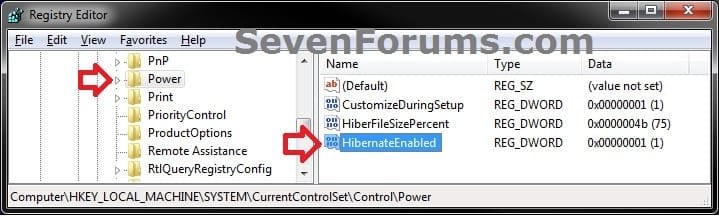
2. In regedit, navigate to the location below. (see screenshot below)
HKEY_LOCAL_MACHINE\SYSTEM\CurrentControlSet\Control\Power
REG-1.jpg
3. In the right pane of the Power key, double click/tap on HibernateEnabled, and do step 4 or 5 below for what you would like to do. (see screenshot above)

4. To Enable Hibernate
NOTE: This step will restore the hiberfil.sys file, and the Allow hybrid sleep and Hibernate after Power Options under Sleep.
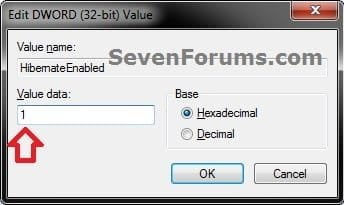
A) Type in 1, click/tap on OK, and go to step 6 below. (see screenshot below)
REG-2.jpg
5. To Disable Hibernate
NOTE: This step will disable hibernation, delete the hiberfil.sys file, and remove the Allow hybrid sleep and Hibernate after Power Options under Sleep. This will also disable fast startup in Windows 8.
A) Type in 0 (zero), and click/tap on OK. (see screenshot above)

B) Check your Power Options to make sure that the Critical battery action and Low battery action settings under Battery are not set to Hibernate, and go to step 6 below. (see screenshot below)
Battery_Power_Options.jpg
6. Close regedit, and restart the computer to apply the changes.

7. If you would also like to have hibernate turned on, then you will also need do to step 2 in OPTION FOUR below.

8. If you like, you may also wish to add or remove Hibernate from power menus.


OPTION FOUR

To Turn Hibernate On or Off in Advanced Power Options


NOTE: This option does not disable hibernate, but only turns it on or off for your power plan.
1. Do either step 2 or step 3 below for what you would like to do.

2. To Turn On Hibernate
NOTE: You could also use a hibernate shortcut to manually put the computer into hibernation instead or in addition to this option.
A) If you have not already, then you will need to enable hibernate using either OPTION ONE, OPTION TWO, or OPTION THREE above first.

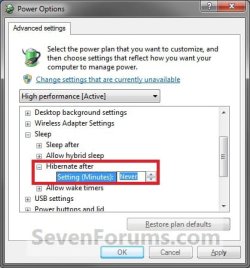
B) Open the Advanced Power Plan Settings for your power plan, then expand Sleep. (see screenshot below step 4)

C) Under Hibernate after, set the Setting (Minutes) to how many minutes you want your computer to sit idle for before it goes into hibernation. (see screenshot step 4)

D) Go to step 4.
3. To Turn Off Hibernate
NOTE: If you disabled hibernate using OPTION 1, 2, or 3 above, then there's no need to do this since Hibernate after and Allow hybrid sleep will no longer be listed in your power options.
A) Open the Advanced Power Plan Settings for your power plan, and expand Sleep. (see screenshot below step 4)
B) Under Hibernate after, set the Setting (Minutes) to Never. (see screenshot below step 4)

C) Under Allow hybrid sleep, set Setting to Off. (see screenshot below step 4)

D) Go to step 4.
4. When finished, click/tap on OK. (see screenshot below)
Power_Options.jpg
That's it,
Shawn


Attachments

Last edited:
Pronlems with Hibernation

EDIT: NOW SOLVED IT MYSELF :-)

Thanks for the great tutorials.

I have enabled hibernation using the instructions here, but hibernation is not working properly for me on a desktop with Win7 64 bit and 4GB RAM. I have tried from the Start Menu, from setting the Power Button to that function and from the desktop shortcut described in these tutorials.

I use hibernation all the time on my work laptop (ThinkPAd T60 XP SP3) and frequently on a ThinkPad X60s with Win7 64bit, though there it is probably setup by the Lenovo ThinkVantage power management software.

This is what happens on the desktop - I select hibernation from one of the 3 methods mentioned above, the screen dims, the HDD light is active for a while, the power goes off. Then a few seconds later, it wakes up, shows the Intel BIOS splash screen for a couple of seconds, then just goes to the Windows logon screen. So basically hibernates for a few seconds, but no more!

Any ideas please?

EDITs:
I already have "allow wake timers" set to Disable
Have disabled Wake on LAN in Device Manager for the NIC (and checked the mouse too).
CMD powercfg -a says that S1 and S3 are available.
CMD powercfg -devicequery wake_armed - yay - it was the HID USB Keyboard of all things!!

Thanks for http://www.vistax64.com/tutorials/63567-power-options-sleep-mode-problems.html too
 
Last edited:

My Computer

Computer Manufacturer/Model Number
PCSpecialist.co.uk
OS
Windows 7 Pro 64 bit
CPU
Core i3 Processor i3-540 3.06GHz
Motherboard
INTEL DH55TC
Memory
4GB CORSAIR XMS3 DUAL-DDR3 1333MHz
Graphics Card(s)
INTEGRATED INTEL HD GRAPHICS
Sound Card
ONBOARD 8 CHANNEL (7.1) HIGH DEF AUDIO
Monitor(s) Displays
Dell 2209WA
Hard Drives
640GB SERIAL ATA 3-Gb/s HARD DRIVE WITH 16MB CACHE (7,200rpm)
PSU
450W Quiet Dual Rail PSU
Cooling
SUPER QUIET 22dBA TRIPLE COPPER HEATPIPE CPU COOLER
I want to free up my hard disk by removing hiberfil.sys. can it be possible by disabling hibernation?
reply.
 

My Computer

OS
win 7
Hello Jigar, and welcome to Seven Forums.

Yes, by disabling hibernate using OPTION ONE you will also delete the hiberfil.sys file. :)
 

My Computer

Computer type
PC/Desktop
Computer Manufacturer/Model Number
Self built custom
OS
64-bit Windows 11 Pro for Workstations
CPU
Intel i7-8700K OC'd to 5 GHz
Motherboard
ASUS ROG Maximus XI Formula Z390
Memory
64 GB (4x16GB) G.SKILL TridentZ RGB DDR4 3600 MHz
Graphics Card(s)
ASUS ROG-STRIX-GTX1080TI-O11G-GAMING
Sound Card
Integrated
Monitor(s) Displays
2 x Samsung Odyssey G7 27"
Screen Resolution
2560x1440
Hard Drives
1TB Samsung 990 PRO M.2,
4TB Samsung 990 PRO PRO M.2,
TerraMaster F8 SSD Plus NAS
PSU
Seasonic Prime Titanium 850W
Case
Thermaltake Core P3
Cooling
Corsair Hydro H115i
Keyboard
Logitech wireless K800
Mouse
Logitech MX Master 4
Internet Speed
2 Gb/s Download and 100 Mb/s Upload
Antivirus
Malwarebyte Anti-Malware Premium
Browser
Google Chrome
Other Info
Logitech Z625 speaker system,
Logitech BRIO 4K Pro webcam,
HP Color LaserJet Pro MFP M477fdn,
APC SMART-UPS RT 1000 XL - SURT1000XLI,
Galaxy S23 Plus phone
You're welcome. :)
 

My Computer

Computer type
PC/Desktop
Computer Manufacturer/Model Number
Self built custom
OS
64-bit Windows 11 Pro for Workstations
CPU
Intel i7-8700K OC'd to 5 GHz
Motherboard
ASUS ROG Maximus XI Formula Z390
Memory
64 GB (4x16GB) G.SKILL TridentZ RGB DDR4 3600 MHz
Graphics Card(s)
ASUS ROG-STRIX-GTX1080TI-O11G-GAMING
Sound Card
Integrated
Monitor(s) Displays
2 x Samsung Odyssey G7 27"
Screen Resolution
2560x1440
Hard Drives
1TB Samsung 990 PRO M.2,
4TB Samsung 990 PRO PRO M.2,
TerraMaster F8 SSD Plus NAS
PSU
Seasonic Prime Titanium 850W
Case
Thermaltake Core P3
Cooling
Corsair Hydro H115i
Keyboard
Logitech wireless K800
Mouse
Logitech MX Master 4
Internet Speed
2 Gb/s Download and 100 Mb/s Upload
Antivirus
Malwarebyte Anti-Malware Premium
Browser
Google Chrome
Other Info
Logitech Z625 speaker system,
Logitech BRIO 4K Pro webcam,
HP Color LaserJet Pro MFP M477fdn,
APC SMART-UPS RT 1000 XL - SURT1000XLI,
Galaxy S23 Plus phone
details for W7Pro classic view?

Maybe it's my build (Version 6.1.7600 Build 7600) or maybe it's my use of classic view, I dunno, but the tutorial steps seem to need some revision or additions...

1. Open a Elevated Command Prompt.
2. In the elevated command prompt, type "powercfg -h off" and press 'Enter' (it will then read "C:Windows\System32>"), then to then to properly close the command box, type "exit" and click 'enter'.
3. Open Power Options to change the advanced power
settings, and expand both 'Sleep' and 'Hibernate'
"after" expandables.
4. Under 'Hibernate after', set the Setting (Minutes)
to "Never".
5. Under 'Allow hybrid sleep', set Setting to "Off".
6. Click on 'Apply' and then 'OK'.
7. Close the elevated command prompt (type "exit").
 

My Computer

Computer Manufacturer/Model Number
HP DV4-1030ee
OS
Windows 7 Pro
CPU
[email protected], 2 Core Logical Processors
Motherboard
Compal 30F8 99.74
Memory
Total Physical Memory 2.00 GB
Graphics Card(s)
NVIDIA GeForce9200M GS
Sound Card
NVIDIA HDMI Audio with IDT High Definition Audio CODEC
Monitor(s) Displays
Generic PnP Monitor (14.0"vis)
Screen Resolution
1200 X 800 recommended, but set to 1074 X 768
Hard Drives
FUJITSU MHY2160BH 160.04 GB drive 0
PSU
High Performance
Case
Stock
Cooling
Stock
Keyboard
Stock
Mouse
Logitech M-UV96
Internet Speed
down 2.89 Mb/s & up 0.73 Mb/s
Other Info
Acer Aspire One, XPH SP3, x86, 'Windows NT', 2.0 Ghz CPU, 2 Gb RAM, Mobile Intel 945 Express Chipset Family graphics
'card', RealtekHD Audio Driver v5.10.0.5628 audio 'card', and USB 2.0.
Hello Wguru,

I'm not sure what you mean. Closing the command pompt window would be the same as typing exit in the command prompt and pressing enter. When you click on OK, the changes are automatically applied so there it no need to have to click on Apply then OK. Either way will work, but your additions would add unneeded steps. :confused:
 

My Computer

Computer type
PC/Desktop
Computer Manufacturer/Model Number
Self built custom
OS
64-bit Windows 11 Pro for Workstations
CPU
Intel i7-8700K OC'd to 5 GHz
Motherboard
ASUS ROG Maximus XI Formula Z390
Memory
64 GB (4x16GB) G.SKILL TridentZ RGB DDR4 3600 MHz
Graphics Card(s)
ASUS ROG-STRIX-GTX1080TI-O11G-GAMING
Sound Card
Integrated
Monitor(s) Displays
2 x Samsung Odyssey G7 27"
Screen Resolution
2560x1440
Hard Drives
1TB Samsung 990 PRO M.2,
4TB Samsung 990 PRO PRO M.2,
TerraMaster F8 SSD Plus NAS
PSU
Seasonic Prime Titanium 850W
Case
Thermaltake Core P3
Cooling
Corsair Hydro H115i
Keyboard
Logitech wireless K800
Mouse
Logitech MX Master 4
Internet Speed
2 Gb/s Download and 100 Mb/s Upload
Antivirus
Malwarebyte Anti-Malware Premium
Browser
Google Chrome
Other Info
Logitech Z625 speaker system,
Logitech BRIO 4K Pro webcam,
HP Color LaserJet Pro MFP M477fdn,
APC SMART-UPS RT 1000 XL - SURT1000XLI,
Galaxy S23 Plus phone
I dunno much about command/elevated command window use. Your means of closing a command window may also be correct and while I appreciate the feedback, what with the few times I ever use commands (as most do), I think I'll continue following procedural methodology (just to be on the safe side). Again great article, too bad these are necessary (what with MS's propensity to include so much bloatware and yet little to no details, ie; prevalent lack of hover tips, minimal usefulness in their "what's this", lack of substancial "help" menues, etc.).
 

My Computer

Computer Manufacturer/Model Number
HP DV4-1030ee
OS
Windows 7 Pro
CPU
[email protected], 2 Core Logical Processors
Motherboard
Compal 30F8 99.74
Memory
Total Physical Memory 2.00 GB
Graphics Card(s)
NVIDIA GeForce9200M GS
Sound Card
NVIDIA HDMI Audio with IDT High Definition Audio CODEC
Monitor(s) Displays
Generic PnP Monitor (14.0"vis)
Screen Resolution
1200 X 800 recommended, but set to 1074 X 768
Hard Drives
FUJITSU MHY2160BH 160.04 GB drive 0
PSU
High Performance
Case
Stock
Cooling
Stock
Keyboard
Stock
Mouse
Logitech M-UV96
Internet Speed
down 2.89 Mb/s & up 0.73 Mb/s
Other Info
Acer Aspire One, XPH SP3, x86, 'Windows NT', 2.0 Ghz CPU, 2 Gb RAM, Mobile Intel 945 Express Chipset Family graphics
'card', RealtekHD Audio Driver v5.10.0.5628 audio 'card', and USB 2.0.
Yeah, it's perfectly safe to use either method of closing a command prompt. It's just a matter of preference.

While Microsoft has greatly improved on the help menus from previous OS's, I do agree with you that they need better/more pop-up descriptions that are easy for anyone to understand regardless of skill level.
 

My Computer

Computer type
PC/Desktop
Computer Manufacturer/Model Number
Self built custom
OS
64-bit Windows 11 Pro for Workstations
CPU
Intel i7-8700K OC'd to 5 GHz
Motherboard
ASUS ROG Maximus XI Formula Z390
Memory
64 GB (4x16GB) G.SKILL TridentZ RGB DDR4 3600 MHz
Graphics Card(s)
ASUS ROG-STRIX-GTX1080TI-O11G-GAMING
Sound Card
Integrated
Monitor(s) Displays
2 x Samsung Odyssey G7 27"
Screen Resolution
2560x1440
Hard Drives
1TB Samsung 990 PRO M.2,
4TB Samsung 990 PRO PRO M.2,
TerraMaster F8 SSD Plus NAS
PSU
Seasonic Prime Titanium 850W
Case
Thermaltake Core P3
Cooling
Corsair Hydro H115i
Keyboard
Logitech wireless K800
Mouse
Logitech MX Master 4
Internet Speed
2 Gb/s Download and 100 Mb/s Upload
Antivirus
Malwarebyte Anti-Malware Premium
Browser
Google Chrome
Other Info
Logitech Z625 speaker system,
Logitech BRIO 4K Pro webcam,
HP Color LaserJet Pro MFP M477fdn,
APC SMART-UPS RT 1000 XL - SURT1000XLI,
Galaxy S23 Plus phone
Yes, by disabling hibernate using OPTION ONE you will also delete the hiberfil.sys file. :)
If I choose eiher option 1 or 2, I understand that the hiperfil.sys file will be deleted. If after doing so I want to restore the Hibernate function, will I be able to do it without that file? If so, how? Thanks
 

My Computer

Computer type
PC/Desktop
Computer Manufacturer/Model Number
Dell Dimension 8200/Personal Build
OS
Windows XP Professional SP3/Windows 7 Ultimate x64
CPU
Intel Pentium 4 3.06GHz Northwood/Intel Core i7 3770K
Motherboard
North Bridge:Intel Tehama i850(E)/Asus P8Z77-V Deluxe
Memory
2 Gb RDRAM Dual Channel/GSkill 32GB DDR3 1866
Graphics Card(s)
ATI ALL-IN-WONDER X800 XT AGP/MSI GTX 660 Ti PE
Sound Card
Voyetra Turtle Beach Santa Cruz PCI/Onboard Realtek HD
Monitor(s) Displays
Viewsonic VP230mb ViewPanel
Screen Resolution
1600x1200 32bit
Hard Drives
Western Digital 500Gb IDE drive (main drive) (XP PC)/Samsung 512GB 840 Pro Series SSD main+Western Digital Caviar Black 2 TB SATA III 7200 RPM 64 MB Cache as 2nd internal (Win 7 PC)
PSU
Dell OEM/Thermaltake Toughpower Grand 850W TPG-850M
Case
Dell OEM/Corsair Obsidian 650DW-1 Midtower
Cooling
Dell OEM/Noctua NH-D14
Keyboard
Dell Multimedia keyboard
Mouse
Logitech Cordless MouseMan® Optical M-RM63
Hello Antares,

Whenever you enable hibernate the hiberfil.sys file it will automatically be recreated. Hibernate cannot function without it since that is where everything is stored at on the HDD when the computer goes into hibernation.

Hope this helps,
Shawn
 
Last edited:

My Computer

Computer type
PC/Desktop
Computer Manufacturer/Model Number
Self built custom
OS
64-bit Windows 11 Pro for Workstations
CPU
Intel i7-8700K OC'd to 5 GHz
Motherboard
ASUS ROG Maximus XI Formula Z390
Memory
64 GB (4x16GB) G.SKILL TridentZ RGB DDR4 3600 MHz
Graphics Card(s)
ASUS ROG-STRIX-GTX1080TI-O11G-GAMING
Sound Card
Integrated
Monitor(s) Displays
2 x Samsung Odyssey G7 27"
Screen Resolution
2560x1440
Hard Drives
1TB Samsung 990 PRO M.2,
4TB Samsung 990 PRO PRO M.2,
TerraMaster F8 SSD Plus NAS
PSU
Seasonic Prime Titanium 850W
Case
Thermaltake Core P3
Cooling
Corsair Hydro H115i
Keyboard
Logitech wireless K800
Mouse
Logitech MX Master 4
Internet Speed
2 Gb/s Download and 100 Mb/s Upload
Antivirus
Malwarebyte Anti-Malware Premium
Browser
Google Chrome
Other Info
Logitech Z625 speaker system,
Logitech BRIO 4K Pro webcam,
HP Color LaserJet Pro MFP M477fdn,
APC SMART-UPS RT 1000 XL - SURT1000XLI,
Galaxy S23 Plus phone
Thanks Shawn
 

My Computer

Computer type
PC/Desktop
Computer Manufacturer/Model Number
Dell Dimension 8200/Personal Build
OS
Windows XP Professional SP3/Windows 7 Ultimate x64
CPU
Intel Pentium 4 3.06GHz Northwood/Intel Core i7 3770K
Motherboard
North Bridge:Intel Tehama i850(E)/Asus P8Z77-V Deluxe
Memory
2 Gb RDRAM Dual Channel/GSkill 32GB DDR3 1866
Graphics Card(s)
ATI ALL-IN-WONDER X800 XT AGP/MSI GTX 660 Ti PE
Sound Card
Voyetra Turtle Beach Santa Cruz PCI/Onboard Realtek HD
Monitor(s) Displays
Viewsonic VP230mb ViewPanel
Screen Resolution
1600x1200 32bit
Hard Drives
Western Digital 500Gb IDE drive (main drive) (XP PC)/Samsung 512GB 840 Pro Series SSD main+Western Digital Caviar Black 2 TB SATA III 7200 RPM 64 MB Cache as 2nd internal (Win 7 PC)
PSU
Dell OEM/Thermaltake Toughpower Grand 850W TPG-850M
Case
Dell OEM/Corsair Obsidian 650DW-1 Midtower
Cooling
Dell OEM/Noctua NH-D14
Keyboard
Dell Multimedia keyboard
Mouse
Logitech Cordless MouseMan® Optical M-RM63
You're most welcome. :)
 

My Computer

Computer type
PC/Desktop
Computer Manufacturer/Model Number
Self built custom
OS
64-bit Windows 11 Pro for Workstations
CPU
Intel i7-8700K OC'd to 5 GHz
Motherboard
ASUS ROG Maximus XI Formula Z390
Memory
64 GB (4x16GB) G.SKILL TridentZ RGB DDR4 3600 MHz
Graphics Card(s)
ASUS ROG-STRIX-GTX1080TI-O11G-GAMING
Sound Card
Integrated
Monitor(s) Displays
2 x Samsung Odyssey G7 27"
Screen Resolution
2560x1440
Hard Drives
1TB Samsung 990 PRO M.2,
4TB Samsung 990 PRO PRO M.2,
TerraMaster F8 SSD Plus NAS
PSU
Seasonic Prime Titanium 850W
Case
Thermaltake Core P3
Cooling
Corsair Hydro H115i
Keyboard
Logitech wireless K800
Mouse
Logitech MX Master 4
Internet Speed
2 Gb/s Download and 100 Mb/s Upload
Antivirus
Malwarebyte Anti-Malware Premium
Browser
Google Chrome
Other Info
Logitech Z625 speaker system,
Logitech BRIO 4K Pro webcam,
HP Color LaserJet Pro MFP M477fdn,
APC SMART-UPS RT 1000 XL - SURT1000XLI,
Galaxy S23 Plus phone
Shawn, I used option 2 and now I have 1.5Gb more free space, but when I go to step 4 there's no "Hibernate after" option, I only see "Sleep after" and "Allow wake timers", so I'm unable to proceed with steps 4 through 7. So now if I ever want to re enable hibernation, how do I proceed? Thanks.
 

My Computer

Computer type
PC/Desktop
Computer Manufacturer/Model Number
Dell Dimension 8200/Personal Build
OS
Windows XP Professional SP3/Windows 7 Ultimate x64
CPU
Intel Pentium 4 3.06GHz Northwood/Intel Core i7 3770K
Motherboard
North Bridge:Intel Tehama i850(E)/Asus P8Z77-V Deluxe
Memory
2 Gb RDRAM Dual Channel/GSkill 32GB DDR3 1866
Graphics Card(s)
ATI ALL-IN-WONDER X800 XT AGP/MSI GTX 660 Ti PE
Sound Card
Voyetra Turtle Beach Santa Cruz PCI/Onboard Realtek HD
Monitor(s) Displays
Viewsonic VP230mb ViewPanel
Screen Resolution
1600x1200 32bit
Hard Drives
Western Digital 500Gb IDE drive (main drive) (XP PC)/Samsung 512GB 840 Pro Series SSD main+Western Digital Caviar Black 2 TB SATA III 7200 RPM 64 MB Cache as 2nd internal (Win 7 PC)
PSU
Dell OEM/Thermaltake Toughpower Grand 850W TPG-850M
Case
Dell OEM/Corsair Obsidian 650DW-1 Midtower
Cooling
Dell OEM/Noctua NH-D14
Keyboard
Dell Multimedia keyboard
Mouse
Logitech Cordless MouseMan® Optical M-RM63
Antares,

That would be correct. When you disable hibernat in the command prompt in OPTION TWO, it also removes the Allow hybrid sleep and Hibernate after power options.

You would just need to use OPTION ONE to enable hiberate again, and to get these power options back.
 

My Computer

Computer type
PC/Desktop
Computer Manufacturer/Model Number
Self built custom
OS
64-bit Windows 11 Pro for Workstations
CPU
Intel i7-8700K OC'd to 5 GHz
Motherboard
ASUS ROG Maximus XI Formula Z390
Memory
64 GB (4x16GB) G.SKILL TridentZ RGB DDR4 3600 MHz
Graphics Card(s)
ASUS ROG-STRIX-GTX1080TI-O11G-GAMING
Sound Card
Integrated
Monitor(s) Displays
2 x Samsung Odyssey G7 27"
Screen Resolution
2560x1440
Hard Drives
1TB Samsung 990 PRO M.2,
4TB Samsung 990 PRO PRO M.2,
TerraMaster F8 SSD Plus NAS
PSU
Seasonic Prime Titanium 850W
Case
Thermaltake Core P3
Cooling
Corsair Hydro H115i
Keyboard
Logitech wireless K800
Mouse
Logitech MX Master 4
Internet Speed
2 Gb/s Download and 100 Mb/s Upload
Antivirus
Malwarebyte Anti-Malware Premium
Browser
Google Chrome
Other Info
Logitech Z625 speaker system,
Logitech BRIO 4K Pro webcam,
HP Color LaserJet Pro MFP M477fdn,
APC SMART-UPS RT 1000 XL - SURT1000XLI,
Galaxy S23 Plus phone
Hi I was wondering if there is a quick way(like a shortcut or something)to disable hibernate and sleep.This could be usefull to me when i have to let it do a job and there is not an option like"dont allow hibernation"or sleep.
Thanks.
 

My Computer

OS
Microsoft Windows 7 Home Premium 32-bit 7601 Multiprocessor Free Service Pack 1
CPU
Intel(R) Core(TM)2 Duo CPU T5800 @ 2.00GHz
Motherboard
FUJITSU SIEMENS XY680
Memory
4,00 GB
Graphics Card(s)
(1) NVIDIA GeForce 9600M GT (2) Mobile Intel(R) 4 Series E
Sound Card
Realtek High Definition Audio
Screen Resolution
1680 x 945 x 32 bits (4294967296 colors) @ 60 Hz
Hard Drives
FUJITSU MHZ2320BH G2
Hello Stanley, and welcome to Seven Forums.

I suppose the easiest way to do this would be to set the settings in another power plan than you are using now to have sleep and hibernate turned off. This way you will have your current power plan with sleep and hibernate turned on, and another one with sleep and hibernate turned off. Next, create a shortcut for each power plan using the tutorial below so that you can click on the shortcut to switch between using the power plan you want at will. These shortcuts can also be pinned to the taskbar to make using them even easier.

http://www.sevenforums.com/tutorials/21990-power-plan-create-shortcut-change-power-plan.html

Hope this helps,
Shawn
 

My Computer

Computer type
PC/Desktop
Computer Manufacturer/Model Number
Self built custom
OS
64-bit Windows 11 Pro for Workstations
CPU
Intel i7-8700K OC'd to 5 GHz
Motherboard
ASUS ROG Maximus XI Formula Z390
Memory
64 GB (4x16GB) G.SKILL TridentZ RGB DDR4 3600 MHz
Graphics Card(s)
ASUS ROG-STRIX-GTX1080TI-O11G-GAMING
Sound Card
Integrated
Monitor(s) Displays
2 x Samsung Odyssey G7 27"
Screen Resolution
2560x1440
Hard Drives
1TB Samsung 990 PRO M.2,
4TB Samsung 990 PRO PRO M.2,
TerraMaster F8 SSD Plus NAS
PSU
Seasonic Prime Titanium 850W
Case
Thermaltake Core P3
Cooling
Corsair Hydro H115i
Keyboard
Logitech wireless K800
Mouse
Logitech MX Master 4
Internet Speed
2 Gb/s Download and 100 Mb/s Upload
Antivirus
Malwarebyte Anti-Malware Premium
Browser
Google Chrome
Other Info
Logitech Z625 speaker system,
Logitech BRIO 4K Pro webcam,
HP Color LaserJet Pro MFP M477fdn,
APC SMART-UPS RT 1000 XL - SURT1000XLI,
Galaxy S23 Plus phone
Hi Shawn.
Good idea.I customized a balanced Power plan letting display to go off and sleep -hibernation turned off.I dont even have to create a shortcut cause i can change the plan from the Tray icon.It was very helpfull.Thank you for the tip and congratulation for the great Tutorials.
Stathis.
 

My Computer

OS
Microsoft Windows 7 Home Premium 32-bit 7601 Multiprocessor Free Service Pack 1
CPU
Intel(R) Core(TM)2 Duo CPU T5800 @ 2.00GHz
Motherboard
FUJITSU SIEMENS XY680
Memory
4,00 GB
Graphics Card(s)
(1) NVIDIA GeForce 9600M GT (2) Mobile Intel(R) 4 Series E
Sound Card
Realtek High Definition Audio
Screen Resolution
1680 x 945 x 32 bits (4294967296 colors) @ 60 Hz
Hard Drives
FUJITSU MHZ2320BH G2
You're most welcome Stathis. Thank you. :)
 

My Computer

Computer type
PC/Desktop
Computer Manufacturer/Model Number
Self built custom
OS
64-bit Windows 11 Pro for Workstations
CPU
Intel i7-8700K OC'd to 5 GHz
Motherboard
ASUS ROG Maximus XI Formula Z390
Memory
64 GB (4x16GB) G.SKILL TridentZ RGB DDR4 3600 MHz
Graphics Card(s)
ASUS ROG-STRIX-GTX1080TI-O11G-GAMING
Sound Card
Integrated
Monitor(s) Displays
2 x Samsung Odyssey G7 27"
Screen Resolution
2560x1440
Hard Drives
1TB Samsung 990 PRO M.2,
4TB Samsung 990 PRO PRO M.2,
TerraMaster F8 SSD Plus NAS
PSU
Seasonic Prime Titanium 850W
Case
Thermaltake Core P3
Cooling
Corsair Hydro H115i
Keyboard
Logitech wireless K800
Mouse
Logitech MX Master 4
Internet Speed
2 Gb/s Download and 100 Mb/s Upload
Antivirus
Malwarebyte Anti-Malware Premium
Browser
Google Chrome
Other Info
Logitech Z625 speaker system,
Logitech BRIO 4K Pro webcam,
HP Color LaserJet Pro MFP M477fdn,
APC SMART-UPS RT 1000 XL - SURT1000XLI,
Galaxy S23 Plus phone
Back
Top