Solved High CPU Usage by image name "System" (PID 4) when playing audio

Gimmick

New member
Local time
9:25 PM
Messages
5
High CPU Usage by image name "System" (PID 4) when playing audio

Whenever I play any audio, I get a sharp spike in CPU usage - one core jumps to > 75% and the other remains around 20%, and the image that's causing the spike in usage is "System". I checked for viruses and malware using SUPERAntiSpyware and Malwarebytes, a few things found but none that were indicative of anything (a few PUP.Optional files lying around and some things that were false positives).

Thinking it was a driver, I rolled back the driver and tried, same thing. I reinstalled the driver, same thing. I updated the driver, same thing. Why's this happening? :confused:
 

My Computer My Computer

Computer type
Laptop
Computer Manufacturer/Model Number
Acer 5738
OS
Windows 7 Professional 32bit
CPU
Intel Core 2 Duo, 2GHz
Memory
2 GB RAM
Graphics Card(s)
(Integrated)
Sound Card
Realtek
Monitor(s) Displays
Plug and Play Compliant driver
Screen Resolution
1366x768
Antivirus
BitDefender Internet Security 2015 (Promo version)
Browser
Google Chrome
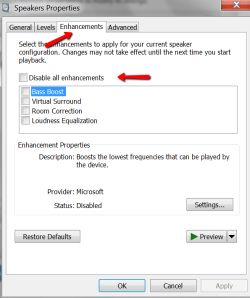
See whether there are enhancements set up.
 

Attachments

  • 2014-10-05_0657.png
    2014-10-05_0657.png
    20.3 KB · Views: 4

My Computer My Computer

Computer Manufacturer/Model Number
HP, Dell, Gateway, Toshiba - 4 laptops and 2 desktops
OS
Vista, Windows7, Mint Mate, Zorin, Windows 8
CPU
from 1.6GHz Duo to i7
Monitor(s) Displays
2x HP w2207
Hard Drives
5x HDD, 7x SSD, 12x Externals
Keyboard
with trackball - no mices
Mouse
Trackball mice
Internet Speed
DSL 6000
None of them are checked. I clicked "disable all enhancements" but it still happens :\
 

My Computer My Computer

Computer type
Laptop
Computer Manufacturer/Model Number
Acer 5738
OS
Windows 7 Professional 32bit
CPU
Intel Core 2 Duo, 2GHz
Memory
2 GB RAM
Graphics Card(s)
(Integrated)
Sound Card
Realtek
Monitor(s) Displays
Plug and Play Compliant driver
Screen Resolution
1366x768
Antivirus
BitDefender Internet Security 2015 (Promo version)
Browser
Google Chrome
When you disabled the enhancements, did you click on 'Apply'.
 

My Computer My Computer

Computer Manufacturer/Model Number
HP, Dell, Gateway, Toshiba - 4 laptops and 2 desktops
OS
Vista, Windows7, Mint Mate, Zorin, Windows 8
CPU
from 1.6GHz Duo to i7
Monitor(s) Displays
2x HP w2207
Hard Drives
5x HDD, 7x SSD, 12x Externals
Keyboard
with trackball - no mices
Mouse
Trackball mice
Internet Speed
DSL 6000
No...the button was greyed out.
 

My Computer My Computer

Computer type
Laptop
Computer Manufacturer/Model Number
Acer 5738
OS
Windows 7 Professional 32bit
CPU
Intel Core 2 Duo, 2GHz
Memory
2 GB RAM
Graphics Card(s)
(Integrated)
Sound Card
Realtek
Monitor(s) Displays
Plug and Play Compliant driver
Screen Resolution
1366x768
Antivirus
BitDefender Internet Security 2015 (Promo version)
Browser
Google Chrome
That is strange. Were there any individual items checked.
 

My Computer My Computer

Computer Manufacturer/Model Number
HP, Dell, Gateway, Toshiba - 4 laptops and 2 desktops
OS
Vista, Windows7, Mint Mate, Zorin, Windows 8
CPU
from 1.6GHz Duo to i7
Monitor(s) Displays
2x HP w2207
Hard Drives
5x HDD, 7x SSD, 12x Externals
Keyboard
with trackball - no mices
Mouse
Trackball mice
Internet Speed
DSL 6000
No items were checked. I looked around on the net and I saw that process explorer could be used to identify what is using the CPU in this case, and I saw that whenever I played any audio, there'd be a process "stdriverx86.sys" that would hog the CPU.

I had installed SoundTap before, but had uninstalled it later; how the driver remained is beyond me. I renamed the driver file extension to ".old" so that it wouldn't load it, but when I rebooted it, windows said that the device drivers for the sound were corrupted or not available.

Thanks for the help, I'd mark this thread solved, but the problem I have now is that there's no audio at all so I can't really test whether the fix really worked. Reinstalling the Realtek HD Audio drivers didn't help, they're still marked as corrupted:
 

Attachments

  • Capture.PNG
    Capture.PNG
    18.9 KB · Views: 2

My Computer My Computer

Computer type
Laptop
Computer Manufacturer/Model Number
Acer 5738
OS
Windows 7 Professional 32bit
CPU
Intel Core 2 Duo, 2GHz
Memory
2 GB RAM
Graphics Card(s)
(Integrated)
Sound Card
Realtek
Monitor(s) Displays
Plug and Play Compliant driver
Screen Resolution
1366x768
Antivirus
BitDefender Internet Security 2015 (Promo version)
Browser
Google Chrome
Finally Fixed!

SOLVED! It was a pain in the ass, NCH. Never downloading Soundtap from you again.

To anyone having the soundtap / stdriver / stdriverx86.sys file capturing CPU when sound's playing:

1) Identify what process is using the CPU. For me, it was the process "System" (PID 4) on my Windows 7 Professional.
2) Use Process Explorer (Not Process Monitor, I learnt that the time wasting way) to find out what happens in the system whenever sound's playing:
i) Right click on the process (i.e. System) and then sort the files by CPU usage inside the Properties (i.e. System >> Properties or so). For me, stdriverx86.sys was using 30 to 50 CPU whenever playing sound.​

Note of caution: I previously installed SoundTap and had uninstalled it but the driver didn't uninstall. I knew that stdriverx86.sys corresponded to SoundTap and since I'd removed it, I could remove it safely, but check and make sure that the driver you're going to remove isn't essential.

3) Don't delete stdriverx86.sys...yet. Reboot to Safe mode and uninstall your sound device drivers. (Or any device that uses stdriverx86.sys, go to Device Manager and for each driver, see the driver files and search for "stdriver". AFAIK you can't do this automatically, so you'll have to scan through manually. Right click >> Properties >> Drivers >> Driver Details >> search for stdriver)

4) Reinstall your drivers while in Safe mode. I installed Realtek HD Audio, yours may be different.
5) Go to Device manager, and scan for hardware changes. This may not be necessary, though.
6) Don't reboot yet. Go to the location of the stdriverx86 file (It's usually in %SYSTEMROOT%\System32\Drivers, copy this into Run) and rename it or delete it or whatever. I suggest renaming it since it's easier to recover if anything goes wrong.
7) After renaming the stdriverx86.sys file to whatever else (with some other extension, say a .OLD file), go to registry editor (start >> regedit.exe in search bar)
8) Follow these instructions: Fix: ?Windows cannot load Sound Card device driver, Code 39? error (SOLVED)
9) Reboot. It should work now, although as a disclaimer, YMMV. :D


Note: On 64 bit devices, the driver file for soundtap may be called stdriver64.sys. AFAIK it usually begins with "stdriver".
 

My Computer My Computer

Computer type
Laptop
Computer Manufacturer/Model Number
Acer 5738
OS
Windows 7 Professional 32bit
CPU
Intel Core 2 Duo, 2GHz
Memory
2 GB RAM
Graphics Card(s)
(Integrated)
Sound Card
Realtek
Monitor(s) Displays
Plug and Play Compliant driver
Screen Resolution
1366x768
Antivirus
BitDefender Internet Security 2015 (Promo version)
Browser
Google Chrome
Gimmick, thank you!!!

Gimmick, I am here all the way from 2016 on Windows 10 to say thank you so much for taking the time to figure this out! I have been trying for months to understand why my cpu usage was so high. You are the only one on the internet who seems to have actually figured it out. Luckily, I only had to uninstall SoundTap and restart my computer, and when I did, everything is perfect!

Again, thank you so much.
 

My Computer My Computer

Computer type
Laptop
OS
Windows 10
Back
Top