Host a Website - IIS7.5

Host your own website using IIS7.5

   Information
Windows 7 comes with a very handy application/tool set called Internet Information Services 7.5 which allows you to use any PC (Home or on a Network) as a server for your newly created website

   Note
You will need to register a DNS Host from here for free, purchasing a Domain is Optional

Update:
You can host a website without the need to register a Dynamic DNS host name. If you visit YouGetSignal it will give an External Address which can be used instead of the host name. For example, typing "http://x.xxx.xx.xxx" into your browser address bar will gain you access to the site you're hosting.
   Note
You can only host 1 website by using this method unless you add "/[new folder]/" to the end of the address


You will also need your IPv4 address, run command prompt (type cmd into the Start Menu) and type ipconfig, scroll up slightly & take note of your IPv4 address. This will be used to configure your router.

Special thanks goes to z3r010 for the majority of this information


Here's How:

Part 1: Acquiring the DNS Host

Go to www.no-ip.com and register for free. Click the 'Add Host' button and you will be give the option to name your host.
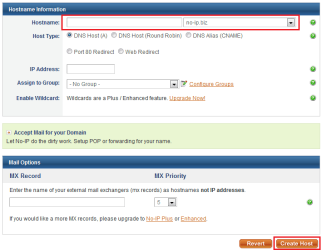
Add Host.PNGEnter Details.PNG


Just enter the name of your website and choose a prefix then click 'Create Host' (highlighted in image)
   Note
That is all the info you need to enter to create your DNS Host. It is also recommended that you download their NO-IP software too, as this will manage/sync your host.
Part 2: Installing & Using IIS7.5

1, Access 'Control Panel, and click 'Programs' followed by 'Turn Windows features on or off'.


Control Panel.PNG


2, Click the checkbox for each of the Internet Information Service toolsets then click 'OK'

Note: A system restart may be required
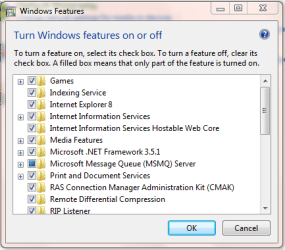
Windows Features.PNG


3, Run the IIS Manager - in the Start Menu type "IIS"
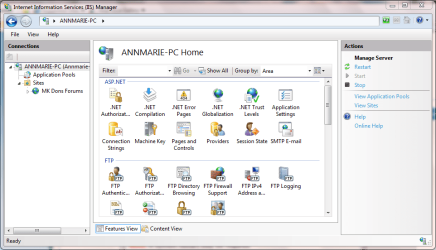
IIS Opened.PNG


4, Right-Click on 'Sites' and click 'Add Web Site'

Note: You may need to 'Expand' the explorer branch to allow you to see 'Sites'
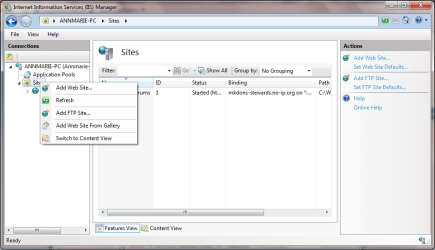
IIS New Site 1.PNG


5, Enter a 'Site Name', this can be anything (E.g. My New Site), 'Phisical Path' (E.g. C:\MY_SITE) and 'HOST Address', this is the address of the HOST you created in step 1 (e.g. my-new-site.no-ip.org) and click OK
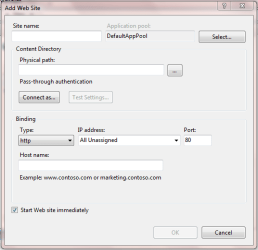
IIS New Site 2.PNG


Step 3: Router/Windows Firewall exception

1, In the Start Menu, type "firewall" and click 'Windows Firewall with Advanced Settings'
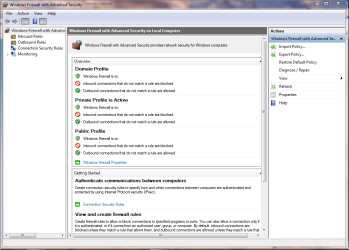

windows firewall.PNG


2, Click 'Inbound Rules' then 'New Rule' to start the 'New Rule Wizard. Click 'Port' then 'Next'

Inbound Rule 1.PNG


Click 'TCP' and enter port '80' then click 'Next'
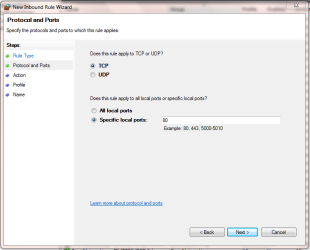
Inbound Rule 2.PNG


Click 'Allow the connection' then click 'Next'
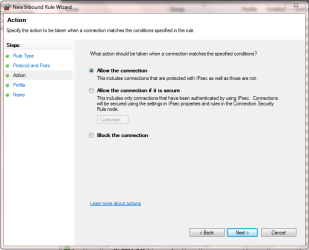
inbound rule 3.PNG


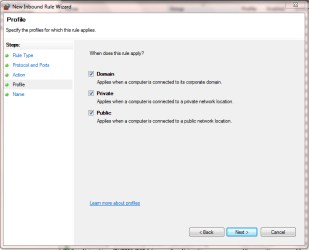
Click the rules that apply, then 'Next'
inbound rule 4.PNG


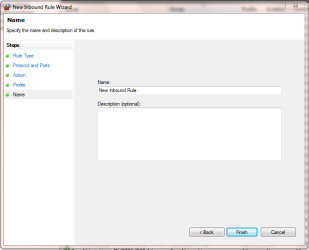
Lastly, name the new fule & click 'Finish'
inbound rule 5.PNG


You will see that the new rule has now been created and you can close Windows firewall

see new rule.PNG


   Note
You will need to consult your router documentation for details on how to allow firewall exceptions


The 2 exceptions you will need to configure are
  • 'Outbound service' - Always allow HTTP(TCP:80)
  • 'Inbound Service' - Always allow HTTP(TCP:80) and 'Send to lan server' within that (enter your IPv4 address)
Now when you type the HOST address, e.g. no-ip.org, you, and others, will be able to access your site.
 
Last edited:
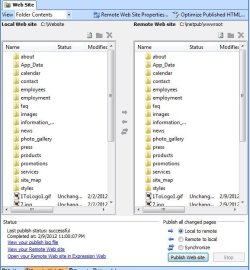
I'm useing Microsoft Expression Web to create my site. I publish it to the inetpub\wwwroot directory. I'm still unable to see my site. Success: I can see your service on 65.13.128.23 on port (80)
Your ISP is not blocking port 80

However the web site will not display at all. Can anyone help me with this?
 

Attachments

  • webbuild.jpg
    webbuild.jpg
    75.4 KB · Views: 535

My Computer

OS
Windows 7 64bit
localhost and my website is not starting up

dear member

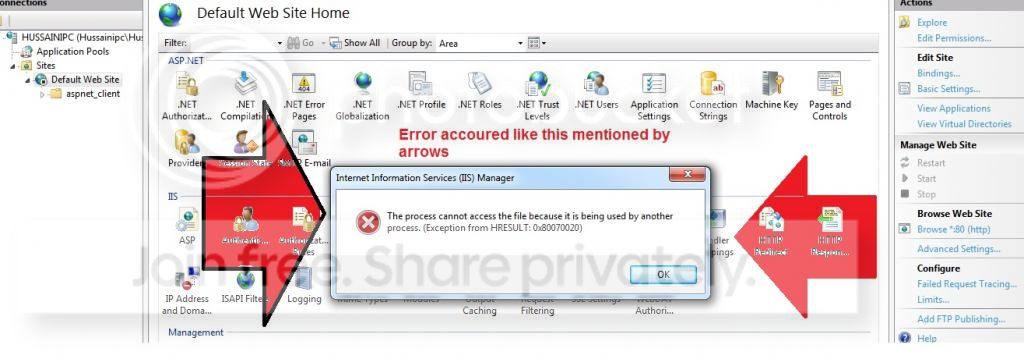
i just installed IIS 7 on my windows 7 when i am trying to share any site or web page but it dose not start up on the right i will share you a image please help me guys
error_zpsbd234d39.jpg
 

My Computer

Computer Manufacturer/Model Number
dell
OS
Windows 7 Professional x64
CPU
2.16
Motherboard
intell
Memory
3gb
Graphics Card(s)
256
Sound Card
AC real
Monitor(s) Displays
laptop
Hard Drives
320 gm
PSU
i dont know
Case
i dont know
Cooling
i dont know
Antivirus
Microsoft Security Essential
Browser
firefox
IIS 7.5 Localhost resolved but Static IP will not..

I'm having a issue with IIS 7.5 , the localhost (127.0.01) resolves but the boxes Static IP 192.168.0.127 will not resolve.. How do I bind to that IP
 

My Computer

Computer type
PC/Desktop
OS
New York
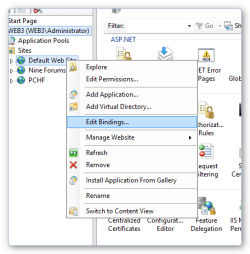
From the IIS manager right click on the website name in the left pane and select edit bindings, then add it and the next screen.

bind.png
 

My Computer

Computer type
PC/Desktop
OS
Windows 11 Workstation
Ah, yeah I've only ever bound domain names.

Does the IP show in the IP address dropdown?
 

My Computer

Computer type
PC/Desktop
OS
Windows 11 Workstation
Have you tried setting the IP as that along with port 80 with a blank hostname? the * binding should already cover it but it's worth a try if you haven't already.
 

My Computer

Computer type
PC/Desktop
OS
Windows 11 Workstation
[Fiddler] The connection to '192.168.0.127' failed.
Error: ConnectionRefused (0x274d).
System.Net.Sockets.SocketException No connection could be made because the target machine actively refused it 192.168.0.127:16020
 

My Computer

Computer type
PC/Desktop
OS
New York
Hi, I have a linksys Wireles-G Broadband Router WRT54GS, but I can't get to "The 2 exceptions you will need to configure are
'Outbound service' - Always allow HTTP(TCP:80)
'Inbound Service' - Always allow HTTP(TCP:80) and 'Send to lan server' within that (enter your IPv4 address)
Now when you type the HOST address, e.g. no-ip.org, you, and others, will be able to access your site." to work. When I go Firewall in the Security Option, here is what comes up with a check box enable in front of each except the Filter Internet NAT Redirection.
Block Anonymous Internet Requests
Filter Multicast
Filter Internet NAT Redirection
Filter IDENT(Port 113)

Can U please help me figure it out. By the way, I am new to the forum and help will be appreciated.
 

My Computer

Computer type
PC/Desktop
OS
Windows 7 x64
Back
Top