
Solved How Do I Stop Dual Boot and Remove Vista?

Durango

New member
Member
Local time
2:45 AM
Messages
83
Location
North Central Arkansas
I currently have Vista and Windows 7 installed on my computer (different partitions on different hard drives), and I currently perform dual booting between the two. I no longer use Vista so I would like to remove it from my computer.

So my questions are:
(1) How do I completely remove Vista from my hard drive?
(2) How do I then remove the dual boot menu so that I simply boot into Windows 7?

Thanks in advance for any help/advice..........
 

My Computer My Computer

Computer type
PC/Desktop
Computer Manufacturer/Model Number
Custom Build by Velocity Micro/Raptor Z55 SKYLAKE
OS
win 7 pro
CPU
Intel Core i5-6600, 4 core @ 3.3GHz
Motherboard
Asus Z170-P Intel Z170 base chipset
Memory
16 GB Crucial Ballistix
Graphics Card(s)
2GB EVGA NVIDIA GeForce GTX950 GDDR5
Sound Card
On-Board Integrated Realtek ALC887 7.1 Channel Audio
Monitor(s) Displays
Viewsonic 28"
Hard Drives
512GB Samsung 950 Pros PCIe 3.0 SSD
Two - 2TB 7200 SATA 600 with 64MB Cache
PSU
750 Watt EVGA SuperNOVA
Case
Full Sized ATX
Cooling
Intel High Performance Heatsink
Keyboard
Logitech Illuminated k740
Mouse
Logitech Wireless M310
Internet Speed
2.5 (slow DSL)
Antivirus
Microsoft Security Essentials, Malwarebytes
Browser
Internet Explorer 11
Other Info
TeamViewer installed
Acronis True Image installed
Please post back a screenshot of your maximized Disk Management drive map with listings, using Snipping Tool in the Start Menu. Type Disk Management in Start Search box.

We can then give you the exact steps to remove Vista. Do you wish to delete it and continue using it's HD?

Screen Shots
 
i would use easybcd (in 7) remove the vista boot option then just delete it from disk management and enlarge the 7 partition
 

My Computer My Computer

Computer Manufacturer/Model Number
Acer Aspire One AOA150bb
OS
ultimate X32
CPU
Intel Atom N270
Motherboard
Acer Aspire One
Memory
1GB
Hard Drives
160GB toshiba
i would use easybcd (in 7) remove the vista boot option then just delete it from disk management and enlarge the 7 partition

Read the first post please - he stated that his 7 and Vista systems are installed on separate physical drives. This makes things slightly more complicated. Need that Disk Management screenshot before we're going to give further advice. :)
 

My Computer My Computer

Computer type
PC/Desktop
Computer Manufacturer/Model Number
Custom-built
OS
Windows 7 Professional SP1 32-bit
CPU
Intel Core 2 Duo E6600 2.4GHz
Motherboard
Asus PL5D2
Memory
4GB DDR2-667 (4x1GB in dual-channel config)
Graphics Card(s)
nVidia GeForce 9800 GT
Sound Card
Creative X-Fi XtremeMusic
Monitor(s) Displays
Acer P236H
Screen Resolution
1920x1200 (DVI)
Hard Drives
OCZ SSD Vertex Plus 60GB SATA (Firmware 3.55), 64MB cache
Hitachi HD321KJ SATA, 320GB, 7200rpm, 16MB cache
PSU
Antec TruePower 2.0
Case
Cooler Master Centurion
Cooling
Too many fans
Keyboard
Standard
Mouse
Microsoft wireless optical mouse
Internet Speed
AT&T U-verse (18mbit/sec)
Antivirus
Microsoft Security Essentials
Browser
Firefox
Other Info
Other devices:
Compaq CQ-60 laptop
Google Nexus 7 (2012) tablet
Nvidia SHIELD tablet (US/LTE)
Hardkernel ODROID-XU single-board computer (Samsung Exynos 5420)
Please post back a screenshot of your maximized Disk Management drive map with listings, using Snipping Tool in the Start Menu. Type Disk Management in Start Search box.

We can then give you the exact steps to remove Vista. Do you wish to delete it and continue using it's HD?

Screen Shots
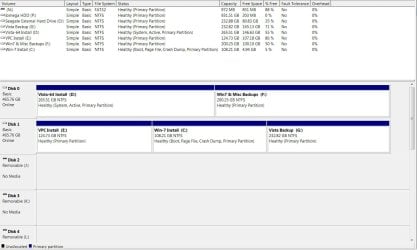
My screenshot is attached.

Yes, I wish to delete Vista. As shown in the screenshot, Vista is contained in the first partition of Disk 0 (named Vista-64 Install D)

I then want to reformat Disk 0 so I can use the entire disk for other purposes.

Thanks so much for your help.DiskContents1.JPG
 
Last edited:

My Computer My Computer

Computer type
PC/Desktop
Computer Manufacturer/Model Number
Custom Build by Velocity Micro/Raptor Z55 SKYLAKE
OS
win 7 pro
CPU
Intel Core i5-6600, 4 core @ 3.3GHz
Motherboard
Asus Z170-P Intel Z170 base chipset
Memory
16 GB Crucial Ballistix
Graphics Card(s)
2GB EVGA NVIDIA GeForce GTX950 GDDR5
Sound Card
On-Board Integrated Realtek ALC887 7.1 Channel Audio
Monitor(s) Displays
Viewsonic 28"
Hard Drives
512GB Samsung 950 Pros PCIe 3.0 SSD
Two - 2TB 7200 SATA 600 with 64MB Cache
PSU
750 Watt EVGA SuperNOVA
Case
Full Sized ATX
Cooling
Intel High Performance Heatsink
Keyboard
Logitech Illuminated k740
Mouse
Logitech Wireless M310
Internet Speed
2.5 (slow DSL)
Antivirus
Microsoft Security Essentials, Malwarebytes
Browser
Internet Explorer 11
Other Info
TeamViewer installed
Acronis True Image installed
Glad to help.

Mark Win7 partition Active in Vista Disk Mgmt or using DIskpart from Elevated Command Prompt: Partition - Mark as Active

Power down to unplug Vista HD, swap its data cable to Win7 HD, make sure it remains set first HD to boot in BIOS setup (after DVD driive).

Now boot the Win7 DVD Repair console or Repair CD to run Startup Repair 3 Separate Times with reboots until Win7 starts on its own and shows the System Active flags on its partition. System Repair Disc - Create

You can now power down to plug back in the Vista HD to Disk1 cable, open a Elevated Command Prompt from Win7, use Diskpart to wipe the HD so it is ready to create new partitions and format in Disk Mgmt: Clean and Clean All with Diskpart Command
Partition or Volume - Create New

If you want to move VPC install to the other HD you can use free Partition Wizard bootable CD to Resize C into its space to take advantage of slightly faster reads for Win7 in the lower HD address.
 
:eek:OK, I think I understand but I have a few questions:
(1) Before I start any of this, should I enter my BIOS setup and make sure that the Windows HD (Disk 1) is first boot after DVD drive?
(2) Are you suggesting that I create another System Repair Disk once Win 7 starts on its own (I already have such a disk)?
(3) I'm not real good with Elevated Command Prompts; can't I also wipe my Disk 0 clean using Disk Management, and then use Disk Management to create partitions and format?
(4) I like your idea of moving VPC Install to Drive 0 and then resizing C into its space. Can I achieve both of these things using Partition Wizard?
(5) And finally, once I successfully get Windows 7 to start on its own, do I have to still worry about my current dual boot menu, or will that automatically go away? If not, how do I remove it?

Thanks for sharing your expertise. At age 73, I do the best I can with whatever part of my brain still works. :D
 

My Computer My Computer

Computer type
PC/Desktop
Computer Manufacturer/Model Number
Custom Build by Velocity Micro/Raptor Z55 SKYLAKE
OS
win 7 pro
CPU
Intel Core i5-6600, 4 core @ 3.3GHz
Motherboard
Asus Z170-P Intel Z170 base chipset
Memory
16 GB Crucial Ballistix
Graphics Card(s)
2GB EVGA NVIDIA GeForce GTX950 GDDR5
Sound Card
On-Board Integrated Realtek ALC887 7.1 Channel Audio
Monitor(s) Displays
Viewsonic 28"
Hard Drives
512GB Samsung 950 Pros PCIe 3.0 SSD
Two - 2TB 7200 SATA 600 with 64MB Cache
PSU
750 Watt EVGA SuperNOVA
Case
Full Sized ATX
Cooling
Intel High Performance Heatsink
Keyboard
Logitech Illuminated k740
Mouse
Logitech Wireless M310
Internet Speed
2.5 (slow DSL)
Antivirus
Microsoft Security Essentials, Malwarebytes
Browser
Internet Explorer 11
Other Info
TeamViewer installed
Acronis True Image installed
Anwers in red below:

:eek:OK, I think I understand but I have a few questions:

(1) Before I start any of this, should I enter my BIOS setup and make sure that the Windows HD (Disk 1) is first boot after DVD drive?
It states the answer quite clearly in the third paragraph above.

(2) Are you suggesting that I create another System Repair Disk once Win 7 starts on its own (I already have such a disk)?
You do not need a System Repair Disk if you already have one.

(3) I'm not real good with Elevated Command Prompts; can't I also wipe my Disk 0 clean using Disk Management, and then use Disk Management to create partitions and format?
You can try, but it may refuse to Delete and/or Format Vista partition in Disk Mgmt because it is System Active. You can use free Partition Wizard bootable CD to Delete Vista, even wipe the HD from it's Disk tab.

(4) I like your idea of moving VPC Install to Drive 0 and then resizing C into its space. Can I achieve both of these things using Partition Wizard?
Yes, boot PW CD, rightclick VPC partition, choose Move, select unallocated space on old Vista HD, OK, Apply.
Make sure new VPC works correctly during several reboots, then boot PW CD to rightclick original VPC>Delete, OK, rightclick Win7 partiiton>Resize, drag left grey border all the way to the left, OK, Apply


(5) And finally, once I successfully get Windows 7 to start on its own, do I have to still worry about my current dual boot menu, or will that automatically go away? If not, how do I remove it?
It should go away, if not enter msconfig>Boot to Delete the ghost listing.

Thanks for sharing your expertise. At age 73, I do the best I can with whatever part of my brain still works. :D
 
:o Thank you. I hope to get it all done this next week and will keep you posted.
 

My Computer My Computer

Computer type
PC/Desktop
Computer Manufacturer/Model Number
Custom Build by Velocity Micro/Raptor Z55 SKYLAKE
OS
win 7 pro
CPU
Intel Core i5-6600, 4 core @ 3.3GHz
Motherboard
Asus Z170-P Intel Z170 base chipset
Memory
16 GB Crucial Ballistix
Graphics Card(s)
2GB EVGA NVIDIA GeForce GTX950 GDDR5
Sound Card
On-Board Integrated Realtek ALC887 7.1 Channel Audio
Monitor(s) Displays
Viewsonic 28"
Hard Drives
512GB Samsung 950 Pros PCIe 3.0 SSD
Two - 2TB 7200 SATA 600 with 64MB Cache
PSU
750 Watt EVGA SuperNOVA
Case
Full Sized ATX
Cooling
Intel High Performance Heatsink
Keyboard
Logitech Illuminated k740
Mouse
Logitech Wireless M310
Internet Speed
2.5 (slow DSL)
Antivirus
Microsoft Security Essentials, Malwarebytes
Browser
Internet Explorer 11
Other Info
TeamViewer installed
Acronis True Image installed
You can accomplish the same with EasyBCD. It provides a menu option for "migrating" the boot files from one drive to another. You run that, migrate the files, and when you reboot, the boot files are now in the Win7 drive. Then, you can simply reformat your Vista drive without worries. I had the same situation and it worked fine.
 

My Computer My Computer

Computer type
PC/Desktop
Computer Manufacturer/Model Number
Custom
OS
Win7 Pro 32-bit, Win8 Pro 32-bit
CPU
AMD Phenom II X6 1090T
Motherboard
Gigabyte
Memory
4GB ddr3 1300
Graphics Card(s)
AMD HD 4290 onboard
Sound Card
Builtin Realtek HD Audio
Monitor(s) Displays
Samsung 24" widescreen, LG 23" widescreen
Screen Resolution
1920x1200/1920x1080
Hard Drives
Kingston 256GB SSD
Keyboard
Logitech Illuminated Keyboard
Mouse
Logitech M705 wireless mouse
Antivirus
Norton Av 2013
Browser
IE v10
You can accomplish the same with EasyBCD. It provides a menu option for "migrating" the boot files from one drive to another. You run that, migrate the files, and when you reboot, the boot files are now in the Win7 drive. Then, you can simply reformat your Vista drive without worries. I had the same situation and it worked fine.
That would certainly be easier for me, as I wasn't looking forward to getting down on the floor and opening my case to swap drive data files (I'm not as flexible and agile as I use to be).

But I'm a little confused about where my boot files are currently located. If you look at the screenshot I attached earlier, my Win-7 Install partition on Disk 1 is already my boot partition. Doesn't this mean that my boot files are already in the Win-7 drive? So if I download/use EasyBCD, where am I migrating my boot files from/to?

And since my Vista-64 Install partition on Disk 0 is my active partition, does this not present a problem when I reformat that drive? How do I make my Win-7 partition the active one, or is that even necessary?

Thanks for your help. :confused:
 

My Computer My Computer

Computer type
PC/Desktop
Computer Manufacturer/Model Number
Custom Build by Velocity Micro/Raptor Z55 SKYLAKE
OS
win 7 pro
CPU
Intel Core i5-6600, 4 core @ 3.3GHz
Motherboard
Asus Z170-P Intel Z170 base chipset
Memory
16 GB Crucial Ballistix
Graphics Card(s)
2GB EVGA NVIDIA GeForce GTX950 GDDR5
Sound Card
On-Board Integrated Realtek ALC887 7.1 Channel Audio
Monitor(s) Displays
Viewsonic 28"
Hard Drives
512GB Samsung 950 Pros PCIe 3.0 SSD
Two - 2TB 7200 SATA 600 with 64MB Cache
PSU
750 Watt EVGA SuperNOVA
Case
Full Sized ATX
Cooling
Intel High Performance Heatsink
Keyboard
Logitech Illuminated k740
Mouse
Logitech Wireless M310
Internet Speed
2.5 (slow DSL)
Antivirus
Microsoft Security Essentials, Malwarebytes
Browser
Internet Explorer 11
Other Info
TeamViewer installed
Acronis True Image installed
I was just providing a suggestion if your boot files were currently on the Vista drive because, when a previous OS is already on the system and you install Win7, it generally adds it boot files to the previous OS's partition, not to its own.

One way to see for sure (yeah, I know you don't want to open the case) is to "open the case" and disconnect the Vista drive. If your PC still boots into Win7, you know for sure that the boot files are on the Win7 drive.
 

My Computer My Computer

Computer type
PC/Desktop
Computer Manufacturer/Model Number
Custom
OS
Win7 Pro 32-bit, Win8 Pro 32-bit
CPU
AMD Phenom II X6 1090T
Motherboard
Gigabyte
Memory
4GB ddr3 1300
Graphics Card(s)
AMD HD 4290 onboard
Sound Card
Builtin Realtek HD Audio
Monitor(s) Displays
Samsung 24" widescreen, LG 23" widescreen
Screen Resolution
1920x1200/1920x1080
Hard Drives
Kingston 256GB SSD
Keyboard
Logitech Illuminated Keyboard
Mouse
Logitech M705 wireless mouse
Antivirus
Norton Av 2013
Browser
IE v10
The boot files are on Vista as signified by the System Active flags. This is normal since when installed last the Win7 installer will configure a Dual Boot by updating the boot files on Vista partition.

The method given has been used hundreds of times here to remove XP or Vista from Dual Boot. By marking Win7 Active it tells Startup Repair where to write the System boot files during 3 separate repairs (or less).

However, if Vista remains plugged the REpairs will simply rewrite the boot files to Vista which holds the Active flag on its HD, since the repair looks for the first Active partition. The solution to unplug Vista and swap its cable to Win7 HD is best because you also want the OS on the first disk to avoid future problems with Repairs.

You can try marking Vista Inactive at the same time you mark Win7 partition Active: Partition - Mark as Active (Method Two) and leave Vista HD in place, however the Repair might rewrite boot files to Vista anyway. This is why it's best all around to swap Win7 HD into first disk slot (Disk0) and leave Vista HD unplugged until after repairs.

Another option is to boot free Partition Wizard bootable CD, rightclick on Vista partition to Modify>Set to Inactive, click OK. Then rightclick on Win7 partition to Modify>Set to Active, OK. Now click on the Win7 HD to highlight it, from Disk tab select Rebuild MBR, OK, Apply all steps. If it reboots into Win7 and Disk Mgmt shows it now holding System Active flags then you can avoid doing the Repairs.
 
Mark & gregrocker, you have both convinced me that I should open the case and swap my Win 7 HD into the first disk slot (Disk0) and leave Vista HD unplugged until after repairs. But I have encountered another minor problem, that being I don't know which drive is which inside my case. The drives are identical Hitachi 500 GB ATA drives with the same numbers showing in both Device Manager and the BIOS HD order. And in my BIOS, the Boot Device Priority is simply shown as CD/DVD ROM, Hard Disk, Floppy Disk and Ethernet.

Is there any other way to tell which drive is which, or do I need to just unplug one and see what happens? Thanks.
 

My Computer My Computer

Computer type
PC/Desktop
Computer Manufacturer/Model Number
Custom Build by Velocity Micro/Raptor Z55 SKYLAKE
OS
win 7 pro
CPU
Intel Core i5-6600, 4 core @ 3.3GHz
Motherboard
Asus Z170-P Intel Z170 base chipset
Memory
16 GB Crucial Ballistix
Graphics Card(s)
2GB EVGA NVIDIA GeForce GTX950 GDDR5
Sound Card
On-Board Integrated Realtek ALC887 7.1 Channel Audio
Monitor(s) Displays
Viewsonic 28"
Hard Drives
512GB Samsung 950 Pros PCIe 3.0 SSD
Two - 2TB 7200 SATA 600 with 64MB Cache
PSU
750 Watt EVGA SuperNOVA
Case
Full Sized ATX
Cooling
Intel High Performance Heatsink
Keyboard
Logitech Illuminated k740
Mouse
Logitech Wireless M310
Internet Speed
2.5 (slow DSL)
Antivirus
Microsoft Security Essentials, Malwarebytes
Browser
Internet Explorer 11
Other Info
TeamViewer installed
Acronis True Image installed
Unless your mobo ports are labeled and correspond to the listings in BIOS, it's probably easiest to just unplug the top one and see.

Be sure to power down first, try to limit touching to only the plugs and drives, but still touch the case first to discharge any static electricity - and don't do this on a carpet or rug of any kind. Use patience and coaxing.
 
Unless your mobo ports are labeled and correspond to the listings in BIOS, it's probably easiest to just unplug the top one and see.
OK, thanks.
 

My Computer My Computer

Computer type
PC/Desktop
Computer Manufacturer/Model Number
Custom Build by Velocity Micro/Raptor Z55 SKYLAKE
OS
win 7 pro
CPU
Intel Core i5-6600, 4 core @ 3.3GHz
Motherboard
Asus Z170-P Intel Z170 base chipset
Memory
16 GB Crucial Ballistix
Graphics Card(s)
2GB EVGA NVIDIA GeForce GTX950 GDDR5
Sound Card
On-Board Integrated Realtek ALC887 7.1 Channel Audio
Monitor(s) Displays
Viewsonic 28"
Hard Drives
512GB Samsung 950 Pros PCIe 3.0 SSD
Two - 2TB 7200 SATA 600 with 64MB Cache
PSU
750 Watt EVGA SuperNOVA
Case
Full Sized ATX
Cooling
Intel High Performance Heatsink
Keyboard
Logitech Illuminated k740
Mouse
Logitech Wireless M310
Internet Speed
2.5 (slow DSL)
Antivirus
Microsoft Security Essentials, Malwarebytes
Browser
Internet Explorer 11
Other Info
TeamViewer installed
Acronis True Image installed
Back
Top