Solved How does the Move function work, exactly ?

Clairvaux

New member
Pro User
VIP
Local time
2:36 PM
Messages
247
I've been trying to move around a lot of files lately. I've mostly used the Copy function at first (or third-party copy tools with hash verification), thinking it was the safe way.

Then, I experimented with the Move function, and I was surprised to find that it works with no delay at all, even if there are tons of files involved (provided, I think, that one remains within the same partition or disk).

I assumed that it is because it does not change anything to the file itself, but only tells Windows : this file used to be here, now it's there, just change the path.

I also assumed that, beyond being much faster than Copy, it's also safer, since it does not have to create the file all over again, so no corruption can happen.

And therefore, that it should be preferred when moving a large number of files.

Is that correct ?
 

My Computer

Computer type
PC/Desktop
Computer Manufacturer/Model Number
Custom build
OS
Windows 7 Home Premium 64-bit (OEM)
CPU
AMD Athlon II X4 640 (3 GHz, 4 cores)
Motherboard
Asus M4A 89 GTD Pro/USB3
Memory
Patriot 16Gb DDR3 1600 (2 kits of 2)
Graphics Card(s)
ATI Radeon HD 4290 (integrated)
Sound Card
AMD + Realtek HD Audio (integrated)
Monitor(s) Displays
Hewlett-Packard ZR2440w (24")
Screen Resolution
1920 x 1200
Hard Drives
Internal : Samsung SSD 860 EVO 250 Gb (system), Seagate Barrcuda 1 Tb (data), Western Digital Caviar Blue 500 Gb (archives).
External (USB) : 2 x 1 Tb 2,5" Seagate Barracuda (backups).
PSU
Corsair VX 450 W
Case
Antec Solo
Cooling
Cooler Master Hyper 212 Plus, 2 Nexus Real Silent Case fans
Keyboard
Cherry KC 1000
Mouse
Logitech M 90
Internet Speed
Fiber, 300 Mbit/s down, 200 Mbit/s up
Antivirus
Microsoft Security Essentials
Browser
Vivaldi, Tor
Other Info
BIOS Date: 07/18/11 Ver: 08.00.15.
Modem-router : provided by ISP
...this file used to be here, now it's there, just change the path.

I also assumed that, beyond being much faster than Copy, it's also safer, since it does not have to create the file all over again, so no corruption can happen.

And therefore, that it should be preferred when moving a large number of files.

Is that correct ?
For the move function:
(like you said)
The file stays put.
The path to the file changes.

The file might not get corrupted during a move, but (on rare occasions) recording the new path can fail and the file can be "lost" that way.
 

My Computer

Computer type
Laptop
Computer Manufacturer/Model Number
Employer provided Dell Latitude
OS
W7 Pro SP1 64bit
CPU
i7
Memory
8GB
Graphics Card(s)
Intel HD Graphics
Hard Drives
crappy SSD
Antivirus
Employer mandated Symantec Endpoint Protection
Browser
Pale Moon 64bit, IE11 64bit & Chrome 64bit
I don't move things around much but when I do I prefer (Copy) rather than (Move)

The reason is when you copy from "A" to "B" you can verify the copy on "B" is correct before removing it from "A".

Just a thought.
 

My Computer

Computer type
PC/Desktop
Computer Manufacturer/Model Number
Home made Desktop
OS
Windows 10 Pro. 64/ version 1709 Windows 7 Pro/64
CPU
Intel i7-6800K @ 4.3
Motherboard
ASUS X-99 Deluxe II
Memory
Corsair Platinum 16 gig @2400
Graphics Card(s)
EVGA GTX 1070 OC
Monitor(s) Displays
Asus 27" LED LCD/VE278Q
Screen Resolution
1920-1080 or 1280-720 HDMI
Hard Drives
INTEL SSD 730-240 Gb Sata 3.0/
PSU
EVGA Platium 1200W
Case
Phanteks Luxe Tempered Glass 8 fans/ one radiator
Cooling
XSPC/ Water Cooled CPU
Keyboard
Das 4 Professional
Mouse
Logitech M705/MX Anywhere 2-S
Internet Speed
100 mbits
Antivirus
Microsoft Security Essentials/ Malwarebytes Premium 3.0/ SAS
Browser
I.E. 11 default/Firefox/ ISP Time Warner Cable/Spectrum
Other Info
LG BluRay Burner/
Sound system-KLipsch-THX/
Icy Dock ssd Hot Swap bays.
I don't move things around much but when I do I prefer (Copy) rather than (Move)

The reason is when you copy from "A" to "B" you can verify the copy on "B" is correct before removing it from "A".

Just a thought.
That was the logic I initially followed.
The file might not get corrupted during a move, but (on rare occasions) recording the new path can fail and the file can be "lost" that way.
So, not entirely foolproof after all... too bad.
Thanks !
 

My Computer

Computer type
PC/Desktop
Computer Manufacturer/Model Number
Custom build
OS
Windows 7 Home Premium 64-bit (OEM)
CPU
AMD Athlon II X4 640 (3 GHz, 4 cores)
Motherboard
Asus M4A 89 GTD Pro/USB3
Memory
Patriot 16Gb DDR3 1600 (2 kits of 2)
Graphics Card(s)
ATI Radeon HD 4290 (integrated)
Sound Card
AMD + Realtek HD Audio (integrated)
Monitor(s) Displays
Hewlett-Packard ZR2440w (24")
Screen Resolution
1920 x 1200
Hard Drives
Internal : Samsung SSD 860 EVO 250 Gb (system), Seagate Barrcuda 1 Tb (data), Western Digital Caviar Blue 500 Gb (archives).
External (USB) : 2 x 1 Tb 2,5" Seagate Barracuda (backups).
PSU
Corsair VX 450 W
Case
Antec Solo
Cooling
Cooler Master Hyper 212 Plus, 2 Nexus Real Silent Case fans
Keyboard
Cherry KC 1000
Mouse
Logitech M 90
Internet Speed
Fiber, 300 Mbit/s down, 200 Mbit/s up
Antivirus
Microsoft Security Essentials
Browser
Vivaldi, Tor
Other Info
BIOS Date: 07/18/11 Ver: 08.00.15.
Modem-router : provided by ISP
I have never seen a file move fail in Windows 7. I have seen it fail a long time ago on an older OS.

I would think that a power outage at just the wrong moment could make a file move fail on any OS.
 

My Computer

Computer type
Laptop
Computer Manufacturer/Model Number
Employer provided Dell Latitude
OS
W7 Pro SP1 64bit
CPU
i7
Memory
8GB
Graphics Card(s)
Intel HD Graphics
Hard Drives
crappy SSD
Antivirus
Employer mandated Symantec Endpoint Protection
Browser
Pale Moon 64bit, IE11 64bit & Chrome 64bit
I have never seen a file move fail in Windows 7. I have seen it fail a long time ago on an older OS.
Thinking of it, all those remarks might tend to validate the Move option in a case similar to mine.

That is :

  • I have a backup of all my documents that I am about to restore.
  • I want to change my folder structure to keep up with my needs.
  • Some files and folders are better not restored, but kept as archives.
  • I restore the whole folder structure as it was, using Macrium (which verifies upon restore).
  • I use the Move function to arrange files and folders in the new structure.
  • I can move gigabytes in no time at all, since the files themselves don't... move.
  • In the unlikely event that the move fails and my files go poof !, it's no big deal because I still have that backup.
  • I suppose that files might then be all over the place on my disk, but that would be corrected at the next scheduled defrag.
Correct ?
 

My Computer

Computer type
PC/Desktop
Computer Manufacturer/Model Number
Custom build
OS
Windows 7 Home Premium 64-bit (OEM)
CPU
AMD Athlon II X4 640 (3 GHz, 4 cores)
Motherboard
Asus M4A 89 GTD Pro/USB3
Memory
Patriot 16Gb DDR3 1600 (2 kits of 2)
Graphics Card(s)
ATI Radeon HD 4290 (integrated)
Sound Card
AMD + Realtek HD Audio (integrated)
Monitor(s) Displays
Hewlett-Packard ZR2440w (24")
Screen Resolution
1920 x 1200
Hard Drives
Internal : Samsung SSD 860 EVO 250 Gb (system), Seagate Barrcuda 1 Tb (data), Western Digital Caviar Blue 500 Gb (archives).
External (USB) : 2 x 1 Tb 2,5" Seagate Barracuda (backups).
PSU
Corsair VX 450 W
Case
Antec Solo
Cooling
Cooler Master Hyper 212 Plus, 2 Nexus Real Silent Case fans
Keyboard
Cherry KC 1000
Mouse
Logitech M 90
Internet Speed
Fiber, 300 Mbit/s down, 200 Mbit/s up
Antivirus
Microsoft Security Essentials
Browser
Vivaldi, Tor
Other Info
BIOS Date: 07/18/11 Ver: 08.00.15.
Modem-router : provided by ISP
Sounds correct to me.
:-)
 

My Computer

Computer type
Laptop
Computer Manufacturer/Model Number
Employer provided Dell Latitude
OS
W7 Pro SP1 64bit
CPU
i7
Memory
8GB
Graphics Card(s)
Intel HD Graphics
Hard Drives
crappy SSD
Antivirus
Employer mandated Symantec Endpoint Protection
Browser
Pale Moon 64bit, IE11 64bit & Chrome 64bit
I don't move things around much but when I do I prefer (Copy) rather than (Move)

The reason is when you copy from "A" to "B" you can verify the copy on "B" is correct before removing it from "A".

Just a thought.
Have you ever renamed a folder that had files in it? If so, then that is a "move".

There are times when I copy/paste/check/delete...
...but I move a lot too :-)
 

My Computer

Computer type
Laptop
Computer Manufacturer/Model Number
Employer provided Dell Latitude
OS
W7 Pro SP1 64bit
CPU
i7
Memory
8GB
Graphics Card(s)
Intel HD Graphics
Hard Drives
crappy SSD
Antivirus
Employer mandated Symantec Endpoint Protection
Browser
Pale Moon 64bit, IE11 64bit & Chrome 64bit
By the way, stupid Windows 7 does not have a right-click option for the Move function :rolleyes: . (I know there's a magic little download to correct this, somewhere in Seven Forums...)
 

My Computer

Computer type
PC/Desktop
Computer Manufacturer/Model Number
Custom build
OS
Windows 7 Home Premium 64-bit (OEM)
CPU
AMD Athlon II X4 640 (3 GHz, 4 cores)
Motherboard
Asus M4A 89 GTD Pro/USB3
Memory
Patriot 16Gb DDR3 1600 (2 kits of 2)
Graphics Card(s)
ATI Radeon HD 4290 (integrated)
Sound Card
AMD + Realtek HD Audio (integrated)
Monitor(s) Displays
Hewlett-Packard ZR2440w (24")
Screen Resolution
1920 x 1200
Hard Drives
Internal : Samsung SSD 860 EVO 250 Gb (system), Seagate Barrcuda 1 Tb (data), Western Digital Caviar Blue 500 Gb (archives).
External (USB) : 2 x 1 Tb 2,5" Seagate Barracuda (backups).
PSU
Corsair VX 450 W
Case
Antec Solo
Cooling
Cooler Master Hyper 212 Plus, 2 Nexus Real Silent Case fans
Keyboard
Cherry KC 1000
Mouse
Logitech M 90
Internet Speed
Fiber, 300 Mbit/s down, 200 Mbit/s up
Antivirus
Microsoft Security Essentials
Browser
Vivaldi, Tor
Other Info
BIOS Date: 07/18/11 Ver: 08.00.15.
Modem-router : provided by ISP

My Computer

Computer type
PC/Desktop
Computer Manufacturer/Model Number
Home made Desktop
OS
Windows 10 Pro. 64/ version 1709 Windows 7 Pro/64
CPU
Intel i7-6800K @ 4.3
Motherboard
ASUS X-99 Deluxe II
Memory
Corsair Platinum 16 gig @2400
Graphics Card(s)
EVGA GTX 1070 OC
Monitor(s) Displays
Asus 27" LED LCD/VE278Q
Screen Resolution
1920-1080 or 1280-720 HDMI
Hard Drives
INTEL SSD 730-240 Gb Sata 3.0/
PSU
EVGA Platium 1200W
Case
Phanteks Luxe Tempered Glass 8 fans/ one radiator
Cooling
XSPC/ Water Cooled CPU
Keyboard
Das 4 Professional
Mouse
Logitech M705/MX Anywhere 2-S
Internet Speed
100 mbits
Antivirus
Microsoft Security Essentials/ Malwarebytes Premium 3.0/ SAS
Browser
I.E. 11 default/Firefox/ ISP Time Warner Cable/Spectrum
Other Info
LG BluRay Burner/
Sound system-KLipsch-THX/
Icy Dock ssd Hot Swap bays.
Yes ! Exactly ! Thanks, Layback Bear !
 

My Computer

Computer type
PC/Desktop
Computer Manufacturer/Model Number
Custom build
OS
Windows 7 Home Premium 64-bit (OEM)
CPU
AMD Athlon II X4 640 (3 GHz, 4 cores)
Motherboard
Asus M4A 89 GTD Pro/USB3
Memory
Patriot 16Gb DDR3 1600 (2 kits of 2)
Graphics Card(s)
ATI Radeon HD 4290 (integrated)
Sound Card
AMD + Realtek HD Audio (integrated)
Monitor(s) Displays
Hewlett-Packard ZR2440w (24")
Screen Resolution
1920 x 1200
Hard Drives
Internal : Samsung SSD 860 EVO 250 Gb (system), Seagate Barrcuda 1 Tb (data), Western Digital Caviar Blue 500 Gb (archives).
External (USB) : 2 x 1 Tb 2,5" Seagate Barracuda (backups).
PSU
Corsair VX 450 W
Case
Antec Solo
Cooling
Cooler Master Hyper 212 Plus, 2 Nexus Real Silent Case fans
Keyboard
Cherry KC 1000
Mouse
Logitech M 90
Internet Speed
Fiber, 300 Mbit/s down, 200 Mbit/s up
Antivirus
Microsoft Security Essentials
Browser
Vivaldi, Tor
Other Info
BIOS Date: 07/18/11 Ver: 08.00.15.
Modem-router : provided by ISP
Your most welcome.
 

My Computer

Computer type
PC/Desktop
Computer Manufacturer/Model Number
Home made Desktop
OS
Windows 10 Pro. 64/ version 1709 Windows 7 Pro/64
CPU
Intel i7-6800K @ 4.3
Motherboard
ASUS X-99 Deluxe II
Memory
Corsair Platinum 16 gig @2400
Graphics Card(s)
EVGA GTX 1070 OC
Monitor(s) Displays
Asus 27" LED LCD/VE278Q
Screen Resolution
1920-1080 or 1280-720 HDMI
Hard Drives
INTEL SSD 730-240 Gb Sata 3.0/
PSU
EVGA Platium 1200W
Case
Phanteks Luxe Tempered Glass 8 fans/ one radiator
Cooling
XSPC/ Water Cooled CPU
Keyboard
Das 4 Professional
Mouse
Logitech M705/MX Anywhere 2-S
Internet Speed
100 mbits
Antivirus
Microsoft Security Essentials/ Malwarebytes Premium 3.0/ SAS
Browser
I.E. 11 default/Firefox/ ISP Time Warner Cable/Spectrum
Other Info
LG BluRay Burner/
Sound system-KLipsch-THX/
Icy Dock ssd Hot Swap bays.
The big problem with Copy over Move to me is Copy changes the Create date, Move doesn't.
 

My Computer

Computer type
PC/Desktop
Computer Manufacturer/Model Number
Lenovo IdeaCenter 450
OS
Windows 10 Pro X64
CPU
Intel Quad Core i7-4770 @ 3.4Ghz
Memory
16.0GB PC3-12800 DDR3 SDRAM 1600 MHz
Graphics Card(s)
Intel Integrated HD Graphics
Sound Card
Realtek HD Audio
Monitor(s) Displays
HP 22" LCD
Screen Resolution
1680 x 1050
Hard Drives
250GB Samsung EVO SATA-3 SSD
2TB Seagate ST2000DM001 SATA-2
1.5TB Seagate ST3150041AS SATA
Keyboard
Dell USB
Mouse
Lenovo USB
Internet Speed
Cable via Road Runner 3MB Upload, 30MB Download
Antivirus
Windows Defender, MBAM Pro, MBAE
Browser
Seamonkey
Other Info
UEFI/GPT
PLDS DVD-RW DH16AERSH
...this file used to be here, now it's there, just change the path.

I also assumed that, beyond being much faster than Copy, it's also safer, since it does not have to create the file all over again, so no corruption can happen.

And therefore, that it should be preferred when moving a large number of files.

Is that correct ?
For the move function:
(like you said)
The file stays put.
The path to the file changes.
That is true if you are moving something within the same drive/partition structure.

It will take longer to move a file to a different drive/partition structure as new "index" records have to be created and the data has to be "physically" moved.

Presumably, the Storage Spaces feature of the W8 series and W10 will allow you to "move" files to any member (drive/partition) of the storage pool, by simply modifying the pool's "index" records.
 
Last edited:

My Computer

Computer type
PC/Desktop
Computer Manufacturer/Model Number
n/a
OS
W7 Ultimate SP1, LM19.2 MATE, W10 Home 1703, W10 Pro 1703 VM, #All 64 bit
CPU
AMD Phenom II x6 1100T, 3.3 GHz
Motherboard
ASUS M4A88T-M/USB3 (AM3)
Memory
12GB DDR3 1333 G-Skill (4GB x 2), G-Skill (2GB x 2)
Graphics Card(s)
NVIDIA GeForce GTX 660
Sound Card
Realtek?
Monitor(s) Displays
Samsung S23B350
Screen Resolution
1920x1080
Hard Drives
WD Green 2TB (SATA), WD Green 3TB (SATA), WD Blue 4TB (SATA), WD Blue 6TB (SATA)
PSU
Cooler Master
Case
Antec GX300 Tower
Cooling
3x Antec TRICOOL 120mm Fans
Mouse
Wired Optical
Internet Speed
DSL
Antivirus
Avast
Browser
Pale Moon (64 bit)
Other Info
2018-12-27 Upgraded HDDs
2015-12-10 Upgraded case, graphics card, storage
2015-08-15 Upgraded motherboard & RAM
2015-07-15 Upgraded LM17.1 to LM17.2
The big problem with Copy over Move to me is Copy changes the Create date, Move doesn't.
I hadn't realised that. On more reason to like Move.

I hate file dates in Windows 7. I still haven't mastered them. You have a thousand differently qualified dates, including a Date field with no added adjectives... I have taken to append my own date to every file I create a long time ago, and I still see no reason to abandon this habit. At least, I know this date will never change and I know what it means, which is more than you can say about Windows' dates.

One of the most horrible behaviours of the W 7 file system has to be the fact that a file can have been Modified before it was Created, which is counter-intuitive, to say the least.

I have come to believe that Date created (as well as some other Dates x) just means : date when Windows made something with this file, whatever that is. For all practical means, I find it useless.

It will take longer to move a file to a different drive/partition structure as new "index" records have to be created and the data has to be "physically" moved.
Thanks for confirming what I thought. So a Move operation to a different partition would actually copy the file on the destination and delete it from where it was ?
 

My Computer

Computer type
PC/Desktop
Computer Manufacturer/Model Number
Custom build
OS
Windows 7 Home Premium 64-bit (OEM)
CPU
AMD Athlon II X4 640 (3 GHz, 4 cores)
Motherboard
Asus M4A 89 GTD Pro/USB3
Memory
Patriot 16Gb DDR3 1600 (2 kits of 2)
Graphics Card(s)
ATI Radeon HD 4290 (integrated)
Sound Card
AMD + Realtek HD Audio (integrated)
Monitor(s) Displays
Hewlett-Packard ZR2440w (24")
Screen Resolution
1920 x 1200
Hard Drives
Internal : Samsung SSD 860 EVO 250 Gb (system), Seagate Barrcuda 1 Tb (data), Western Digital Caviar Blue 500 Gb (archives).
External (USB) : 2 x 1 Tb 2,5" Seagate Barracuda (backups).
PSU
Corsair VX 450 W
Case
Antec Solo
Cooling
Cooler Master Hyper 212 Plus, 2 Nexus Real Silent Case fans
Keyboard
Cherry KC 1000
Mouse
Logitech M 90
Internet Speed
Fiber, 300 Mbit/s down, 200 Mbit/s up
Antivirus
Microsoft Security Essentials
Browser
Vivaldi, Tor
Other Info
BIOS Date: 07/18/11 Ver: 08.00.15.
Modem-router : provided by ISP
It is worth noting that move and copy handle the attributes of files and folders differently. These include compression, encryption, datestamp, and NTFS permissions. Generally with a move the file caries these attributes to the new location while with a copy they are inherited from the new parent folder.

Edit:
Thanks for confirming what I thought. So a Move operation to a different partition would actually copy the file on the destination and delete it from where it was ?

Yes. What else could it do?
 

My Computer

Computer type
PC/Desktop
Computer Manufacturer/Model Number
HP
OS
Windows 7 Pro 64 bit
CPU
Xeon W3520
Memory
8 GB
Graphics Card(s)
Nvidia Geforce 210
I believe that when moving across partitions / drives, the file is deleted as it is being written in the new location. This is why I always copy and then delete manually. Found out the hard way if there is a problem in the process, sections of the file may be lost. Not too good working with video files.
Art.
 

My Computer

Computer type
PC/Desktop
Computer Manufacturer/Model Number
Home built
OS
Win7 sp1 Pro 64bit / XP sp2 Pro (games only)
CPU
Intel Core 2 Duo E8400 @ 3.00GHz
Motherboard
Intel Corporation DP35DP (CPU1)
Memory
8.00 GB Dual-Channel DDR2 @ 400MHz (5-5-5-18)
Graphics Card(s)
1024MB GeForce GTX 560
Sound Card
NVIDIA High Definition Audio
Monitor(s) Displays
SyncMaster (2048x1152@60Hz)
Hard Drives
240GB Sandisc Extreme Pro SSD
244GB Seagate ST3250410AS
488GB Seagate ST500DM002-1BD142
931GB Western Digital WDC WD1003FZEX
PSU
Corsair 720
Case
ATX
Keyboard
HID Keyboard Device Logitech
Mouse
HID-compliant mouse Microsoft
Other Info
TSSTcorp CDDVDW SH-S223L

HL-DT-ST BD-RE BH12LS35
[...]
The file stays put.
The path to the file changes.
That is true if you are moving something within the same drive/partition structure.

It will take longer to move a file to a different drive/partition structure as new "index" records have to be created and the data has to be "physically" moved.
Precisely. We must realise that there are actually two distinct Move operations that Windows may perform, depending on whether a filesystem item is moved to another drive/partition or not.

For intuition, it's worth mentioning the applications of hardlinks. Hardlinks make it possible to have multiple references to a single physical file. That is, for instance, they allow for two separate directory entries to point to one physical space of data. Knowing this, a Move effect can be achieved by simply creating a hardlink to a file at a new destination then deleting the previous reference to that file.

E.g.,
Assume file C:\file.txt;
Create handlink to file.txt at new location C:\New\file.txt;
Delete file C:\file.txt.

The file C:\file.txt now resides in the directory of C:\New, just as if it were moved there.


I believe that when moving across partitions / drives, the file is deleted as it is being written in the new location.
In terms of a filesystem, if all it takes to delete a file is remove the file's reference, then why should a filesystem bother to erase a file's data when it's deleted? If it were the case that a file's data is overwritten upon deletion, then deleting a file would take just as much time as it took the file to get there. Furthermore, if a file's data is progressively erased as it is being moved, then interrupting the move operation will destroy the file. This would make for a very unstable OS.


I hate file dates in Windows 7. I still haven't mastered them. You have a thousand differently qualified dates, including a Date field with no added adjectives...
In Windows Explorer, the “Date” column is a calculated field. See this SuperUser answer. Regarding files under NTFS, the three fundamental dates, dates of which are actually recorded by the NTFS filesystem, are CreationTime, LastAccessTime, and LastWriteTime. All other dates you see in Windows Explorer are calculated, or are specific to certain file types.


Lastly, another piece of interesting trivia, if one is denied permission to delete a file they will also implicitly be denied from moving it. This is at no exception.
 
Last edited:

My Computer

Computer type
PC/Desktop
OS
Windows 10, Windows 8.1 Pro, Windows 7 Professional, OS X El Capitan
I believe that when moving across partitions / drives, the file is deleted as it is being written in the new location. This is why I always copy and then delete manually. Found out the hard way if there is a problem in the process, sections of the file may be lost. Not too good working with video files.
Art.

That
should not happen.


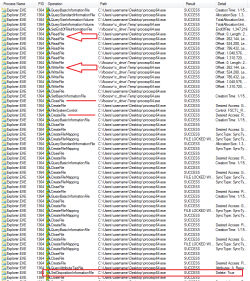
I see that Pyprohly posted while I was gathering my data from Process Monitor. Pyprohly beat me to saying that the file is not deleted from its original location during a move (or during a manual "delete"). That is why "undelete" utilities have a shot at recovering files.

Notice when the original file was "deleted" from the desktop:

move-file.png
 

My Computer

Computer type
Laptop
Computer Manufacturer/Model Number
Employer provided Dell Latitude
OS
W7 Pro SP1 64bit
CPU
i7
Memory
8GB
Graphics Card(s)
Intel HD Graphics
Hard Drives
crappy SSD
Antivirus
Employer mandated Symantec Endpoint Protection
Browser
Pale Moon 64bit, IE11 64bit & Chrome 64bit
In Windows Explorer, the “Date” column is a calculated field. See this SuperUser answer. Regarding files under NTFS, the three fundamental dates, dates of which are actually recorded by the NTFS filesystem, are CreationTime, LastAccessTime, and LastWriteTime. All other dates you see in Windows Explorer are calculated, or are specific to certain file types.
Fascinating, Pyprohly. So I'm not the only one befuddled about those "dates". I've been using W 7 for 5 years, read whole W 7 books, browsed an untold number of help sites and Microsoft sites, and it's the first time I come across this fundamental piece of information.

This will make me stick more than ever with my resolution to append my own creation dates to my own files...

Does CreationTime = Date created, LastAccessTime = Date accessed and LastWriteTime = Date modified ?

Would you be aware of a help page somewhere about dates in Windows Explorer ? Something user-oriented, not overly geeky ?
 

My Computer

Computer type
PC/Desktop
Computer Manufacturer/Model Number
Custom build
OS
Windows 7 Home Premium 64-bit (OEM)
CPU
AMD Athlon II X4 640 (3 GHz, 4 cores)
Motherboard
Asus M4A 89 GTD Pro/USB3
Memory
Patriot 16Gb DDR3 1600 (2 kits of 2)
Graphics Card(s)
ATI Radeon HD 4290 (integrated)
Sound Card
AMD + Realtek HD Audio (integrated)
Monitor(s) Displays
Hewlett-Packard ZR2440w (24")
Screen Resolution
1920 x 1200
Hard Drives
Internal : Samsung SSD 860 EVO 250 Gb (system), Seagate Barrcuda 1 Tb (data), Western Digital Caviar Blue 500 Gb (archives).
External (USB) : 2 x 1 Tb 2,5" Seagate Barracuda (backups).
PSU
Corsair VX 450 W
Case
Antec Solo
Cooling
Cooler Master Hyper 212 Plus, 2 Nexus Real Silent Case fans
Keyboard
Cherry KC 1000
Mouse
Logitech M 90
Internet Speed
Fiber, 300 Mbit/s down, 200 Mbit/s up
Antivirus
Microsoft Security Essentials
Browser
Vivaldi, Tor
Other Info
BIOS Date: 07/18/11 Ver: 08.00.15.
Modem-router : provided by ISP
Back
Top