
You are using an out of date browser. It may not display this or other websites correctly.
You should upgrade or use an alternative browser.
You should upgrade or use an alternative browser.
Solved How to Circle an event in MS Word
- Thread starter titi2
- Start date
seavixen32
New member
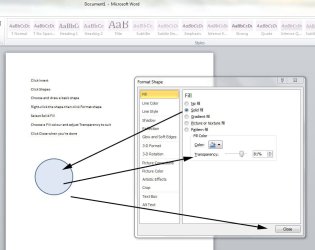
Try this method. I'm using Word 2010.
My Computer
At a glance
Windows 7 Ultimate SP1 64-BitIntel Core i7 870 @ 2.93GHz8Gb Dual-Channel DDR3 @ 664MHznVidia GeForce GTX 460 1024MB dedicated RAM
- Computer Manufacturer/Model Number
- HP Pavilion Elite 495UK
- OS
- Windows 7 Ultimate SP1 64-Bit
- CPU
- Intel Core i7 870 @ 2.93GHz
- Motherboard
- MSI 2A9C (CPU1)
- Memory
- 8Gb Dual-Channel DDR3 @ 664MHz
- Graphics Card(s)
- nVidia GeForce GTX 460 1024MB dedicated RAM
- Sound Card
- Realtek HD Audio
- Monitor(s) Displays
- HP2310i
- Screen Resolution
- 1920 x 1080
- Hard Drives
- 1x1954GB Hitachi HDS22020ALA 330 (RAID), 1x1954GB Hitachi External for backup and storage
- PSU
- 460W
- Case
- HP Elite
- Cooling
- Air cooled
- Keyboard
- Logitech K750 solar-powered keyboard
- Mouse
- Logitech Wireless M180 mouse
- Internet Speed
- 2Mb
- Other Info
- Pure Avanti Flow Internet Radio with iPod Dock, 64Gb iPod, HP USB Speakers, Sony MDR-V500 Headphones, Sony Vaio F-Series Laptop
Thanks for your help. I mean To Circle Around A Word or Group of words to draw reader's attention. The circle looks like a brush not a line. Thanks.
My Computer
At a glance
Windows 7 Professional, SP11.25GB
- OS
- Windows 7 Professional, SP1
- Memory
- 1.25GB
seavixen32
New member
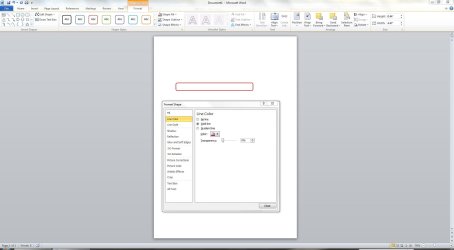
In that case, draw your shape and choose Solid Line then choose your colour, line style and transparency.
My Computer
At a glance
Windows 7 Ultimate SP1 64-BitIntel Core i7 870 @ 2.93GHz8Gb Dual-Channel DDR3 @ 664MHznVidia GeForce GTX 460 1024MB dedicated RAM
- Computer Manufacturer/Model Number
- HP Pavilion Elite 495UK
- OS
- Windows 7 Ultimate SP1 64-Bit
- CPU
- Intel Core i7 870 @ 2.93GHz
- Motherboard
- MSI 2A9C (CPU1)
- Memory
- 8Gb Dual-Channel DDR3 @ 664MHz
- Graphics Card(s)
- nVidia GeForce GTX 460 1024MB dedicated RAM
- Sound Card
- Realtek HD Audio
- Monitor(s) Displays
- HP2310i
- Screen Resolution
- 1920 x 1080
- Hard Drives
- 1x1954GB Hitachi HDS22020ALA 330 (RAID), 1x1954GB Hitachi External for backup and storage
- PSU
- 460W
- Case
- HP Elite
- Cooling
- Air cooled
- Keyboard
- Logitech K750 solar-powered keyboard
- Mouse
- Logitech Wireless M180 mouse
- Internet Speed
- 2Mb
- Other Info
- Pure Avanti Flow Internet Radio with iPod Dock, 64Gb iPod, HP USB Speakers, Sony MDR-V500 Headphones, Sony Vaio F-Series Laptop
seavixen32
New member
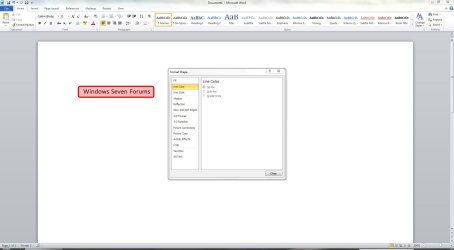
You're welcome. Was this what you were after?
What I did here was format the shape first, and then format the line second.
What I did here was format the shape first, and then format the line second.
My Computer
At a glance
Windows 7 Ultimate SP1 64-BitIntel Core i7 870 @ 2.93GHz8Gb Dual-Channel DDR3 @ 664MHznVidia GeForce GTX 460 1024MB dedicated RAM
- Computer Manufacturer/Model Number
- HP Pavilion Elite 495UK
- OS
- Windows 7 Ultimate SP1 64-Bit
- CPU
- Intel Core i7 870 @ 2.93GHz
- Motherboard
- MSI 2A9C (CPU1)
- Memory
- 8Gb Dual-Channel DDR3 @ 664MHz
- Graphics Card(s)
- nVidia GeForce GTX 460 1024MB dedicated RAM
- Sound Card
- Realtek HD Audio
- Monitor(s) Displays
- HP2310i
- Screen Resolution
- 1920 x 1080
- Hard Drives
- 1x1954GB Hitachi HDS22020ALA 330 (RAID), 1x1954GB Hitachi External for backup and storage
- PSU
- 460W
- Case
- HP Elite
- Cooling
- Air cooled
- Keyboard
- Logitech K750 solar-powered keyboard
- Mouse
- Logitech Wireless M180 mouse
- Internet Speed
- 2Mb
- Other Info
- Pure Avanti Flow Internet Radio with iPod Dock, 64Gb iPod, HP USB Speakers, Sony MDR-V500 Headphones, Sony Vaio F-Series Laptop
seavixen32
New member
Create your shape, right-click and select Format Shape.
Format the Fill Color and Transparency first, and then format the Line Color second as I showed you in the two screenshots.
Basically, all you are doing is apply two sets of format options to the same shape.
You use the Fill color and transparency to highlight the text and the Line color for the outline of the shape.
For the screenshot, save it in your Pictures folder using the Snipping tool, then click the paper clip in your post to open the Manage Attachments window.
Browse to your screenshot then click Upload.
When the upload is complete, close the Manage Attachments window then click the paper clip again and click the link to your image to insert it in your post.
Format the Fill Color and Transparency first, and then format the Line Color second as I showed you in the two screenshots.
Basically, all you are doing is apply two sets of format options to the same shape.
You use the Fill color and transparency to highlight the text and the Line color for the outline of the shape.
For the screenshot, save it in your Pictures folder using the Snipping tool, then click the paper clip in your post to open the Manage Attachments window.
Browse to your screenshot then click Upload.
When the upload is complete, close the Manage Attachments window then click the paper clip again and click the link to your image to insert it in your post.
My Computer
At a glance
Windows 7 Ultimate SP1 64-BitIntel Core i7 870 @ 2.93GHz8Gb Dual-Channel DDR3 @ 664MHznVidia GeForce GTX 460 1024MB dedicated RAM
- Computer Manufacturer/Model Number
- HP Pavilion Elite 495UK
- OS
- Windows 7 Ultimate SP1 64-Bit
- CPU
- Intel Core i7 870 @ 2.93GHz
- Motherboard
- MSI 2A9C (CPU1)
- Memory
- 8Gb Dual-Channel DDR3 @ 664MHz
- Graphics Card(s)
- nVidia GeForce GTX 460 1024MB dedicated RAM
- Sound Card
- Realtek HD Audio
- Monitor(s) Displays
- HP2310i
- Screen Resolution
- 1920 x 1080
- Hard Drives
- 1x1954GB Hitachi HDS22020ALA 330 (RAID), 1x1954GB Hitachi External for backup and storage
- PSU
- 460W
- Case
- HP Elite
- Cooling
- Air cooled
- Keyboard
- Logitech K750 solar-powered keyboard
- Mouse
- Logitech Wireless M180 mouse
- Internet Speed
- 2Mb
- Other Info
- Pure Avanti Flow Internet Radio with iPod Dock, 64Gb iPod, HP USB Speakers, Sony MDR-V500 Headphones, Sony Vaio F-Series Laptop
Yup, I see it now. I go to Insert/Shapes to create the shape. Then I just follow your instruction. It's VERY kind of you. Thank YOU and have a good day.
My Computer
At a glance
Windows 7 Professional, SP11.25GB
- OS
- Windows 7 Professional, SP1
- Memory
- 1.25GB
seavixen32
New member
You're very welcome. 
My Computer
At a glance
Windows 7 Ultimate SP1 64-BitIntel Core i7 870 @ 2.93GHz8Gb Dual-Channel DDR3 @ 664MHznVidia GeForce GTX 460 1024MB dedicated RAM
- Computer Manufacturer/Model Number
- HP Pavilion Elite 495UK
- OS
- Windows 7 Ultimate SP1 64-Bit
- CPU
- Intel Core i7 870 @ 2.93GHz
- Motherboard
- MSI 2A9C (CPU1)
- Memory
- 8Gb Dual-Channel DDR3 @ 664MHz
- Graphics Card(s)
- nVidia GeForce GTX 460 1024MB dedicated RAM
- Sound Card
- Realtek HD Audio
- Monitor(s) Displays
- HP2310i
- Screen Resolution
- 1920 x 1080
- Hard Drives
- 1x1954GB Hitachi HDS22020ALA 330 (RAID), 1x1954GB Hitachi External for backup and storage
- PSU
- 460W
- Case
- HP Elite
- Cooling
- Air cooled
- Keyboard
- Logitech K750 solar-powered keyboard
- Mouse
- Logitech Wireless M180 mouse
- Internet Speed
- 2Mb
- Other Info
- Pure Avanti Flow Internet Radio with iPod Dock, 64Gb iPod, HP USB Speakers, Sony MDR-V500 Headphones, Sony Vaio F-Series Laptop
Similar threads

- Replies
- 2
- Views
- 2K
- Replies
- 1
- Views
- 3K
