How to Create a button on Toolbar in Windows 7?

Ellison

New member
Local time
8:59 AM
Messages
1
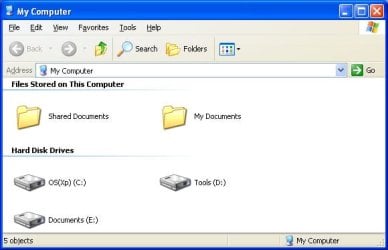
We know that in Windows XP, through the "Folders" button on Toolbar(in Explorer) may turn the “Folders Tree” On or Off;

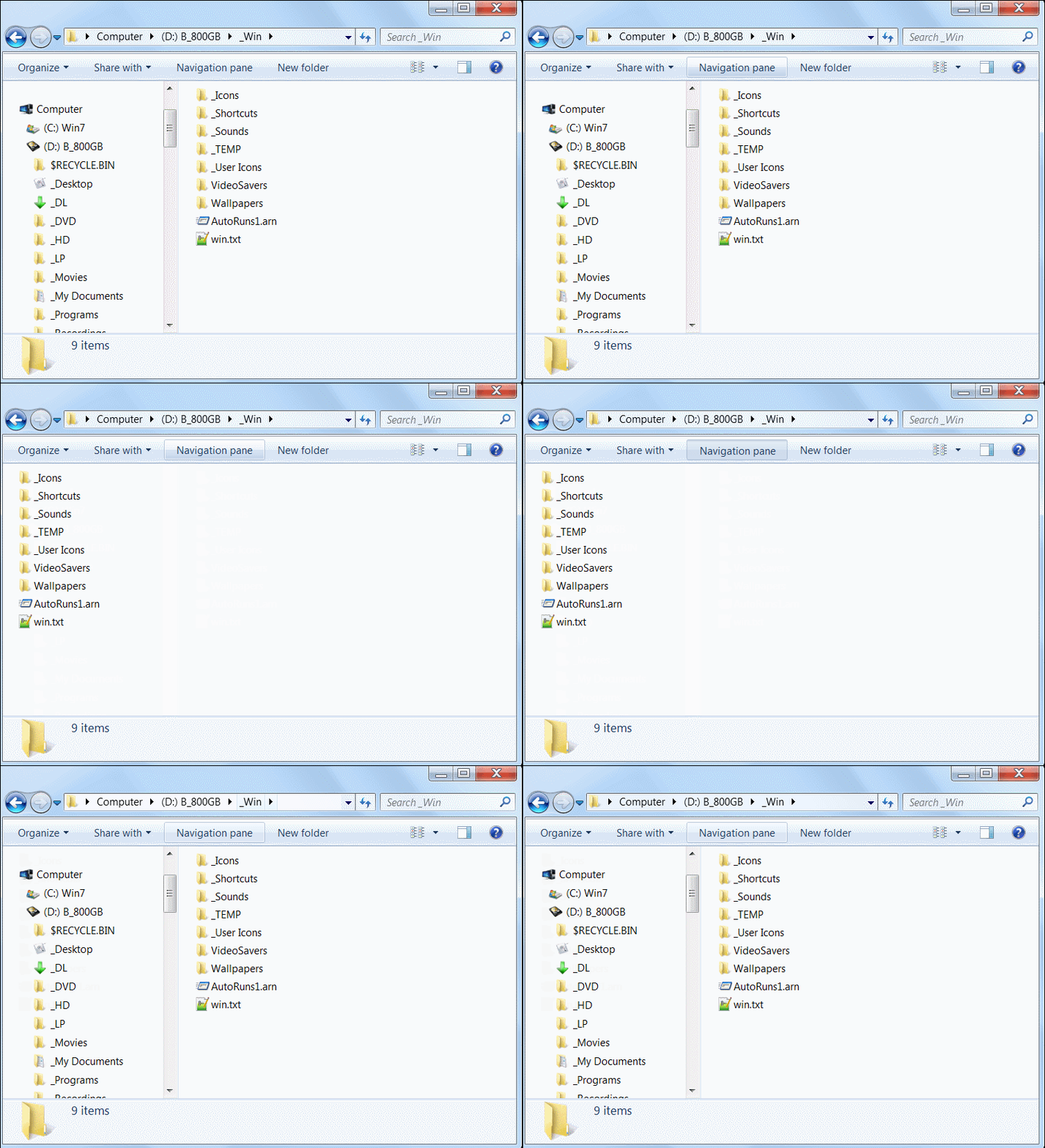
In Windows7, you can click Organize(on Explorer Toolbar), point to Layout, and then click Navigation pane to turn the Navigation Pane On or Off.

However, Is there a simpler way to turn the Navigation Pane On or Off in Windows7?

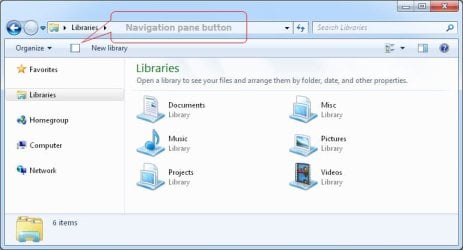
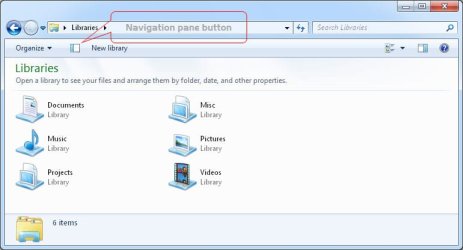
For example,there is a "Show the navigation Pane." button on Windows7 Toobar
(looks like the "Show the preview pane." button on Windows7 Toobar or the "Folders" button on Windows XP Toobar)
click the "navigation Pane button" to be possible directly to turn the Navigation Pane On or Off.
(instead of "click Organize, point to Layout, and then click Navigation pane to display/hide it.")

okey,my question is:
How to Show(or Create) a button(“Show the navigation Pane.”) on Toolbar in Windows 7?

see screenshots below::)
Windows7-Navigation-pane-Button-Hide.jpg
Windows7-Navigation-pane-Button-Show.jpg
Windows-XP-Folders-Tree-Hide.jpg
Windows-XP-Folders-Tree-Show.jpg
 

Attachments
  • Windows7-Navigation-pane-Button-Hide.jpg
    Windows7-Navigation-pane-Button-Hide.jpg
    29.8 KB · Views: 104
  • Windows7-Navigation-pane-Button-Show.jpg
    Windows7-Navigation-pane-Button-Show.jpg
    32.8 KB · Views: 83
  • Windows-XP-Folders-Tree-Hide.jpg
    Windows-XP-Folders-Tree-Hide.jpg
    24.7 KB · Views: 74
  • Windows-XP-Folders-Tree-Show.jpg
    Windows-XP-Folders-Tree-Show.jpg
    29.7 KB · Views: 69

My Computer My Computer

OS
Windows7
Yes i really want the answer to this question as well. why arent more people asking about it? it seems so obvious! and why did microsoft not provide support for it! i mean duh!

there are several sites which talk about how to do this. but as you can see its bulky when you have to have the full word "navigation pane" spelled out.

please someone figure this out and post back. thanks
 
Last edited by a moderator:

My Computer My Computer

Computer Manufacturer/Model Number
Dell D420
OS
Windows 7 Ultimate x86

My Computer My Computer

Computer type
PC/Desktop
Computer Manufacturer/Model Number
Self built custom
OS
64-bit Windows 11 Pro for Workstations
CPU
Intel i7-8700K OC'd to 5 GHz
Motherboard
ASUS ROG Maximus XI Formula Z390
Memory
64 GB (4x16GB) G.SKILL TridentZ RGB DDR4 3600 MHz
Graphics Card(s)
ASUS ROG-STRIX-GTX1080TI-O11G-GAMING
Sound Card
Integrated
Monitor(s) Displays
2 x Samsung Odyssey G7 27"
Screen Resolution
2560x1440
Hard Drives
1TB Samsung 990 PRO M.2,
4TB Samsung 990 PRO PRO M.2,
TerraMaster F8 SSD Plus NAS
PSU
Seasonic Prime Titanium 850W
Case
Thermaltake Core P3
Cooling
Corsair Hydro H115i
Keyboard
Logitech wireless K800
Mouse
Logitech MX Master 4
Internet Speed
2 Gb/s Download and 100 Mb/s Upload
Antivirus
Malwarebyte Anti-Malware Premium
Browser
Google Chrome
Other Info
Logitech Z625 speaker system,
Logitech BRIO 4K Pro webcam,
HP Color LaserJet Pro MFP M477fdn,
APC SMART-UPS RT 1000 XL - SURT1000XLI,
Galaxy S23 Plus phone
Windows 7 Explorer Show Navigation Pane Toggle Button

It's an old thread I know but I currently have a button to toggle the navigation pane for Explorer in Windows 7, unfortunately I can't remember what I did to get it there. Since I may be reinstalling Windows sometime soon I'd also very much like to know how to add this option again.

I did find CustomExplorerToolbar (http://www.nirsoft.net/utils/custom_explorer_toolbar.html), the problem is using this to add it isn't quite the same as I currently have it. Using CustomExplorerToolbar there doesn't seem to be a way for the button to always be there regardless of what folder is being viewed, for example when viewing My Computer or My Documents.

So it seems CustomExplorerToolbar is neglecting to add it to one or more places in the registry, or isn't adding it as "global", if you know what I mean.

Here's a gif showing exactly what I mean, that Navigation Pane toggle button is always there regardless of what folder is being viewed.

0mysYdU.gif


edit....
I found something called Explorer Toolbar Editor (http://winaero.com/comment.php?comment.news.16), though haven't tried it for fear of it having the same issue with the button not being present regardless of what folder is being viewed and overwriting the way I currently have it in all folders. Guess its worth noting that this isn't how I got the button there, unfortunately still haven't found or remembered how I originally did it.

Also incase anyone's interested here's a gif showing the toggle Navigation Pane button being present and working while viewing folders such as My Computer and My Documents.. http://i.imgur.com/gVTOYf8.gif

edit....
I've attached a text file listing all found instances in the registry with "Windows.navpane" (28 results) incase it helps someone create a reg file to add the button.
 

Attachments

Last edited:

My Computer My Computer

OS
option huh?

My Computer My Computer

Computer type
PC/Desktop
OS
Windows 10 Home x64
CPU
INTEL Core i5-750 Quad-Core 3.37GHz
Motherboard
ASUS P7P55D
Memory
HyperX Fury Black Series 8GB (2 x 4GB) 1866Mhz
Graphics Card(s)
EVGA GeForce GTX 750 Superclocked 1GB 128-Bit GDDR5
Monitor(s) Displays
LG 32MA68HY 32" IPS
Screen Resolution
1920 x 1080
Hard Drives
Samsung 840 Evo 120GB, SEAGATE 500GB Barracuda® 7200.12, SATA 3 Gb/s, 7200 RPM, 16MB cache
PSU
ANTEC TruePower New TP-550, 80 PLUS, 550W
Case
ANTEC Three Hundred Illusion
Cooling
COOLER MASTER Hyper 212 Plus, 4 x 120mm 1 x 140mm Noctua's
Internet Speed
85 + Mbps
Antivirus
Avast
Browser
Vivaldi
Back
Top