How to delete obstinate folder in Program Files

er44tvoll

New member
Local time
3:42 PM
Messages
27
Hi

There's a folder in Program Files that I want to delete but I encounter a variety of obstacles when I try.
If I try to delete it at the Program Files> root, Windows Explorer reboots.
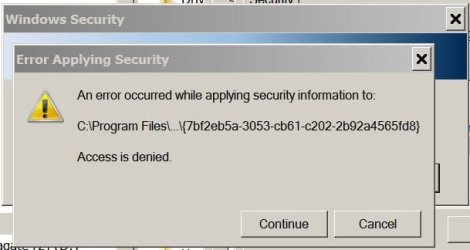
If I try to first 'delete up from the bottom', working through a series of sub-folders to delete the innermost file, which has worked on other occasions, I get an error message saying that the file might not even be there, that it might be on another hard drive or a network.
Trying to delete any of the folders in between, earns an error message saying that nothing can be removed, because there are files being used someplace.

Not having used Safe Mode much, I wasn't sure what special thing to do while in there. I couldn't delete the folders, at any rate.

It must be an infection. The path is:
Program Files > Google > Desktop > Install >
and then some numbers.
At the same time, AVG is detecting "CRYPT_s.CCD", "Luhe.sirefef.A", and "IDP.Trojan.5E976F8B".
I'm assuming the two issues are related.

Someone must've left a door open. How do I chase this thing (or these things) back out?

Cheers
GP
 

My Computer

Computer type
PC/Desktop
OS
Windows 7 Pro 32 bit
right click on Google folder and take ownership of the folder on the security tab, then set permissions to full for all users. Keep working on the security tabs to take ownership of the files, and change the permissions to full access, see if that helps you delete these folders. Also apply changes to all sub folders.
 
Last edited:

My Computer

Computer type
Laptop
Computer Manufacturer/Model Number
Dell inspiron 1525
OS
Windows 8 Pro with Media 64 bit
CPU
Pentium dual core
Memory
4gb
Internet Speed
10.5 mbs
Hi.

Trying to change Permissions didn't work:


(If I touch it, it just tightens around the computer's throat. Cutting it releases acid...)

GP
 

Attachments

  • WIN 7 INFO for SevenForums 2013-09-07 'Google' folder.jpg
    WIN 7 INFO for SevenForums 2013-09-07 'Google' folder.jpg
    28.6 KB · Views: 24

My Computer

Computer type
PC/Desktop
OS
Windows 7 Pro 32 bit
make sure you take ownership of that folder first before you change permissions, see if that helps. go to each one and take ownership, i know the process is slow, but trust me it works.
 

My Computer

Computer type
Laptop
Computer Manufacturer/Model Number
Dell inspiron 1525
OS
Windows 8 Pro with Media 64 bit
CPU
Pentium dual core
Memory
4gb
Internet Speed
10.5 mbs
Did you try removing the program using Run as Administrator?
 

My Computer

Computer type
PC/Desktop
Computer Manufacturer/Model Number
Home made Desktop
OS
Windows 10 Pro. 64/ version 1709 Windows 7 Pro/64
CPU
Intel i7-6800K @ 4.3
Motherboard
ASUS X-99 Deluxe II
Memory
Corsair Platinum 16 gig @2400
Graphics Card(s)
EVGA GTX 1070 OC
Monitor(s) Displays
Asus 27" LED LCD/VE278Q
Screen Resolution
1920-1080 or 1280-720 HDMI
Hard Drives
INTEL SSD 730-240 Gb Sata 3.0/
PSU
EVGA Platium 1200W
Case
Phanteks Luxe Tempered Glass 8 fans/ one radiator
Cooling
XSPC/ Water Cooled CPU
Keyboard
Das 4 Professional
Mouse
Logitech M705/MX Anywhere 2-S
Internet Speed
100 mbits
Antivirus
Microsoft Security Essentials/ Malwarebytes Premium 3.0/ SAS
Browser
I.E. 11 default/Firefox/ ISP Time Warner Cable/Spectrum
Other Info
LG BluRay Burner/
Sound system-KLipsch-THX/
Icy Dock ssd Hot Swap bays.
make sure you take ownership of that folder first before you change permissions, see if that helps. go to each one and take ownership, i know the process is slow, but trust me it works.

In the Permissions box are listed:
CREATOR OWNER
SYSTEM
Administrators
Users
TrustedInstaller
If I try to make any changes at all to CREATOR OWNER, even just checking the Read box, I get a pop-up window saying that access is denied.
This thing's rooted-in.

If you mean something else by 'taking ownership' I'll need to have it explained to me.

Thanks
GP
 

My Computer

Computer type
PC/Desktop
OS
Windows 7 Pro 32 bit
Did you try removing the program using Run as Administrator?

Hi

Likewise, when I right-click on the topmost folder to the Root (Program Files > ), I see that all the checkboxes in Administrator's Edit window are unchecked. Attempting to check any of them gets the same error message, that access is denied.

GP
 

My Computer

Computer type
PC/Desktop
OS
Windows 7 Pro 32 bit
OK first, go to security tab on the selected file, look for "Advanced" tab, click it, search for owner "change", look for "advance" tab and search for Administrators, double click and apply, a message should pop up saying you took ownership.
 

My Computer

Computer type
Laptop
Computer Manufacturer/Model Number
Dell inspiron 1525
OS
Windows 8 Pro with Media 64 bit
CPU
Pentium dual core
Memory
4gb
Internet Speed
10.5 mbs
OK first, go to security tab on the selected file, look for "Advanced" tab, click it, search for owner "change", look for "advance" tab and search for Administrators, double click and apply, a message should pop up saying you took ownership.

Hi

On my system there are a couple differences in the path. The first couple of steps are the same as what you describe.
0) Right-click folder
1) Security > Advanced
2) In Advanced: Owner
3) in Owner the single option is "Edit"
4) In Edit are two listings: my name, and Administrators, plus a check-box which reads "replace owner on subcontainers and objects"
I clicked on Administrators so that it appears in the box labelled "current owner" and I checked the "replace owner..." box. I Applied that.

A message advised me that I'd need to reopen the target folder before I could make any changes to it.

I exited-out to the Program Files root, then right-clicked the folder, clicked on Administrators, attempted to gain permissions, and was again denied access.

I must have missed a step or misinterpreted something because of the differences in the interface on this system...?

GP
 

My Computer

Computer type
PC/Desktop
OS
Windows 7 Pro 32 bit
P.S. Is there anything in the Install disc's Repair tools that can scrape this thing out of the Program Files?

Thanks
GP
 

My Computer

Computer type
PC/Desktop
OS
Windows 7 Pro 32 bit
Hi OldFangle, I've exact the same problem as you. I can't delete of rename that folder. Also there's something very strange with the name of that folder: the folder has the name '...' (without the quotes).

I've renamed a few folders, so that the folder structure is this:

F:\Program Files\Google\1\2\3\4\...

So, within that folder '4' is the strange folder with the name '...'
When I go into that strange folder, I actually go back to folder 'F:\Program Files\Google\1\2\'

Also I doubt if that folder '...' is actually a folder or not: when I right-click with the mouse on whatever folder, a normal context menu is shown. But when I right-click the strange folder with the name '...' I get a very small context menu, with only the options:

Copy
Rename
Move
Create Shortcut
Delete
Properties

I only can create a shortcut, all other options do nothing.

Does somebody, anybody know how to remove that ridiculous folder? I also tried a freeware program Unlocker, but with no results, and sometimes even crashes...
 
Last edited:

My Computer

Computer type
PC/Desktop
OS
Windows 7 Ultimate x32
I somehow managed to move folder 'F:\Program Files\Google\1\2\3\4\...' to 'F:\Users\<my name>\AppData\Local\Google\4\...'

But that's all :-(
I'm still not able to delete that stupid '...' folder.
 

My Computer

Computer type
PC/Desktop
OS
Windows 7 Ultimate x32
SOLVED! After 3 hours I somehow deleted the strange folder. I had the following directory structure:

'F:\Users\<my name>\Appdata\Local\Google\3\4\...'

Then I went into 'F:\Users\<my name>\Appdata\Local\Google\3\' and executed the following command:

rd -s 3

That's it! I still don't understand what is going on here. Also I don't understand how it's possible to create a folder with the name '...'
But the strange folder is gone!
 

My Computer

Computer type
PC/Desktop
OS
Windows 7 Ultimate x32
Back
Top