Solved How to delete "System Volume Information" folder on Win 7

Now I feel like a fool.

I looked in my trash can, and it is actually called "tracking.log". Please notice the . between them as well. I'm still not understanding why there would, or should be a tracking log in my system restore points. Unless it's a natural way for the restore system to set points even though your not asking for them.
 

My Computer My Computer

Computer type
PC/Desktop
Computer Manufacturer/Model Number
custom build / Asus mb. 10,000 rpm Stripped hard drives
OS
xp sp3
CPU
3g
Motherboard
asus
Memory
2g
Graphics Card(s)
256 nvidia
Hard Drives
10,000 rpm sata hard drives
Antivirus
none ):
Browser
firefox
tracking.log

I looked in my trash can, and it is actually called "tracking.log". Please notice the . between them as well. I'm still not understanding why there would, or should be a tracking log in my system restore points. Unless it's a natural way for the restore system to set points even though your not asking for them.

Hi,

I still don't fully understand it myself. You can read the thread here:

https://forum.avira.com/wbb/index.php?page=Thread&postID=709692

As far as I can work out it's not in your System Restore Points but it's in your System Volume Information folder (This folder doesn't only contain System Restore Points). What's supposed to be in the System Volume Information folder? I searched for more information and this is what I found:

It’s not just System Restore data that gets stored in the System Volume Information folder and the Windows Indexing Service uses it to store search databases, the Volume Shadow Copy Service creates live system backup data and also Distributed Link Tracking stores database information to repair shortcuts and linked documents. Check Disk logs are also saved here.


As far as I can work out tracking.log is created by Distributed Link Tracking Client (TrkWks) Service or at least has something to do with it.

As a test - on my machine I've disabled the service and deleted tracking.log.

I'll reboot and see if the file re-appears.

[EDIT]:

After a reboot tracking.log has so far failed to reappear. I should point out to other users that before experimenting I do have several system image backups to fall back on in the event of problems occurring!

I reckon that if the Distributed Link Tracking Client (TrkWks) Service is left enabled then tracking.log will be recreated automatically if it's ever deleted.
 
Last edited:

My Computer My Computer

Computer type
Laptop
Computer Manufacturer/Model Number
ASUS
OS
Microsoft Windows 7 Home Premium 64-bit 7601 Multiprocessor Free Service Pack 1
CPU
AMD C-60 APU with Radeon(tm) HD Graphics
Motherboard
ASUSTeK COMPUTER INC. X501U
Memory
4.00 GB
Graphics Card(s)
AMD Radeon HD 6290 Graphics
Sound Card
(1) AMD High Definition Audio Device (2) Realtek High Defi
Screen Resolution
1366 x 768 x 32 bits (4294967296 colors) @ 60 Hz
Hard Drives
Hitachi HTS545050A7E380 SATA Disk Device
Antivirus
Comodo CIS & FW, SecureAplus App Whitelisting, Threatfire
Browser
Cyberfox 64bit, Opera 64bit, Airfox
Other Info
Spy-The-Spy, HitmanPro.Alert, Norton Connect Safe, MJRegWatcher, BitDefender TrafficLight, Voodoo Shield, Zemana AntiMalware
IMPORTANT WARNING about System C:\System Volume Information.

If you need VSS for partition image backups etc. you MAY encounter difficulties if you prohibit "System Volume Information" from partition C:\

Very recently I have seen on the Macrium Reflect forums, and elsewhere,
that VSS places system snapshots in "System Volume Information".

I understand from Macrium that when I make a Macrium partition image of a partition then VSS snapshots are placed in the "System Volume Information" of that partition.

That is NOT my experience.

Before I was aware of VSS I used my technique to absolutely prohibit "System Volume Information" from any non-system partition,
and yet Macrium still created good restore-able image backups of non-system partitions.

It seems plausible that the first choice for a VSS snapshot MIGHT be in the "System Volume Information" of the relevant partition,
but it obviously is able to find an alternative location.

It may well be that VSS snapshots may be all held in "C:System Volume Information".

Please not that originally I was unaware of such repercussions.
My sole concern was that non-system NTFS partitions on a USB2 external drive caused pain and grief.
If I right clicked on a 100 MB file with a desire to inspect its properties,
Windows XP would make me wait for perhaps one or more minutes whilst it COPIED that file into a Restore Point on the same partition,
and only after completing that duplication would it open up the context menu to choose "properties",
I suppose XP is so feeble minded that it assumed I would choose "Delete" and that it would not be fast enough to intercept the action and delay until it had actually backup up into the restore point.
I was able to disable monitoring of all external drive partitions,
BUT
I could only disable drive letters, and sometimes a power-up race hazard resulted in partitions getting DIFFERENT drive letters which defaulted to MONITORING.
Hence I developed the technique to permanently block "System Volume Information" on all such partitions.

I have never blocked "System Volume Information" on System C:\ because it never caused me grief.

I will be interested in hearing if the warnings I have seen are actually justified.
I also wonder where chkdsk.log files will appear if "System Volume Information" is prohibited.

N.B.
I am able to learn from my own mistakes,
but life is sweeter if I can learn from yours :party:

Regards
Alan
 

My Computer My Computer

Computer Manufacturer/Model Number
ASUSTeK Computer INC. M3A32-MVP DELUXE (CPU 1)
OS
Windows 7 Ultimate 64 bit SP1 x64
CPU
AMD Phenom X4 9500
Motherboard
ASUSTeK M3A32-MVP Deluxe (CPU 1)
Memory
8 GB
Graphics Card(s)
ATI Radeon HD 4600 Series
Sound Card
AMD High Definition Audio Device
Monitor(s) Displays
SyncMaster (1680x1050@60Hz)
Hard Drives
59GB OCZ-VERTEX2 ATA Device
+
977GB SAMSUNG HD103SJ ATA Device
+
625GB WDC WD6401AALS-00L3B2 ATA Device
ChkDsk logs

In response to alan10

The prohibition of System Volume Information on the windows partition was short-lived. It re-created itself anyway but I can't say when this happened. It just wasn't there immediately after a reboot.

The permissions for System Volume Information have been mysteriously all reset to defaults with SYSTEM regaining full control in spite of my efforts to recreate an empty folder

Here's a screenshot of what I see in the folder now.

SVI_v4.jpg

The highlighted file is a VSS Macrium snapshot (Macrium was running when I took the screenshot).

My intention was just to experiment with SVI to see what happens if I attempt to remove it.

Macrium Reflect still works fine.

The steps taken were:

Deleted System Volume Information using Power Tool 1.6

Confirmed that it had actually been deleted.

Created a new SVI from the command prompt using the following:

echo > "<DRIVE>:System Volume Information"

attrib +r +s +h "<DRIVE>:System Volume Information"

Rebooted and checked that SVI remained empty and indeed it did.

Checked back again sometime later and SYSTEM had regained control but it now contains only what is shown in the first screenshot in this post.

Your advice on deleting SVI from external drives and preventing it's return is most welcome. I was just curious to see if the same technique could be applied to SVI on a windows partition.
 

My Computer My Computer

Computer type
Laptop
Computer Manufacturer/Model Number
ASUS
OS
Microsoft Windows 7 Home Premium 64-bit 7601 Multiprocessor Free Service Pack 1
CPU
AMD C-60 APU with Radeon(tm) HD Graphics
Motherboard
ASUSTeK COMPUTER INC. X501U
Memory
4.00 GB
Graphics Card(s)
AMD Radeon HD 6290 Graphics
Sound Card
(1) AMD High Definition Audio Device (2) Realtek High Defi
Screen Resolution
1366 x 768 x 32 bits (4294967296 colors) @ 60 Hz
Hard Drives
Hitachi HTS545050A7E380 SATA Disk Device
Antivirus
Comodo CIS & FW, SecureAplus App Whitelisting, Threatfire
Browser
Cyberfox 64bit, Opera 64bit, Airfox
Other Info
Spy-The-Spy, HitmanPro.Alert, Norton Connect Safe, MJRegWatcher, BitDefender TrafficLight, Voodoo Shield, Zemana AntiMalware
No need for Format in Win 7
For Windows 7:
1. Click Start, right-click Computer and click Properties.
2. Click the System protection link in the left pane.
3. In the System protection options, select each drive letter and click Configure.
4. Select Turn off system protection and click Apply.
5. Click Delete, click Continue when prompted and then click OK.
 

My Computer My Computer

Computer type
PC/Desktop
Computer Manufacturer/Model Number
Asus. Lenovo
OS
Win 7 Ultimate
CPU
AMD
Motherboard
Asus
Graphics Card(s)
Asus SLI
Hard Drives
Repotor WD
Antivirus
Awast
Browser
Chrome, Opera, Mozila
SVI delete?

No need for Format in Win 7
For Windows 7:
1. Click Start, right-click Computer and click Properties.
2. Click the System protection link in the left pane.
3. In the System protection options, select each drive letter and click Configure.
4. Select Turn off system protection and click Apply.
5. Click Delete, click Continue when prompted and then click OK.

That doesn't actually delete the SVI folder though! It does disable system restore and delete any restore points.

As we found out - even if you delete the folder it comes back so it's best left alone.
 

My Computer My Computer

Computer type
Laptop
Computer Manufacturer/Model Number
ASUS
OS
Microsoft Windows 7 Home Premium 64-bit 7601 Multiprocessor Free Service Pack 1
CPU
AMD C-60 APU with Radeon(tm) HD Graphics
Motherboard
ASUSTeK COMPUTER INC. X501U
Memory
4.00 GB
Graphics Card(s)
AMD Radeon HD 6290 Graphics
Sound Card
(1) AMD High Definition Audio Device (2) Realtek High Defi
Screen Resolution
1366 x 768 x 32 bits (4294967296 colors) @ 60 Hz
Hard Drives
Hitachi HTS545050A7E380 SATA Disk Device
Antivirus
Comodo CIS & FW, SecureAplus App Whitelisting, Threatfire
Browser
Cyberfox 64bit, Opera 64bit, Airfox
Other Info
Spy-The-Spy, HitmanPro.Alert, Norton Connect Safe, MJRegWatcher, BitDefender TrafficLight, Voodoo Shield, Zemana AntiMalware
Callender all is working , what i did is I delete all beck up points and set my own and all is fine , i did it few times on many PCs ,,and all is working till now .
Regards ;)
 

My Computer My Computer

Computer type
PC/Desktop
Computer Manufacturer/Model Number
Asus. Lenovo
OS
Win 7 Ultimate
CPU
AMD
Motherboard
Asus
Graphics Card(s)
Asus SLI
Hard Drives
Repotor WD
Antivirus
Awast
Browser
Chrome, Opera, Mozila
Deleting system restore points?

Thanks for the info! The thread title is "How to delete System Volume Information folder" rather than how to delete all system restore points. Just to be clear for anyone else reading this thread.

Here's a screenshot including sub-folders contained within System Volume Information and all system restore points are deleted.

SVI.jpg
 

My Computer My Computer

Computer type
Laptop
Computer Manufacturer/Model Number
ASUS
OS
Microsoft Windows 7 Home Premium 64-bit 7601 Multiprocessor Free Service Pack 1
CPU
AMD C-60 APU with Radeon(tm) HD Graphics
Motherboard
ASUSTeK COMPUTER INC. X501U
Memory
4.00 GB
Graphics Card(s)
AMD Radeon HD 6290 Graphics
Sound Card
(1) AMD High Definition Audio Device (2) Realtek High Defi
Screen Resolution
1366 x 768 x 32 bits (4294967296 colors) @ 60 Hz
Hard Drives
Hitachi HTS545050A7E380 SATA Disk Device
Antivirus
Comodo CIS & FW, SecureAplus App Whitelisting, Threatfire
Browser
Cyberfox 64bit, Opera 64bit, Airfox
Other Info
Spy-The-Spy, HitmanPro.Alert, Norton Connect Safe, MJRegWatcher, BitDefender TrafficLight, Voodoo Shield, Zemana AntiMalware
:zip:
 

My Computer My Computer

Computer type
PC/Desktop
Computer Manufacturer/Model Number
Asus. Lenovo
OS
Win 7 Ultimate
CPU
AMD
Motherboard
Asus
Graphics Card(s)
Asus SLI
Hard Drives
Repotor WD
Antivirus
Awast
Browser
Chrome, Opera, Mozila
I just found the easiest answer by accident. I did this: With the external drive connected to your computer, open "My Computer". Right click on the drive in question, then select "Open as Portable Device". You can now go ahead and delete the "System Volume Information" folder without any problem.
 

My Computer My Computer

Computer type
PC/Desktop
OS
Windows 7 64 bit
Dostka, that isn't an option with all drives.

Just to reiterate... under "normal" circumstances, this is solved using methods pointed out in posts 22 & 24 on page 3. Now, obviously there are certain things that must be disabled first (System Restore for target volume, for example), but it does work.

The other thing to note is that other programs may store info in there as well. For example, I just tried removing the "System Volume Information" (SVI going forward) folder off from an external drive of mine but had issues with a single file not wanting to delete no matter what I did. Process Explorer showed it as in use by the System process the moment I connected the drive. When I did some research on the file, I found it was actually being created by our Anti-virus program (Symantec Endpoint Protection 12.1) in use here. Now, while hooking the external up to another PC that does not have the AV does allow me to remove the SVI folder, no matter what I do to lock out permissions on the "place holder" SVI file, the AV is still able to gain control of it, rename it, and then recreate the normal SVI folder.

But, for those situations where you can delete the SVI folder and not have something else recreate it (*cough*Symantec*cough*)... here's a simple batch string that automates posts 22 & 24 that you can use to delete it:

Code:
takeown /f "X:\System Volume Information" /a /r /d y
icacls "X:\System Volume Information\*" /grant:r administrators:F /t /l
rmdir "X:\System Volume Information" /s /q
*>"X:\System Volume Information"
Notes and commands explained:

  • The file must be run as administrator (elevated permissions).
  • Replace all "X:\" with your appropriate drive letter. You can also remove that if the .bat file is to be run only from the drive(s) you wish to remove the SVI folder from.
  • "takeown" is used to force taking ownership of directories and/or files that you otherwise do not have permission to change ownership on. You will need this if you otherwise are unable to edit permissions. The switch "/a" grants the ownership to the administrators group. You can remove it so it grants ownership to the account in use. "/r" is so it works on all subdirectories and files. "/d y" is so it responds "yes" to any questions of (essentially) "are you sure you want to take ownership".
  • "icacls" is used to make sure you have full control over everything. "/grant:r administrators:F" is used to grant full (":F") permissions to the "administrators" group while removing (":r") all other permission entries. I did this in case of a situation where you add administrators, but your user account is specifically listed as deny (seems that would take precedence). You can replace "administrators" with any user name or group that you feel appropriate for your situation. "/t" makes it work on all "matching" subdirectories and files. "/l" performs the operation on a symbolic link rather than the link's target.
  • "rmdir" is used to delete the SVI directory. "/s" removes all subdirectories and files while "/q" suppresses the "are you sure" messages.
  • The final line is meant simply to create a 0 byte, extension-less file by the same name as the normal SVI folder, thus preventing "normal" recreation of the folder and contents. As such, the "*" is used simply as an invalid command to be outputted (">") to the appropriate file and location.
While all of this does work, there are obviously caveats to it. If there is even 1 file or folder within it that is in use by something else, rmdir will fail. If there is something else that is monitoring the directory and has been setup to be able to take over your extension-less file to rename and recreate the folder, then you're hosed; you'll never be able to truly get rid of it.

Win some... lose some.
 

My Computer My Computer

Computer type
Laptop
Computer Manufacturer/Model Number
HP ZBook 17 G2
OS
Microsoft Windows 7 Professional 64-bit 7601 Multiprocessor Free Service Pack 1
CPU
Intel(R) Core(TM) i7-4810MQ CPU @ 2.80GHz
Motherboard
Hewlett-Packard 2255
Memory
16.00 GB
Graphics Card(s)
NVIDIA Quadro K3100M
Sound Card
Realtek High Definition Audio; NVIDIA High Definition Audio
Monitor(s) Displays
Samsung 24" + Acer 20"
Hard Drives
SanDisk SD6PP4M-256G-1006 ATA Device
HGST HTS721010A9E6300 SCSI Disk Device 1TB internal
HGST HTS721010A9E6300 SCSI Disk Device 1TB external (docking station)
Hi to everyone.

I'm sorry for being perhaps, out of topic, you'll tell me about...
My question is the perfect opposite to the topic, but i did'nt found any topic in which post my problem...

This is the situation;

*VSS has been disabled.

*VS copies has been deleted, previously were deleted the store points (i'm a Little confused about these two apparently different things: Restore Points/Shadow Copies).

*Restore System has been disabled.

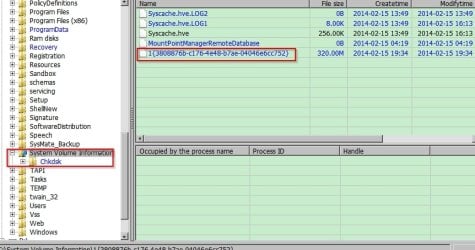
Plugging the disc to another machine i've been able to "see" into "System Volume Information" folder, through Recuva, large deleted (but recoverable) files with this kind of names; {3cfc80e0-be42-11e5-a950-f46d04d75d0c}{3808876b-c176-4e48-b7ae-04046e6cc752}, ...are this large files Restore Points or Shadow Copies?, are the same thing, or very different?

Well, just in order to experiment i've saved one of those files & after a lot of trys i've been able to mount this file as a virtual DVD-rom (through a non-commercial version of DaemonTools Light). Just in case, i've made an image of this virtual unit through Testdisk. Later i've used Photorec & extracted thousands of files from from the .dd image.

Obviously, this restore point (or shadow copy?) has not the files that really matters, mostly of the files are Little images, txt's, system files, & all kind of temporary files coming from the activity of the web browsers.

I'm begging for someone who tell me that is posible to get back a deleted shadow copy, or several of them. The problem is that i don't know where to search for those "Sadow Copies", or if those files has some kind of name to search for.

I was able to "rebuild" the "System Volume Information" folder, these are the files i've recovered:

*SPP (folder in which is contained the "OnlineMetadataCache" sub-folder)

*{7048df7f-d34b-11e5-b260-f46d04d75d0c}{3808876b-c176-4e48-b7ae-04046e6cc752} (large system file).

*{3808876b-c176-4e48-b7ae-04046e6cc752} (64kb system file).

*MountPointManagerRemoteDatabase (0kb system file).

*tracking.log

The very unknown (for me!) thing, is how to set the relationship between this recovered "System Volume Information" folder & the Windows registry. I assume/wonder that if this relationship is rebuilted, we'll be able to recover entirely deleted shadow copies. Can someone tell me if i'm totally wrong about this?

I've made some proofs, as delete many large files from my disk when System Restore is active, & later, obviously, i was able to recover all those file by simply navigate into the restore points through "System Restore Explorer" & "ShadowExplorerPortable" apps.

How to rebuild a recovered SVI folder-WindowsRegistry relationship; is there a chance?

I'm sorry for this so large question...

Thx a lot in advance for the sacrifice of this part of your valuable time!
 
Last edited:

My Computer My Computer

Computer type
PC/Desktop
Computer Manufacturer/Model Number
Generic
OS
Seven Ultimate 64 bits
CPU
Phenom II x4 965 BlackEdition
Code:
takeown /f "X:\System Volume Information" /a /r /d y
icacls "X:\System Volume Information\*" /grant:r administrators:F /t /l
rmdir "X:\System Volume Information" /s /q
*>"X:\System Volume Information"
It works and I am impressed. Took me an hour to just find this code :sarc:
 

My Computer My Computer

Computer type
PC/Desktop
OS
windows 7
Back
Top