
How to pin specific folders to taskbar?

mystvearn

New member
Member
VIP
Local time
11:42 AM
Messages
123
Hi,

I want to pin specific folders such as My pictures, downloads, and other frequently used folders. When I drag and drop the download, or my pictures link, I get a folder icon, but when I click it, it goes to an explorer window with library, my pictures, my documents etc on it and not the specific folder path which I want. Is there a way to customize this?

Thanks
 

My Computer My Computer

OS
Windows 7 64 bit Pro
Sound Card
On board
Monitor(s) Displays
Dual Monitor: Dell U2311H 23" monitor, LG M227WD
Screen Resolution
1920x1080x2 (landscape)
Keyboard
Microsoft Ergonomic Keyboard 4000
Mouse
Logitech M 705
Internet Speed
25mb/1mb
Other Info
Printer: HP F4180
Speakers: Creative Gigaworks T20 Series II

My Computer My Computer

Computer type
PC/Desktop
Computer Manufacturer/Model Number
Self built custom
OS
64-bit Windows 11 Pro for Workstations
CPU
Intel i7-8700K OC'd to 5 GHz
Motherboard
ASUS ROG Maximus XI Formula Z390
Memory
64 GB (4x16GB) G.SKILL TridentZ RGB DDR4 3600 MHz
Graphics Card(s)
ASUS ROG-STRIX-GTX1080TI-O11G-GAMING
Sound Card
Integrated
Monitor(s) Displays
2 x Samsung Odyssey G7 27"
Screen Resolution
2560x1440
Hard Drives
1TB Samsung 990 PRO M.2,
4TB Samsung 990 PRO PRO M.2,
TerraMaster F8 SSD Plus NAS
PSU
Seasonic Prime Titanium 850W
Case
Thermaltake Core P3
Cooling
Corsair Hydro H115i
Keyboard
Logitech wireless K800
Mouse
Logitech MX Master 4
Internet Speed
2 Gb/s Download and 100 Mb/s Upload
Antivirus
Malwarebyte Anti-Malware Premium
Browser
Google Chrome
Other Info
Logitech Z625 speaker system,
Logitech BRIO 4K Pro webcam,
HP Color LaserJet Pro MFP M477fdn,
APC SMART-UPS RT 1000 XL - SURT1000XLI,
Galaxy S23 Plus phone
Hi,

I just drag and drop the folder I want, like Downloads, or My pictures etc. The only problem is that I don't want it to branch in a tree like order instead open a windows explorer folder directly to the path in question. I have tried that method before and it does not work for library folders.
 

My Computer My Computer

OS
Windows 7 64 bit Pro
Sound Card
On board
Monitor(s) Displays
Dual Monitor: Dell U2311H 23" monitor, LG M227WD
Screen Resolution
1920x1080x2 (landscape)
Keyboard
Microsoft Ergonomic Keyboard 4000
Mouse
Logitech M 705
Internet Speed
25mb/1mb
Other Info
Printer: HP F4180
Speakers: Creative Gigaworks T20 Series II
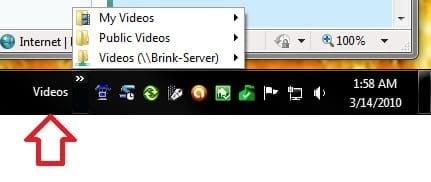
Sure, it works for Library folder just as well using the tutorial above. You might find enabling Quick Launch easier for this so that you can just drag the file or folder into QL as a shortcut.

pinned.jpg

Select.jpg
 

My Computer My Computer

Computer type
PC/Desktop
Computer Manufacturer/Model Number
Self built custom
OS
64-bit Windows 11 Pro for Workstations
CPU
Intel i7-8700K OC'd to 5 GHz
Motherboard
ASUS ROG Maximus XI Formula Z390
Memory
64 GB (4x16GB) G.SKILL TridentZ RGB DDR4 3600 MHz
Graphics Card(s)
ASUS ROG-STRIX-GTX1080TI-O11G-GAMING
Sound Card
Integrated
Monitor(s) Displays
2 x Samsung Odyssey G7 27"
Screen Resolution
2560x1440
Hard Drives
1TB Samsung 990 PRO M.2,
4TB Samsung 990 PRO PRO M.2,
TerraMaster F8 SSD Plus NAS
PSU
Seasonic Prime Titanium 850W
Case
Thermaltake Core P3
Cooling
Corsair Hydro H115i
Keyboard
Logitech wireless K800
Mouse
Logitech MX Master 4
Internet Speed
2 Gb/s Download and 100 Mb/s Upload
Antivirus
Malwarebyte Anti-Malware Premium
Browser
Google Chrome
Other Info
Logitech Z625 speaker system,
Logitech BRIO 4K Pro webcam,
HP Color LaserJet Pro MFP M477fdn,
APC SMART-UPS RT 1000 XL - SURT1000XLI,
Galaxy S23 Plus phone
I want it to come out as an icon only and not a tree like menu, is that possible?
 

My Computer My Computer

OS
Windows 7 64 bit Pro
Sound Card
On board
Monitor(s) Displays
Dual Monitor: Dell U2311H 23" monitor, LG M227WD
Screen Resolution
1920x1080x2 (landscape)
Keyboard
Microsoft Ergonomic Keyboard 4000
Mouse
Logitech M 705
Internet Speed
25mb/1mb
Other Info
Printer: HP F4180
Speakers: Creative Gigaworks T20 Series II
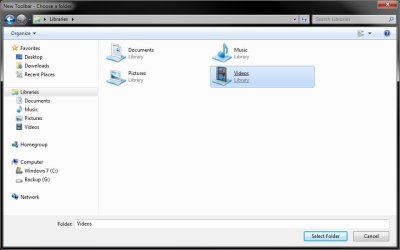
Yes, but for a single library instead of all libraries, you would need to create a shortcut of the library and place it in a new folder, then pin that new folder to the taskbar as a toolbar. Next, pick up at step 4 in the tutorial unchecking both "Show Title" & "ShowText", and check "Large Icons" for it.

It's a bit of a workaround, but it will do the trick. :)
 

My Computer My Computer

Computer type
PC/Desktop
Computer Manufacturer/Model Number
Self built custom
OS
64-bit Windows 11 Pro for Workstations
CPU
Intel i7-8700K OC'd to 5 GHz
Motherboard
ASUS ROG Maximus XI Formula Z390
Memory
64 GB (4x16GB) G.SKILL TridentZ RGB DDR4 3600 MHz
Graphics Card(s)
ASUS ROG-STRIX-GTX1080TI-O11G-GAMING
Sound Card
Integrated
Monitor(s) Displays
2 x Samsung Odyssey G7 27"
Screen Resolution
2560x1440
Hard Drives
1TB Samsung 990 PRO M.2,
4TB Samsung 990 PRO PRO M.2,
TerraMaster F8 SSD Plus NAS
PSU
Seasonic Prime Titanium 850W
Case
Thermaltake Core P3
Cooling
Corsair Hydro H115i
Keyboard
Logitech wireless K800
Mouse
Logitech MX Master 4
Internet Speed
2 Gb/s Download and 100 Mb/s Upload
Antivirus
Malwarebyte Anti-Malware Premium
Browser
Google Chrome
Other Info
Logitech Z625 speaker system,
Logitech BRIO 4K Pro webcam,
HP Color LaserJet Pro MFP M477fdn,
APC SMART-UPS RT 1000 XL - SURT1000XLI,
Galaxy S23 Plus phone
Back
Top