How to remove/uninstall printer driver (in Win7)?

pstein

New member
Member
VIP
Local time
11:13 AM
Messages
244
After having used succesfully a Kyocera printer FS-1020D over some years on my Win 7 system I replaced it by a newer, other laser printer from another manufacturer.

Now I want to remove the old Kyocera printer driver from my system.

The usual recommended way therefore is to call

printui /s /t2

and to remove the printer driver on the "drivers" tab.

Unfortunately this does not work here. Windows 7 tells me:

"The following packages can not be deleted
oemsetup.inf (x64).
This package contains the following driver(s) that are in use:
Kyocera Classic Universaldriver (A4 models); This driver is used on:
kyocera Classic Univerdaldriver (A4 models)"

Hmm, how do I unlock the Kyocera driver to be able to remove it otherwise?

Is there any other way to remove the Kyocera driver (e.g. at startup)?

Peter
 

My Computer My Computer

Computer type
PC/Desktop
OS
win7pro 64bit
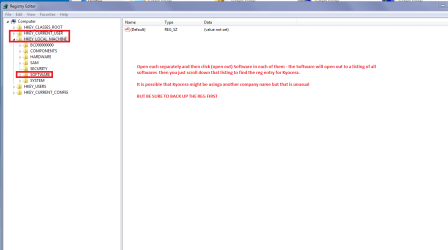
Hello Peter mate I am assuming you have used the Programs and Features method so what I do in times like this is go into the registry Start > type regedit > right click on Run as admin > look in both HKEY LOCAL MACHINE AND CURRENT USER > Software > check down the listings and see if there are any refs to the problem software - Kyocera in your case > right click on it and then delete the whole entry.

See my pic and I must say the choice is yours too but very often on jobs and for example removing the Norton AV even with the removal tool still leave Symantec listed in the registry in which case I delete the whole listing if not sure post back a a pic of your Software opened out

But before you do anything in the registry see this tutorial and back up the whole registry first
http://www.sevenforums.com/tutorials/4230-registry-backup-restore.html
 

Attachments

  • KYOCERA.PNG
    KYOCERA.PNG
    20.7 KB · Views: 1

My Computer My Computer

Computer type
PC/Desktop
Computer Manufacturer/Model Number
Own build (new) Desk1 / Asus ROG Win 7 / Desk2 1st build
OS
Desk1 7 Home Prem / Desk2 10 Pro / Main lap Asus ROG 10 Pro 2 laptop Toshiba 7 Pro Asus P2520 7 & 10
CPU
Desk1 i5 3750K / Laptop i7 GTX 860M / Desk2 i5 2500
Motherboard
Desk1 Asus P877-V / Desk2 Gigabyte H67 UD3H / Laptop ?
Memory
Desk1 8GB (1866) / Desk2 16GB (1333) / Laptop 8Gb DDR3
Graphics Card(s)
Desk 1& 2NVidia GTX 650 & Laptops on board Intel
Sound Card
Desk 1 & 2 -XONAR DG Realtek High Def audio Laptop
Monitor(s) Displays
Desk 1 Benq HD 2450 / Desk2 Philips 24" / Laptop 17.5"
Screen Resolution
1920x1080 D1 & D2 & Laptop 1
Hard Drives
Desk1 Samsung 120GB 830 SSD
Asus ROG 256GB 850 Pro SSD
Desk2 Samsung 840 256 SSD
Toshiba 120GB EVO
PSU
Desk 1 Corsair HX 1050/ Laptop ? / Desk 2 Corsair HX 650
Case
Desk 1 Cooler HAF XM ? Toshiba laptop / Desk2 Coolermaster
Cooling
Fans on all Desk1 -2 Desk2 - all Coolermasters 5 Laptop ?
Keyboard
Desk 1 MS Sidewinder X6 Desk 2 MS Sidewinder X 4
Mouse
Desk 1&2 - Gigabyte MS 900 gamer - laptop - Logitec wireless
Internet Speed
ADSL2+
Other Info
One other Desktop (tester) and spare Toshba laptop both with SSD's
Running Kaspersky 2016 ISS on all machines config'd identically
Logitec audio stereo systems on each machine (x3)
Canon MG5250MFC
Router/modem TP-Link running WPA2SK
There is one trick to doing this I have found:

Start -> services.msc

Find the "Print Spooler" service.

In the drivers tab on printui /s /t2, select the driver to be deleted, select remove, then remove driver and package, acknowledge you want to delete it.

Now for the key part, DONT click delete yet!

Get the services window and the Remove Driver Package window side by side.

Back in the services window, stop the Print Spooler, then click start and straight away, while the service is starting, hit delete on the Remove Diver Package window, instead of telling you the driver is in use, it should give you the success message.


Hope it works for you!
 

My Computer My Computer

OS
Windows 7 Ultimate
Back
Top