
How to resize a partition with Windows 7 Home 64-bit Disk Management?

MSwhip

New member
Member
VIP
Local time
4:32 PM
Messages
101
Tried to use the Disk Management utility, reading the list of threads I came across a quote of "How to geek" that someone quoted, I learned that the resizing of a partition is only possible with contiguous space.

Well, here is my problem: how do I create unallocated free space contiguous to my OS partition when the sequence i now have is:

C drive -a 25GB partition NTFS- (which I had created just for the OS),

then a 100MB 'Healthy' (System, Active, Primary Partition),
then a 17GB 'Unallocated' space,
then D drive -a 102GB NTFS 'Healthy' (Primary partition) ... and
then 5GB of' 'Unallocated' Space

So if I do not have contiguous unallocated space to take from to enlarge the OS partition in C drive (cause the 100Mb, reserved by the OS for itself, is in between).
How do I solve this problem?


I did try using the Disk Management utility, followed the instructions ... shrunk the D partition and created the unallocated spaces, now they exist before and after the empty D drive, but the C partition which I want to enlarge is isolated and did not get the extra space (wanted to make the partition 5GB bigger like in 30GB).


Windows took less than 19 GB, so figured I would use D partition to store all the other Software Programs, but it seems that 'by default' they all land inside the partition with the OS. Is this something that could be avoided, cause I have not uploaded most of my Software to the SSD yet cause the OS partition is running out of space cause of this last fact. Can I change that? directing my downloads to the D partition drive?

Even if possible, I would rather redirect all other software to the D partition instead of making more room in the OS partition to accommodate the Software Programs.
It goes without saying that i am hoping that any possible solution would include the preservation of all existing software and data.

Hope this is clear enough to explain what is going on in here, wished I could have made it more summarized but I could not.


I will appreciate your contributions.


Thank you kindly.
 

My Computer My Computer

At a glance

Windows 7 Home Premium 64 bitAMD A10-7870K + onboard Radeon HD Graphics16 GB in 2 slots: 2 x 8GB Kingston Hyper Blu ...Nvidia GT 740 GT SC 4 GB GDRR5 + onboard Rade...
Computer type
PC/Desktop
Computer Manufacturer/Model Number
Custom Built
OS
Windows 7 Home Premium 64 bit
CPU
AMD A10-7870K + onboard Radeon HD Graphics
Motherboard
ASUS A88XM-E
Memory
16 GB in 2 slots: 2 x 8GB Kingston Hyper Blu DDR3 1600Mhz
Graphics Card(s)
Nvidia GT 740 GT SC 4 GB GDRR5 + onboard Radeon HD Graphics
Sound Card
Realtek
Monitor(s) Displays
Dell W2309 16:9 Aspect ratio
Hard Drives
Drive 0: Intel 320 Series 160GB
Drive 1: WD Caviar Black 2TB Sata 2 (no OS installed on it))

External Enclosure USB 2.0 or eSata Interfaces linked to the Desktop PC contain 4 mechanical HDDs for total storage cap
PSU
Corsair RM 550 Modular
Case
Antec P70
Cooling
N/A
Internet Speed
1000 (*UP TO) Mbps Download 50 Mbps Upload (*UP TO)
Antivirus
Active online AVG and Avira -
Browser
Most current Firefox and/or Waterfox alternatively
Other Info
Periodic Scans of the 2 hardware Drives with Malwarebytes, SuperMalwarebytes and Spybot and Destroy
What you need to use is Partition Wizard, as this tutorial explains.

http://www.sevenforums.com/tutorials/93322-partition-wizard-use-bootable-cd.html

Basically, you need to download the Partition Wizard ISO and burn it to a blank disc then boot into it to restructure your hard drive's partitions, apply the the changes, and then boot back into Windows.

We recommend ImgBurn to burn the ISO: http://www.imgburn.com/

It will also help if you upload a screenshot of your expanded disk management layout so that we can give you best advice.

http://www.sevenforums.com/tutorials/9733-screenshots-files-upload-post-seven-forums.html
 

My Computer My Computer

At a glance

Windows 7 Ultimate SP1 64-BitIntel Core i7 870 @ 2.93GHz8Gb Dual-Channel DDR3 @ 664MHznVidia GeForce GTX 460 1024MB dedicated RAM
Computer Manufacturer/Model Number
HP Pavilion Elite 495UK
OS
Windows 7 Ultimate SP1 64-Bit
CPU
Intel Core i7 870 @ 2.93GHz
Motherboard
MSI 2A9C (CPU1)
Memory
8Gb Dual-Channel DDR3 @ 664MHz
Graphics Card(s)
nVidia GeForce GTX 460 1024MB dedicated RAM
Sound Card
Realtek HD Audio
Monitor(s) Displays
HP2310i
Screen Resolution
1920 x 1080
Hard Drives
1x1954GB Hitachi HDS22020ALA 330 (RAID), 1x1954GB Hitachi External for backup and storage
PSU
460W
Case
HP Elite
Cooling
Air cooled
Keyboard
Logitech K750 solar-powered keyboard
Mouse
Logitech Wireless M180 mouse
Internet Speed
2Mb
Other Info
Pure Avanti Flow Internet Radio with iPod Dock, 64Gb iPod, HP USB Speakers, Sony MDR-V500 Headphones, Sony Vaio F-Series Laptop
Thank you for your fast reply. I am trying to attach a screenshot as you suggested.
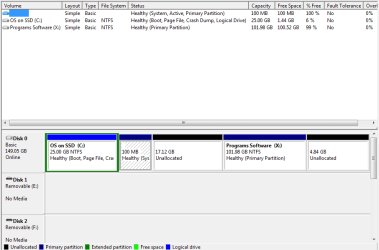
This is how the SSD looks right now.

Do not know if you will be able to read such tiny font size. (Please see screenshot below)

---
Regarding the Mini Partition Wizard i had also tried it and same result. I watched a video on their site. And as it did not work for me with version 7.0 of the Mini Parition Resize utility I emailed them with the same approximate text. here it is:
QUOTE

I am presently initializing, formatting and partitioning a SSD drive with the purpose of having the OS system on it as well as loading software.

I have viewed your video demonstration embedded on the FAQ of Mini Partition Wizard.
Followed your instructions as I needed to enlarge by an extra 5GB the size of the C drive that contains my Windows 7 Home 64-bit OS.
I did reduce my disk D, the unallocated space created fell between disks C and D, except in my case there is also another partition automatically created by Windows 7 that is called 'System Reserved' (100Mb size). So when i go to Disk C.. there is no extra added space at the end So it did not work as it worked for you as you showed it.

The status of my partitions are:
for - C:OS on SSD Capacity: 24.98GB Used: 24.30 Unused: 698.18MB File System :NFTS ... Type: Logical Drive... Status: None
- *System Reserved Capacity 100MB Used: 24.13 Mb Unused: 75.87 Mb File System: NFTS Type Primary Status: Active & Boot
- *: Capacity 12.28G Used: 0 Unused: 12.28GGB File System: Unallocated Type: Logical Status: None
- D:Programs Software Capacity 106.78 Used: 89.28Mb Unused: 106.69GB File System: NTFS Type: Primary Status: None
What could be happening with this structure that does not let me resize my C 'logical' partiiion?
* I do notice that somehow D is "Logical' and not 'Primary'

As you clarified at the beginning of your video, in my case I am using version 7,0 of your software.


I would appreciate your help in solving my problem

Thank you kindly
UNQUOTE


As a reference the link to their video is the second one, 'I cannot resize my partition, Why?' ... > http://www.partitionwizard.com/faq.html < ...

And I just got this back from them:

QUOTE
Hello:

Our application has some issue with SSD, we do not suggest you use it for now. The new version is under development and we will release it soon.


Sincerely,

UNQUOTE


Thank you again
 

Attachments

  • Capture1.PNG
    Capture1.PNG
    13.2 KB · Views: 96
Last edited:

My Computer My Computer

At a glance

Windows 7 Home Premium 64 bitAMD A10-7870K + onboard Radeon HD Graphics16 GB in 2 slots: 2 x 8GB Kingston Hyper Blu ...Nvidia GT 740 GT SC 4 GB GDRR5 + onboard Rade...
Computer type
PC/Desktop
Computer Manufacturer/Model Number
Custom Built
OS
Windows 7 Home Premium 64 bit
CPU
AMD A10-7870K + onboard Radeon HD Graphics
Motherboard
ASUS A88XM-E
Memory
16 GB in 2 slots: 2 x 8GB Kingston Hyper Blu DDR3 1600Mhz
Graphics Card(s)
Nvidia GT 740 GT SC 4 GB GDRR5 + onboard Radeon HD Graphics
Sound Card
Realtek
Monitor(s) Displays
Dell W2309 16:9 Aspect ratio
Hard Drives
Drive 0: Intel 320 Series 160GB
Drive 1: WD Caviar Black 2TB Sata 2 (no OS installed on it))

External Enclosure USB 2.0 or eSata Interfaces linked to the Desktop PC contain 4 mechanical HDDs for total storage cap
PSU
Corsair RM 550 Modular
Case
Antec P70
Cooling
N/A
Internet Speed
1000 (*UP TO) Mbps Download 50 Mbps Upload (*UP TO)
Antivirus
Active online AVG and Avira -
Browser
Most current Firefox and/or Waterfox alternatively
Other Info
Periodic Scans of the 2 hardware Drives with Malwarebytes, SuperMalwarebytes and Spybot and Destroy
1. Your 100MB system reserved partition holds the master boot record and would normally be the first partition on your drive.

2. Your Windows drive is a logical partition where it would normally be a primary partition and would be positioned to the right of the system reserved partition.

3. You have allocated 19GB for Windows. Microsoft recommend a minimum of 20GB for the 64-bit version and personally I would allow at least 40GB depending what applications you are installing.

4. Personally, I'd be inclined to backup any important data then wipe your hard drive and clean install Windows. You can have up to four primary partitions on your hard drive and if you need extra partitions you can create logical ones as part of an extended primary partition.

5. A clean install will allow you to partition your drive as you want it during the install procedure.

6. Keeping your personal data on a separate partition is something that many of us do, but it is a matter of personal choice.

http://www.sevenforums.com/tutorials/1649-clean-install-windows-7-a.html
 

My Computer My Computer

At a glance

Windows 7 Ultimate SP1 64-BitIntel Core i7 870 @ 2.93GHz8Gb Dual-Channel DDR3 @ 664MHznVidia GeForce GTX 460 1024MB dedicated RAM
Computer Manufacturer/Model Number
HP Pavilion Elite 495UK
OS
Windows 7 Ultimate SP1 64-Bit
CPU
Intel Core i7 870 @ 2.93GHz
Motherboard
MSI 2A9C (CPU1)
Memory
8Gb Dual-Channel DDR3 @ 664MHz
Graphics Card(s)
nVidia GeForce GTX 460 1024MB dedicated RAM
Sound Card
Realtek HD Audio
Monitor(s) Displays
HP2310i
Screen Resolution
1920 x 1080
Hard Drives
1x1954GB Hitachi HDS22020ALA 330 (RAID), 1x1954GB Hitachi External for backup and storage
PSU
460W
Case
HP Elite
Cooling
Air cooled
Keyboard
Logitech K750 solar-powered keyboard
Mouse
Logitech Wireless M180 mouse
Internet Speed
2Mb
Other Info
Pure Avanti Flow Internet Radio with iPod Dock, 64Gb iPod, HP USB Speakers, Sony MDR-V500 Headphones, Sony Vaio F-Series Laptop
You can do the job with Partition Wizard. But as Andrew (sevemvixen) says, it is imperative that you image your 100MB partition, your C: partition and your X: partition first. I am a frequent user of PW, but once I made a small mistake and lost all my partitions on the drive - fortunately i had the images.

Once you imaged all those, you could also clean your HDD, reallocate 100MB, C: and X: and restore the images. That is just another way.
 

My Computer My Computer

At a glance

Vista, Windows7, Mint Mate, Zorin, Windows 8from 1.6GHz Duo to i7
Computer Manufacturer/Model Number
HP, Dell, Gateway, Toshiba - 4 laptops and 2 desktops
OS
Vista, Windows7, Mint Mate, Zorin, Windows 8
CPU
from 1.6GHz Duo to i7
Monitor(s) Displays
2x HP w2207
Hard Drives
5x HDD, 7x SSD, 12x Externals
Keyboard
with trackball - no mices
Mouse
Trackball mice
Internet Speed
DSL 6000
Back
Top