How to toggle between default sound device using hotkey

Swiftkidd

New member
Member
Local time
2:34 AM
Messages
72
How to toggle between default sound device using AutoHotKey

Edit: See second post. Found script for AutoHotKey but not sure how to compile or use it ? Also when ever I plug a USB device in it changes default sound device from Line 1 to SRS.. I usually plug my Smartphone on for charge every day using USB so it gets annoying.

I'm using two audio enhancement plug-ins SRS Audio Sandbox & Breakaway Audio Enhancer. SRS uses Realtek HD Audio Output while breakaway uses SRS Audio Sandbox and when I load my computer for the first time SRS automatically sets SRS Audio Sandbox (WDM) as the default sound device meaning each time I have to open playback devices and change the default sound device back to Line 1 (Breakaway Pipeline) in order for the sound to work.

There seems to be no way to disable SRS from changing the sound device when it starts/loads for the first time so is their a way I can a hotkey shortcut key to simply change default sound device to Line 1 ?

Audio Device: Breakaway
Input > Breakaway Pipeline 1
Output > SRS Audio Sandbox


Audio Device: SRS Audio Sandbox
Input > SAS is the default sound card
Output > Realtek HD Audio Output

Thanks
 
Last edited:

My Computer

Computer type
PC/Desktop
Computer Manufacturer/Model Number
Packard Bell NEC PB34305801
OS
Windows 7 Ultimate 6.1 x84
CPU
2.93Ghz Intel Pentium 4
Motherboard
GA-8TRC410M-NF
Memory
1GB
Graphics Card(s)
NVIDIA GeForce 8400 GS
Sound Card
Realtek High Definition Audio
Monitor(s) Displays
Generic PnP Monitor (17.1")
Screen Resolution
1280x1024
Hard Drives
Corsair Force 3 120GB SSD
Western Digital Caviar Green 2TB x 2 (Internal)
Western Digital My Book Live Duo 4TB NAS (2x2TB Greens)
Keyboard
Perixx PERIDUO-701U Wireless RF2 4Ghz USB Keyboard
Mouse
Belkin Optical Glow Mouse
Internet Speed
Advertised 20Meg - Actual 1.4MB/Sec (Sky Broadband)
Antivirus
Avira Internet Security
Browser
Firefox
Source:
Windows 7 Tip: How to change the default audio device with a hotkey

Windows Vista and 7 have a new audio subsystem, with lots of neat features. It is not, however, without its quirks. One such quirk is the inability to automatically change the default audio device; you must do it manually.
This means that if you have both headphones and speakers plugged into your computer, whenever you want to pipe all sound through the headphones you must right-click the volume icon, select Playback devices, go to the device you wish to set as default, right-click it, and select Set as Default Device. Sounds like fun, right? Now try doing this 5-6 times a day.
Incredibly enough, I could find no command-line utilities to automate this simple operation. I thought I might build something myself, so I started digging deeper. It turns out Microsoft seems to have done this by design; they wanted to prevent programs from changing the default audio device on users, because this can lead to a very bad experience (imagine a game which suddenly changes the audio to the speakers, when you wanted to listen to it using your earbuds).
I did try a couple of utilities which claimed to do this, but they were really bad. At this point, I did what I do every time the going gets rough: I turned to AutoHotkey. This amazing free automation program has a solution for just about anything, and indeed, AHK user Veabers already created the exact script I wanted in 14 elegant lines of code. This script toggles between two audio devices in about half a second on my system. Just hit Win+Shift+A, and you switch to the other device. Here's the whole thing:

#+a::
Run, mmsys.cpl
WinWait,Sound
ControlSend,SysListView321,{Down}
ControlGet, isEnabled, Enabled,,&Set Default
if(!isEnabled)
{
ControlSend,SysListView321,{Down 2}
}
ControlClick,&Set Default
ControlClick,OK
WinWaitClose
SoundPlay, *-1
return


Voila! The only thing I changed was the default key-binding, because the author's default did not work for me.

2wgaagh.jpg
 
Last edited:

My Computer

Computer type
PC/Desktop
Computer Manufacturer/Model Number
Packard Bell NEC PB34305801
OS
Windows 7 Ultimate 6.1 x84
CPU
2.93Ghz Intel Pentium 4
Motherboard
GA-8TRC410M-NF
Memory
1GB
Graphics Card(s)
NVIDIA GeForce 8400 GS
Sound Card
Realtek High Definition Audio
Monitor(s) Displays
Generic PnP Monitor (17.1")
Screen Resolution
1280x1024
Hard Drives
Corsair Force 3 120GB SSD
Western Digital Caviar Green 2TB x 2 (Internal)
Western Digital My Book Live Duo 4TB NAS (2x2TB Greens)
Keyboard
Perixx PERIDUO-701U Wireless RF2 4Ghz USB Keyboard
Mouse
Belkin Optical Glow Mouse
Internet Speed
Advertised 20Meg - Actual 1.4MB/Sec (Sky Broadband)
Antivirus
Avira Internet Security
Browser
Firefox
ok people, here is my modded script to toggle between devices. it is an .exe file. this means you have to click on the .exe file to switch the default audio device. HOWEVER, all you have to do is place the .exe file in some folder like documents, than create a shortcut for it. you can than place the shortcut anywhere you like. I put it on my desktop. you can can assign a key stoke to launch it. I did Ctrl+Alt+C to launch it and have it switch it automatically. you also can change the icon of it too.

NOTE: this is an .exe file. so the ONLY way to activate it is to click on it. UNLESS you created a keyboard shortcut.

just so you guys know, I used a similar script like the one above and created it into an .exe file with the program used above. The .exe compared to the actual program is that you do not need to have the program constantly running and boot up with windows for this hotkey to work.

I chose Ctrl+Alt+C because I have Ctrl+Alt+Z and Ctrl+Alt+X used to switch between active power plans. heres the .exe. Enjoy!
 

Attachments

My Computer

Computer type
PC/Desktop
Computer Manufacturer/Model Number
Weekend Warrior Rig
OS
Windows 10 Pro
CPU
Intel i7-3770K 4.4GHz
Motherboard
ASUS P8Z77-V Pro
Memory
8GB G.SKILL Ripjaws 1866 MHz
Graphics Card(s)
EVGA GTX 980 Classified
Monitor(s) Displays
Asus VH238H 23" 2ms
Screen Resolution
1920x1080
Hard Drives
Intel 330 120GB SSD /
WD Blue 1TB /
WD Black 500GB
PSU
Corsair CX750M
Case
NZXT H440
Cooling
Corsair H80i- CPU / Corsair H90- GPU
Keyboard
Logitech K360 LE
Mouse
Logitech G500
Antivirus
Avast
Browser
Chrome
Other Info
1200W 2.1 Surround Sound Audio
Hey,

Thanks for the reply, before I saw your post I found utility app called Audio Switcher version: 1.5.2.9 which seems to have solved my issue without needing to toggle default device on startup. It has two options which allows users to set a device as a 'startup device' and as a 'favorite device' which I've set my Line 1 to both of those so when ever I switch on my PC it automatically sets Line 1 as default device. Plus it has hotkey capability which I use when ever connecting/disconnecting usb device due to it changing my default audio device

I will give your script ago as well but it seems Audio Switcher will be better suited as it allows for startup device and favorite device it just a shame both require .exe to be running continuously
 

My Computer

Computer type
PC/Desktop
Computer Manufacturer/Model Number
Packard Bell NEC PB34305801
OS
Windows 7 Ultimate 6.1 x84
CPU
2.93Ghz Intel Pentium 4
Motherboard
GA-8TRC410M-NF
Memory
1GB
Graphics Card(s)
NVIDIA GeForce 8400 GS
Sound Card
Realtek High Definition Audio
Monitor(s) Displays
Generic PnP Monitor (17.1")
Screen Resolution
1280x1024
Hard Drives
Corsair Force 3 120GB SSD
Western Digital Caviar Green 2TB x 2 (Internal)
Western Digital My Book Live Duo 4TB NAS (2x2TB Greens)
Keyboard
Perixx PERIDUO-701U Wireless RF2 4Ghz USB Keyboard
Mouse
Belkin Optical Glow Mouse
Internet Speed
Advertised 20Meg - Actual 1.4MB/Sec (Sky Broadband)
Antivirus
Avira Internet Security
Browser
Firefox
IS there any way to make the EXE bring up the volume menu minimized? So that it doesnt minimize fullscreen games?
But thanks a bunch for that
 

My Computer

Computer type
PC/Desktop
OS
w7 64b
... miss post soz
 

My Computer

Computer type
PC/Desktop
Computer Manufacturer/Model Number
Custon Build
OS
windows 7 home Premium x64
CPU
Intel Core i7 4790
Motherboard
ASUS Z97-PRO WiFi/AC Motherboard
Memory
Corsair Vengeance Pro CMY16GX3M2A1866C9R 16GB (2x8GB) DDR3
Graphics Card(s)
Gainward GeForce GTX 770 Phantom 2GB
Hard Drives
Seagate Barracuda 2TB ST2000DM001
Samsung 840 EVO Series 250GB SSD
PSU
Antec 900W
Case
Thermaltake level 10 GT
Cooling
Corsair H100i
Keyboard
Corsair K50A
Mouse
Cyborg MMO7
Antivirus
Norton 360
Browser
Internet Explorer
Hi, new to the forum and have been looking for this issue all over the web and have to say that N00berG00ber has fixed my issue in a few masterful keystrokes. THANK YOU
 

My Computer

Computer type
PC/Desktop
Computer Manufacturer/Model Number
Custon Build
OS
windows 7 home Premium x64
CPU
Intel Core i7 4790
Motherboard
ASUS Z97-PRO WiFi/AC Motherboard
Memory
Corsair Vengeance Pro CMY16GX3M2A1866C9R 16GB (2x8GB) DDR3
Graphics Card(s)
Gainward GeForce GTX 770 Phantom 2GB
Hard Drives
Seagate Barracuda 2TB ST2000DM001
Samsung 840 EVO Series 250GB SSD
PSU
Antec 900W
Case
Thermaltake level 10 GT
Cooling
Corsair H100i
Keyboard
Corsair K50A
Mouse
Cyborg MMO7
Antivirus
Norton 360
Browser
Internet Explorer
Thanks N00berG00ber! You are a pimp!!!
 

My Computer

Computer type
PC/Desktop
OS
FL
Makes switching between my Logitech H800 wireless headset and speakers as easy as Ctrl+Alt+S! Thanks a ton!
 

My Computer

Computer type
PC/Desktop
Computer Manufacturer/Model Number
Custom
OS
Windows 7 Ultimate x64
CPU
3750k @ 4.5ghz
Motherboard
Asrock PRO4 (meh)
Memory
8gb Corsair Vengence
Graphics Card(s)
Gigabyte GTX 760
Hard Drives
Plextor 128gb M5 Pro SSD
WD Blue 1tb
I tried this (Noober's program) but all it does is open the Playback devices window then close it, but the same device stays selected instead of switching devices. Any ideas?

I'm using the Audio Switcher program now, so far seems to work pretty well, just wish a hotkey could be set to cycle through the favorites.
 
Last edited:

My Computer

Computer type
PC/Desktop
OS
Windows 7 Ultimate x64
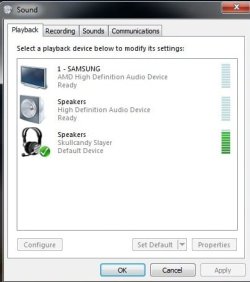
would you guys be able to write a script to toggle between these 3 sound devices?


soudn devices.jpg
 

My Computer

Computer type
PC/Desktop
Computer Manufacturer/Model Number
Custom Build
OS
Windows 7 Ultimate 32 bit
CPU
AMD FX6300
Motherboard
ASUS M5A97 LE R2.0
Memory
A-DATA 8GB (2x4GB)
Graphics Card(s)
Club 3D Radeon R9 280x
Antivirus
Avast
Browser
Google Chrome
*Edit: I realized after posting the tabbing is lost, which makes the scripts a bit more difficult to read. Here is a link to a text file with the spacing preserved

https://drive.google.com/file/d/0BwmHUB0O_NGfbWdSRnZnR3dDdlk/edit?usp=sharing

The reason the scripts posted so far don't work for everyone is that they are hard-coded to work in a specific scenario for device installation. All the scripts do is try to enable either the first device in the list or the third, whichever it's able to.

This doesn't work for me because my device list isn't arranged that way, and apparently the same is true for others, so I wrote the script below instead to find specific devices (the script is based on the ones posted here but modified, primarily just the loop) (shortcut is windows key + ctrl + s)

#+s::
Run, mmsys.cpl
WinWait,Sound
Loop{
ControlSend,SysListView321,{Down}
ControlGet, device, List,Selected,SysListView321
if InStr(device, "Speakers")=1 {
ControlGet, isEnabled, Enabled,,&Set Default
if isEnabled {
found:=1
break
}
}
if InStr(device, "m/m")=1 {
ControlGet, isEnabled, Enabled,,&Set Default
if isEnabled {
found:=1
break
}
}
}
if (found)
ControlClick,&Set Default
ControlClick,OK
WinWaitClose
SoundPlay, *-1
return

That looks for devices called "Speakers" or "m/m" that are not currently the default and sets the default to the first of those two it finds. You can modify this to work for different device names, just edit the "Speakers" and "m/m" strings in that script as needed.

In cases like AphoticBass' where multiple devices have the same primary name, you will need to add a tab after the primary name in the string and then include text from the next line as well to get a unique name to look for, e.g. "Speakers<tab>SkullCandy" for the screenshot above (I can't actually insert a tab in this post, so <tab> should be the actual tab character).

AphoticBass - to do what I believe you really want, the script below will just cycle through all eligible devices, so you can use it to go through your three as needed (this will work for anyone else with any number of eligible devices in the list, though). (shortcut is windows key + ctrl + d)

#+d::
lineCount:=""
defaultLine:=""
found:=""
isEnabled:=""
line:=""
Run, mmsys.cpl
WinWait,Sound
;we'll need the total line count later
ControlGet, lineCount, List,Count,SysListView321
;find which device is the current default
Loop {
ControlSend,SysListView321,{Down}
ControlGet, line, List,Selected,SysListView321
if InStr(line,"Default Device")>0 {
ControlGet, defaultLine, List,Count Focused,SysListView321
break
}
;need to stop if we get to the bottom
ControlGet, line, List,Count Focused,SysListView321
if (line=lineCount) {
break
}
}
if (!defaultLine) {
MsgBox Error: couldn't find a default device currently in use.
return
}
;find the next eligible device in the list after the default
Loop {
ControlSend,SysListView321,{Down}
ControlGet, isEnabled, Enabled,,&Set Default
if (isEnabled) {
found:=1
break
}
;need to stop if we get to the bottom
ControlGet, line, List,Count Focused,SysListView321
if (line=lineCount) {
break
}
}
if (!found) {
;if we are here we didn't find another eligible device later in the list,
;so need to start at the top again
Loop, % lineCount-1 {
ControlSend,SysListView321,{Up}
}
;start back down the list
Loop {
ControlGet, isEnabled, Enabled,,&Set Default
if (isEnabled) {
found:=1
break
}
;need to stop if we get to the bottom (this would mean something is wrong, though)
ControlGet, line, List,Count Focused,SysListView321
if (line=lineCount) {
break
}
ControlSend,SysListView321,{Down}
}
}
if (found)
ControlClick,&Set Default
ControlClick,OK
WinWaitClose
SoundPlay, *-1
return

I just learned AutoHotKey tonight and handling cycling back to the top of the list is not really trivial based on how this language works, so let me know if you run into any issues with the script. It worked for me, but I didn't do very extensive testing, and only tested on one machine.
 

My Computer

Computer type
PC/Desktop
Computer Manufacturer/Model Number
Origin
OS
Windows 7 Home Premium 64bit
CPU
Intel Core i5 3350 3.3 GHz
Motherboard
Zotac Z68-ITX
Memory
Kingston HyperX DDR3 1600 MHz 8 GB
Graphics Card(s)
AMD Radeon HD7770 1 GB
Hard Drives
Samsung 840EVO 250 GB
Case
SilverStone SG08

My Computer

Computer Manufacturer/Model Number
Myself :)
OS
Windows 7 Pro
CPU
Intel i7 980x
Motherboard
EVGA X58 SLI LE
Memory
6 Gigs Patriot
Graphics Card(s)
Nvidea BFG Tech G Force 295 GTX
Sound Card
Creative Sound Blaster Audigy
Monitor(s) Displays
ViewSonic 17" < < old school
Hard Drives
C: Velociraptor 10,000 RPM 300 gig

Storage- 1TB, 2TB
PSU
Corsair 750
Case
Cooler Master Haf X Full-Tower , http://bit.ly/bQxsNq
Cooling
Stock i7980 heatsink fan for now.
Back
Top