How would I dual-boot in this scenario?

We have Macrium experts here if needed.

I'm almost sure it has the same features of Acronis - again, that premium software is free if you have any WD or Seagate HD's involved . You should be able to save an image to a file as you're doing, then point it to reimage an unallocated space of the same or larger size on the same HD.

Normally then all you'd need to do is add it with EasyBCD and it will start up from a Dual Boot menu.

But XP is so old now it cannot be expected to start on modern hardware without first supplying the SATA controller.

The only thing I think I would have done differently is save the image to external as I'd suggested.
 
Disk image - complete and stored in the C partition.

Used Macrium Reflect to set up Windows PE Rescue Media and booted from it. This was necessary because the image could not be restored onto a hard drive from which the current OS was running.

Working with Reflect in the rescue environment, I prepared to reimage. I was given a warning showing that the C-drive, my main and W7 one as mentioned, would be wiped in the process.

I will begin the process anew, this time sending the image to the external HD. If I get the same warning, well, I won't know what to do...
 

My Computer My Computer

At a glance

Windows 7 Home Premum 64-bit
OS
Windows 7 Home Premum 64-bit
Greg has asked me to look at this. What exactly have you done here ??

Disk image - complete and stored in the C partition

Does this mean you stored the image on the OS partition. The image should, of course go to another drive - internal or external.
 

My Computer My Computer

At a glance

Vista, Windows7, Mint Mate, Zorin, Windows 8from 1.6GHz Duo to i7
Computer Manufacturer/Model Number
HP, Dell, Gateway, Toshiba - 4 laptops and 2 desktops
OS
Vista, Windows7, Mint Mate, Zorin, Windows 8
CPU
from 1.6GHz Duo to i7
Monitor(s) Displays
2x HP w2207
Hard Drives
5x HDD, 7x SSD, 12x Externals
Keyboard
with trackball - no mices
Mouse
Trackball mice
Internet Speed
DSL 6000
At the present time, the disk image is on the external drive.

I would like to reimage it to a new partition on my Windows 7 hard drive, so that I may dual boot.

I am not permitted by Macrium to restore the image onto a hard drive on which the presently running oS is. To get around this, I created WindowsPE rescue media with Macrium Reflect on it.

Loading it upon boot, I attempt to reimage. However, on both occasions, whether the image is in the C partition of my internal hard drive or on the external hard drive, Macrium Reflect warns me that proceeding with the image restoration would erase the C ("OS") and F ("System") drives.

As I do not wish to erase my main and Windows 7 partition on my machine...
 

My Computer My Computer

At a glance

Windows 7 Home Premum 64-bit
OS
Windows 7 Home Premum 64-bit
Have you prepared Unallocated Space on the HD large enough for the image to be applied to?

Read the Macrium Manual for how to apply image to this space, until Wolfgang comes back to guide you.

I've asked you if you have any WD or Seagate HD's as the Acronis free app could do all of this from C without even having to reboot until you've imaged, added with EasyBCD, then adjusted with Paragon app if necessary to start it on new hardware.
 
Before we proceed I suggest you post a picture of your Disk Management so that we can see the layout. I will be out for a little while and catch up with you later.
 

My Computer My Computer

At a glance

Vista, Windows7, Mint Mate, Zorin, Windows 8from 1.6GHz Duo to i7
Computer Manufacturer/Model Number
HP, Dell, Gateway, Toshiba - 4 laptops and 2 desktops
OS
Vista, Windows7, Mint Mate, Zorin, Windows 8
CPU
from 1.6GHz Duo to i7
Monitor(s) Displays
2x HP w2207
Hard Drives
5x HDD, 7x SSD, 12x Externals
Keyboard
with trackball - no mices
Mouse
Trackball mice
Internet Speed
DSL 6000
I've asked you if you have any WD or Seagate HD's as the Acronis free app could do all of this from C without even having to reboot until you've imaged


I mentioned that I do not own this complimentary software. To be specific, all three of the drives (old, external, and internal W7) are Toshiba/Samsung.


Here are some screencaps:

hello.jpg

ikl.jpg
 

My Computer My Computer

At a glance

Windows 7 Home Premum 64-bit
OS
Windows 7 Home Premum 64-bit
Well, there are a few problems that I do not understand:

1. I do not see an F partition. The system partition does not seem to have a drive letter (which is usually normal). A screenshot of Disk Management could clarify.

2. Your target partition (marked A here) is smaller than the image partition. So that won't fit.

3. If you moved the image to A, you would have a kind of a double boot. You cannot do that with an image restoration because your system partition (bootmgr) would get messed up.

4. I never understood one of your earlier statements where you said that you placed the image into the C partition. Can you clarify what you did there and how you managed to get the system back and running.
 

My Computer My Computer

At a glance

Vista, Windows7, Mint Mate, Zorin, Windows 8from 1.6GHz Duo to i7
Computer Manufacturer/Model Number
HP, Dell, Gateway, Toshiba - 4 laptops and 2 desktops
OS
Vista, Windows7, Mint Mate, Zorin, Windows 8
CPU
from 1.6GHz Duo to i7
Monitor(s) Displays
2x HP w2207
Hard Drives
5x HDD, 7x SSD, 12x Externals
Keyboard
with trackball - no mices
Mouse
Trackball mice
Internet Speed
DSL 6000
It doesn't appear you have deleted the target partition to make Unallocated Space, which may be why it's not able to prompt you where the image goes and wants to overwrite C.

You also do not want to transfer the XP MBR which should remain the Win7 MBR on the System Reserved partition, nor do you want to mark the XP partition Active or it will deactivate the Win7 System Reserved partition which needs to remain System Active to boot both OS's.

Once XP is imaged onto Unallocated Space of its same size or larger, boot into Win7 to add XP using EasyBCD. Then if it won't boot use Paragon app to adjust it providing XP SATA driver if prompted.
 
2. Your target partition (marked A here) is smaller than the image partition. So that won't fit.


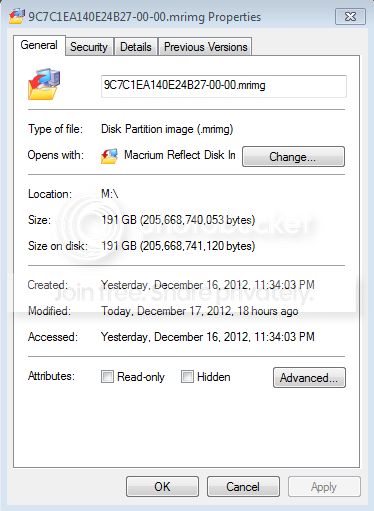
No no, the image file itself is 190 GB; the HD on which it rests, which is the external, is nominally 500 GB. So the partition is large enough.


3. If you moved the image to A, you would have a kind of a double boot.


I wouldn't need to unpack it or anything? EasyBCD would recognize it?


4. Initially, I imaged the old drive onto my C partition on the computer which I am using. That is, the image file that I created was stored in C:\. Later, I deleted that and tried using an image file that had been created on the external drive.


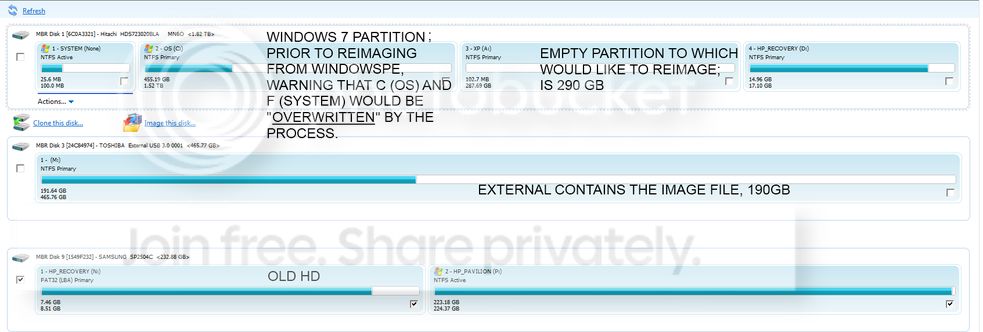
1. M is the external containing the image file. Compare Capacity with Free Space.
C and D are my current machine, Windows 7.
N and P are the old drive, connected via Adapter.
A is the empty partition to which I would like to get the contents of the old drive, in working order, at some point.


kleid-1.jpg
 

My Computer My Computer

At a glance

Windows 7 Home Premum 64-bit
OS
Windows 7 Home Premum 64-bit
In addition to apparently trying to image XP to a smaller partition than it's original size, you have not deleted the target partition to make Unallocated Space as I've asked you about twice now.

Bugger me, that's what you meant by unallocated space. Och...
 

My Computer My Computer

At a glance

Windows 7 Home Premum 64-bit
OS
Windows 7 Home Premum 64-bit
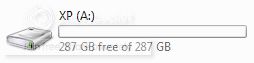
Just to make sure the "partition too small" confusion is resolved -

Keeping in mind that the source of the image file is only 230 GB:

XP.jpg

partimage.jpg
 

My Computer My Computer

At a glance

Windows 7 Home Premum 64-bit
OS
Windows 7 Home Premum 64-bit
Yes, I see now that you have enough space to image XP partition onto deleted target partition's Unallocated Space.

Confirm you also are not setting XP partition Active or copying it's MBR (or Track 0 if requested).

Apply the image but do not accept any warnings without checking back. You want to be absolutely sure it's going on the target space.
 
All I do is to select A as the partition to reimage the disk image to in Macrium Reflect. The only attribute I've ever changed in A was from Logical to Primary.

Though now I am told that reimaging will not allow a boot from that partition?
 

My Computer My Computer

At a glance

Windows 7 Home Premum 64-bit
OS
Windows 7 Home Premum 64-bit
There are options offered at some point when you create the image (Wolfgang will know) to deselect XP being marked Active and copying it's MBR. Every imaging app has these.

If the image is applied while still marked Active and the XP MBR is included then it will require marking it Inactive on the new drive, marking System Reserved Active again, possibly running Startup Repair - just to boot Win7.

What do you mean unpack the image? An exact image is applied to the partition. There's no unpacking.
 
Last edited:
No, I have indeed deleted XP aka A:\ as you asked. Sorry for not being clear. I'll try to se whether Macrium does anything different with the unallocated space there.

By unpack, I mean to get the contents of the image onto the partition. Excuse my terminological inaccuracy.
 

My Computer My Computer

At a glance

Windows 7 Home Premum 64-bit
OS
Windows 7 Home Premum 64-bit
What happens when you drag the image into A (as per your Macrium picture above).
 

My Computer My Computer

At a glance

Vista, Windows7, Mint Mate, Zorin, Windows 8from 1.6GHz Duo to i7
Computer Manufacturer/Model Number
HP, Dell, Gateway, Toshiba - 4 laptops and 2 desktops
OS
Vista, Windows7, Mint Mate, Zorin, Windows 8
CPU
from 1.6GHz Duo to i7
Monitor(s) Displays
2x HP w2207
Hard Drives
5x HDD, 7x SSD, 12x Externals
Keyboard
with trackball - no mices
Mouse
Trackball mice
Internet Speed
DSL 6000
Wolfgang, doesn't Macrium require Unallocated space to apply an image onto as most others do?

If not why is he being Warned that applying the image to A will overwrite System Reserved and C?
 
Macrium Reflect does not allow me to select unallocated space.

Previously, when the A partition was clicked during the Image Restore process, a blue bar would appear underneath the representation of the partition.
 

My Computer My Computer

At a glance

Windows 7 Home Premum 64-bit
OS
Windows 7 Home Premum 64-bit
Back
Top