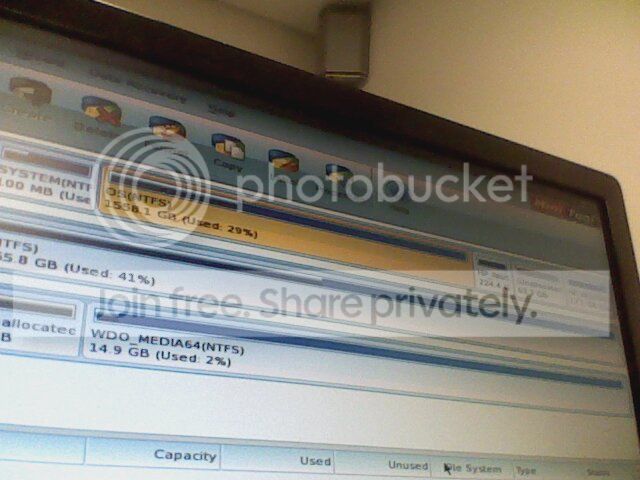
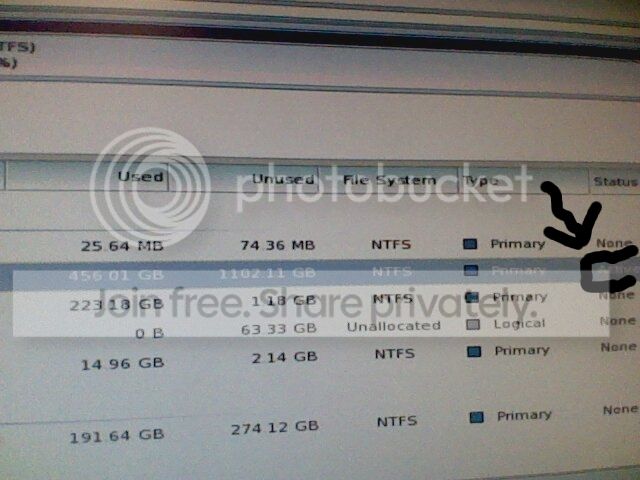
How would I dual-boot in this scenario?

My apologies. I should have not advised you further on Macrium while Wolfgang is present since he's the expert on it. I'll leave you in his most capable hands.

If this doesn't work out I will gladly connect via TeamViewer in Win7 and loan you my Acronis True Image with Universal Restore to image XP over to A while adjusting it to new hardware, then add it with EasyBCD. In the past I've been able to do all of this with just one reboot to a Dual Boot menu.
 
You can restore to any partition empty or full. It will just overwrite what's in it. The part about overwriting the system partition is a very strange though. You did not even image the system partition judging by your Macrium picture. -- Or did you?

a) Did you try the drag method ??
b) I am still waiting for a picture of your Disk Management
 

My Computer My Computer

At a glance

Vista, Windows7, Mint Mate, Zorin, Windows 8from 1.6GHz Duo to i7
Computer Manufacturer/Model Number
HP, Dell, Gateway, Toshiba - 4 laptops and 2 desktops
OS
Vista, Windows7, Mint Mate, Zorin, Windows 8
CPU
from 1.6GHz Duo to i7
Monitor(s) Displays
2x HP w2207
Hard Drives
5x HDD, 7x SSD, 12x Externals
Keyboard
with trackball - no mices
Mouse
Trackball mice
Internet Speed
DSL 6000
You did not even image the system partition judging by your Macrium picture. -- Or did you?

Imaged the whole old drive.

b) I am still waiting for a picture of your Disk Management

That would be in Post #31, but it is the least of our worries.

I tried the drag method. I knew of it, but had not went through with it before because I could only get one of the two drive partitions on the image into the destination box with it.

This time, I tried it with just one - the main one. I went into WindowsPE and reimaged that one part. I made sure to deselect the default option that would copy over the image MBR. Macrium did NOT give me any notification about overwriting anything this time.

Following this, I now try to boot Windows 7 (note that I hadn't yet deleted the XP entry from EasyBCD, so I was going from the bootloader)

Code:
0xc000000e

Boot selection failed because a required device is inaccessible

This is being posted from another device. What can you tell me about the situation? I have an Ubuntu Live CD around...
 

My Computer My Computer

At a glance

Windows 7 Home Premum 64-bit
OS
Windows 7 Home Premum 64-bit

My Computer My Computer

At a glance

Vista, Windows7, Mint Mate, Zorin, Windows 8from 1.6GHz Duo to i7
Computer Manufacturer/Model Number
HP, Dell, Gateway, Toshiba - 4 laptops and 2 desktops
OS
Vista, Windows7, Mint Mate, Zorin, Windows 8
CPU
from 1.6GHz Duo to i7
Monitor(s) Displays
2x HP w2207
Hard Drives
5x HDD, 7x SSD, 12x Externals
Keyboard
with trackball - no mices
Mouse
Trackball mice
Internet Speed
DSL 6000
Well, my only other machine is running Ubuntu. I could try to have Partition Wizard up on Wine there, if you'd like me to do something in particular with it.

Meanwhile, using the Ubuntu Live CD I saw that it wouldn't boot to more than a Linux info screen, and afterwards a black screen with a movable cursor. I left the machine running, and will check to see whether that has changed once I get home.

The easiest to get out of this would be to set the partition into which you just imaged as active partition

Assuming I can reach that point on my machine - will it work without the MBR having been copied over?
 

My Computer My Computer

At a glance

Windows 7 Home Premum 64-bit
OS
Windows 7 Home Premum 64-bit
This likely happened because you ignored the three times I reminded you that you must remove the Active flag from XP before imaging it over. So it is trying to start XP and cannot because it doesn't have it's MBR or needs SATA drivers which were to be provided from Paragon Virtualization app from Win7.

You will need to start Win7 which should have remained bootable had XP not been copied with Active flag: Mark Win7 Partition Active then run Startup Repair - Run up to 3 Separate Times.

Then install EasyBCD to add XP to a Dual Boot menu, see if it will start. EasyBCD (click Download - no Name or Email required)

If not install Paragon app to insert SATA driver during P2P Adjust operation on the XP partition. Paragon Virtualization Manager (formerly Paragon Adaptive Restore)
 
I thought you were referring to the A:\ ("XP") partition, which was never "active". Sorry. Another misunderstanding bites me, then.

Alright, either a System Repair disc or a Partition Wizard disc. I'll wait for whs on that one.

The System Repair disc, though, would be difficult to do without ready access to another Windows 7 machine.
 

My Computer My Computer

At a glance

Windows 7 Home Premum 64-bit
OS
Windows 7 Home Premum 64-bit
I got home and the afflicted machine, on the Live CD, displayed just a black screen. I tried booting again with the Live CD, and this time got as far as the Ubuntu loading screen before everything bugged out, after which the monitor went all black with the lower half covered in flickering bars of blue and green - this went on for a minute before settling into another black screen.

I burned a Minitool Recovery disk and tried to boot with it and Partition Manager.

First, I set the System partition to Active - I encountered the same "inaccessible device" error.
Then, I set the OS partition (a.k.a. C:\) to Active - I encountered the same "Inaccessible device" error.

So that hasn't worked.

I cannot fathom doing operations this complex without having even a Windows 7 DVD or Repair CD standing by.

Deep and abiding faith? :P

I will try to put together a Windows 7 disc using the links you just posted. However, the Windows 7 USB-DVD download tool with which the guides create the disc does not start with Wine. Is there another way to create the disc, assuming the ISO is fine? Can I just burn it to a DVD normally?
 

My Computer My Computer

At a glance

Windows 7 Home Premum 64-bit
OS
Windows 7 Home Premum 64-bit
I don't know what you can do with a Linux disk and where you got the idea it has any role here at all except to rescue files.

To burn the actual disk you need to repair Win7, use an image burner like ImgBurn or write to flash stick using Universal USB Installer which is Linux-based with Win7 in dropdown menu.
 
Well, the point is it doesn't work, which seems to bode poorly as I can't think of a reason for it to fail so catastrophically. Recourse to it has been necessary several times in the past (which may not surprise you), and it has served me well.

Another attempt with Partition Manager disc: I tried the "Set Windows Boot Partition" function on the C partition but was given the error message "Could not locate Windows directory". Could the Windows system/boot files be erased or damaged? Looking at the GB count in Partition Manager, all my data seems to be present...

I'll have the ISO downloaded soon, and will try simply burning it onto a DVD.
 

My Computer My Computer

At a glance

Windows 7 Home Premum 64-bit
OS
Windows 7 Home Premum 64-bit
Once you image it over as Active partition, it tries to boot XP, which cannot boot for several possible reasons and isn't ready to boot anyway until you add it to a boot menu from Win7 first, and possibly adjust it by injecting SATA driver.
 
I understand that, but surely something else must be going on now that C:\ a.k.a. OS partition is set to Active?

Why would the machine try to boot XP if the W7 bootloader is intact (recalling that I deselected the "Copy over MBR" option in the reimaging process), and the original OS partition is set to active? Also recall that I'm still getting the same "device inaccessible" error on boot attempt.
 

My Computer My Computer

At a glance

Windows 7 Home Premum 64-bit
OS
Windows 7 Home Premum 64-bit
2012-12-18-165445.jpg

2012-12-18-165559.jpg
 

My Computer My Computer

At a glance

Windows 7 Home Premum 64-bit
OS
Windows 7 Home Premum 64-bit
I just came back from shopping and see that this a quite a mess. To proceed, I suggest the following:

1. Boot with the Partition Wizard CD
2. Highlight the disk in question
3. Do a 'Rebuild MBR' - on the left side
4. Highlight the C partition on that disk
5. Go to the partition tab > Modify and make C active

Check before that there is no other active partition on that disk - if yes, make it inactive first.

If that worked, you can proceed with the 3x repair
 

My Computer My Computer

At a glance

Vista, Windows7, Mint Mate, Zorin, Windows 8from 1.6GHz Duo to i7
Computer Manufacturer/Model Number
HP, Dell, Gateway, Toshiba - 4 laptops and 2 desktops
OS
Vista, Windows7, Mint Mate, Zorin, Windows 8
CPU
from 1.6GHz Duo to i7
Monitor(s) Displays
2x HP w2207
Hard Drives
5x HDD, 7x SSD, 12x Externals
Keyboard
with trackball - no mices
Mouse
Trackball mice
Internet Speed
DSL 6000
Alright, three actions.

1. Inactivate C.
2. Rebuild MBR of the W7 disk.
3. Make C active.

I then booted. I got a black screen with:

BOOTMGR is missing
Press CTRL+ALT+DEL to restart

This is quite dire, I figure.

The Windows 7 disk you had me make is burning, and 100% complete - but the checksum has been developing for 10 minutes. Would it be safe to just cancel and use the disk as-is?
 

My Computer My Computer

At a glance

Windows 7 Home Premum 64-bit
OS
Windows 7 Home Premum 64-bit
I lost patience and ejected the Windows 7 DVD - the software tells me the image burned successfully though, so...

I booted from it, and it took me to an Installer for Windows 7. There is no option to Repair Windows or Startup Repair. Do you really believe I should reinstall at this stage?
 

My Computer My Computer

At a glance

Windows 7 Home Premum 64-bit
OS
Windows 7 Home Premum 64-bit
A Win7 DVD could not boot if it doesn't have Repair My Computer on its second screen. Look again.

Either that or it's being started from an OS.
 
Back
Top