My computer was bought in Canada, my OS is USA, My keyboard along with my Language Settings are US. In other words ALL English, North America, except for my time zone (which could be any country). I have arrived in China and though nothing has changed all is Chinese. If I go to eBay.com. or google.com, Yahoo.com or wherever it turns into Chinese. Obviously it is reading my ISP but is there anywhere around this (Besides VPN setting at a different country)?
BTW, though I had added Chinese as a 2nd keyboard setting while still in Canada when I reboot it now goes to Chinese 1st as a default, even though my settings show English US as the first, top one, and as the default. It did not do this while I was back home.
My current OS is Windows 10
I am from Finland, living in Germany, using Windows in English with Finnish keyboard layout. I know what you are talking about, it's frustrating. I have sent MS feedback about this countless times. With today's technology changing this behavior should be easy; when I browse the web or use any online services, they should check three things and offer the services accordingly in my preferred language:
- What is the computer location set by user?
- What is the display language set by the user?
- What is the language and location in browser set by the user?
But, as we know this is not the case. Microsoft, Google, Yahoo and whatnot, they all assume for instance in my case that because my IP is a German one, I must prefer German language as if they could not believe that someone currently located in Germany speaks any other language. They totally ignore my settings. It is as if these sites and services could not even think that someone lives and works in another country instead of his native country. A German IP must mean a German user, according to them.
There is no perfect solution for this but you can get the system pretty much to acknowledge your main language doing all I have listed below. In this example I am making my PC with a German IP to be as much British as possible, you can just change the location references to your Canadian or US ones. I am doing this for Windows itself, Bing and Google.
Windows 10
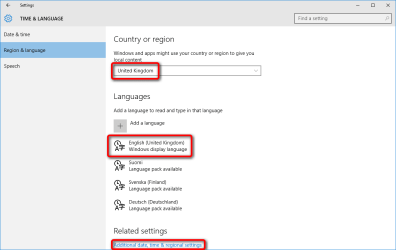
In Windows Settings, check that your location is set to what you want to and if other languages have been installed that your main language is the top most on the list. When OK, click the
Additional date, time & regional settings link at the bottom:
Click
Language:

Click
Advanced settings:
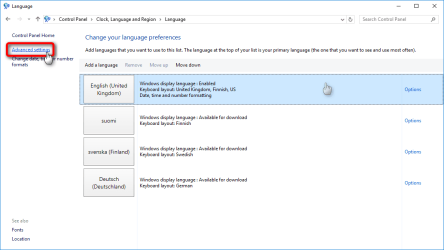
Override both
Display language and
Input method defaults with those you'd prefer, unselect both selections under
Switching input methods, and select
Don't let websites access my language list. Save the settings:

Bing
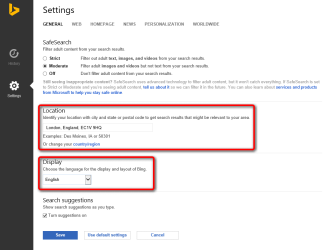
Always sign in to Bing. Open the
Settings:

Set your preferred location and language, save the settings:
Google
As with Bing, always sign in to Google. Use the URL http://www.google.com/ncr for Google to get a global Google.com site instead of a localized one. The
/ncr at the end of the URL overrides the IP based use of a localized Google.
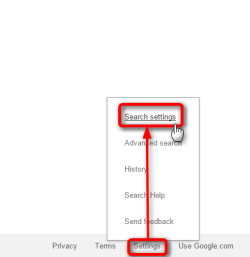
Open the
Settings (bottom right):
Set the language:
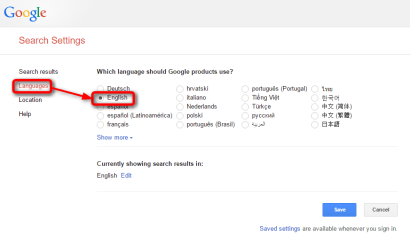
Set the location:

In some cases Google does not let you to change the location to other than locations in the country of your IP. In that case there's a workaround. Open Google Maps (be sure to be signed in!), type any location to search bar and search that location on the map. Now click
Get directions and click
Home:
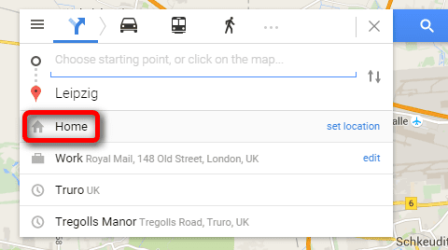
Enter your preferred address and hit Enter, I am using here the address of the headquarters of Royal Mail in London:
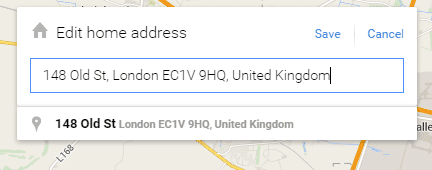
Repeat the above for
Work address; search any location, click
Get directions, enter a
Work address as you entered the
Home address. In my case I use the same address on both.
Go back to Google settings, you can now set the location as you'd prefer.
That's it. It's not perfect but as good as you can get

Kari


