Howto rename file types in Explorer as default & not Software specific

pintree3

Mich
Member
VIP
Local time
10:55 PM
Messages
394
Location
Canada
Howto rename file types in Explorer as default & not Software specific

I don't like the fact that if, for ex. I own Microsoft Office, in Explorer under "Type" for a word document it says, "Microsoft Word Document" and if I were to change to say Open Office suddenly that same type of file would no longer be called, "Microsoft Word Document" but rather, "Open Office Document" (or something).
Is it possible to have Explorer name a file simply for what it is (A text file, an image file) etc.? regardless of what software is actually used to open it?
 

My Computer My Computer

At a glance

Windows 7 Home Premium 64Intel Core i5 760 @ 2800MHz12288MBAMD Radeon HD 7800 Series
Computer type
PC/Desktop
Computer Manufacturer/Model Number
OEM Designed by me :-)
OS
Windows 7 Home Premium 64
CPU
Intel Core i5 760 @ 2800MHz
Motherboard
Asus P7P55D-E LX
Memory
12288MB
Graphics Card(s)
AMD Radeon HD 7800 Series
Sound Card
ASUS Xonar DG
Monitor(s) Displays
ViewSonic VX2453 Series, HDMI 1080p Full HD
Screen Resolution
1920X1080
Hard Drives
Samsung SSD 840 EVO 250GB& two others
PSU
Tagan BZ Series, TG800-BZ 800W
Keyboard
Logitech MK250
Mouse
Logitech M310
Internet Speed
toppest, mostest :-) <-- bad, but fun English
Browser
Firefox, Crrome, IE
No, not possible the usual way (or maybe yes, I have never tried). That name you are talking about is given by the software itself (eg. Ms word or open office here) to which the document file is associated with.
 
Last edited:

My Computer My Computer

At a glance

Windows 7 Home Premium x64
Computer type
PC/Desktop
OS
Windows 7 Home Premium x64
It might not be practical to change the info that the OP wants changed via the method mentioned below and there maybe software that can do this in a safer manner. Since I did this inside a frozen virtual machine, I was not worried about barfing things by manually changing the registry. If the OP wants to do this - then http://www.sevenforums.com/tutorials/4230-registry-backup-restore.html

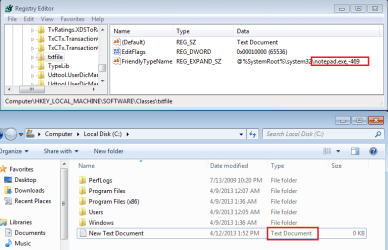
In some cases, the text string that appears in the file type column comes from within the application that is set to open it. This screenshot shows the registry key that is telling the operating system which string number to use from within the notepad exe file.
type-1.png

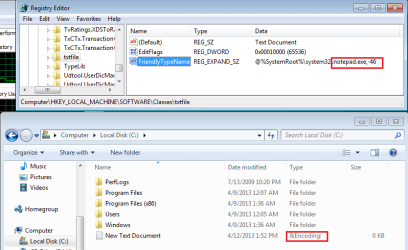
If I change string index number (and then open a new explorer instance rather than rebooting)...
type-2.png

...I'll see a new string being pulled from within the notepad exe*.
type-3.png

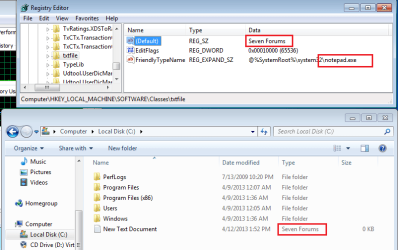
If I remove the index number all together (and the comma), the operating system will revert to getting the string from the default value (which one can change).
type-4.png


*string 46 appears to be used as part of the File > Save As dialog box. The leading ampersand (&) in &Encoding is whar causes the underscore (when Alt is pressed).
notepad.png


If a Windows Update applies a patch to MS Office or MS Office is repaired, the manual changes might need to be repeated :-(
 

My Computer My Computer

At a glance

W7 Pro SP1 64biti78GBIntel HD Graphics
Computer type
Laptop
Computer Manufacturer/Model Number
Employer provided Dell Latitude
OS
W7 Pro SP1 64bit
CPU
i7
Memory
8GB
Graphics Card(s)
Intel HD Graphics
Hard Drives
crappy SSD
Antivirus
Employer mandated Symantec Endpoint Protection
Browser
Pale Moon 64bit, IE11 64bit & Chrome 64bit
Here is a program that can do what you want:
FileTypesMan - Alternative to 'File Types' manager of Windows

It does what UsernameIssues, but with a somewhat friendlier UI.
I like that method, but messing with the registry is a bit tricky if you don't know how.

Unfortunately, those descriptions are created by many programs (like MS Office or OpenOffice as the OP said) and installing or even update them may revert any changes sometimes, as programs often "want" simply to be associated in their ways and not how the user likes.
For those cases, exporting a reg file after the your changes and saving them, just to import it back if something messes the descriptions again.
 

My Computer My Computer

At a glance

Windows 7 Ultimate x64Intel Core i7-740QM8 GB DDR3NVIDIA GeForce 330GT
Computer type
Laptop
Computer Manufacturer/Model Number
Toshiba Sattelite A665-S6092
OS
Windows 7 Ultimate x64
CPU
Intel Core i7-740QM
Memory
8 GB DDR3
Graphics Card(s)
NVIDIA GeForce 330GT
Screen Resolution
1366x768
Hard Drives
Samsung 840 SSD 500GB
1TB USB3 external HD
Cooling
Coolermaster Notepal U3 notebook cooling pad
Internet Speed
3mbps ASDL
Antivirus
ClamWin 0.98.7
Browser
Opera 12.17 x86 (main), Firefox 38 (sec), IE11 (last resort)
UsenameIssues gave an awesome explanation. Hereby I would like to extend his explanation a bit:

   Note
The following will only work if you have your Word files associated with Microsoft Word (2007 and above) (I don't know which folder to choose in the registry incase of Open office since I don't have it).


Open registry and navigate to this folder:

1.PNG

2.PNG

Now on the right pane, change the marked value to anything you like:

3.PNG
 

My Computer My Computer

At a glance

Windows 7 Home Premium x64
Computer type
PC/Desktop
OS
Windows 7 Home Premium x64
I don't know which folder to choose in the registry incase of Open office since I don't have it

That's easy to determine, even if you don't know anything about the program in question. Go to HKEY_CLASSES_ROOT and search for a key named "point<the extension>" you want to change, for example ".docx" or ".txt" or anything else. The "default" value is the name of the key containing the details for that extension:

docx.png

That means "For files with extension docx, go to Word.Document.12, the default entry there will be shown in the description in Windows Explorer".
Using that search, you can edit any file type manually, not just the ones you know about previously.
 

My Computer My Computer

At a glance

Windows 7 Ultimate x64Intel Core i7-740QM8 GB DDR3NVIDIA GeForce 330GT
Computer type
Laptop
Computer Manufacturer/Model Number
Toshiba Sattelite A665-S6092
OS
Windows 7 Ultimate x64
CPU
Intel Core i7-740QM
Memory
8 GB DDR3
Graphics Card(s)
NVIDIA GeForce 330GT
Screen Resolution
1366x768
Hard Drives
Samsung 840 SSD 500GB
1TB USB3 external HD
Cooling
Coolermaster Notepal U3 notebook cooling pad
Internet Speed
3mbps ASDL
Antivirus
ClamWin 0.98.7
Browser
Opera 12.17 x86 (main), Firefox 38 (sec), IE11 (last resort)
Thanks Alejandro85. This will definitely solve OP's problem.
 

My Computer My Computer

At a glance

Windows 7 Home Premium x64
Computer type
PC/Desktop
OS
Windows 7 Home Premium x64
I don't know which folder to choose in the registry incase of Open office since I don't have it

That's easy to determine, even if you don't know anything about the program in question. Go to HKEY_CLASSES_ROOT and search for a key named "point<the extension>" you want to change, for example ".docx" or ".txt" or anything else. The "default" value is the name of the key containing the details for that extension:

View attachment 263994

That means "For files with extension docx, go to Word.Document.12, the default entry there will be shown in the description in Windows Explorer".
Using that search, you can edit any file type manually, not just the ones you know about previously.
Unless there is an entry named FriendlyTypeName. (As I show in my screenshots.) You must deal with that entry first, then the OS will use the default entry's text. The app that you linked to is the best option for the OP, it renames the FriendlyTypeName entry to ~FriendlyTypeName. I can only hope that it changes all of those FriendlyTypeName entries back to normal is a person uninstalls the app.
 

My Computer My Computer

At a glance

W7 Pro SP1 64biti78GBIntel HD Graphics
Computer type
Laptop
Computer Manufacturer/Model Number
Employer provided Dell Latitude
OS
W7 Pro SP1 64bit
CPU
i7
Memory
8GB
Graphics Card(s)
Intel HD Graphics
Hard Drives
crappy SSD
Antivirus
Employer mandated Symantec Endpoint Protection
Browser
Pale Moon 64bit, IE11 64bit & Chrome 64bit
Yeah, I forgot about the FriendlyTypeName, it seems to take precedence over the default, and is always used to pull the description from a DLL instead of hardcoding it, so it's better to just delete it beforehand.
If the program is uninstalled, it doesn't matters anymore if it's renamed back, most likely the file association altogether will be deleted by the uninstaller (should be, at least).
 

My Computer My Computer

At a glance

Windows 7 Ultimate x64Intel Core i7-740QM8 GB DDR3NVIDIA GeForce 330GT
Computer type
Laptop
Computer Manufacturer/Model Number
Toshiba Sattelite A665-S6092
OS
Windows 7 Ultimate x64
CPU
Intel Core i7-740QM
Memory
8 GB DDR3
Graphics Card(s)
NVIDIA GeForce 330GT
Screen Resolution
1366x768
Hard Drives
Samsung 840 SSD 500GB
1TB USB3 external HD
Cooling
Coolermaster Notepal U3 notebook cooling pad
Internet Speed
3mbps ASDL
Antivirus
ClamWin 0.98.7
Browser
Opera 12.17 x86 (main), Firefox 38 (sec), IE11 (last resort)
I was saying if this app was uninstalled - I would hope that it would undo the changes that had been made. But now I remember that the NirSoft app does not install - so no uninstall. Any changes made with that app will stay until another app adds the FriendlyTypeName back. The app is still the best option for the OP.
 

My Computer My Computer

At a glance

W7 Pro SP1 64biti78GBIntel HD Graphics
Computer type
Laptop
Computer Manufacturer/Model Number
Employer provided Dell Latitude
OS
W7 Pro SP1 64bit
CPU
i7
Memory
8GB
Graphics Card(s)
Intel HD Graphics
Hard Drives
crappy SSD
Antivirus
Employer mandated Symantec Endpoint Protection
Browser
Pale Moon 64bit, IE11 64bit & Chrome 64bit
Back
Top