HP Laserjet 1200

Gary N

New member
Local time
12:42 AM
Messages
4
Location
Virginia
Have Win 7 (64) on new computer. Had to get a modification cable to connect my LPT HP printer to a USB port. Ok so far.
I cannot get any software to print multiple copies on this printer. I want 5, I get 1. I want 10 and I get 1. Also it will no longer print 1200 DPI.

Navigating the HP website to obtain any driver updates is a nightmare, in fact my MS Secuity will not let me go to the site HP connects me to.

I suppose HP just wants me to purchase a new printer, but this one is working fine except the issues above. I have a Canon color printer connected and it will print mulitple copies, but I prefer the Laserjet for quality documents.

Any ideas?
 

My Computer

OS
Windows 7 Ultimate (64)
CPU
Intel Quad Core
Motherboard
P55 Micro ATX Intel
Memory
Kingston 4 GB DDR3
Graphics Card(s)
ADCP Ready
Hard Drives
WD Caviar Green 1 TB 32 MB cache, 3.5" HD
Case
Cooler Master 534 ATX Mid Tower
Keyboard
Microsoft
Other Info
Bkue Ray Burner LG

My Computer

Computer Manufacturer/Model Number
Over Clockers Ultima Viper 2.80Ghz
OS
Windows 7 Ultimate 64 - OEM Service Pack 1
CPU
Intel Core i7 930 2.80Ghz Bloomfield Socket LGA 1366
Motherboard
Gigabyte GA-X58A-UD3R Intel X58 Socket 1366 DDR3
Memory
Patriot Viper 6GB 3x2GB DDR3 PC3-1200C9 1600Mhz Tri Channel
Graphics Card(s)
Asus ATI Radeon HD 5770 CuCore 1024MB GDDR5 PCI Express
Sound Card
Realtek ALC889 @ Intel 82801JB ICH10 - High Definition Audio
Monitor(s) Displays
Samsung SyncMaster 920N 19"
Screen Resolution
1280*1024
Hard Drives
1 x OCZ Vertex2 Series 120GB 2.5" SATA-II SSD
1 x Seagate Barracuda 7200.12 1TB SATA-II 32MB Cache
1 x Western Digital Caviar Green 2TB SATA-II 64 MB Cache
PSU
Corsair TX 650W ATX SLi
Case
Antec 902 Ultimate Gaming Case Black
Cooling
Prolimatech Megahalems Rev B CPU Cooler Socket 775/1156/1366
Keyboard
Microsoft Comfort Curve Keyboard
Mouse
Microsoft Optical USB
Internet Speed
ADSL24 FTTC 34.2 Mbps Down 7.1Mbps Up
Other Info
OcUK 22x DVDSATA ReWriter Black
Akasa AK-FN058 Apache Black Super Silent 120mm Fan
Printer Epson Stylus Photo R300
Scanner Canon Canoscan 8000F
Thanks guys. I tried all the downloads. Nothing helps. I suspect the fix must come from HP devloping new drivers for use with Win7. I will write them on Monday. I am up and running, just cannot print multiple copies with a single number being inserted. All the best.
 

My Computer

OS
Windows 7 Ultimate (64)
CPU
Intel Quad Core
Motherboard
P55 Micro ATX Intel
Memory
Kingston 4 GB DDR3
Graphics Card(s)
ADCP Ready
Hard Drives
WD Caviar Green 1 TB 32 MB cache, 3.5" HD
Case
Cooler Master 534 ATX Mid Tower
Keyboard
Microsoft
Other Info
Bkue Ray Burner LG
Hello Gary, welcome to the Seven Forums.

Try this:

  • Unplug the printer from computer
  • Unistall all HP LaserJet 1200 related software (Control Panel > Programs and features)
  • Click Start > Devices and Printers
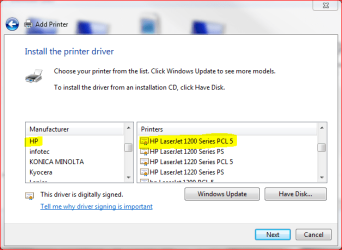
  • Click Add a printer
  • Click Add a local printer
  • Choose Use an existing port, click Next
  • From Manufacturer list, choose HP
  • From Printers, choose HP LaserJet 1200 Series PCL5
    LJ1200.PNG
  • Click Next, follow the instructions given by install application
  • Do not connect your printer to computer before install asks you to do so

It should work now.

Kari
 

My Computer

Computer type
Laptop
Computer Manufacturer/Model Number
HP ENVY 17-1150eg
OS
Windows 10 Pro x64 EN-GB
CPU
1.6 GHz Intel Core i7-720QM Processor
Memory
6 GB
Graphics Card(s)
ATI Mobility Radeon HD 5850 Graphics
Sound Card
Beats sound system with integrated subwoofer
Monitor(s) Displays
17" laptop display, 22" LED and 32" Full HD TV through HDMI
Screen Resolution
1600*900 (1), 1920*1080 (2&3)
Hard Drives
Internal: 2 x 500 GB SATA Hard Disk Drive 7200 rpm
External: 2TB for backups, 3TB USB3 network drive for media
Cooling
As Envy runs a bit warm, I have it on a Cooler Master pad
Keyboard
Logitech diNovo Media Desktop Laser (bluetooth)
Mouse
Logitech Performance Mouse MX
Internet Speed
50/10 Mbps VDSL
Antivirus
Windows Defender 4.3.9431.0
Browser
Maxthon 3.5.2., IE11
How to print multiple copies

In order to get printing of multiple copies you need to disable Mopier Mode:

Click Start
Click Devices and Printers
Right click your Laserjet printer
Click on Printer Properties
Click the tab labelled Device Settings
Scroll down to the bottom
If necessary expand Installable Options
Click on Mopier Mode which should be the last of the Installable Options
You should now be able to select Disabled in the selection box that appears.

You should now be able to print multiple copies.
This information is not specific to Windows 7 and also applies to some other HP Laserjets.

Regards, RobDavies
 

My Computer

OS
windows 7
This Forum Works

Rob Davies
WOW!! A million thanks! Now my HP 1200 will print multiple copies when requested. Changed the "Mopier Mode" tao "disabled". Go figure! Whatever the heck that means. But it worked. Why can't HP and MS put out a bulletin on this??
This kind of help makes the Forum very valuable.
All the best.:D
 
Last edited:

My Computer

OS
Windows 7 Ultimate (64)
CPU
Intel Quad Core
Motherboard
P55 Micro ATX Intel
Memory
Kingston 4 GB DDR3
Graphics Card(s)
ADCP Ready
Hard Drives
WD Caviar Green 1 TB 32 MB cache, 3.5" HD
Case
Cooler Master 534 ATX Mid Tower
Keyboard
Microsoft
Other Info
Bkue Ray Burner LG
Glad the Brits can help the Yanks out for a change.
Regards, RobDavies
 

My Computer

OS
windows 7
Thanks

Glad the Brits can help the Yanks out for a change.
Regards, RobDavies

You bet.... I will take any help I can get, and yours was terrific. I guess running at 220V just makes you smarter.:D
 

My Computer

OS
Windows 7 Ultimate (64)
CPU
Intel Quad Core
Motherboard
P55 Micro ATX Intel
Memory
Kingston 4 GB DDR3
Graphics Card(s)
ADCP Ready
Hard Drives
WD Caviar Green 1 TB 32 MB cache, 3.5" HD
Case
Cooler Master 534 ATX Mid Tower
Keyboard
Microsoft
Other Info
Bkue Ray Burner LG
Mopier Mode

My understanding is that Mopier Mode requires that the Laserjet printer is fitted with a Hard Disk. Mopy means Multiple Original Copies. To minimise network traffic only one copy of the file to be printed is sent to the printer and stored on the Hard Disk. That Hard Disk copy in the printer is then used to print the required multiple copies, instead of the computer repeatedly sending copies. Clearly if the printer does not have its own Hard disk there is no point in enabling Mopier Mode. Why it is enabled by default is beyond me.

Regards, RobDavies
 

My Computer

OS
windows 7
Thanks for Win7 HP1200 help

That should solve the problem I am just now facing with new Win7 computer and old HP1200 printer.
 

My Computer

OS
Windows7
HP Laserjet does not print multiple copies

How to print multiple copies on HP Laserjet 1200 Series

In order to get printing of multiple copies you need to disable Mopier Mode:

  1. Click Start
  2. Click Devices and Printers
    Right click your Laserjet printer...Click on Printer Properties (not just "Properties" at the bottom of the drop-down menu - DB)
  3. Click the tab labelled Device Settings
  4. Scroll down to the bottom
    If necessary expand Installable Options
  5. DISABLE Mopier Mode which should be the last of the Installable Options Select Disabled in the selection box that appears.

    You should now be able to print multiple copies.
    This information is not specific to Windows 7 and also applies to some other HP Laserjets.
 

My Computer

OS
Windows 7
Back
Top