
Indenting Bullets in WordPad

cconnet

New member
Local time
2:23 AM
Messages
10
I have searched all over the Internet and I cannot find a satisfactory answer to this question. (Maybe there isn't one.)

I am currently using Windows 7 Home Premium and Office 2007.

I am looking for a way to make bullets indent when I press the TAB key. When I press the TAB key on aline with bullets, the tab moves the cursor but the bullet stays where it was.

In Word, when I press the TAB key on a line with a bullet, the bullet moves, too.

This seems like an issue in WordPad. I have tried all of the obvious and not-so-obvious keys, but nothing seems to work. And I don't want to keep going to the mouse to either click the Indent button on the Paragraph section of the ribbon, or by manually moving the tab using the Ruler.

Does anyone know if there is a way to do this?

Thank you very much.
 

My Computer My Computer

At a glance

Windows 7 Home Premium 32 bit & 64 bit
OS
Windows 7 Home Premium 32 bit & 64 bit
Hi,

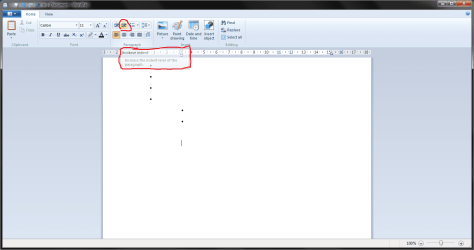
Just had a fiddle around with WordPad, This is the only way I found: ( see the red highlighted stuff )

Untitled.png

Also:

Here is a list of ALL keyboard shortcuts for WordPad

Formatting Text

Ctrl + B ⇒ Format the selection with Bold.
Ctrl + I ⇒ Format the selection with Italics.
Ctrl + U ⇒ Underscore (underlines) the selection.
Ctrl + Shift + D ⇒ Double-underscore (underline) the selected text. (Word only)
Ctrl + Shift + W ⇒ Underscore (underline) only words (not spaces) of the selected text. (Word only)
Ctrl + = ⇒ Change the selected text to Subscript.
Ctrl + Shift + = ⇒ Change the selected text to Superscript.
Ctrl + D or Ctrl + Shift + F ⇒ select the text first, then press Ctrl + D to open the Font window. (Word only)
Ctrl + Shift + A ⇒ Change the selected text to all CAPS. If text is already capitalized, will change to no CAPS.
Ctrl + Shift + K ⇒ Change the selected text to small CAPS. If shortcut pressed again, will change to no CAPS. (Word only)
Working With Text

Ctrl + C ⇒ Copy the selection to the Clipboard.
Ctrl + V ⇒ Paste the selection from the Clipboard.
Ctrl + X ⇒ Cut the selection.
Ctrl + Z or Alt + Backspace ⇒ Undo the last action. Can be pressed multiple times to undo multiple actions.
Ctrl + Y ⇒ Redo the last action.
Ctrl + A ⇒ Select all text in the document.
Ctrl + E ⇒ Center the text in the paragraph that the cursor is in, or center the selected text.
Ctrl + L ⇒ Left align the text in the paragraph that the cursor is in, or left align the text in the selected text.
Ctrl + R ⇒ Right align the text in the paragraph that the cursor is in, or right align the text in the selected text.
Ctrl + J ⇒ Justify the text in the paragraph that the cursor is in, or justifies the text in the selected text.
Ctrl + M ⇒ Indent the text. If no tabs are set, default indent is .5 inches. Press Ctrl + M repeatedly to indent repeately.
Ctrl + Shift + M ⇒ De-indent the text. Press Ctrl + Shift + M repeatedly to de-indent repeately.
Ctrl + K ⇒ Insert a hyperlink - a link to a webpage. (Word only)
Alt + Shift + D ⇒ Enter the current date from your computer.
Alt + Shift + T ⇒ Enter the current time from your computer.
Working With a Document

Ctrl + Home ⇒ Move to the beginning of the document.
Ctrl + End ⇒ Move to the end of the document.
Ctrl + F ⇒ Display the Find window.
Ctrl + H ⇒ Open the Replace window.
Ctrl + Enter ⇒ Insert a Page Break where the cursor is.
Ctrl + S ⇒ Save the document. Get into the habit of pressing this key sequence often so you won't accidentally lose your work.
Ctrl + P ⇒ Open the Print window.
Ctrl + W or Alt + F4 ⇒ Close the document. Only Alt + F4 works in Microsoft WordPad.
Ctrl + O ⇒ Open an existing document.
Ctrl + N ⇒ Open a new document.
 

My Computer My Computer

At a glance

Windows 7 Home Premium 64 BitCore I7 1155 3.4GHZ8GB DDR 1600
Computer Manufacturer/Model Number
Cooler Master
OS
Windows 7 Home Premium 64 Bit
CPU
Core I7 1155 3.4GHZ
Memory
8GB DDR 1600
Hard Drives
64 GB SSD - OS
1TB - DATA
PSU
340 Watt Corsair
Case
Cooler Master
Cooling
Cooler Master
Yes, I had already used the Ruler to make the changes, but it means that I have to go to the mouse each time I want to indent (increase or decrease).

I was trying to find a way, as I said in my post, to avoid using the mouse.

I find it hard to believe that it works so well in Word and not in WordPad.

Thanks.
 

My Computer My Computer

At a glance

Windows 7 Home Premium 32 bit & 64 bit
OS
Windows 7 Home Premium 32 bit & 64 bit
Yes, I had already used the Ruler to make the changes, but it means that I have to go to the mouse each time I want to indent (increase or decrease).

I was trying to find a way, as I said in my post, to avoid using the mouse.

I find it hard to believe that it works so well in Word and not in WordPad.

Thanks.


Wordpad is a basic free programe from Microsoft. You get extra features when buying a Oiffce Package.

If Wordpad did everything MS Word does. Who would buy Word when WordPad is free?.
 

My Computer My Computer

At a glance

Windows 7 Home Premium 64 BitCore I7 1155 3.4GHZ8GB DDR 1600
Computer Manufacturer/Model Number
Cooler Master
OS
Windows 7 Home Premium 64 Bit
CPU
Core I7 1155 3.4GHZ
Memory
8GB DDR 1600
Hard Drives
64 GB SSD - OS
1TB - DATA
PSU
340 Watt Corsair
Case
Cooler Master
Cooling
Cooler Master
I already own the entire Windows Office Suite 2007, but sometimes Word is way overkill for what I need.

Over the years Word has become so cumbersome that I often opt to use WordPad if I am just taking notes. It takes longer to make Word do what I want then to just grab WordPad or Notepad.

The reason I chose WordPad is because Microsoft included the bullets. However, since Microsoft put bullet functionality in the program, I don't think it is unreasonable to expect that it behaves correctly (ie. when you indent, the bullets move with the cursor) like any other outlining program.

Maybe I'll look around for something like WordPad with a more logical functionality.

Thanks.
 

My Computer My Computer

At a glance

Windows 7 Home Premium 32 bit & 64 bit
OS
Windows 7 Home Premium 32 bit & 64 bit
One-note?
 

My Computer My Computer

At a glance

Win7 HP (x64)/Win7 Ultimate (x64)Core i7 9206 x 2GB Corsair XMS3CF HD4890
Computer Manufacturer/Model Number
Custom
OS
Win7 HP (x64)/Win7 Ultimate (x64)
CPU
Core i7 920
Motherboard
Intel X58
Memory
6 x 2GB Corsair XMS3
Graphics Card(s)
CF HD4890
Sound Card
Asus Xonar
Monitor(s) Displays
Dell 2408WFP
Screen Resolution
1920 x 1200
Hard Drives
2 x 150GB WDC Velociraptors (Raid 0)
1 x 1TB Seagate
1 x 1.5TB Seagate
PSU
Corsair HX1000W
Case
Antec 1200
Keyboard
Razer Lycosa/N52te
Mouse
Razer Lachesis
Jarte? It's based on WordPad but with more flexibility.
 

My Computer My Computer

At a glance

Win 7 Pro 64-bitIntel i5 2.4 Ghz8GB DDR3Intel HD 3000
Computer type
Laptop
Computer Manufacturer/Model Number
Sony Vaio VPCEB47GM Laptop
OS
Win 7 Pro 64-bit
CPU
Intel i5 2.4 Ghz
Memory
8GB DDR3
Graphics Card(s)
Intel HD 3000
Sound Card
IDT High Definition
Monitor(s) Displays
15.6 WGXA Anti-Glare LED
Screen Resolution
1280x800
Hard Drives
640Gb 7200rpm
Antivirus
MSE
Browser
Opera (primary) with IE9 backup
Yes, I have One Note, too. And it's a great program for certain purposes -- I wouldn't work without it.

I know that it has the Quick Notes option. I've even used it a few times. But if I remember, it always drops them in the Unfiled Notes section.

I'll have to take a look the possibility of using it and see if it is fast enough.

Thank you for the suggestion.
 

My Computer My Computer

At a glance

Windows 7 Home Premium 32 bit & 64 bit
OS
Windows 7 Home Premium 32 bit & 64 bit
Back
Top