Install OS from Hard Drive

gregrocker

New member
Guru
Local time
2:53 AM
Messages
50,634
Since we get inquiries about this all the time I wanted to report how it works with the latest OS.

Today I wanted to install Windows 8.1 but didn't have a spare DVD or flash stick to waste since I rarely let the latest 8 stay installed more than a few days. But in case I wanted to keep it and therefore didn't want it to boot as another drive letter if installed from Win7 running Sources>Setup, I decided to install it from the HD as a booted Custom install with full Drive Options. Here's how:

Shrink C to copy the extracted Win8 install files to a 10gb partition you create, which can be Logical because it's booted from the current System partition - just remember if you already have four Primary partitions to convert an adjacent non-System one to Logical first.

Next install EasyBCD (click Download - no Name or Email required). On the Add OS Entry tab select WinPE tab at the bottom, from dropdown select WIM image, click Browse button to browse to the Win 8 Sources>boot.wim file. Save and Exit.

208149d1334965289-accessing-my-restore-partition-capture.png


Reboot PC, at Boot Menu choose the new RAMdisk entry which will be added until removed on Easy Edit tab or in msconfig>Boot tab. You can now Clean Install - Windows 8 even using the Drive Options to Delete an unwanted partition to Format install partition. Make sure not to delete, format or install over your extant OS partition or it will go away.

If you plan to keep the OS, burn the installer or make a System Repair disk to use for repairs. You can keep the WinPE boot item to use for repairs until then.

This is adapted from Boot Recovery Partition using EasyBCD
 
Yes, you can do exactly the same with win 7. No idea why more people aren't doing it. Good to have 7 installer available on the move. You can replace the install.wim with one you made yourself, e.g. your updated version.You can also just run setup.exe for a repair install.
 

My Computers

System One System Two

  • Computer type
    PC/Desktop
    OS
    7 X64
    CPU
    i5 8400
    Motherboard
    gigabyte b365m ds3h
    Memory
    2x8gb 3200mhz
    Hard Drives
    various
    PSU
    pure power 11 400w cm
    Case
    Coolermaster
    Cooling
    cryorig m9i
  • Computer type
    PC/Desktop
    OS
    7x64
    CPU
    g5400
    Motherboard
    ga b365m ds3h
    Memory
    8gb ddr4 2400
    PSU
    xfx pro 450w
Thanks, Si. I learned much of this from you, years ago. :geek:

To replace install.wim in the installer's Sources folder with an image customized by setting up the OS, what exactly needs to be done?

Then recompile ISO using ImageX to burn new ISO? Will ImgBurn work?

I wonder if this could also be used for UEFI install, what modifications would be needed.
 
Last edited:
I see more wonderful information ahead.
Subscribed :cool:.
 

My Computer

Computer type
PC/Desktop
OS
Windows 10
CPU
Intel Core i5 3570K
Motherboard
Asus P8Z77V-PRO
Memory
16GB 1600Mhz G.Skill
Graphics Card(s)
Gigabyte GTX 970 G1-Gaming
PSU
Seasonic 1000W Platinum
Case
Fractal Design Define R4
Cooling
Noctua NH-D14
Not sure why you need an iso. I thought the idea was to use the extracted files?

You can copy install.wim out of your updated iso with 7-zip. In fact you can copy the entire contents out. That would be instead of using the standard 7 iso which is a couple of years of updates behind.

It is too much faff for most people to go through the whole sysprepping thing.

Same thing with Vista/8/8.1. Easy to add updates with dism.
 

My Computers

System One System Two

  • Computer type
    PC/Desktop
    OS
    7 X64
    CPU
    i5 8400
    Motherboard
    gigabyte b365m ds3h
    Memory
    2x8gb 3200mhz
    Hard Drives
    various
    PSU
    pure power 11 400w cm
    Case
    Coolermaster
    Cooling
    cryorig m9i
  • Computer type
    PC/Desktop
    OS
    7x64
    CPU
    g5400
    Motherboard
    ga b365m ds3h
    Memory
    8gb ddr4 2400
    PSU
    xfx pro 450w
If the OS is one I value I will have a bootable installer to use for installation and repairs. I was asking if there's a way to substitute the image after it's set up with the install.wim in the installer.

The rightclick Start button in 8.1 gets close to a Start menu, but it's still so overloaded with tablet crApps that I see no need for it as a desktop OS - except to confound all that was built over 20 years for a billion users on the desktop.
 
I don't understand the question.

The installation files are inside install.wim.

You can use the regular install.wim that comes with the msdn iso. Or you can replace it with one you have added updates to. Or you can go through the whole malarkey of installing, sysprepping and capturing as install.wim. Not much advantage to the last option for most people.

I was asking if there's a way to substitute the image after it's set up with the install.wim in the installer.

I think you are asking about sysprepping ? You might do that if you wanted to include your own programs and settings as well as the updates. Kari has a tut about that.

Or do you mean can you just copy a different install.wim into the extracted sources folder? Yes, you can.

Or you can use poweriso etc to open the standard msdn iso and replace the sources\install.wim with your own install.wim. Any of those are fine.

I don't bother sysprepping usually. Just using the install.wim with updates added is good enough..

TEST -Update 7 installation media
 

My Computers

System One System Two

  • Computer type
    PC/Desktop
    OS
    7 X64
    CPU
    i5 8400
    Motherboard
    gigabyte b365m ds3h
    Memory
    2x8gb 3200mhz
    Hard Drives
    various
    PSU
    pure power 11 400w cm
    Case
    Coolermaster
    Cooling
    cryorig m9i
  • Computer type
    PC/Desktop
    OS
    7x64
    CPU
    g5400
    Motherboard
    ga b365m ds3h
    Memory
    8gb ddr4 2400
    PSU
    xfx pro 450w
Yeah that's what I thought. I'll stick with imaging for capturing the setup OS. But it would be cool at least once to see it installed from the booted Windows installer.
 
You might want to give this a go:

1) Extract the win 7 dvd/iso onto a partition. ( Not the os partition preferably - anywhere else is fine)

The extracted files look like this:

2013-11-04_014834.jpg

(You don't need autorun.inf so can delete it if you like. The big file Install.wim is inside the "sources" folder. If you have your own updated install.wim , you can copy it into there , overwriting the standard one.)

2) Register that as your recovery image.

Open an elevated cmd and type (replace d with the drive letter of the partition you extracted the files onto) :

reagentc /setosimage /path d:\sources /target c:\windows

( press enter)

reagentc /enable

(press enter)

3.) Run setup.exe from that partition ( or make a shortcut to run it ) if you want you to do a repair install on your running os, or clean install to another partition.

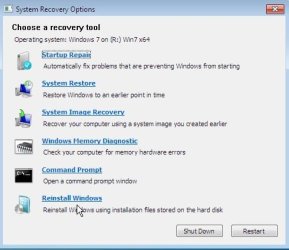
4.) Start "Repair My Computer" from F8 key, to get an extra recovery option:

2013-11-03_193234.jpg

That will install windows onto the target partition you set, saving the existing os files into Windows.old folder.

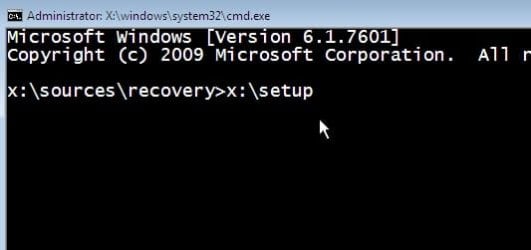
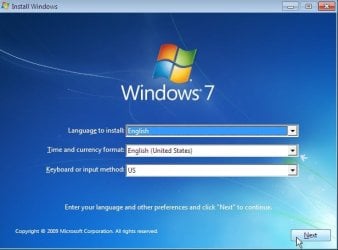
5) Get the full range of installation options by running setup.exe instead:


2013-11-03_193342.jpg


2013-11-03_193428.jpg


2013-11-03_193450.jpg


2013-11-03_193553-1.jpg


6) If you boot win7 repair cd ( instead of F8 "Repair My Computer" - which runs winre from the Hard Drive ), then you can still run setup.exe as above and get all the regular installation options. It will use the install.wim on the hard drive to do that.

Not sure why I hadn't done all this before. Still finding new joys with win7 :D . That is a great addition for anyone to have. It is like a much better version of the oem recovery partition.
 

My Computers

System One System Two

  • Computer type
    PC/Desktop
    OS
    7 X64
    CPU
    i5 8400
    Motherboard
    gigabyte b365m ds3h
    Memory
    2x8gb 3200mhz
    Hard Drives
    various
    PSU
    pure power 11 400w cm
    Case
    Coolermaster
    Cooling
    cryorig m9i
  • Computer type
    PC/Desktop
    OS
    7x64
    CPU
    g5400
    Motherboard
    ga b365m ds3h
    Memory
    8gb ddr4 2400
    PSU
    xfx pro 450w
Trying this tomorrow on Dell Dimension 3000 I am upgrading from XP to Win7. It will not boot flash stick even though it appears in F12 Boot Menu, and doesn't have DVD drive. Will find out if I can copy files into a partition, add Installer to Dual Boot menu from XP using EasyBCD. Haven't tried it yet on XP.

Will want to delete all but OEM Diagnostics partition for install. Later if it works I'll store an image on the installer files partition, but hide it. That way if it requires reimaging or reinstall (even Repair) the partition can be made bootable again with Easy.

Good plan?
 
Back
Top