
- Local time
- 10:10 AM
- Messages
- 22
Hey guys, I have 2 Win7 installs on my PC (one on SSD, one on HDD). The one on the HDD holds the MBR and other boot files, and I want to move or set the MBR on my SSD so I can format my old HDD. However when I use my Win7x64 CD to repair, I get no OSs showing up here:
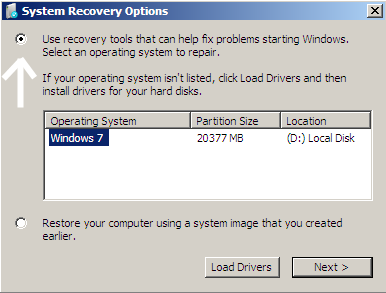
(screenshot from your MBR tutorial)
Basically what I am trying to do is unplug all but my SSD and use a Windows 7 CD to add the MBR to the SSD, however the repair CD does not recognize the OS on my SSD (or the HDD for that matter), so I am unable to use the repair CD to add the MBR.
What else I have tried:
I tried the commandline Saltgrass told someone to use here: Delete active system partition - Windows Forums[2] to manually add boot files to the C: drive and that didn't work either.
Here is my Drive layout in case it helps:

The 746gb unallocated is managed by SeaGate DiscWizard as it's a 3TB HDD which my Motherboard/OS does not support.
(screenshot from your MBR tutorial)
Basically what I am trying to do is unplug all but my SSD and use a Windows 7 CD to add the MBR to the SSD, however the repair CD does not recognize the OS on my SSD (or the HDD for that matter), so I am unable to use the repair CD to add the MBR.
What else I have tried:
I tried the commandline Saltgrass told someone to use here: Delete active system partition - Windows Forums[2] to manually add boot files to the C: drive and that didn't work either.
Here is my Drive layout in case it helps:
The 746gb unallocated is managed by SeaGate DiscWizard as it's a 3TB HDD which my Motherboard/OS does not support.
My Computer
At a glance
Windows 7 Ultimate 64bitIntel i5 3570k 3.4GHz32GB DDR3 1600 MHz Corsair VengeanceMSI Twin Frozr 7950
- Computer type
- PC/Desktop
- Computer Manufacturer/Model Number
- Custom Build
- OS
- Windows 7 Ultimate 64bit
- CPU
- Intel i5 3570k 3.4GHz
- Motherboard
- ASRock Z77 Extreme6
- Memory
- 32GB DDR3 1600 MHz Corsair Vengeance
- Graphics Card(s)
- MSI Twin Frozr 7950
- Sound Card
- Creative X-Fi Titanium
- Monitor(s) Displays
- HP 2311 1080p
- Screen Resolution
- 1920x1080
- Hard Drives
- Samsung HD 840 Pro 256GB SSD
Seagate 3TB HDD 7200rpm
Seagate 1TB HDD 7200rpm
- PSU
- EVGA SuperNova 650w modular
- Keyboard
- Logitech G105
- Mouse
- Mionix Naos 8200
- Internet Speed
- 6 up, 28 down
- Browser
- Chrome


