
I purchased a 960 GB SSD for my computers OS and Programs. Instead of cloning from the HHD to the SSD. I decided to do a clean install on the SSD. Then I formatted the HDD to free it up for data storage. I then re-installed all my other programs on the new C drive (SSD).
But I forgot to unplug the other drives when I installed win 7 on the new drive. This is causing me some problems, with system backup in particular. I normally backup my system image and C drive to an external 2tb drive. But it now defaults to include the F drive in the system image. So there isn't enough drive space for it to complete.
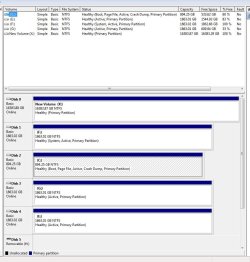
Attached is a screenshot of my Disc Management folder. The C drive is the SSD. F drive is the former C disc which is empty except for whatever happened during the install. Fyi, I've attempted to format repeatedly. And found that the disc manager will not allow me to delete the volume.
How do I get the system/boot/reserved all on the same drive? I'm no expert. So step by step directions would be appreciated.
Thanks.
But I forgot to unplug the other drives when I installed win 7 on the new drive. This is causing me some problems, with system backup in particular. I normally backup my system image and C drive to an external 2tb drive. But it now defaults to include the F drive in the system image. So there isn't enough drive space for it to complete.
Attached is a screenshot of my Disc Management folder. The C drive is the SSD. F drive is the former C disc which is empty except for whatever happened during the install. Fyi, I've attempted to format repeatedly. And found that the disc manager will not allow me to delete the volume.
How do I get the system/boot/reserved all on the same drive? I'm no expert. So step by step directions would be appreciated.
Thanks.
Attachments
My Computer
At a glance
Windows 7 Home Premium 64bitIntel I716gbAMD Raedon HD 6900 series
- Computer type
- PC/Desktop
- Computer Manufacturer/Model Number
- Cyberposer PC
- OS
- Windows 7 Home Premium 64bit
- CPU
- Intel I7
- Motherboard
- Acer
- Memory
- 16gb
- Graphics Card(s)
- AMD Raedon HD 6900 series
- Hard Drives
- 980 GB SSD system disc (C)
3 x 2tb HDD
7.5 GB Drobo S Raid 10 external
- Antivirus
- Window Security Essential
- Browser
- Explorer, Firefox. Google Chrome


