Solved Installed Win7 on SSD, unusual memory performance

joshdw

New member
Member
Local time
6:31 AM
Messages
35
Location
Spain
Hello SevenForums,

once again I am here for your help because I've noticed something pretty strange.
Well last week I finally decided to get rid of my old (and dieing, bad sectors) hdd and install windows 7 on a brand new SSD. Everything is fine, installed applications and updates etc.
But I've noticed something wierd, when I had Win7 running on the hdd, (same components) memory usage when idle would never exceed 500 mb. Now with win7 on the ssd, memory usage is always above 1-1.5gb while idle, as soon as I boot into desktop memory stays fixed at 1gb with harderly any applications open.
These are the tweaks to windows that I did, are any related to memory performance issues?

  • Turned off hibernation, indexing on ssd & defragmention.
  • Moved User Document folders to hdd.

I have noticed one process "audiobg.exe" that uses 15mb ram and I can't get rid of it, tried searching online and its not "enhance audio" because I don't have the option.

And while I'm here, to minimize SSD's read/writes, I tried to move AppData folder following some steps from a guide, changing Environment Variables of TEMP and System Temp to another drive, but it doesn't seem to work for all applications, is there anything else I must do?

Edit: Just realised I should post some pc specs and tests, one moment.
 

My Computer My Computer

Computer type
PC/Desktop
OS
Windows 7 Ultimate 64-bit SP1
CPU
Intel Core i5 4670K @ 3.40GHz
Motherboard
MSI Z87-G45 GAMING (MS-7821)
Memory
16.0GB Dual-Channel DDR3 @ 666MHz (9-9-9-24)
Graphics Card(s)
2047MB NVIDIA GeForce GTX 760 (MSI)
Monitor(s) Displays
Acer H236HL
Screen Resolution
1920x1080@60Hz
Hard Drives
111GB KINGSTON SV300S37A120G ATA Device (SSD)
2794GB Seagate ST3000DM001-9YN166 ATA Device (SATA)
465GB Seagate ST3500320NS ATA Device (SATA)
931GB Seagate ST1000DM003-1CH162 ATA Device (SATA)
3726GB Hitachi HGST HDS 5C4040ALE630 USB Device (USB
PSU
LEPA G 650W 80 PLUS Gold
Case
Fractal Design Define R4 (Arctic White)
Cooling
Corsair H60 74.4 CFM Liquid CPU Cooler
Antivirus
Common sense
Browser
Firefox
System components:
Code:
Operating System
    Microsoft Windows 7 Home Premium 64-bit SP1
CPU
    Intel Core i3 530 @ 2.93GHz    38 °C
    Clarkdale 32nm Technology
RAM
    4,00 GB Dual-Channel DDR3 @ 666MHz (9-9-9-24)
Motherboard
    Gigabyte Technology Co., Ltd. H55M-S2H (Socket 1156)    38 °C
Graphics
    TLU-01911C (1440x900@60Hz)
    1024MB GeForce GT 220 (Gigabyte)    29 °C
Hard Drives
    932GB Seagate ST1000DM003-9YN162 ATA Device (SATA)    34 °C
    84GB KINGSTON SH103S390G ATA Device (SSD)    31 °C
Audio
    BEHRINGER USB WDM AUDIO 2.8.40

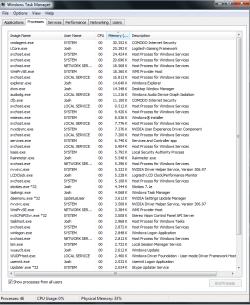
Process Started (15 seconds after boot into desktop):
View 1st Attachment
attachment.php


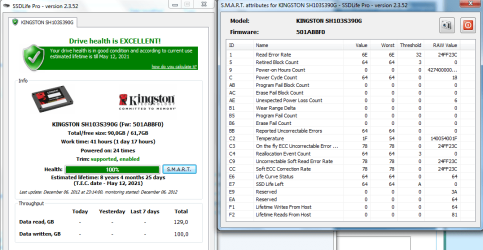
SSD Life Test:
View 2nd Attachment
attachment.php
 

Attachments

  • Untitled.png
    Untitled.png
    35.9 KB · Views: 135
  • Capture.PNG
    Capture.PNG
    45.1 KB · Views: 136

My Computer My Computer

Computer type
PC/Desktop
OS
Windows 7 Ultimate 64-bit SP1
CPU
Intel Core i5 4670K @ 3.40GHz
Motherboard
MSI Z87-G45 GAMING (MS-7821)
Memory
16.0GB Dual-Channel DDR3 @ 666MHz (9-9-9-24)
Graphics Card(s)
2047MB NVIDIA GeForce GTX 760 (MSI)
Monitor(s) Displays
Acer H236HL
Screen Resolution
1920x1080@60Hz
Hard Drives
111GB KINGSTON SV300S37A120G ATA Device (SSD)
2794GB Seagate ST3000DM001-9YN166 ATA Device (SATA)
465GB Seagate ST3500320NS ATA Device (SATA)
931GB Seagate ST1000DM003-1CH162 ATA Device (SATA)
3726GB Hitachi HGST HDS 5C4040ALE630 USB Device (USB
PSU
LEPA G 650W 80 PLUS Gold
Case
Fractal Design Define R4 (Arctic White)
Cooling
Corsair H60 74.4 CFM Liquid CPU Cooler
Antivirus
Common sense
Browser
Firefox
Welcome to Windows Seven Forums.

To avoid a lot of Q & A about your hardware and OS configuration, please click on this link to
Edit System Specs

Filling this out, at least partially, will save a lot of time. Another advantage is when posting a new problem, the person answering can just click the My System Specs link in the bottom of your post. No need to search for the information.

If you have multiple systems just indicate that in the System Specs so that we know why many of the fields are blank.

=============================================

I would check out one of those guides for more efficiently using SSD the OS is hosted on. Things like disable process prefetch. You are not loading off a slow HD so prefetching has limited value. You can set Superfetch to only cache boot files. This should encourage the OS to have more ram free. But the system is really designed to fill up ram with what it thinks you might use. So it's not a problem unless you notice a performance hit.

I posted the template about filling in system specs because it's much better to use the form designed for it at the link. If you post 3 months from now nobody is going to search for this thread to get your specs when there's a link at the bottom left of all your posts.
 

My Computer My Computer

Computer Manufacturer/Model Number
HP Media Center
OS
Windows 7 32 bit
CPU
AMD 5200+ dual core
Memory
2 GB
Graphics Card(s)
NVidia GeForce 6150SE 128 MB
Monitor(s) Displays
CRT
Screen Resolution
1280x1024
Hard Drives
500 GB Sata internal :

SIIG USB 3.0 docking stations w/WD Caviar Black 6 Gb/s drives
Keyboard
PS/2
Mouse
PS/2 Wheel Mouse
Other Info
SIIG USB 3.0 PCIexpress card.
btw if you run most of your applications off other drives then it's probably still beneficial to enable Superfetch for applications. I think it's all or nothing. I don't know of a setting to exclude a disk. But you never know with the thousands of Windows registry hacks/tweaks.
 

My Computer My Computer

Computer Manufacturer/Model Number
HP Media Center
OS
Windows 7 32 bit
CPU
AMD 5200+ dual core
Memory
2 GB
Graphics Card(s)
NVidia GeForce 6150SE 128 MB
Monitor(s) Displays
CRT
Screen Resolution
1280x1024
Hard Drives
500 GB Sata internal :

SIIG USB 3.0 docking stations w/WD Caviar Black 6 Gb/s drives
Keyboard
PS/2
Mouse
PS/2 Wheel Mouse
Other Info
SIIG USB 3.0 PCIexpress card.
Prefetch is disabled but I left superfetch on, (Following the guide Sean's Windows 7 Install & Optimization Guide for SSDs & HDDs, but reading comments saying that superfetch is still usefull since applications will be running on secondary drives)
Now I'm not experiencing a performance hit, It's just worring to see 1.5-1.8gb ram usage all the time, when before the ssd, it wouldn't exceed 500mb..
 

My Computer My Computer

Computer type
PC/Desktop
OS
Windows 7 Ultimate 64-bit SP1
CPU
Intel Core i5 4670K @ 3.40GHz
Motherboard
MSI Z87-G45 GAMING (MS-7821)
Memory
16.0GB Dual-Channel DDR3 @ 666MHz (9-9-9-24)
Graphics Card(s)
2047MB NVIDIA GeForce GTX 760 (MSI)
Monitor(s) Displays
Acer H236HL
Screen Resolution
1920x1080@60Hz
Hard Drives
111GB KINGSTON SV300S37A120G ATA Device (SSD)
2794GB Seagate ST3000DM001-9YN166 ATA Device (SATA)
465GB Seagate ST3500320NS ATA Device (SATA)
931GB Seagate ST1000DM003-1CH162 ATA Device (SATA)
3726GB Hitachi HGST HDS 5C4040ALE630 USB Device (USB
PSU
LEPA G 650W 80 PLUS Gold
Case
Fractal Design Define R4 (Arctic White)
Cooling
Corsair H60 74.4 CFM Liquid CPU Cooler
Antivirus
Common sense
Browser
Firefox
How about posting a screen shot of Task Manager Resource Monitor. Where it shows the color bar of memory usage. Or RamMap by SysInternals. Often on W7 mine only shows a few MB free, but a GB on Standby. The Standby fluctuates. Like if I do a video mux the free will be practically zero and the RamMap will show nearly all memory occupied by a memory mapped file from the muxing. After a while it levels back out.

Linux switched to this like 10 years ago or more. I ran top command and freaked out because it showed all my memory used. But it was just pre-fetching based on past usage.

Depending what you run, you are kind of one the cusp with 4 GB. On my 2 GB machine I run a swap and enabled pre-fetch. On my Vista PC I have 8 GB only cache boot files and run no swap. Often I have 3.5 GB free on the Vista machine. But W7 fetches better than Vista.

So I'd say the short answer is, if you have to look through a microscope for a problem, you may not have one. :)
 

My Computer My Computer

Computer Manufacturer/Model Number
HP Media Center
OS
Windows 7 32 bit
CPU
AMD 5200+ dual core
Memory
2 GB
Graphics Card(s)
NVidia GeForce 6150SE 128 MB
Monitor(s) Displays
CRT
Screen Resolution
1280x1024
Hard Drives
500 GB Sata internal :

SIIG USB 3.0 docking stations w/WD Caviar Black 6 Gb/s drives
Keyboard
PS/2
Mouse
PS/2 Wheel Mouse
Other Info
SIIG USB 3.0 PCIexpress card.
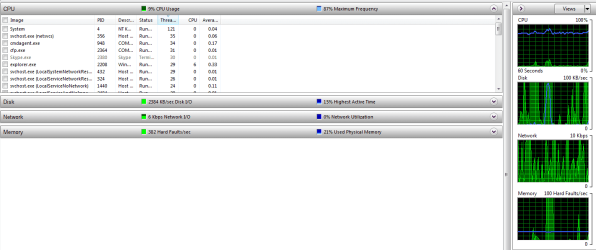
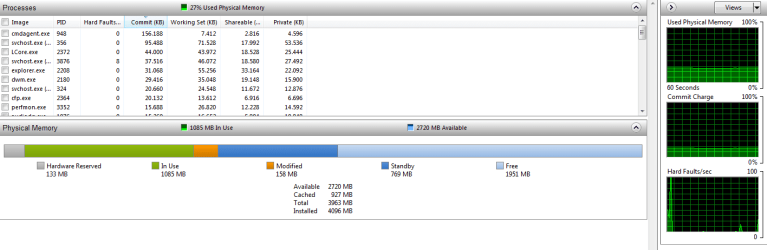
So I opened res manager and left it open for a minute before taking a snapshot, these are the results.

I didn't realize Comodo used so much resources, will have to look at its settings.

attachment.php
attachment.php
 

Attachments

  • res1.PNG
    res1.PNG
    22.1 KB · Views: 102
  • res2.PNG
    res2.PNG
    20.1 KB · Views: 103

My Computer My Computer

Computer type
PC/Desktop
OS
Windows 7 Ultimate 64-bit SP1
CPU
Intel Core i5 4670K @ 3.40GHz
Motherboard
MSI Z87-G45 GAMING (MS-7821)
Memory
16.0GB Dual-Channel DDR3 @ 666MHz (9-9-9-24)
Graphics Card(s)
2047MB NVIDIA GeForce GTX 760 (MSI)
Monitor(s) Displays
Acer H236HL
Screen Resolution
1920x1080@60Hz
Hard Drives
111GB KINGSTON SV300S37A120G ATA Device (SSD)
2794GB Seagate ST3000DM001-9YN166 ATA Device (SATA)
465GB Seagate ST3500320NS ATA Device (SATA)
931GB Seagate ST1000DM003-1CH162 ATA Device (SATA)
3726GB Hitachi HGST HDS 5C4040ALE630 USB Device (USB
PSU
LEPA G 650W 80 PLUS Gold
Case
Fractal Design Define R4 (Arctic White)
Cooling
Corsair H60 74.4 CFM Liquid CPU Cooler
Antivirus
Common sense
Browser
Firefox
I think it's more a matter of personal preference. For me, that kind of free memory would make me happy. :)
Some other members here are trying to get the system to pre-fetch as much as possible. As long as you can't detect any glitches, it's a matter of philosophy. You can play with the Superfetch. Windows is famous for not documenting things. If you look at the tutorial for setting Superfetch to only cached boot files, it says to set on Reg key to 2 and the other to 1 (enabled) but I notice when Windows installs itself, the default is both set to 3. After playing around I've come to the conclusion you really need to set both to the same number or nothing really happens. You'll see what I mean if you read the tutorial.

See my comment and the article above it here
 

My Computer My Computer

Computer Manufacturer/Model Number
HP Media Center
OS
Windows 7 32 bit
CPU
AMD 5200+ dual core
Memory
2 GB
Graphics Card(s)
NVidia GeForce 6150SE 128 MB
Monitor(s) Displays
CRT
Screen Resolution
1280x1024
Hard Drives
500 GB Sata internal :

SIIG USB 3.0 docking stations w/WD Caviar Black 6 Gb/s drives
Keyboard
PS/2
Mouse
PS/2 Wheel Mouse
Other Info
SIIG USB 3.0 PCIexpress card.
Alright I'll have a look into that, thanks a lot for your time MilesAhead, means a lot to me ;)!
 

My Computer My Computer

Computer type
PC/Desktop
OS
Windows 7 Ultimate 64-bit SP1
CPU
Intel Core i5 4670K @ 3.40GHz
Motherboard
MSI Z87-G45 GAMING (MS-7821)
Memory
16.0GB Dual-Channel DDR3 @ 666MHz (9-9-9-24)
Graphics Card(s)
2047MB NVIDIA GeForce GTX 760 (MSI)
Monitor(s) Displays
Acer H236HL
Screen Resolution
1920x1080@60Hz
Hard Drives
111GB KINGSTON SV300S37A120G ATA Device (SSD)
2794GB Seagate ST3000DM001-9YN166 ATA Device (SATA)
465GB Seagate ST3500320NS ATA Device (SATA)
931GB Seagate ST1000DM003-1CH162 ATA Device (SATA)
3726GB Hitachi HGST HDS 5C4040ALE630 USB Device (USB
PSU
LEPA G 650W 80 PLUS Gold
Case
Fractal Design Define R4 (Arctic White)
Cooling
Corsair H60 74.4 CFM Liquid CPU Cooler
Antivirus
Common sense
Browser
Firefox
Sure thing. Have fun tweaking. :)
 

My Computer My Computer

Computer Manufacturer/Model Number
HP Media Center
OS
Windows 7 32 bit
CPU
AMD 5200+ dual core
Memory
2 GB
Graphics Card(s)
NVidia GeForce 6150SE 128 MB
Monitor(s) Displays
CRT
Screen Resolution
1280x1024
Hard Drives
500 GB Sata internal :

SIIG USB 3.0 docking stations w/WD Caviar Black 6 Gb/s drives
Keyboard
PS/2
Mouse
PS/2 Wheel Mouse
Other Info
SIIG USB 3.0 PCIexpress card.
Back
Top