
Installing as Administrator vs User

bawldiggle

GrayGhost2 ret.
Pro User
VIP
Local time
12:31 AM
Messages
895
Location
Australia
When installing programs (.EXE files), is ...
Log on as "User" > EXE file > RClick > "Run as Administrator" ?
... the same as...
Log on as "Adminsitrator" > EXE file > "Run" ?​
About 12 months ago I installed an app (via User Account) and I have discovered it is installed in registry hives...
HKEY_USERS and HKEY_CURRENT_USER

Would I be correct in assuming an app installed when logged in as "Administrator" would only appear in HKEY_USERS only ?

My current laptop installs are a hotch-potch of security levels (accounts)
Most apps were installed as User, before I acknowledged Win7 superior security (as hard as it was to admit) and lately, several apps intentionally installed as Administrator.

I would appreciate being enlightened.
Thank You :)
----------
SPECS
Toshiba Satellite C665 (Laptop)
OS:= Windows 7 Home Premium (32-bit), sp1 (Build 7601) OEM
UI:=Classic Shell Start + Classic Explorer
Single user (so far)
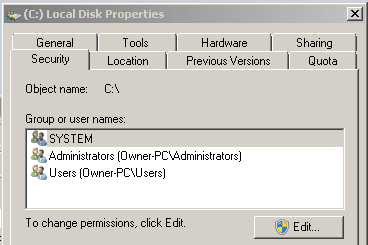
C_drive_security settings.PNG
 
Last edited:

My Computer

Computer type
PC/Desktop
Computer Manufacturer/Model Number
Toshiba, Lenovo (laptops) + 4 rigs
OS
XP Pro (x86) | 7 HP (x86) & (x64) | 7 Pro (x64)
When installing programs (.EXE files), is ...
Log on as "User" > EXE file > RClick > "Run as Administrator" ?
... the same as...
Log on as "Adminsitrator" > EXE file > "Run" ?​
Let's start with this question: No, it's not the same.

When a user, either a standard user or an administrative user selects Run as administrator, the command will be executed with elevated rights using a so called built-in administrator account rights.

The built-in administrator account has more rights than a normal administrative account. even if you log in using your normal administrator account you sometimes have not enough rights for a certain task and need to run the command elevated, as a built-in administrator.

Kari
 

My Computer

Computer type
Laptop
Computer Manufacturer/Model Number
HP ENVY 17-1150eg
OS
Windows 10 Pro x64 EN-GB
CPU
1.6 GHz Intel Core i7-720QM Processor
Memory
6 GB
Graphics Card(s)
ATI Mobility Radeon HD 5850 Graphics
Sound Card
Beats sound system with integrated subwoofer
Monitor(s) Displays
17" laptop display, 22" LED and 32" Full HD TV through HDMI
Screen Resolution
1600*900 (1), 1920*1080 (2&3)
Hard Drives
Internal: 2 x 500 GB SATA Hard Disk Drive 7200 rpm
External: 2TB for backups, 3TB USB3 network drive for media
Cooling
As Envy runs a bit warm, I have it on a Cooler Master pad
Keyboard
Logitech diNovo Media Desktop Laser (bluetooth)
Mouse
Logitech Performance Mouse MX
Internet Speed
50/10 Mbps VDSL
Antivirus
Windows Defender 4.3.9431.0
Browser
Maxthon 3.5.2., IE11
~~~
When a user, either a standard user or an administrative user selects Run as administrator, the command will be executed with elevated rights using a so called built-in administrator account rights.
~~~
That is not my understanding of things...
...but i could easily be wrong :-(

Selecting "Run as administrator" from a context menu to launch an app with elevated privileges does not make use of the Built in Administrator account (most of the time*). It passes the request to consent.exe - which looks at the current user's account type:

If the user account type = standard, then the consent looks at the list of accounts to use in the prompt for an admin account password. Once a password for an admin account is supplied, I'm not positive that I can describe what access token is being used. But I'm pretty sure that only accounts that are enabled can be used. The built in Administrator account is disabled by default and yet "Run as administrator" still works for both standard and admin user accounts.

If the user account type = admin and UAC is turned on, then consent merely prompts for the user's approval.

*Certain OS upgrade situations might make the built in administrator account the only admin account.

This is old...
Getting Started with User Account Control in Windows Vista Beta 2
...but it mentions the upgrade situation and discusses access tokens. Maybe things have changed in W7.


To the OP,
I've only seen a hand full of applications that care which type of account was logged on during the install. Other users might have to manually setup desktop and Start Menu shortcuts. During installation, the registry keys should be created at the computer level and the current user's user level. Once another user logs on and starts the application in question, it should create the needed registry keys at that user's user level. I could be wrong about the registry stuff - I've not had to research it.
 

My Computer

Computer type
Laptop
Computer Manufacturer/Model Number
Employer provided Dell Latitude
OS
W7 Pro SP1 64bit
CPU
i7
Memory
8GB
Graphics Card(s)
Intel HD Graphics
Hard Drives
crappy SSD
Antivirus
Employer mandated Symantec Endpoint Protection
Browser
Pale Moon 64bit, IE11 64bit & Chrome 64bit
We can argue about the nuances but to put it very simply, an elevated command means it will be run with equal rights than the built-in administrator. That's why when you are logged in to this "super user" account you can run commands without elevating them because they are already elevated.
 

My Computer

Computer type
Laptop
Computer Manufacturer/Model Number
HP ENVY 17-1150eg
OS
Windows 10 Pro x64 EN-GB
CPU
1.6 GHz Intel Core i7-720QM Processor
Memory
6 GB
Graphics Card(s)
ATI Mobility Radeon HD 5850 Graphics
Sound Card
Beats sound system with integrated subwoofer
Monitor(s) Displays
17" laptop display, 22" LED and 32" Full HD TV through HDMI
Screen Resolution
1600*900 (1), 1920*1080 (2&3)
Hard Drives
Internal: 2 x 500 GB SATA Hard Disk Drive 7200 rpm
External: 2TB for backups, 3TB USB3 network drive for media
Cooling
As Envy runs a bit warm, I have it on a Cooler Master pad
Keyboard
Logitech diNovo Media Desktop Laser (bluetooth)
Mouse
Logitech Performance Mouse MX
Internet Speed
50/10 Mbps VDSL
Antivirus
Windows Defender 4.3.9431.0
Browser
Maxthon 3.5.2., IE11
For the most part, yes, it's the same permissions-wise. If "user" is an administrator, what the "run as administrator" option does is just to switch the same user to an administrator context, since it normally starts in a dual token context, one with admin permissions, and other striped of admin rights, but always under the same "user". When you log on as the built-in administrator, you get the same privileges as you would do under "run as administrator" but under a different user name.

Now for the registry thing, HKEY_USERS is the key that hold data about each particular user account, where each one has full read/write permissions, and where often user-specific settings are stored. Each key you see under it belongs to one account in your computer, encoded with its SID. Now, HKEY_CURRENT_USER is nothing more than a sort of "shortcut" to the corresponding key in HKEY_USERS that belongs to the current user (really, to the user account that runs regedit). The data itself is always written there, and then only "reflected" in HKEY_CURRENT_USER as appropriate.

The reason you're seeing a difference between administrator and a admin normal user is because that redirection. The "current user" while installing is in one case the built-in administrator and in other case the regular user. Normally, most programs that save settings in the registry will, after installation, write settings to registry in HKEY_CURRENT_USER during normal usage, so in the long run it doesn't matters who installs.
It's normally recommended in Windows 7 to use a normal user account instead of switching, and rely on UAC elevation to get the required permissions. With UAC disabled, as well as in XP and earlier, the best security practice is effectively to logoff/logon as admin to perform admin-only tasks.
 

My Computer

Computer type
Laptop
Computer Manufacturer/Model Number
Toshiba Sattelite A665-S6092
OS
Windows 7 Ultimate x64
CPU
Intel Core i7-740QM
Memory
8 GB DDR3
Graphics Card(s)
NVIDIA GeForce 330GT
Screen Resolution
1366x768
Hard Drives
Samsung 840 SSD 500GB
1TB USB3 external HD
Cooling
Coolermaster Notepal U3 notebook cooling pad
Internet Speed
3mbps ASDL
Antivirus
ClamWin 0.98.7
Browser
Opera 12.17 x86 (main), Firefox 38 (sec), IE11 (last resort)
Selecting "Run as administrator" from a context menu to launch an app with elevated privileges does not make use of the Built in Administrator account (most of the time*). It passes the request to consent.exe - which looks at the current user's account type:

If the user account type = standard, then the consent looks at the list of accounts to use in the prompt for an admin account password. Once a password for an admin account is supplied, I'm not positive that I can describe what access token is being used. But I'm pretty sure that only accounts that are enabled can be used. The built in Administrator account is disabled by default and yet "Run as administrator" still works for both standard and admin user accounts.

That's true. "Run as administrator" under a standard user just ask to enter a user/password of a user that has admin privileges, and launch the elevated program under that account security context. For admin accounts, they run under a dual-context security, where one user token has full admin permissions, and the other is has limited permissions as it were outside the admin group, that is used to run every program by default. "Run as administrator" on those accounts just uses the full admin token to get the administative permissions, always under the same user account.


We can argue about the nuances but to put it very simply, an elevated command means it will be run with equal rights than the built-in administrator. That's why when you are logged in to this "super user" account you can run commands without elevating them because they are already elevated.

The built-in administrator has no "super user" power, it's just one more administrator account. What's special about it is that it cannot be deleted and has a fixed, predefined SID. But the important point is that it's by default immune to UAC, so it doesn't run with dual tokens, but every program launched from it always has full admin permissions, that's why it never gets any elevation prompt. There is a system policy that can change that, making the administrator account totally equal to any other account.
 

My Computer

Computer type
Laptop
Computer Manufacturer/Model Number
Toshiba Sattelite A665-S6092
OS
Windows 7 Ultimate x64
CPU
Intel Core i7-740QM
Memory
8 GB DDR3
Graphics Card(s)
NVIDIA GeForce 330GT
Screen Resolution
1366x768
Hard Drives
Samsung 840 SSD 500GB
1TB USB3 external HD
Cooling
Coolermaster Notepal U3 notebook cooling pad
Internet Speed
3mbps ASDL
Antivirus
ClamWin 0.98.7
Browser
Opera 12.17 x86 (main), Firefox 38 (sec), IE11 (last resort)
I stand corrected :).
 

My Computer

Computer type
Laptop
Computer Manufacturer/Model Number
HP ENVY 17-1150eg
OS
Windows 10 Pro x64 EN-GB
CPU
1.6 GHz Intel Core i7-720QM Processor
Memory
6 GB
Graphics Card(s)
ATI Mobility Radeon HD 5850 Graphics
Sound Card
Beats sound system with integrated subwoofer
Monitor(s) Displays
17" laptop display, 22" LED and 32" Full HD TV through HDMI
Screen Resolution
1600*900 (1), 1920*1080 (2&3)
Hard Drives
Internal: 2 x 500 GB SATA Hard Disk Drive 7200 rpm
External: 2TB for backups, 3TB USB3 network drive for media
Cooling
As Envy runs a bit warm, I have it on a Cooler Master pad
Keyboard
Logitech diNovo Media Desktop Laser (bluetooth)
Mouse
Logitech Performance Mouse MX
Internet Speed
50/10 Mbps VDSL
Antivirus
Windows Defender 4.3.9431.0
Browser
Maxthon 3.5.2., IE11
Sorry - I did not mean to start stuff. I was attempting to think about the registry question that the OP asked about. Running an app as a user (account type = admins) and using "Run as administrator" does not write install info to any other account's registry keys. That was my main point.

As a side bar:
I'm not sure how many tokens a user (account type = admin) gets when the UAC is off.
 

My Computer

Computer type
Laptop
Computer Manufacturer/Model Number
Employer provided Dell Latitude
OS
W7 Pro SP1 64bit
CPU
i7
Memory
8GB
Graphics Card(s)
Intel HD Graphics
Hard Drives
crappy SSD
Antivirus
Employer mandated Symantec Endpoint Protection
Browser
Pale Moon 64bit, IE11 64bit & Chrome 64bit
UsernameIssues, you have nothing to feel sorry for. Although my reply to the OP was meant to be a simplified version of the facts, it does not mean my basic facts were correct.

That's the beauty of these forums, you always learn :).
 

My Computer

Computer type
Laptop
Computer Manufacturer/Model Number
HP ENVY 17-1150eg
OS
Windows 10 Pro x64 EN-GB
CPU
1.6 GHz Intel Core i7-720QM Processor
Memory
6 GB
Graphics Card(s)
ATI Mobility Radeon HD 5850 Graphics
Sound Card
Beats sound system with integrated subwoofer
Monitor(s) Displays
17" laptop display, 22" LED and 32" Full HD TV through HDMI
Screen Resolution
1600*900 (1), 1920*1080 (2&3)
Hard Drives
Internal: 2 x 500 GB SATA Hard Disk Drive 7200 rpm
External: 2TB for backups, 3TB USB3 network drive for media
Cooling
As Envy runs a bit warm, I have it on a Cooler Master pad
Keyboard
Logitech diNovo Media Desktop Laser (bluetooth)
Mouse
Logitech Performance Mouse MX
Internet Speed
50/10 Mbps VDSL
Antivirus
Windows Defender 4.3.9431.0
Browser
Maxthon 3.5.2., IE11
Thank you Kari, UsernameIssues, and Alejandro85 ... all ... for your responses, :)
Kari said:
The built-in administrator account has more rights than a normal administrative account

I am unclear on what is "built-in" and "normal" administrator/s.
-----
It seems that Admin/User installations will deliver the same result as pure administrator installs. ?
Pardon my lack of broader knowledge.

My Toshiba is due for a clean-reinstall of Win7.
The current Toshiba factory install includes a lot of extras that I never use.
For over 15 years I have just pointed and clicked with no thought for maintenance other than AV and occasional malware scan.

In my ignorance ... when any PC or laptop crashed I payed a guru to clean install, and then days (my weekends) reloading numerous programs and tweaking.

In the next 3 months I am seriously looking at NAS (for 4 towers for AutoCad) with me as the IT person.
At the moment I am (slowly) downgrading a Dell laptop from Win8 to Win7. (a learning experience, thank you to GregRocker and others)
Once that is accomplished this Toshiba will get a clean install of Win 7 using ISO file to have more control over what is installed.

Would I be right assuming a pure Administrator account and pure User account/s would be more clear cut than the current "generic" Admin/User account. (?)
And I assume privileges would be easier to assign/apply ?

Apologies for covering so much territory (PCs and laptops) in this thread.
I would like to have my laptop setup so that there are no grey areas. (The PCs I will tackle in the future)

My present focus is to get the Dell and (next) Toshiba laptops structured in the most appropriate way.
(As a consulting engineer ... do it once do it right)

The concept of installing everything as administrator really appeals ... ?

Am I on the right track ? :)
 

My Computer

Computer type
PC/Desktop
Computer Manufacturer/Model Number
Toshiba, Lenovo (laptops) + 4 rigs
OS
XP Pro (x86) | 7 HP (x86) & (x64) | 7 Pro (x64)
UsernameIssues, you have nothing to feel sorry for. Although my reply to the OP was meant to be a simplified version of the facts, it does not mean my basic facts were correct.

That's the beauty of these forums, you always learn :).
Thanks.

At GrayGhost2,
If I had a lot of training, I might feel confident in explaining this stuff better. As it is, all I have is what I've read and a few classes that I did not want to take :-(

When Windows installs, it creates several accounts - most of which you never need to concern yourself about. One of those accounts is the built in Administrator account. Think of it as a user account that has been set up in a way that it cannot easily be deleted and the security settings are such that this particular account can do most anything. Because it is so powerful, it is disabled by default. You can enable it if all other accounts get messed up. It is the back door into the computer when all of the front doors get nailed shut.

During the Windows installation process (or upon first log on) the user is asked to pick a username (I have usernameissues :-) The account that you create at that time will be a user account with the account type set to administrator. Let's call this user/admin. This is what most people use and they never give it a second thought.

If the user is annoyed by the User Access Control (UAC) system that Microsoft has put in place, they sometimes turn it off. Once that UAC is turned off, then the user/admin account will be starting apps at the high integrity level.

Integrity levels:
High (elevated rights/privileges)
Medium
Low
[There are other levels too - but that is enough for now.]

If an app (or an infection) runs at the high level, then it can do lots of damage. If the UAC is turned off, then the damage can be done without any prompts to the user.

If the UAC is turned on, then apps start at the normal level. Some of those apps (like Internet Explorer) start copies of themselves at the low level to protect the user even more. The low level apps can (in theory) do very little damage to the computer.

If you use a user account that is set to standard and the UAC is turned on, then very little is different, You still need to give your consent for some things to happen on the computer, but you will also need to supply an admin password (if one has been set).

I can only hope that the info above is correct enough to be of help to you. From a practical stand point, it is best to leave the UAC turned on. There is not much practical value in understanding the differences between the built in admin account and any other user/admin account. You should be able to do everything that you need while using a user/admin or a user/standard account.

>I am unclear on what is "built-in" and "normal" administrator/s.
Microsoft did make the built-in account hard to delete. Other than that, I see no practical difference between the built-in admin account and a user/admin with the UAC turned off.
 

My Computer

Computer type
Laptop
Computer Manufacturer/Model Number
Employer provided Dell Latitude
OS
W7 Pro SP1 64bit
CPU
i7
Memory
8GB
Graphics Card(s)
Intel HD Graphics
Hard Drives
crappy SSD
Antivirus
Employer mandated Symantec Endpoint Protection
Browser
Pale Moon 64bit, IE11 64bit & Chrome 64bit
Back
Top