Intel WiFi Link 5100 AGN Causing Crashes

AlecksShoe

New member
Local time
6:48 PM
Messages
8
I have an Intel WiFi Link 5100 AGN and it keeps crashing my laptop. I would be working and my screen would freeze randomly and my computer would remain unresponsive. This only happens when I turn on my laptop's wireless card and put it to use.

I tried multiple drivers but the newer ones froze my computer faster. I recently did a fresh install of Windows 7 Home Premium 64 bit and it still does the same.

Uninstalling the driver and rebooting while letting Windows install a default driver yields the same results.

Much help needed!
 

My Computer

Computer Manufacturer/Model Number
Sony Vaio VGN-FW510F/B
OS
Windows 7
CPU
Intel Core 2 Duo T6600 2.20GHz
Memory
4 GB
Graphics Card(s)
ATI Mobility Radeon 4650
Sound Card
Realtek HD Audio
Screen Resolution
1600 x 900
I'm having the exact same issues. It's driving me nuts! Have you had any luck in resolving this? I've just tried the latest drivers from Intel and it hasn't fixed it.
 

My Computer

Computer Manufacturer/Model Number
Sony Vaio VGN-FW3
OS
Windows 7 Home Premium 64-bit
CPU
Intel Core 2 Duo T9550 @ 2.66GHz
Memory
4 GB
Graphics Card(s)
ATI Mobility Radeon HD 3650
Sound Card
Realtek HD Audio
I'm having the exact same issues. It's driving me nuts! Have you had any luck in resolving this? I've just tried the latest drivers from Intel and it hasn't fixed it.

Are you using the Intel Pro/Set software v 13.4.0 which comes with the latest drivers aswell, or drivers only?

Got that intel's card 5100, installed with the latest drivers and Pro/Set basic software, and all is smooth here....

You might want to uninstall all the Intel Wireless software from "Program& Features", then reinstall the lastest drivers again without any third-party from intel soft.

PS:
there's two versions of the latest intel Pro/Set:
-Basic
-Enterprise/advanced
 
Last edited:

My Computer

Computer type
PC/Desktop
Computer Manufacturer/Model Number
Custom Build
OS
Windows 7 Professional SP1 - x64 [Non-UEFI Boot]
CPU
Ivy Bridge Core i5 3570K (Delidded)
Motherboard
Asus P8Z77-V LE PLUS
Memory
G.Skill "Ares" DDR3 PC3-12800 - 1600MHz (16Gb)
Graphics Card(s)
Asus Dual-RX480-O4G
Sound Card
Creative Sound Blaster Z w/5.1 sound system
Monitor(s) Displays
Asus IPS 23"
Screen Resolution
16/9
Hard Drives
Internal:
500Go Sata 6Gb/s (x2)
500Go Sata 3Gb/s (x2)
SSD 60Go Sata 6Gb/s
PSU
In Win C 900W Series 80+ Platinum
Case
Thermaltake Chaser A71
Cooling
Custom Water Cooling Loop
Keyboard
Cooler Master QuickFire XTi
Mouse
Razer Imperator 2012 (4G)
Antivirus
MSE
Browser
IE 11.0.xxx Rtm
Other Info
"Raid0" with Intel Smart Response Technology (HDD/SSD)
Hi Maestro1980, Welcome to the forums, Have you set the power management for the 5100n ? They don't appear to handle this very well
-Right click on Computer and select Manage.
-After Computer Management opens up, go to Device Manager.
-In Device Manager, expand the Network Adapters category.
-Right-click on “Intel (R) WiFi Link 5100 AGN” and select Properties.
-In Properties, go to the Power Management tab.
-Under the Power Management tab, make sure that “Allow the computer to turn off this device to save power” is unchecked.
Apparently, the driver for the WiFi Link 5100 can’t properly handle the device going to sleep, and pulls down the whole system. :)
 

My Computer

Computer type
PC/Desktop
Computer Manufacturer/Model Number
self build
OS
win 7 ultimate32bit, Win8.1pro wmc 32bit
CPU
amd phenom x4 9600
Motherboard
asus m2n32-sli deluxe
Memory
corsair twinxs 2x2gb
Graphics Card(s)
2x nvidia 1gb 8500gt
Sound Card
onboard
Monitor(s) Displays
23" PB Viseo 233d
Screen Resolution
1920x1080
Hard Drives
maxtor sata 500gb
maxtor sata 320gb
fujitsu sata200gb
PSU
oryxx tornado 750w
Case
thermaltake xaser lll
Cooling
artic freezer64 pro + 7 case fans
Hi Maestro1980, Welcome to the forums, Have you set the power management for the 5100n ? They don't appear to handle this very well
-Right click on Computer and select Manage.
-After Computer Management opens up, go to Device Manager.
-In Device Manager, expand the Network Adapters category.
-Right-click on “Intel (R) WiFi Link 5100 AGN” and select Properties.
-In Properties, go to the Power Management tab.
-Under the Power Management tab, make sure that “Allow the computer to turn off this device to save power” is unchecked.
Apparently, the driver for the WiFi Link 5100 can’t properly handle the device going to sleep, and pulls down the whole system. :)

+1...Almost forgot that one...Mine is checked anyway, but worth a try!
 

Attachments

  • Capture.PNG
    Capture.PNG
    51 KB · Views: 69

My Computer

Computer type
PC/Desktop
Computer Manufacturer/Model Number
Custom Build
OS
Windows 7 Professional SP1 - x64 [Non-UEFI Boot]
CPU
Ivy Bridge Core i5 3570K (Delidded)
Motherboard
Asus P8Z77-V LE PLUS
Memory
G.Skill "Ares" DDR3 PC3-12800 - 1600MHz (16Gb)
Graphics Card(s)
Asus Dual-RX480-O4G
Sound Card
Creative Sound Blaster Z w/5.1 sound system
Monitor(s) Displays
Asus IPS 23"
Screen Resolution
16/9
Hard Drives
Internal:
500Go Sata 6Gb/s (x2)
500Go Sata 3Gb/s (x2)
SSD 60Go Sata 6Gb/s
PSU
In Win C 900W Series 80+ Platinum
Case
Thermaltake Chaser A71
Cooling
Custom Water Cooling Loop
Keyboard
Cooler Master QuickFire XTi
Mouse
Razer Imperator 2012 (4G)
Antivirus
MSE
Browser
IE 11.0.xxx Rtm
Other Info
"Raid0" with Intel Smart Response Technology (HDD/SSD)
I've been using the drivers only rather than the entire software suite. Someone told me similar advice and I took it but it didn't help.
 

My Computer

Computer Manufacturer/Model Number
Sony Vaio VGN-FW510F/B
OS
Windows 7
CPU
Intel Core 2 Duo T6600 2.20GHz
Memory
4 GB
Graphics Card(s)
ATI Mobility Radeon 4650
Sound Card
Realtek HD Audio
Screen Resolution
1600 x 900
I've been using the drivers only rather than the entire software suite. Someone told me similar advice and I took it but it didn't help.

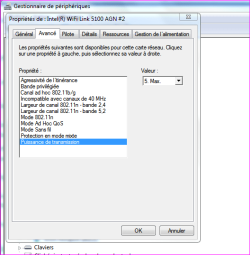
There's a thread i awsered already few months ago here (second screenshot):
http://www.sevenforums.com/network-sharing/105725-windows-7-intel-wifi-link-5100-a.html
(might this post help you first!!)...


...I hate to say that, but i think you'll have to manually remove all Intel drivers from your machine...in order to know if your card needs to be serviced.

-First uninstall all Intel softs suite...and drivers/pilotes from the "device manager" & " program & features".

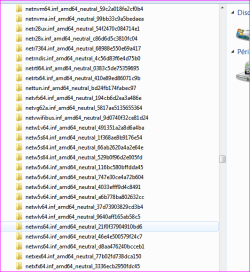
-Second, there's a folder in C:/Windows/system32/DriverStore/FileRepository/.....
delete all the folders related to the intel wifi-link driver; the list could be long if you have updated drivers since first time you bought the computer.
(See first screenshot)

YOU'LL HAVE TO "TAKE OWNERSHIP" of the folders to delete them.

-Reboot, then windows will install from Windows Update his own intel driver (look in device manager the version). This will also create again a new folder in "FileRepository".

You'll see then if the card work with the driver.
 

Attachments

  • Capture.PNG
    Capture.PNG
    64.2 KB · Views: 122
  • Capture2.PNG
    Capture2.PNG
    65.2 KB · Views: 134

My Computer

Computer type
PC/Desktop
Computer Manufacturer/Model Number
Custom Build
OS
Windows 7 Professional SP1 - x64 [Non-UEFI Boot]
CPU
Ivy Bridge Core i5 3570K (Delidded)
Motherboard
Asus P8Z77-V LE PLUS
Memory
G.Skill "Ares" DDR3 PC3-12800 - 1600MHz (16Gb)
Graphics Card(s)
Asus Dual-RX480-O4G
Sound Card
Creative Sound Blaster Z w/5.1 sound system
Monitor(s) Displays
Asus IPS 23"
Screen Resolution
16/9
Hard Drives
Internal:
500Go Sata 6Gb/s (x2)
500Go Sata 3Gb/s (x2)
SSD 60Go Sata 6Gb/s
PSU
In Win C 900W Series 80+ Platinum
Case
Thermaltake Chaser A71
Cooling
Custom Water Cooling Loop
Keyboard
Cooler Master QuickFire XTi
Mouse
Razer Imperator 2012 (4G)
Antivirus
MSE
Browser
IE 11.0.xxx Rtm
Other Info
"Raid0" with Intel Smart Response Technology (HDD/SSD)
Back
Top