
Internet Explorer - Change Default Download Location

How to Change Default Download Location in IE9, IE10, and IE11


   Information
This will show you how to change the default download location that IE9, IE10, and IE11 saves to by default to be any folder that you select instead of the default C:\Users\(user-name)\Downloads folder.

   Note
In Windows 8, the IE10 Windows UI (Metro) version uses the same download location that you set for the IE10 desktop version below.


OPTION ONE

Change IE Default "Save" Download Location in Download Manager


1. Open IE9, IE10, or IE11.
NOTE: In Windows 8/8.1, you would open the desktop IE version, and not the modern IE version.

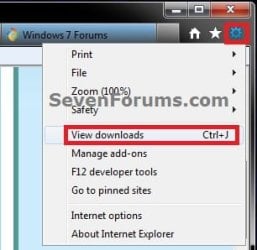
2. Click/tap on the gear icon in the upper right corner, then click/tap on View downloads. (see screenshot below)
NOTE: You could also press CTRL + J instead.
Step-1.jpg
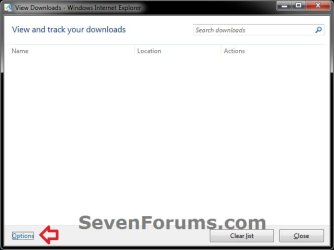
3. Click/tap on the Options link. (see screenshot below)
Step2.jpg
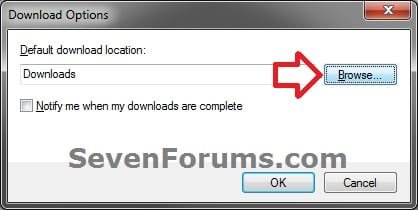
4. Click/tap on the Browse button. (see screenshot below)
Step_3.jpg
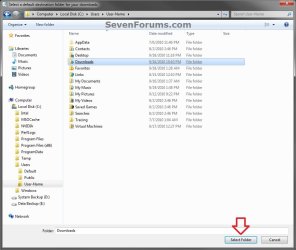
5. Navigate to and select (highlight) the folder that you want IE9 or IE10 to use as the default download location, then click/tap on the Select Folder button. (see screenshot below)
Step_4.jpg
6. Click/tap on OK. (see screenshot below step 4)

7. Click/tap on Close. (see screenshot below step 3)


OPTION TWO

Change Internet Explorer Default "Save" Download Location in Registry


1. Press the Windows + R keys to open the Run dialog, type regedit, and press Enter.

2. If prompted by UAC, then click/tap on Yes (Windows 7/8) or Continue (Vista).

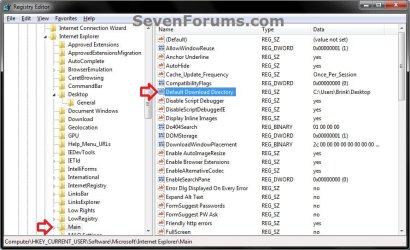
3. In regedit, navigate to the location below. (see screenshot below)
HKEY_CURRENT_USER\Software\Microsoft\Internet Explorer\Main
REG-1.jpg
4. In the right pane of Main, double click/tap on Default Download Directory to modify it. (see screenshot above)

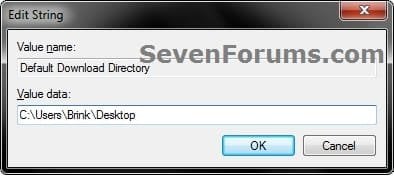
5. Type in the full path of the folder that you want IE9 or IE10 to save downloads to by default, and click/tap on OK. (see screenshot above)
REG-2.jpg
6. Close regedit.


OPTION THREE

To Manually Select a "Save as" Download Location in Internet Explorer


NOTE: This option is to Save as a file you want to download to any location no matter what you set the default Save location in Option One above.
1. After you click/tap on the file's download link in IE9 oe IE10, click/tap on the drop down arrow on the Save button at the bottom of IE9 or IE10, and click/tap on Save as. (see screenshot below)
Save-As.jpg
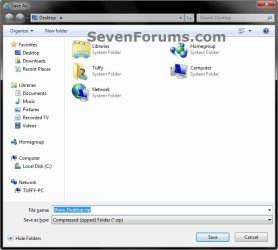
2. Navigate to where you would like to save the file to, and click/tap on Save. (see screenshot below)
Save-As-2.jpg
That's it,
Shawn


Last edited:
I now see the difference between the two procedures. What I wanted to do was to change the default save to location. I followed that procedure and found that IE9 was still, by default, saving downloads to my user download folder. I then moved my download folder and that accomplished what I wanted. I don't mean to run this into the ground; but, shouldn't I be able to have IE9 save downloads to a different location without moving my user downloads folder? What am I not understanding here?

JP Erik
 

My Computer My Computer

Computer Manufacturer/Model Number
Me
OS
Windows 7 64-bit
CPU
Intel i7 2600K LGA1155 (3.4Gz)
Motherboard
Gigabyte Z68XP-UD3P
Memory
Corsair Vengeance 8GB (2x4GB)
Graphics Card(s)
Asus GTX570
Hard Drives
OCZ Vertex 3 120GB SATA III
WD Caviar 250GB SATA 2
PSU
Corsair HX850W
Case
Case, Lian-Li PC-60B
It's no problem Erik. I think you may have just misunderstood something. There's no need to move the actual "Downloads" folder to another location. Instead, you should just be able to select a different folder other than the "Downloads" folder for IE9 to use to save to instead.
 

My Computer My Computer

Computer type
PC/Desktop
Computer Manufacturer/Model Number
Self built custom
OS
64-bit Windows 11 Pro for Workstations
CPU
Intel i7-8700K OC'd to 5 GHz
Motherboard
ASUS ROG Maximus XI Formula Z390
Memory
64 GB (4x16GB) G.SKILL TridentZ RGB DDR4 3600 MHz
Graphics Card(s)
ASUS ROG-STRIX-GTX1080TI-O11G-GAMING
Sound Card
Integrated
Monitor(s) Displays
2 x Samsung Odyssey G7 27"
Screen Resolution
2560x1440
Hard Drives
1TB Samsung 990 PRO M.2,
4TB Samsung 990 PRO PRO M.2,
TerraMaster F8 SSD Plus NAS
PSU
Seasonic Prime Titanium 850W
Case
Thermaltake Core P3
Cooling
Corsair Hydro H115i
Keyboard
Logitech wireless K800
Mouse
Logitech MX Master 4
Internet Speed
2 Gb/s Download and 100 Mb/s Upload
Antivirus
Malwarebyte Anti-Malware Premium
Browser
Google Chrome
Other Info
Logitech Z625 speaker system,
Logitech BRIO 4K Pro webcam,
HP Color LaserJet Pro MFP M477fdn,
APC SMART-UPS RT 1000 XL - SURT1000XLI,
Galaxy S23 Plus phone
It doesn't seem to apply to saving documents or pictures, ie9 just goes on saving them to library locations regardless of which location I specify in the way outlined above. It is time consuming specifying the desired location in the 'save to' box each time - I only want to do this once as in Chrome. Instead when saving a lot of material to one location I have to specify the location each time I save. I don't like saving everything to Pictures, for instance, and then moving them to desitred locations as this takes a lot of sifting if I've been doing mulitple jobs.
 

My Computer My Computer

Computer Manufacturer/Model Number
Samsung RF511
OS
Windows 7 home premium 64 bit
CPU
Intel(R) Core(TM) i5-2450M CPU @ 2.50GHz, 2501 Mhz
Memory
8Gb
Graphics Card(s)
NVidia
Hello Chesya,

Could you go ahead and provide a link to an example of one of these downloads that this happens to you with for us to do some testing with? :)

Are these files that you downloading trough the IE9 download manager, or items you are right clicking on and clicking on say "Save picture as"?

What location did you specify as your default download location in OPTION ONE?

Are you able to use OPTION THREE to save items where like when you don't want them saved to the default location?
 

My Computer My Computer

Computer type
PC/Desktop
Computer Manufacturer/Model Number
Self built custom
OS
64-bit Windows 11 Pro for Workstations
CPU
Intel i7-8700K OC'd to 5 GHz
Motherboard
ASUS ROG Maximus XI Formula Z390
Memory
64 GB (4x16GB) G.SKILL TridentZ RGB DDR4 3600 MHz
Graphics Card(s)
ASUS ROG-STRIX-GTX1080TI-O11G-GAMING
Sound Card
Integrated
Monitor(s) Displays
2 x Samsung Odyssey G7 27"
Screen Resolution
2560x1440
Hard Drives
1TB Samsung 990 PRO M.2,
4TB Samsung 990 PRO PRO M.2,
TerraMaster F8 SSD Plus NAS
PSU
Seasonic Prime Titanium 850W
Case
Thermaltake Core P3
Cooling
Corsair Hydro H115i
Keyboard
Logitech wireless K800
Mouse
Logitech MX Master 4
Internet Speed
2 Gb/s Download and 100 Mb/s Upload
Antivirus
Malwarebyte Anti-Malware Premium
Browser
Google Chrome
Other Info
Logitech Z625 speaker system,
Logitech BRIO 4K Pro webcam,
HP Color LaserJet Pro MFP M477fdn,
APC SMART-UPS RT 1000 XL - SURT1000XLI,
Galaxy S23 Plus phone
Thanks for this tutorial, really really helped :)
 

My Computer My Computer

OS
Window's 7 Ultimate 64bit
CPU
Intel Core i5 2500k
Motherboard
P8H61-MX
Memory
DDR3
Graphics Card(s)
Intel HD Graphics 3000 (GT2) (sandy bridge)
Screen Resolution
1280x1024
Hard Drives
1TB Seagate HDD
200GB Western Digital HDD
80GB Seagate HDD
Back
Top