
How to Change "JavaScript Timer Frequency" Power Option Setting for Internet Explorer
Information
This tutorial will show you how to change the setting for the JavaScript Timer Frequency power option for IE9, IE10, and IE11 in Windows 7, Windows 8, and Windows 10.
There have been a very few reports of some users having possible increased battery drain or sleep issues with the Maximum and Power Saving settings enabled, respectively. These may or may not be mis-identified issues, but you may want to test out the different settings from the default if they apply to you.
There have been a very few reports of some users having possible increased battery drain or sleep issues with the Maximum and Power Saving settings enabled, respectively. These may or may not be mis-identified issues, but you may want to test out the different settings from the default if they apply to you.
Information
IE9, IE10, and IE11 has a power setting in Windows 7 and Windows 8 Power Options, called JavaScript Timer Frequency. This is tied in with the IE9, IE10, and IE11 javaScript engine.
The apparent reasoning behind the two available settings of this new Power Option are basically summed up by this line in the IEBlog below:
While on the Power Saving option, this will slow down the execution of JavaScript in IE9, IE10, and IE11 which will also lower power consumption. This is the automatic setting on laptops, netbooks.
The apparent reasoning behind the two available settings of this new Power Option are basically summed up by this line in the IEBlog below:
- The New JavaScript Engine in Internet Explorer 9 - IEBlog - Site Home - MSDN Blogs
- Advances in JavaScript Performance in IE10 and Windows 8 - IEBlog - Site Home - MSDN Blogs
While on the Power Saving option, this will slow down the execution of JavaScript in IE9, IE10, and IE11 which will also lower power consumption. This is the automatic setting on laptops, netbooks.
Note
The two settings are as follows:
Maximum Performance: (default on desktops/plugged in devices) for optimal JavaScript performance in IE9 when power consumption or battery life is not critical or required.
Maximum Power Savings: (default on laptops, etc) ideal when power consumption and battery life is important, such as a laptop, netbook, etc.
Reducing JavaScript Timer Frequency can slow down the java script animations and execution in Internet Explorer which in turn can save battery life. If you want faster browsing in Internet Explorer, then you might want to change this setting to "maximum performance" in power settings. Slower performance is a compromise to save battery life. By default, when using a PC on battery, Internet Explorer will automatically switch to "maximum power savings" for JavaScript Timer Frequency.
Maximum Performance: (default on desktops/plugged in devices) for optimal JavaScript performance in IE9 when power consumption or battery life is not critical or required.
Maximum Power Savings: (default on laptops, etc) ideal when power consumption and battery life is important, such as a laptop, netbook, etc.
Reducing JavaScript Timer Frequency can slow down the java script animations and execution in Internet Explorer which in turn can save battery life. If you want faster browsing in Internet Explorer, then you might want to change this setting to "maximum performance" in power settings. Slower performance is a compromise to save battery life. By default, when using a PC on battery, Internet Explorer will automatically switch to "maximum power savings" for JavaScript Timer Frequency.
Here's How:
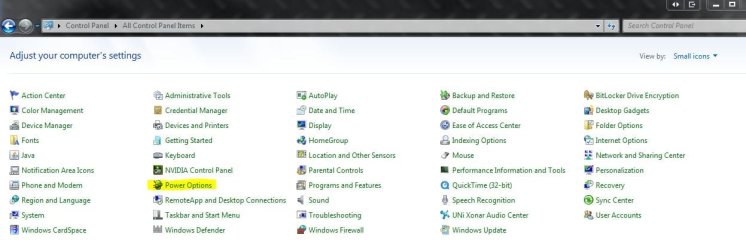
1. Open the Control Panel (icons view), and click/tap on the Power Options icon.
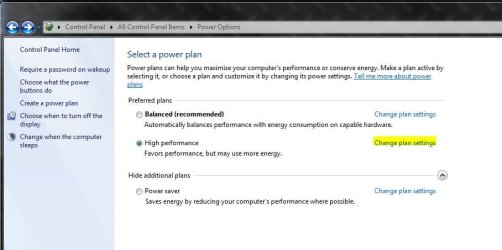
2. Click/tap on Change Plan Settings.
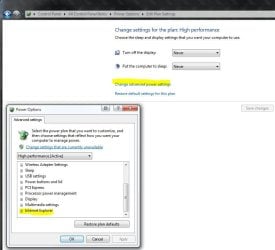
3. Click/tap on Change Advanced Power Settings, and scroll down where it says Internet Explorer.
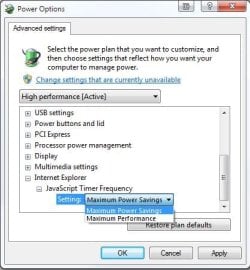
4. Pick either the Maximum Performance, or Maximum Power Savings setting that applies if you wish to change it from the default setting, and click/tap on OK.

That's it.
Last edited by a moderator:


 I just had a gut feeling lol.
