Invalid System Partition Problem

Cdubbs

New member
Local time
2:25 PM
Messages
17
Hallo,

So a couple days ago my Windows install decided to go kablooey. (I am dual-booting 7 and openSUSE but I'm removing SUSE once I fix Windows) I determined the cause to be an "invalid system partition."

I found another thread involving some business about diskpart in the command line, so I tried that. (my hardware manufacturer installed a version of system restore on my hdd, just fyi)

Only problem is, I think I selected the wrong volume to activate. There were three partitions there: one was my disk drive, one was 100 MB labelled SYSTEM RESE(t?) and NTFS, and one was 347GB and formatted as RAW (probably the volume where all my windows stuff was.)

because the 100mb one was NTFS, i selected that to activate. Didn't really work out too well because it didnt fix my computer and now my hard copy of system recovery won't work, and the disk takes foreeevverrr to find windows installations (it's running right now - still havent seen it complete yet)

buuuuuutyyyeaaaaah if anyone has any sort of clue as to how or if i can save my data that'd be awesome. I tried booting into a ubuntu live cd (because my suse installation is right messed up) and getting into the windows filesystem but it wouldn't mount - told me to run chkdsk and i did and everything came back fine.

THanks for the help in advance!
 

My Computer

OS
Windows 7 Ultimate 64 bit
Hello Cdubbs, welcome to Seven Forums!


Have a look at this tutorial at the link below to see if it'll be a help to recover the data you need to save and be sure to post back with any further questions you may have and to keep us informed.


How to Copy & Paste in Recovery Console on Windows 7 or Vista
 

My Computer

Computer Manufacturer/Model Number
* BFK Customs *
OS
W 7 64-bit Ultimate
CPU
Intel Q9550 Yorkfield
Motherboard
ASUS P5Q Pro
Memory
8GB Dominator 8500C5D
Graphics Card(s)
ATI : XFX 5870
Sound Card
Realtek HD Audio 7-1
Monitor(s) Displays
1x 47" LCD HDMI & 3x 26" LCD HDMI
Screen Resolution
1920x1080P & 1920x1200
Hard Drives
1x 80GB Intel X25-M G2 SSD : 1x 500GB & 1x 640GB WD Caviar Black(s)
PSU
Corsair 620HX
Case
Cooler Master RC-690
Cooling
Tuniq Tower 120, 2x 140mm and 3x 120mm case fans
Keyboard
Microsoft 500
Mouse
Razer Diamondback 3G
Internet Speed
14 Mb/s
Other Info
1x Koutech 3Gb/s SATA HDD Hot Swap Rack
Hello Cdubbs, welcome to Seven Forums!


Have a look at this tutorial at the link below to see if it'll be a help to recover the data you need to save and be sure to post back with any further questions you may have and to keep us informed.


How to Copy & Paste in Recovery Console on Windows 7 or Vista

Hi, thanks for the reply... My windows install doesn't seem to like to read my hard disks (also idk which driver to load.... I tried loading a few that said SATA controller but that just made my pc unable to recognize my C drive ... Is there any way I could fix this from the cmd line? Perhaps rebuild the boot manager thingy or something? The fact my 357gb volume is listed as RAW also concerns me... Thx for your help!
 

My Computer

OS
Windows 7 Ultimate 64 bit
I found another thread involving some business about diskpart in the command line, so I tried that.


Please explain this, exactly what did you do; the only way (I know of) that a partition will show as "RAW" is if a wipe secure erase has been run on that partition and if so the data will be completely over-written and not recoverable at all.

Did you run either the clean or the clean all command from diskpart?
 

My Computer

Computer Manufacturer/Model Number
* BFK Customs *
OS
W 7 64-bit Ultimate
CPU
Intel Q9550 Yorkfield
Motherboard
ASUS P5Q Pro
Memory
8GB Dominator 8500C5D
Graphics Card(s)
ATI : XFX 5870
Sound Card
Realtek HD Audio 7-1
Monitor(s) Displays
1x 47" LCD HDMI & 3x 26" LCD HDMI
Screen Resolution
1920x1080P & 1920x1200
Hard Drives
1x 80GB Intel X25-M G2 SSD : 1x 500GB & 1x 640GB WD Caviar Black(s)
PSU
Corsair 620HX
Case
Cooler Master RC-690
Cooling
Tuniq Tower 120, 2x 140mm and 3x 120mm case fans
Keyboard
Microsoft 500
Mouse
Razer Diamondback 3G
Internet Speed
14 Mb/s
Other Info
1x Koutech 3Gb/s SATA HDD Hot Swap Rack
I found another thread involving some business about diskpart in the command line, so I tried that.


Please explain this, exactly what did you do; the only way (I know of) that a partition will show as "RAW" is if a wipe secure erase has been run on that partition and if so the data will be completely over-written and not recoverable at all.

The only commands I ran were chkdsk and diskpart (the active cmd on the 100mb volume)... I also have grub installed because of my wonky suse partition. Would it be helpful for me to go into gparted or something and tell you all of my partitions from a Linux standpoint?


No I only ran chkdsk and diskpart (the active cmd) I do have grub too because of my wonky suse install
 
Last edited:

My Computer

OS
Windows 7 Ultimate 64 bit

My Computer

Computer Manufacturer/Model Number
* BFK Customs *
OS
W 7 64-bit Ultimate
CPU
Intel Q9550 Yorkfield
Motherboard
ASUS P5Q Pro
Memory
8GB Dominator 8500C5D
Graphics Card(s)
ATI : XFX 5870
Sound Card
Realtek HD Audio 7-1
Monitor(s) Displays
1x 47" LCD HDMI & 3x 26" LCD HDMI
Screen Resolution
1920x1080P & 1920x1200
Hard Drives
1x 80GB Intel X25-M G2 SSD : 1x 500GB & 1x 640GB WD Caviar Black(s)
PSU
Corsair 620HX
Case
Cooler Master RC-690
Cooling
Tuniq Tower 120, 2x 140mm and 3x 120mm case fans
Keyboard
Microsoft 500
Mouse
Razer Diamondback 3G
Internet Speed
14 Mb/s
Other Info
1x Koutech 3Gb/s SATA HDD Hot Swap Rack

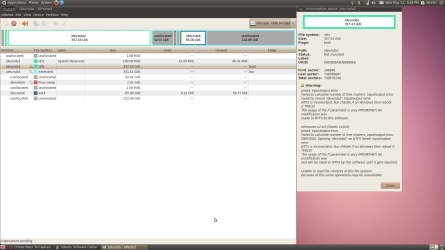
as you can see my hdd is a mess :P

sda1 is the windows system recovery (i think)
sda2 is my windows installation. here it's defined as NTSF but in DISKPART it's shown as RAW... hopefully this means my data is still recoverable (because I failed physics 2 and really don't want to rewrite those labs next year :P)

sda3 is where my SUSE install is located... as you can see it's pretty messy lol. I'm going to uninstall my openSUSE OS so if the fix is made easier by getting rid of the partition it's not a problem.

thanks a lot for your help
 

Attachments

  • Screenshot.png
    Screenshot.png
    141.3 KB · Views: 53

My Computer

OS
Windows 7 Ultimate 64 bit
Hello Cdubbs, welcome to Seven Forums!


Have a look at this tutorial at the link below to see if it'll be a help to recover the data you need to save and be sure to post back with any further questions you may have and to keep us informed.


How to Copy & Paste in Recovery Console on Windows 7 or Vista


Have you actually booted the Windows 7 installation media to see if you can copy out the data you need to save using the method outlined in the tutorial at this link?
 

My Computer

Computer Manufacturer/Model Number
* BFK Customs *
OS
W 7 64-bit Ultimate
CPU
Intel Q9550 Yorkfield
Motherboard
ASUS P5Q Pro
Memory
8GB Dominator 8500C5D
Graphics Card(s)
ATI : XFX 5870
Sound Card
Realtek HD Audio 7-1
Monitor(s) Displays
1x 47" LCD HDMI & 3x 26" LCD HDMI
Screen Resolution
1920x1080P & 1920x1200
Hard Drives
1x 80GB Intel X25-M G2 SSD : 1x 500GB & 1x 640GB WD Caviar Black(s)
PSU
Corsair 620HX
Case
Cooler Master RC-690
Cooling
Tuniq Tower 120, 2x 140mm and 3x 120mm case fans
Keyboard
Microsoft 500
Mouse
Razer Diamondback 3G
Internet Speed
14 Mb/s
Other Info
1x Koutech 3Gb/s SATA HDD Hot Swap Rack
Did you manage to run checkdisk with /f twice on the windows partition?

Also try flagging 100mb partition as Active.

Otherwise - use a bootable app. with windows disk checking on it - don't know if it's on PW boot disc - might be.

Paragon has an excellent one - but I don't think you get that on the free Paragon versions.
 

My Computers

System One System Two

  • Computer type
    PC/Desktop
    OS
    7 X64
    CPU
    i5 8400
    Motherboard
    gigabyte b365m ds3h
    Memory
    2x8gb 3200mhz
    Hard Drives
    various
    PSU
    pure power 11 400w cm
    Case
    Coolermaster
    Cooling
    cryorig m9i
  • Computer type
    PC/Desktop
    OS
    7x64
    CPU
    g5400
    Motherboard
    ga b365m ds3h
    Memory
    8gb ddr4 2400
    PSU
    xfx pro 450w
Did you manage to run checkdisk with /f twice on the windows partition?

Also try flagging 100mb partition as Active.

Otherwise - use a bootable app. with windows disk checking on it - don't know if it's on PW boot disc - might be.

Paragon has an excellent one - but I don't think you get that on the free Paragon versions.

yep - came back fine both times. tried making the 100mb partition active as well and it just made everything go slower :(
 

My Computer

OS
Windows 7 Ultimate 64 bit
After marking Active you need to run Startup Repair from DVD or Repair CD up to 3 separate times with reboots to repair or rewrite the System Boot files and start Win7. Startup Repair

If this fails mark the Win7 partition itself Active to run the Repairs x3.

System Repair Disc - Create
 
After marking Active you need to run Startup Repair from DVD or Repair CD up to 3 separate times with reboots to repair or rewrite the System Boot files and start Win7. Startup Repair

If this fails mark the Win7 partition itself Active to run the Repairs x3.

System Repair Disc - Create

okay,

first i marked the 100mb partition as active, then after that didnt work i marked my 357 GB volume as active, do i need to run diskpart again and redefine the 100mb partition as active?
 

My Computer

OS
Windows 7 Ultimate 64 bit
It's still not clear that after marking the partition Active you are running Startup Repair up to 3 separate times with reboots. Startup Repair - Run 3 Separate Times

Start with the 100mb marked Active then if that fails after three separate Startup Repair attempts mark the WIn7 partition itself Active to run the Repairs.

If both of these fail and you are determined, boot free Partition Wizard bootable CD to see if your WIn7 partition is marked RAW which means it has been wiped. If not select the Win7 HD, then on Disk tab Rebuild MBR. Do this with first the 100mb marked Active, then the Win7 partition.

If this fails, rightclick>delete the System Reserved 100mb partition, create another 100mb Primary partition there, Modify>mark it Active, then boot DVD/REpair CD to run three Startup Repairs to see if you can write a new boot partition, as the other one may be corrupted beyond repair if GRUB was on the HD.

If Win7 will not start and it's partition is still intact with files you can Explore from Partition Wizard CD, then copy out your files using this method: Copy & Paste - in Windows Recovery Console
 
Hello Cdubbs, welcome to Seven Forums!


Have a look at this tutorial at the link below to see if it'll be a help to recover the data you need to save and be sure to post back with any further questions you may have and to keep us informed.


How to Copy & Paste in Recovery Console on Windows 7 or Vista


Have you actually booted the Windows 7 installation media to see if you can copy out the data you need to save using the method outlined in the tutorial at this link?


I'm not sure how to find the correct driver on my driver CD, there are many (I have a cyberpower computer)... is there a utility in ubuntu that can help me find out the model of my hard drive?
 

My Computer

OS
Windows 7 Ultimate 64 bit
It's still not clear that after marking the partition Active you are running Startup Repair up to 3 separate times with reboots. Startup Repair - Run 3 Separate Times

Start with the 100mb marked Active then if that fails after three separate Startup Repair attempts mark the WIn7 partition itself Active to run the Repairs.

If both of these fail and you are determined, boot free Partition Wizard bootable CD to see if your WIn7 partition is marked RAW which means it has been wiped. If not select the Win7 HD, then on Disk tab Rebuild MBR. Do this with first the 100mb marked Active, then the Win7 partition.

If this fails, rightclick>delete the System Reserved 100mb partition, create another 100mb Primary partition there, Modify>mark it Active, then boot DVD/REpair CD to run three Startup Repairs to see if you can write a new boot partition, as the other one may be corrupted beyond repair if GRUB was on the HD.

If Win7 will not start and it's partition is still intact with files you can Explore from Partition Wizard CD, then copy out your files using this method: Copy & Paste - in Windows Recovery Console

I've ran startup repair for 3 hours and it didn't seem to get anywhere... Can I just start with the partition wizard method and copy my files to an external hard drive? I don't really mind reinstalling windows, I just want to save all my music and schoolwork (ripping CD's was no fun the first time - I doubt it will be any more exciting the second time - same goes to physics labs)

EDIT: forgot to add, my windows partition will not mount on my ubuntu partition, if this means anything
 

My Computer

OS
Windows 7 Ultimate 64 bit
Hello Cdubbs, welcome to Seven Forums!


Have a look at this tutorial at the link below to see if it'll be a help to recover the data you need to save and be sure to post back with any further questions you may have and to keep us informed.


How to Copy & Paste in Recovery Console on Windows 7 or Vista


Have you actually booted the Windows 7 installation media to see if you can copy out the data you need to save using the method outlined in the tutorial at this link?


I'm not sure how to find the correct driver on my driver CD, there are many (I have a cyberpower computer)... is there a utility in ubuntu that can help me find out the model of my hard drive?

You have to boot the Windows 7 installation DVD and follow the method outlined in the tutorial.
 

My Computer

Computer Manufacturer/Model Number
* BFK Customs *
OS
W 7 64-bit Ultimate
CPU
Intel Q9550 Yorkfield
Motherboard
ASUS P5Q Pro
Memory
8GB Dominator 8500C5D
Graphics Card(s)
ATI : XFX 5870
Sound Card
Realtek HD Audio 7-1
Monitor(s) Displays
1x 47" LCD HDMI & 3x 26" LCD HDMI
Screen Resolution
1920x1080P & 1920x1200
Hard Drives
1x 80GB Intel X25-M G2 SSD : 1x 500GB & 1x 640GB WD Caviar Black(s)
PSU
Corsair 620HX
Case
Cooler Master RC-690
Cooling
Tuniq Tower 120, 2x 140mm and 3x 120mm case fans
Keyboard
Microsoft 500
Mouse
Razer Diamondback 3G
Internet Speed
14 Mb/s
Other Info
1x Koutech 3Gb/s SATA HDD Hot Swap Rack
Have you actually booted the Windows 7 installation media to see if you can copy out the data you need to save using the method outlined in the tutorial at this link?


I'm not sure how to find the correct driver on my driver CD, there are many (I have a cyberpower computer)... is there a utility in ubuntu that can help me find out the model of my hard drive?

You have to boot the Windows 7 installation DVD and follow the method outlined in the tutorial.

hmm, im not sure if i can access my C:\ drive from the installation DVD but I will try, thanks!
 

My Computer

OS
Windows 7 Ultimate 64 bit
This is why I suggested you look at a picture of your HD using free Partition Wizard bootable CD which gives the most reliable picture of Windows partitioning. If it says it's raw, then you've lost your data. If not, rightclick to Explore to see if you see your files. You can then copy them out using the steps posted in the Copy tutorial, or using free Paragon Rescue CD.

If you are having problems booting the PW CD or the Windows DVD, please post back exactly what is the problem. How to Boot your Computer from a Bootable CD or DVD

If you are in PW CD to check this, you might as well see which is the Active partition and try highlighting the WIn7 HD then running Rebuild MBR from the DIsk tab. You have also not exhaused all repair possibilities until you try the 3 separate Startup Repairs with first the 100mb System Reserved partition marked Active (if you have it) then with the WIndows 7 partition itself marked Active. Then you've done all you can.
 
This is why I suggested you look at a picture of your HD using free Partition Wizard bootable CD which gives the most reliable picture of Windows partitioning. If it says it's raw, then you've lost your data. If not, rightclick to Explore to see if you see your files. You can then copy them out using the steps posted in the Copy tutorial, or using free Paragon Rescue CD.

If you are having problems booting the PW CD or the Windows DVD, please post back exactly what is the problem. How to Boot your Computer from a Bootable CD or DVD

If you are in PW CD to check this, you might as well see which is the Active partition and try highlighting the WIn7 HD then running Rebuild MBR from the DIsk tab. You have also not exhaused all repair possibilities until you try the 3 separate Startup Repairs with first the 100mb System Reserved partition marked Active (if you have it) then with the WIndows 7 partition itself marked Active. Then you've done all you can.

Alright, thanks a lot for all of your help... hopefully I can recover some of my data! :)
 

My Computer

OS
Windows 7 Ultimate 64 bit
It's probably too late now but did you ever try running
sfc /scannow

when you were able to still boot into windows
from an elevated command prompt
 

My Computer

Computer type
PC/Desktop
Computer Manufacturer/Model Number
Own build
OS
Windows 7x64 Home Premium SP1
CPU
Intel i7 2600k
Motherboard
ASUS P8Z68 Deluxe
Memory
G.Skill Ripjaws (DDR3-1600) 2x4GB
Graphics Card(s)
Nvidia GeForce GTS 450; Intel HD Graphics 3000(GT2+)
Monitor(s) Displays
Dell Ultrasharp IPS panel U2311H, Samsung SyncMaster P2350
Screen Resolution
1920x1080
Hard Drives
Samsung 850 Pro SSD 256GB, Samsung SSD 840 120GB, Seagates 1TB Barracuda ST31000528AS x2
PSU
Seasonic M12II 520W
Case
Lian Li Lancool PC-K60
Cooling
Case: 1x120mm, 3x140mm CPU: Hyper 212+
Keyboard
Logitech MK520 (wireless)
Mouse
Logitech MK520
Internet Speed
6-7 Mbps
Antivirus
Norton Security Premium, Malwarebytes on 2 (MSE on 3rd PC)
Browser
FireFox
Other Info
Audio: Logitech Z523 2.1
Back
Top