
How to Enable or Disable Temporary IPv6 Address Feature in Windows 7 and 8
Information
In this tutorial I will be showing you how to enable or disable the temporary IPv6 address that Windows generates when using the IPv6 address protocol. This will allow Windows to use the EUI-64 industry standard to automatically generate the interface ID part of the address rather than generating one randomly.
What is IPv6?
IPv6 is a protocol from the TCP/IP suite which allows network addressing of devices used for connecting to the internet and devices on your LAN (Local Area Network). At the moment the current network addressing protocol is IPv4 however the address space is being rapidly used up therefore over time IPv6 will replace it in order to allow more devices to be connected to the internet.
______________________________________________________________________________
What is EUI-64?
In IPv4 it is required for a Network Administrator to either assign a static IP address to every device on a network or use a protocol called DHCP to assign a unique one automatically. In IPv6 an industry standard called EUI-64 was created to make assigning an IP address via DHCP or statically completely optional by allowing the devices to automatically generate one themselves. This is done by taking the MAC address of the interface and then 'squeezing' FFFE in the middle to generate the unique IP address that can be used on the internet for online communication. Additional characters are inserted in the middle in order to expand the MAC address (48-bit) into a 64-bit address to be used. More information on EUI-64 can be found here - IPv6 interface identifiers: IPv6
Windows 7 and 8 do not follow this standard and instead use a temporary address that is randomly generated and changes frequently to prevent other online users from being able to track you via your MAC address which doesn't change. While this is great for client privacy it can cause issues when setting up servers or key devices therefore you may wish to disable it and use the EUI-64 standard. This is what I am going to show you how to do in this tutorial.
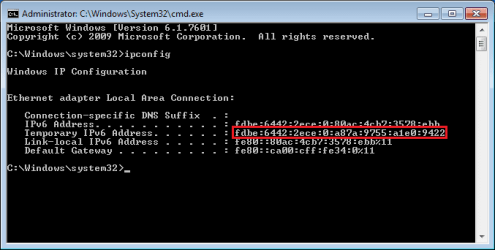
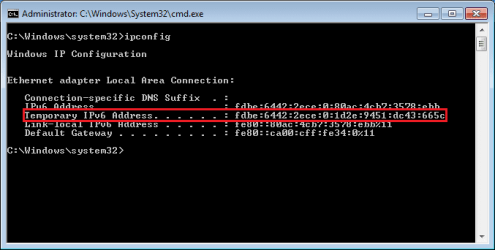
An example of a temporary and random IPv6 address generated:
What is IPv6?
IPv6 is a protocol from the TCP/IP suite which allows network addressing of devices used for connecting to the internet and devices on your LAN (Local Area Network). At the moment the current network addressing protocol is IPv4 however the address space is being rapidly used up therefore over time IPv6 will replace it in order to allow more devices to be connected to the internet.
______________________________________________________________________________
What is EUI-64?
In IPv4 it is required for a Network Administrator to either assign a static IP address to every device on a network or use a protocol called DHCP to assign a unique one automatically. In IPv6 an industry standard called EUI-64 was created to make assigning an IP address via DHCP or statically completely optional by allowing the devices to automatically generate one themselves. This is done by taking the MAC address of the interface and then 'squeezing' FFFE in the middle to generate the unique IP address that can be used on the internet for online communication. Additional characters are inserted in the middle in order to expand the MAC address (48-bit) into a 64-bit address to be used. More information on EUI-64 can be found here - IPv6 interface identifiers: IPv6
Windows 7 and 8 do not follow this standard and instead use a temporary address that is randomly generated and changes frequently to prevent other online users from being able to track you via your MAC address which doesn't change. While this is great for client privacy it can cause issues when setting up servers or key devices therefore you may wish to disable it and use the EUI-64 standard. This is what I am going to show you how to do in this tutorial.
An example of a temporary and random IPv6 address generated:
Warning
This following steps should only be done if you are using IPv6 addressing on your network. If you are not sure what address protocol you are using then please do not follow these steps.
You need to be an Administrator to complete this.
You need to be an Administrator to complete this.
Tip
This also works for Windows 8 and 8.1
Note
This tutorial applies to the Link Local Address as well since that is randomly generated by default as well
________________________________________________________________________
Disable
How to Disable Temp IPv6 Address Feature in Command Prompt
1. Open an Elevated Command Prompt.
a). Enter the following command exactly to disable the random IP address generation feature and then press enter: netsh interface ipv6 set global randomizeidentifiers=disabled
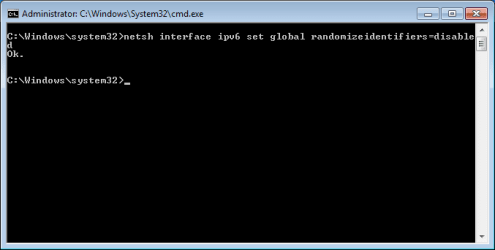
b). Then input the next command exactly to force Windows to use the EUI-64 standard. Press enter to apply the command: netsh interface ipv6 set privacy state=disabled
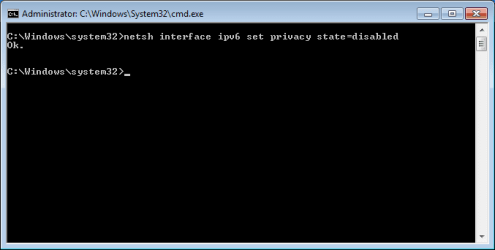 2. Reboot the machine to apply the changes.
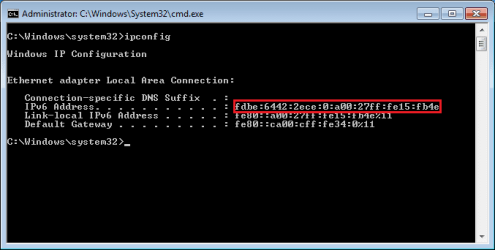
 a). To verify open a command prompt windows and input the following command: ipconfig An example of Windows using the EUI-64 standard with the MAC address as further verification: NOTE: Some MAC numbers may be converted to letters in the address because of the hexadecimal translation. This is normal.
 __________________________________________________________________
 OPTION TWO
How to Disable Temp IPv6 Address Feature using a BAT file
1. Click the download button below to download the BAT file. View attachment ipv6_temp_addr_disable.bat
Download
2. Save to your desktop and then Run it as Administrator.
3. Your computer should automatically reboot and disable the IPv6 Temporary address.__________________________________________________________________________________
Enable
How to Enable Temp IPv6 Address Feature via Command Prompt
Note
This is on by default in Windows 7 ,8, and 8.1.
1. Open an Elevated Command Prompt.
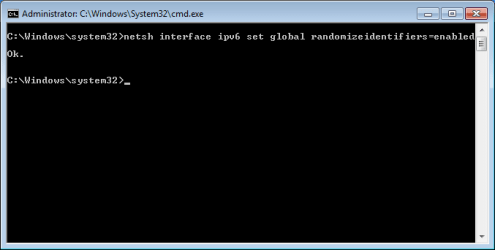
a). Enter the following command exactly to enable the random IP address generation feature and then press enter:
netsh interface ipv6 set global randomizeidentifiers=enabled
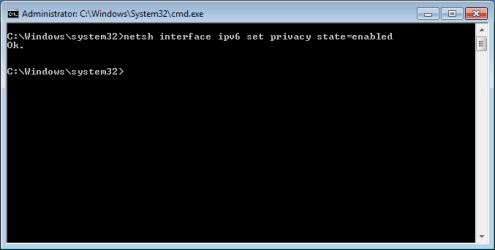
b). Then input the next command exactly to allow Windows to randomly generate a temporary address to use for network communication. Press enter to apply the command: netsh interface ipv6 set privacy state=enabled
 2. Reboot the machine to apply the changes.
 a). To verify open a command prompt windows and input the following command: ipconfig An example of Windows using a temporary IPv6 address can be found below:
 ______________________________________________________________________
 OPTION TWO
How to Enable Temp IPv6 Address Feature using a BAT file
Note
This is on by default in Windows 7 ,8, and 8.1.
1. Click the download button below to download the BAT file. View attachment ipv6_temp_addr_enable.bat
Download
2. Save to your desktop and then Run it as Administrator.
3. Your computer should automatically reboot and enable the IPv6 Temporary address.Hope This Helps,
Josh
Last edited:

