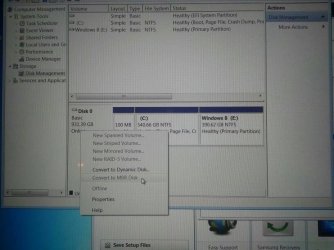
6. Delete all partitions/volumes on the
disk # (ex: Disk 0) that you want to install Windows 7 as UEFI on until that disk # shows as
unallocated space. (see screenshot below)

When you are finished, click/tap on
New,
Apply (for full size of disk), and
OK. (see screenshot above)
8. You will notice that the disk has now been formatted as GPT with 3 partitions. Select the
"Primary" partition 3, and click/tap on
Next. (see screenshot below)
NOTE: You might receive a "Windows can't be installed on drive 0" warning, but as long as you can click on the Next button, you're fine.
Note
The 3 partitions are:
- Partition 1 - System - The EFI System partition that contains the NTLDR, HAL, Boot.txt, and other files that are needed to boot the system, such as drivers.
- Partition 2 - MSR - The Microsoft Reserved (MSR) partition that reserves space on each disk drive for subsequent use by operating system software.
- Partition 3 - Primary - Where Windows is to be installed to.
It is imperative that these 3 partitions remain in the exact order as they are