Is There Some Easy Method For Swapping Drive Designations?

boweasel

New member
Power User
Local time
9:03 AM
Messages
678
This is not a problem on my computer but a friend of mine has an HP 64 bit Windows 7 tower that she says is always giving her messages about running out of disk space.

I was over at her house today, and her unit, which was not new when she bought it has a partitioned drive - one is C: and the other D:. The problem is that the C: drive is only 60 GB, while the D: drive is 570 GB, and while she has next to nothing on the D: drive, her C: drive is constantly in the red. Everything that she does on the computer is done on the C: drive

Are there any methods (short of reformatting and reinstalling) whereby we can get her programs (Windows as well as other applications), music, pictures, documents, et al, on drive D? We would, of course need all her Start Menu items and her All Programs to be pointing to the correct drive.

Seems like there should be some sort of utility.

I hope I've explained the problem clearly, and I thank anyone, in advance, for any knowledge they may wish to impart about this issue. I also hope I've posted to the correct sub-forum.
 

My Computer My Computer

Computer type
Laptop
OS
Windows 7 home premium 64 bit
CPU
AMD K10
Motherboard
Hewlett-Packard 1444 (Socket S1G4)
Memory
3.00GB Dual-Channel DDR3 @ 532MHz
Graphics Card(s)
ATI AMD M880G with ATI Mobility Radeon HD 4250 (HP)
Sound Card
Realtek
Screen Resolution
1366 x 768
Hard Drives
465GB Western Digital
Antivirus
MSE
If there is almost nothing on D, why not make it smaller and give that space to C?

Should be pretty easy, maybe with Windows Disk Management, maybe with a tool such as Partition Wizard.

Or eliminate D entirely. What is its purpose?
 

My Computer My Computer

Computer type
PC/Desktop
Computer Manufacturer/Model Number
Ignatz Special; 4 speed manual gearbox; factory air conditioning; one of one
OS
Windows 7 Home Premium SP1, 64-bit
CPU
Intel Skylake i5-6600K, not overclocked
Motherboard
AsRock Z170M Extreme 4, micro ATX
Memory
8 GB HyperX DDR4-2666 (2 x 4 GB)
Graphics Card(s)
none; graphics are integrated on CPU
Sound Card
onboard: Realtek ALC1150; external: USB Behringer UF0-202
Monitor(s) Displays
Dell S2340M 23 inch IPS
Screen Resolution
1600 x 900
Hard Drives
System: Crucial MX100 series SSD, 128 GB;
Data: Samsung Spinpoint 103SJ, 1 TB;
Backup: WD Caviar Green WD30EZRX-00D8PB0, 3 TB
PSU
Rosewill SilentNight 500 watt fanless, semi-modular
Case
Antec Solo II
Cooling
Noctua NH-U12S; Noctua F12 intake, Noctua S12A exhaust
Keyboard
Microsoft 200 6JH-00001 USB
Mouse
Dell or Microsoft optical wired; USB
Antivirus
Microsoft Security Essentials and Malwarebytes Premium
Browser
Pale Moon
Other Info
All fans PWM; speeds at idle: CPU circa 500 rpm; intake circa 600 rpm; exhaust circa 600 rpm; CPU temps 27 idle and 47 C load in a warm room (27 C/81 F) when running Intel Extreme Tuning Utility stress test.
I gather C is the operating system partition and D is a data partition of the same drive. If that's the case you could increase C a bit using Partition Wizard but I wouldn't go over ~100GB because you really should get the hang of creating a system image of this partition and you don't want it to be too large.
Your friend needs to be storing more data in folders on D. You can transfer the User folders (eg documents) to D but I wouldn't bother. Just save thing large data files like photos and videos on D.

If you still want to change the default location of user folders then this tutorial explains how
http://www.sevenforums.com/tutorials/18629-user-folders-change-default-location.html

I believe HP normally only gives the user one partition for the OS and data so a disk management screenshot might be worth sending.
http://www.sevenforums.com/tutorials/274797-disk-management-post-screen-capture-image.html
 
Last edited:

My Computer My Computer

Computer type
PC/Desktop
Computer Manufacturer/Model Number
Own build
OS
Windows 7x64 Home Premium SP1
CPU
Intel i7 2600k
Motherboard
ASUS P8Z68 Deluxe
Memory
G.Skill Ripjaws (DDR3-1600) 2x4GB
Graphics Card(s)
Nvidia GeForce GTS 450; Intel HD Graphics 3000(GT2+)
Monitor(s) Displays
Dell Ultrasharp IPS panel U2311H, Samsung SyncMaster P2350
Screen Resolution
1920x1080
Hard Drives
Samsung 850 Pro SSD 256GB, Samsung SSD 840 120GB, Seagates 1TB Barracuda ST31000528AS x2
PSU
Seasonic M12II 520W
Case
Lian Li Lancool PC-K60
Cooling
Case: 1x120mm, 3x140mm CPU: Hyper 212+
Keyboard
Logitech MK520 (wireless)
Mouse
Logitech MK520
Internet Speed
6-7 Mbps
Antivirus
Norton Security Premium, Malwarebytes on 2 (MSE on 3rd PC)
Browser
FireFox
Other Info
Audio: Logitech Z523 2.1
Are there any methods (short of reformatting and reinstalling) whereby we can get her programs (Windows as well as other applications), music, pictures, documents, et al, on drive D? We would, of course need all her Start Menu items and her All Programs to be pointing to the correct drive.

This is far more complex than you imagine. There is no utility, free or otherwise, that I would trust to do this safely. Better to do as as been suggested.
 

My Computer My Computer

Computer type
PC/Desktop
Computer Manufacturer/Model Number
HP
OS
Windows 7 Pro 64 bit
CPU
Xeon W3520
Memory
8 GB
Graphics Card(s)
Nvidia Geforce 210
Are there any methods (short of reformatting and reinstalling) whereby we can get her programs (Windows as well as other applications), music, pictures, documents, et al, on drive D? We would, of course need all her Start Menu items and her All Programs to be pointing to the correct drive.

This is far more complex than you imagine. There is no utility, free or otherwise, that I would trust to do this safely. Better to do as as been suggested.

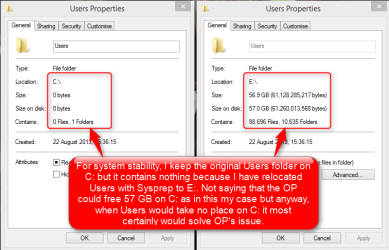
In fact there's a built-in Windows tool that can achieve part of that. You can use Sysprep (Windows System Preparation Tool) to move the Users main profile folder to another drive. This moves all user profile folders including all their subfolders like Documents, Pictures and so on as well as the Temp, AppData and all other folders. The procedure can also be done for an existing Windows installation although it would be better to do it already when installing Windows. Tutorial: http://www.sevenforums.com/tutorial...reate-move-during-windows-7-installation.html

After the move absolutely everything stored to any folder in user profiles will be stored to this new location. Also all future user profiles will automatically be created in the new location X:\Users instead of C:\Users.

However, in this case I would follow Ignatzatsonic's advice and simply remove the D: partition and add that space to C:, assuming both partitions are located on a single disk:

If there is almost nothing on D, why not make it smaller and give that space to C?

Should be pretty easy, maybe with Windows Disk Management, maybe with a tool such as Partition Wizard.

Or eliminate D entirely. What is its purpose?

Tutorials for this procedure:
Kari
 

My Computer My Computer

Computer type
Laptop
Computer Manufacturer/Model Number
HP ENVY 17-1150eg
OS
Windows 10 Pro x64 EN-GB
CPU
1.6 GHz Intel Core i7-720QM Processor
Memory
6 GB
Graphics Card(s)
ATI Mobility Radeon HD 5850 Graphics
Sound Card
Beats sound system with integrated subwoofer
Monitor(s) Displays
17" laptop display, 22" LED and 32" Full HD TV through HDMI
Screen Resolution
1600*900 (1), 1920*1080 (2&3)
Hard Drives
Internal: 2 x 500 GB SATA Hard Disk Drive 7200 rpm
External: 2TB for backups, 3TB USB3 network drive for media
Cooling
As Envy runs a bit warm, I have it on a Cooler Master pad
Keyboard
Logitech diNovo Media Desktop Laser (bluetooth)
Mouse
Logitech Performance Mouse MX
Internet Speed
50/10 Mbps VDSL
Antivirus
Windows Defender 4.3.9431.0
Browser
Maxthon 3.5.2., IE11
If there is almost nothing on D, why not make it smaller and give that space to C?

Should be pretty easy, maybe with Windows Disk Management, maybe with a tool such as Partition Wizard.

Or eliminate D entirely. What is its purpose?
I don't know exactly. I'll have to get back there and check it out in detail. I do know that, in an effort to free up C space, she copied all of her pictures to D and then deleted them from C.

When in WDM should I first right click on the D partition and select shrink volume, followed by right clicking C and selecting extend volume? I assume that once I get everything of importance off D I can simply delete the volume. I don't believe it was listed as a Recovery volume.
 

My Computer My Computer

Computer type
Laptop
OS
Windows 7 home premium 64 bit
CPU
AMD K10
Motherboard
Hewlett-Packard 1444 (Socket S1G4)
Memory
3.00GB Dual-Channel DDR3 @ 532MHz
Graphics Card(s)
ATI AMD M880G with ATI Mobility Radeon HD 4250 (HP)
Sound Card
Realtek
Screen Resolution
1366 x 768
Hard Drives
465GB Western Digital
Antivirus
MSE
When in WDM should I first right click on the D partition and select shrink volume, followed by right clicking C and selecting extend volume? I assume that once I get everything of importance off D I can simply delete the volume. I don't believe it was listed as a Recovery volume.
You don't need to get everything off D if you use the more powerful (free) Partition Wizard. Many people here use PW. See Option 3 of this tutorial:
http://www.sevenforums.com/tutorials/93322-partition-wizard-use-bootable-cd.html

Read my response above. You should not eliminate D.
Also, Sysprep is not applicable to your issue.
 

My Computer My Computer

Computer type
PC/Desktop
Computer Manufacturer/Model Number
Own build
OS
Windows 7x64 Home Premium SP1
CPU
Intel i7 2600k
Motherboard
ASUS P8Z68 Deluxe
Memory
G.Skill Ripjaws (DDR3-1600) 2x4GB
Graphics Card(s)
Nvidia GeForce GTS 450; Intel HD Graphics 3000(GT2+)
Monitor(s) Displays
Dell Ultrasharp IPS panel U2311H, Samsung SyncMaster P2350
Screen Resolution
1920x1080
Hard Drives
Samsung 850 Pro SSD 256GB, Samsung SSD 840 120GB, Seagates 1TB Barracuda ST31000528AS x2
PSU
Seasonic M12II 520W
Case
Lian Li Lancool PC-K60
Cooling
Case: 1x120mm, 3x140mm CPU: Hyper 212+
Keyboard
Logitech MK520 (wireless)
Mouse
Logitech MK520
Internet Speed
6-7 Mbps
Antivirus
Norton Security Premium, Malwarebytes on 2 (MSE on 3rd PC)
Browser
FireFox
Other Info
Audio: Logitech Z523 2.1

My Computer My Computer

Computer type
Laptop
Computer Manufacturer/Model Number
HP ENVY 17-1150eg
OS
Windows 10 Pro x64 EN-GB
CPU
1.6 GHz Intel Core i7-720QM Processor
Memory
6 GB
Graphics Card(s)
ATI Mobility Radeon HD 5850 Graphics
Sound Card
Beats sound system with integrated subwoofer
Monitor(s) Displays
17" laptop display, 22" LED and 32" Full HD TV through HDMI
Screen Resolution
1600*900 (1), 1920*1080 (2&3)
Hard Drives
Internal: 2 x 500 GB SATA Hard Disk Drive 7200 rpm
External: 2TB for backups, 3TB USB3 network drive for media
Cooling
As Envy runs a bit warm, I have it on a Cooler Master pad
Keyboard
Logitech diNovo Media Desktop Laser (bluetooth)
Mouse
Logitech Performance Mouse MX
Internet Speed
50/10 Mbps VDSL
Antivirus
Windows Defender 4.3.9431.0
Browser
Maxthon 3.5.2., IE11
Also, Sysprep is not applicable to your issue.
Could you please enlighten me and tell why?
The OP states:
"when she bought it has a partitioned drive - one is C: and the other D:"
Assuming that is correct all he needs to do is resize C and move data to D.
What are suggesting sysprep can do in this situation?
I did ask the OP for clarification and a disk management screenshot.
If the OP is talking about physical drives then that's a different matter. Even then I'd lean towards a clean install but that's just a personal view.
 

My Computer My Computer

Computer type
PC/Desktop
Computer Manufacturer/Model Number
Own build
OS
Windows 7x64 Home Premium SP1
CPU
Intel i7 2600k
Motherboard
ASUS P8Z68 Deluxe
Memory
G.Skill Ripjaws (DDR3-1600) 2x4GB
Graphics Card(s)
Nvidia GeForce GTS 450; Intel HD Graphics 3000(GT2+)
Monitor(s) Displays
Dell Ultrasharp IPS panel U2311H, Samsung SyncMaster P2350
Screen Resolution
1920x1080
Hard Drives
Samsung 850 Pro SSD 256GB, Samsung SSD 840 120GB, Seagates 1TB Barracuda ST31000528AS x2
PSU
Seasonic M12II 520W
Case
Lian Li Lancool PC-K60
Cooling
Case: 1x120mm, 3x140mm CPU: Hyper 212+
Keyboard
Logitech MK520 (wireless)
Mouse
Logitech MK520
Internet Speed
6-7 Mbps
Antivirus
Norton Security Premium, Malwarebytes on 2 (MSE on 3rd PC)
Browser
FireFox
Other Info
Audio: Logitech Z523 2.1
Also, Sysprep is not applicable to your issue.
Could you please enlighten me and tell why?
Read what the OP wants to do. All he needs to do is resize C and move data to D.

And that's exactly what the sysprep in this case does, moves the Users folder and everything in it (all user profiles with each and every folder and file) to D:, then creates all future user profiles on D:, and in the future stores absolutely everything stored in any user folder, including temp files and appdata to D:, freeing absolutely all space needed for any user data on C:.

I repeat my question, why do you think this is not applicable to OP's issue?

Kari
 

My Computer My Computer

Computer type
Laptop
Computer Manufacturer/Model Number
HP ENVY 17-1150eg
OS
Windows 10 Pro x64 EN-GB
CPU
1.6 GHz Intel Core i7-720QM Processor
Memory
6 GB
Graphics Card(s)
ATI Mobility Radeon HD 5850 Graphics
Sound Card
Beats sound system with integrated subwoofer
Monitor(s) Displays
17" laptop display, 22" LED and 32" Full HD TV through HDMI
Screen Resolution
1600*900 (1), 1920*1080 (2&3)
Hard Drives
Internal: 2 x 500 GB SATA Hard Disk Drive 7200 rpm
External: 2TB for backups, 3TB USB3 network drive for media
Cooling
As Envy runs a bit warm, I have it on a Cooler Master pad
Keyboard
Logitech diNovo Media Desktop Laser (bluetooth)
Mouse
Logitech Performance Mouse MX
Internet Speed
50/10 Mbps VDSL
Antivirus
Windows Defender 4.3.9431.0
Browser
Maxthon 3.5.2., IE11
In addition to my post above:

2014-06-27_01h14_19.png
 

My Computer My Computer

Computer type
Laptop
Computer Manufacturer/Model Number
HP ENVY 17-1150eg
OS
Windows 10 Pro x64 EN-GB
CPU
1.6 GHz Intel Core i7-720QM Processor
Memory
6 GB
Graphics Card(s)
ATI Mobility Radeon HD 5850 Graphics
Sound Card
Beats sound system with integrated subwoofer
Monitor(s) Displays
17" laptop display, 22" LED and 32" Full HD TV through HDMI
Screen Resolution
1600*900 (1), 1920*1080 (2&3)
Hard Drives
Internal: 2 x 500 GB SATA Hard Disk Drive 7200 rpm
External: 2TB for backups, 3TB USB3 network drive for media
Cooling
As Envy runs a bit warm, I have it on a Cooler Master pad
Keyboard
Logitech diNovo Media Desktop Laser (bluetooth)
Mouse
Logitech Performance Mouse MX
Internet Speed
50/10 Mbps VDSL
Antivirus
Windows Defender 4.3.9431.0
Browser
Maxthon 3.5.2., IE11
I was editing my post when you jumped in.
My mistake. They could use your tutorial instead of Brink's tutorial that I linked to.
Does your approach have an impact of imaging C - eg. if program data is moved to D?

In any event if C & D are partitions on a spinner I would increase the size of the C partition.
 

My Computer My Computer

Computer type
PC/Desktop
Computer Manufacturer/Model Number
Own build
OS
Windows 7x64 Home Premium SP1
CPU
Intel i7 2600k
Motherboard
ASUS P8Z68 Deluxe
Memory
G.Skill Ripjaws (DDR3-1600) 2x4GB
Graphics Card(s)
Nvidia GeForce GTS 450; Intel HD Graphics 3000(GT2+)
Monitor(s) Displays
Dell Ultrasharp IPS panel U2311H, Samsung SyncMaster P2350
Screen Resolution
1920x1080
Hard Drives
Samsung 850 Pro SSD 256GB, Samsung SSD 840 120GB, Seagates 1TB Barracuda ST31000528AS x2
PSU
Seasonic M12II 520W
Case
Lian Li Lancool PC-K60
Cooling
Case: 1x120mm, 3x140mm CPU: Hyper 212+
Keyboard
Logitech MK520 (wireless)
Mouse
Logitech MK520
Internet Speed
6-7 Mbps
Antivirus
Norton Security Premium, Malwarebytes on 2 (MSE on 3rd PC)
Browser
FireFox
Other Info
Audio: Logitech Z523 2.1
Does your approach have an impact of imaging C

It has only a positive impact on imaging due the fact that as the main profile folder Users (again repeating this: with absolutely everything stored in any user profile) and maybe the ProgramData too are located outside C:, the system images can be kept smaller because user data is not included in image. For instance Macrium I am using for imaging can be set to only image C: even when one system folder, Users in this case is located on E:.

When the image is then restored, it of course automatically finds the user data on E: (in my case) or any other drive because the registry was included in the image. Less to image, less to restore.

The sysprep method changes the value of respective environment variables so the system is all the time informed about the current location of any user folders or data. For instance if I type to File Explorer's address field the variable for current user's profile folder (%userprofile%) and hit Enter, my system takes me to E:\Users\Kari.

An added bonus, especially when the Users is not only on separate partition on the system disk but totally on another disk is the security: your OS might crash, HD die but your user data remains intact; simply replace the dead disk and restore your small system image and you are ready to go again, user data picked up from another disk.
 

My Computer My Computer

Computer type
Laptop
Computer Manufacturer/Model Number
HP ENVY 17-1150eg
OS
Windows 10 Pro x64 EN-GB
CPU
1.6 GHz Intel Core i7-720QM Processor
Memory
6 GB
Graphics Card(s)
ATI Mobility Radeon HD 5850 Graphics
Sound Card
Beats sound system with integrated subwoofer
Monitor(s) Displays
17" laptop display, 22" LED and 32" Full HD TV through HDMI
Screen Resolution
1600*900 (1), 1920*1080 (2&3)
Hard Drives
Internal: 2 x 500 GB SATA Hard Disk Drive 7200 rpm
External: 2TB for backups, 3TB USB3 network drive for media
Cooling
As Envy runs a bit warm, I have it on a Cooler Master pad
Keyboard
Logitech diNovo Media Desktop Laser (bluetooth)
Mouse
Logitech Performance Mouse MX
Internet Speed
50/10 Mbps VDSL
Antivirus
Windows Defender 4.3.9431.0
Browser
Maxthon 3.5.2., IE11
Ok the OP has a number of options to resolve the issue.
 

My Computer My Computer

Computer type
PC/Desktop
Computer Manufacturer/Model Number
Own build
OS
Windows 7x64 Home Premium SP1
CPU
Intel i7 2600k
Motherboard
ASUS P8Z68 Deluxe
Memory
G.Skill Ripjaws (DDR3-1600) 2x4GB
Graphics Card(s)
Nvidia GeForce GTS 450; Intel HD Graphics 3000(GT2+)
Monitor(s) Displays
Dell Ultrasharp IPS panel U2311H, Samsung SyncMaster P2350
Screen Resolution
1920x1080
Hard Drives
Samsung 850 Pro SSD 256GB, Samsung SSD 840 120GB, Seagates 1TB Barracuda ST31000528AS x2
PSU
Seasonic M12II 520W
Case
Lian Li Lancool PC-K60
Cooling
Case: 1x120mm, 3x140mm CPU: Hyper 212+
Keyboard
Logitech MK520 (wireless)
Mouse
Logitech MK520
Internet Speed
6-7 Mbps
Antivirus
Norton Security Premium, Malwarebytes on 2 (MSE on 3rd PC)
Browser
FireFox
Other Info
Audio: Logitech Z523 2.1
I actually don't know why I'd want to move any data to D. All that really has to be done is to take about 500 GB from D and move it to C. Then she can continue to use the now much bigger C drive as she did before.
 

My Computer My Computer

Computer type
Laptop
OS
Windows 7 home premium 64 bit
CPU
AMD K10
Motherboard
Hewlett-Packard 1444 (Socket S1G4)
Memory
3.00GB Dual-Channel DDR3 @ 532MHz
Graphics Card(s)
ATI AMD M880G with ATI Mobility Radeon HD 4250 (HP)
Sound Card
Realtek
Screen Resolution
1366 x 768
Hard Drives
465GB Western Digital
Antivirus
MSE
I actually don't know why I'd want to move any data to D. All that really has to be done is to take about 500 GB from D and move it to C. Then she can continue to use the now much bigger C drive as she did before.

There are many benefits in keeping the system drive smaller and user data on separate drive. One of the clearest advantages is that it helps keeping system images smaller.

However, the dialog between mjf and me above about if the sysprep method could in this case be used or not needs to be separated from your original post and issue and answers you got. It was simply a typical "This cannot be used - Yes it can" discussion which went a bit off topic.

In my first post in this thread I only mentioned the sysprep method as an response to another member asking if such a tool exist which would easily move the user data to another drive. But, as soon as I had told about that I also told that in this case I agree with the recommendation to simply increase the size of the C: drive.
 

My Computer My Computer

Computer type
Laptop
Computer Manufacturer/Model Number
HP ENVY 17-1150eg
OS
Windows 10 Pro x64 EN-GB
CPU
1.6 GHz Intel Core i7-720QM Processor
Memory
6 GB
Graphics Card(s)
ATI Mobility Radeon HD 5850 Graphics
Sound Card
Beats sound system with integrated subwoofer
Monitor(s) Displays
17" laptop display, 22" LED and 32" Full HD TV through HDMI
Screen Resolution
1600*900 (1), 1920*1080 (2&3)
Hard Drives
Internal: 2 x 500 GB SATA Hard Disk Drive 7200 rpm
External: 2TB for backups, 3TB USB3 network drive for media
Cooling
As Envy runs a bit warm, I have it on a Cooler Master pad
Keyboard
Logitech diNovo Media Desktop Laser (bluetooth)
Mouse
Logitech Performance Mouse MX
Internet Speed
50/10 Mbps VDSL
Antivirus
Windows Defender 4.3.9431.0
Browser
Maxthon 3.5.2., IE11
move the "my documents folder (Path) to a location on "D"

create a folder on "D" call it my docs or what ever you want.
go to c:\my documents right click on my documents click properties/ click location /click move and direct the move to D"\mydocs all future save of files will go to d:\mydocs

change the downloads folder in the firefox web browser to D:\downloads (create the folder first)
all other downloads direct to the folder on "D"

60gig is ok for system and programs installed .when done defrag the drive don't defrag ssd drive if is installed, not needed.

remember to delete Temp folder items on a daily basis
 
Last edited:

My Computer My Computer

OS
Windows 7 Ultimate 32bit
Okay.... I've finally gotten a chance to revisit my friend and this issue.
I suppose I should have grabbed some screenshots while I was there and emailed them to myself, but hindsight, etc...

At her house I right-clicked Computer, left-clicked Manage, left-clicked Disk Management. I then right-clicked on the D: partition (the 570GB drive), and selected Shrink Volume. Just to see if it worked, I shrunk it by 10GB. I then right-clicked on the C: partition, but found the option to Extend Volume was greyed out.

I have an old Partition Wizard disk. Is this now my best bet, or is there something I'm doing wrong that keeps me from extending the size of the C: partition?
 

My Computer My Computer

Computer type
Laptop
OS
Windows 7 home premium 64 bit
CPU
AMD K10
Motherboard
Hewlett-Packard 1444 (Socket S1G4)
Memory
3.00GB Dual-Channel DDR3 @ 532MHz
Graphics Card(s)
ATI AMD M880G with ATI Mobility Radeon HD 4250 (HP)
Sound Card
Realtek
Screen Resolution
1366 x 768
Hard Drives
465GB Western Digital
Antivirus
MSE
You should be able to extend with Windows Disk Management IF AND ONLY IF you have some free space immediately adjacent (to the right) of the partition to be extended, as viewed in Windows Disk Management.

Without seeing screen shots, I'd assume that was NOT the case in your situation.

In which case, you can use Partition Wizard, which does not have that "immediately adjacent to the right" limitation.
 

My Computer My Computer

Computer type
PC/Desktop
Computer Manufacturer/Model Number
Ignatz Special; 4 speed manual gearbox; factory air conditioning; one of one
OS
Windows 7 Home Premium SP1, 64-bit
CPU
Intel Skylake i5-6600K, not overclocked
Motherboard
AsRock Z170M Extreme 4, micro ATX
Memory
8 GB HyperX DDR4-2666 (2 x 4 GB)
Graphics Card(s)
none; graphics are integrated on CPU
Sound Card
onboard: Realtek ALC1150; external: USB Behringer UF0-202
Monitor(s) Displays
Dell S2340M 23 inch IPS
Screen Resolution
1600 x 900
Hard Drives
System: Crucial MX100 series SSD, 128 GB;
Data: Samsung Spinpoint 103SJ, 1 TB;
Backup: WD Caviar Green WD30EZRX-00D8PB0, 3 TB
PSU
Rosewill SilentNight 500 watt fanless, semi-modular
Case
Antec Solo II
Cooling
Noctua NH-U12S; Noctua F12 intake, Noctua S12A exhaust
Keyboard
Microsoft 200 6JH-00001 USB
Mouse
Dell or Microsoft optical wired; USB
Antivirus
Microsoft Security Essentials and Malwarebytes Premium
Browser
Pale Moon
Other Info
All fans PWM; speeds at idle: CPU circa 500 rpm; intake circa 600 rpm; exhaust circa 600 rpm; CPU temps 27 idle and 47 C load in a warm room (27 C/81 F) when running Intel Extreme Tuning Utility stress test.
You should be able to extend with Windows Disk Management IF AND ONLY IF you have some free space immediately adjacent (to the right) of the partition to be extended, as viewed in Windows Disk Management.

Without seeing screen shots, I'd assume that was NOT the case in your situation.

In which case, you can use Partition Wizard, which does not have that "immediately adjacent to the right" limitation.
The Disk Management layout was (from left to right)
  • unpartitioned space
  • the C: partition
  • the D: partition
As I said, I first shrunk the D: drive, which was the furthest to the right in DM. After the shrinking was complete I right clicked on the partition immediately to the left of D:, which was labeled C:. Right-clicking showed the Extend option to be greyed out. It would certainly seem that the proper protocols were followed.

Given that, I suppose I have to see if I can find that old PW CD.
 

My Computer My Computer

Computer type
Laptop
OS
Windows 7 home premium 64 bit
CPU
AMD K10
Motherboard
Hewlett-Packard 1444 (Socket S1G4)
Memory
3.00GB Dual-Channel DDR3 @ 532MHz
Graphics Card(s)
ATI AMD M880G with ATI Mobility Radeon HD 4250 (HP)
Sound Card
Realtek
Screen Resolution
1366 x 768
Hard Drives
465GB Western Digital
Antivirus
MSE
Back
Top