Keyboard + mouse not functioning past BIOS following CPU+MB upgrade

Upgrade Help

New member
Local time
8:12 AM
Messages
8
This is NOT the usual problem encountered with an upgrade. I've read previous posts regarding similar (but not identical) issues; this one, for example. My problem is just different enough I felt it warranted it's own post.

BACKGROUND

Upgraded from a previous custom computer built in 2010 following progressively creeping failures. Bit the bullet, ponied up the money, and upgraded the CPU, motherboard, RAM, and power supply (detailed specs at the bottom of post).

Kept the existing GPU as well as the SSD as it has legacy software that I still use regularly but have no way of replacing were the SSD to be reformatted. A clean install of Windows 7, wiping the drive, is NOT an option.

PROBLEM

Successfully installed all hardware. I am able to power on the computer and it POSTs. When it gets to the point where Windows starts to load, it goes to a black and white screen where the options are "Startup Repair" or "Start Windows normally".

If I choose "Start Windows Normally", it attempts to load Windows but then crashes to a BSOD for a split second before going black. I was able to capture the BSOD error message by recording it with my cell phone. If it's felt it's of use, I can type out the message in full. Just let me know.

If I choose "Startup Repair" it loads to the appropriate screen and remains stable. Unfortunately, at this point all input from both the mouse and keyboard is ignored. There is no way to move beyond the initial "Startup Repair" screen at this point. Shortly I will cover in detail what I've already attempted to do to fix the issue (pretty much what all the other posts I've read have suggested; but there's a twist).

I've also attempted to boot from the DVD drive using my original Windows 7 Professional 64-bit disk. I get the same result as "Startup Repair"; as soon as the very first screen appears asking what language to use for the install, it stops accepting input from the mouse and keyboard.

ATTEMPTED SOLUTIONS

The motherboard has two USB 2.0 ports on the rear along with four USB 3.2 Gen 1 and one USB 3.2 Gen 2 ports. The case has two USB ports on the front. It's a Cooler Master case from 2010; I don't know what version of USB but I assume USB 2.0.

Here's where my problem differs from the others I've read about in the other posts. Unlike those other posters where their new motherboard had only USB version 3.x ports, mine actually does have the two USB 2.0 ports on the rear (and likely the front, too). So my problem is NOT that the ports have no driver support from Windows 7 (at least as far as I understand it from reading those other posts stating Windows 7 supports USB 2.0). So it would stand to reason the two USB 2.0 ports on the rear shouldn't have any problem accepting input from the USB mouse and keyboard I've plugged into them. And, yes, the mouse and keyboard do work as evidenced by the ability to navigate my BIOS menu using them.

Yet here I sit unable to use the mouse and keyboard once arriving at any Windows screen. Just to rule out all possibilities, I've plugged the mouse and keyboard into every USB port in every combination possible in conjunction with attempting to boot from the Windows 7 disk as well as the "System Repair" and "Start Windows Normally" options mentioned previously. I've even unplugged/re-plugged them in while at the Windows 7 Install / System Repair screens as some of the posts suggested as a fix; still nothing.

I could revert to my old hardware setup if I have to as a worst-case scenario / last-ditch effort to make changes to my current Windows 7 install - such as installing some additional drivers or whatever - before making another attempt at getting the new hardware setup to work. However, I would prefer to avoid that scenario if possible.

As mentioned previously, though, what is NOT an option is wiping the SDD and starting over from scratch with a new/clean install of Windows 7. I don't have any other HDD, SDD, or other media on which to backup my data. Yes, yes, bad practice; but also water under the bridge in that being chastised about it doesn't get me any closer to a solution to the current problem.

In those other posts, I've read suggestions to use Paragon Adaptive Restore 2010 to fix similar issues. Would that apply to the trouble I'm experiencing? I have a family member with a computer on which I could download and burn to DVD the Paragon Adaptive Restore 2010 app if necessary.

BIOS SETTINGS (I've included those which seem pertinent to this issue)

Boot Option Priorities:
Boot Priority #1 = Pioneer BD-RW optical drive
Boot Priority #2 = WDC WDS100T2BOA-OOSM50 SDD

Boot Configuration:
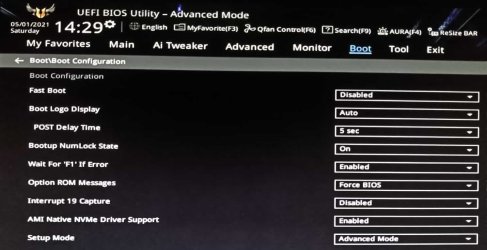
Fast Boot = Disabled
Boot NumLock State = On

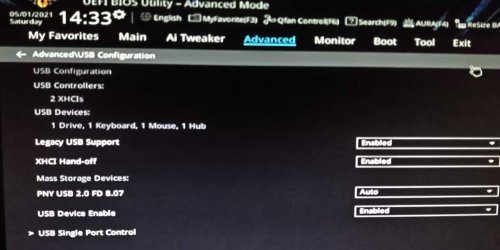
USB Configuration:
USB Device Enable = Enabled
Legacy USB Support = Enabled
XHCI Hand-off = Enabled

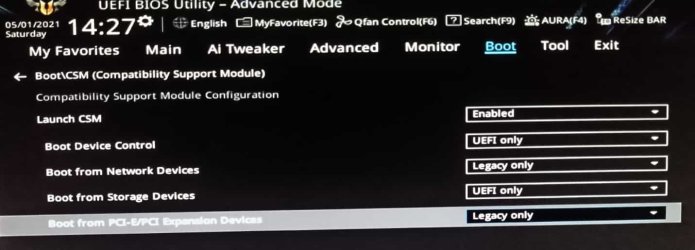
CSM (Compatibility Support Module):
Launch CSM = Enabled
Boot Device Control = UEFI and Legacy OPROM

Secure Boot:
OS Type = Other OS (only other choice is "Windows UEFI Mode")

SYSTEM SPECS (Legacy hardware noted where applicable)

OS = Windows 7 Professional 64-bit (already installed on current SDD)

CPU = AMD Ryzen 7 3700X

GPU = ATI Diamond Radeon HD 5850 (Legacy from 2010)

Motherboard = ASUS TUF Gaming B550-Plus, Version: 1202

SSD = Western Digital Blue 3D NAND 1TB Internal SSD - WDS100T2B0A (Legacy from 2018; Windows 7 Professional 64-bit SPK1 already installed)

RAM = Corsair Vengeance LPX 16GB (2x8GB) DDR4 DRAM 3200MHz C16 Desktop Memory Kit

Power Supply = ASUS TUF Gaming 750W Bronze PSU

Mouse and Keyboard = Cheap USB-cable mouse and keyboard backups reserved for just this type of situation (they worked when I helped a family member through a Windows 10 install when their own wireless mouse and keyboard weren't being recognized). Up until now I've used a wireless Logitech mouse and wireless Microsoft keyboard, but they weren't working for my own hardware upgrade; so I reverted to the cheap, direct-connect backups (which aren't working, either).


Thank you in advance for any assistance anyone can offer. I've been a week now without access to my computer trying to resolve this issue without success. Hopefully someone out there has a solution.
 

My Computer

Computer type
PC/Desktop
Computer Manufacturer/Model Number
Custom Build
OS
Windows 7 Professional 64-bit
CPU
AMD Ryzen 7 3700X
Motherboard
ASUS TUF Gaming B550-PLUS AMD AM4
Memory
Corsair Vengeance LPX 16GB (2x8GB) DDR4 DRAM 3200MHz
Graphics Card(s)
Diamond ATI Radeon HD 5850
Hard Drives
Western Digital Blue 3D NAND 1TB Internal SSD - WDS100T2B0A
PSU
ASUS TUF Gaming 750W Bronze PSU
Antivirus
Kaspersky
Browser
Mozilla Firefox 64-bit
Welcome to the Forum.

New hardware requires drivers that are not on a Win 7 installation drive or on a installed Windows 7.

You can add the drivers to the Win 7 installation files and do a clean install, but as you wrote, clean install of Windows 7, wiping the drive, is NOT an option.

I don't know if you can add the drivers to an existing installation.
Only option I know is to install the SSD back on the old computer and downgrade to Win 10. Once Win 7 has been downgraded to win 10 and is running OK, transfer the SSD to the new hardware.
 

My Computers

System One System Two

  • Computer type
    PC/Desktop
    Computer Manufacturer/Model Number
    custom build
    OS
    Windows 7 HP 64
    CPU
    i5 6600K - 800MHz to 4200MHz
    Motherboard
    GA-Z170-HD3P
    Memory
    4+4G GSkill DDR4 3000
    Graphics Card(s)
    IG - Intel 530
    Monitor(s) Displays
    Samsung 226BW
    Screen Resolution
    1680x1050
    Hard Drives
    (1) -1 SM951 – 128GB M.2 AHCI PCIe SSD drive for Windows 7 and Lubuntu
    (2) -1 WD SATA 3 - 1T for Data
    (3) -1 WD SATA 3 - 1T for backup
    PSU
    Thermaltake 450W TR2 gold
    Keyboard
    Old and good Chicony mechanical keyboard
    Mouse
    Logitech mX performance - 9 buttons (had to disable some)
    Internet Speed
    500Mb/s
    Browser
    Firefox 64
    Other Info
    TinyWall firewall
  • Computer type
    Laptop
    System Manufacturer/Model Number
    Asus Q550LF
    OS
    Windows 7 Pro
    CPU
    i7-4500U 800MHz to 3.0GHz
    Motherboard
    Asus Q550LF
    Memory
    (4+4)G DDR3 1600
    Graphics Card(s)
    IG intel 4400 + NVIDIA GeForce GT 745M
    Sound Card
    Realtek
    Monitor(s) Displays
    LG Display LP156WF4-SPH1
    Screen Resolution
    1920 x 1080
    Hard Drives
    BX500 120G SSD for Windows and programs +
    1T HDD for data
    Internet Speed
    500 Mb/s
    Browser
    Firefox
    Other Info
    TinyWall firewall
I don't know if you can add the drivers to an existing installation.

Use dism++ from another os / booted winpe and point it at the target installation. Very easy
 

My Computers

System One System Two

  • Computer type
    PC/Desktop
    OS
    7 X64
    CPU
    i5 8400
    Motherboard
    gigabyte b365m ds3h
    Memory
    2x8gb 3200mhz
    Hard Drives
    various
    PSU
    pure power 11 400w cm
    Case
    Coolermaster
    Cooling
    cryorig m9i
  • Computer type
    PC/Desktop
    OS
    7x64
    CPU
    g5400
    Motherboard
    ga b365m ds3h
    Memory
    8gb ddr4 2400
    PSU
    xfx pro 450w

My Computers

System One System Two

  • Computer type
    PC/Desktop
    OS
    7 X64
    CPU
    i5 8400
    Motherboard
    gigabyte b365m ds3h
    Memory
    2x8gb 3200mhz
    Hard Drives
    various
    PSU
    pure power 11 400w cm
    Case
    Coolermaster
    Cooling
    cryorig m9i
  • Computer type
    PC/Desktop
    OS
    7x64
    CPU
    g5400
    Motherboard
    ga b365m ds3h
    Memory
    8gb ddr4 2400
    PSU
    xfx pro 450w
Adjust to new hardware module is available in O&O diskimage 16 - special deal only $10
O&O Software - OnlineShop

Itis also available in O&O diskimage 14 - Free give away

O&O diskimage Pro v14 is now available free

Registration for your FREE license of O&O DiskImage 14

they will send an email , click the link and they send another email with your free license.

download pro v14 program here
Download Archive

NOTE - you need to use win10 pe to create the O&O boot media for new hardware
 
Last edited:

My Computers

System One System Two

  • Computer type
    PC/Desktop
    OS
    7 X64
    CPU
    i5 8400
    Motherboard
    gigabyte b365m ds3h
    Memory
    2x8gb 3200mhz
    Hard Drives
    various
    PSU
    pure power 11 400w cm
    Case
    Coolermaster
    Cooling
    cryorig m9i
  • Computer type
    PC/Desktop
    OS
    7x64
    CPU
    g5400
    Motherboard
    ga b365m ds3h
    Memory
    8gb ddr4 2400
    PSU
    xfx pro 450w
SIW2 gave you a link to download one of his marvelous tools.
Download and extract the iso to a FAT32 USB drive. Boot it as UEFI.
Run Dism++ and add the drivers to the current installation.
 

My Computers

System One System Two

  • Computer type
    PC/Desktop
    Computer Manufacturer/Model Number
    custom build
    OS
    Windows 7 HP 64
    CPU
    i5 6600K - 800MHz to 4200MHz
    Motherboard
    GA-Z170-HD3P
    Memory
    4+4G GSkill DDR4 3000
    Graphics Card(s)
    IG - Intel 530
    Monitor(s) Displays
    Samsung 226BW
    Screen Resolution
    1680x1050
    Hard Drives
    (1) -1 SM951 – 128GB M.2 AHCI PCIe SSD drive for Windows 7 and Lubuntu
    (2) -1 WD SATA 3 - 1T for Data
    (3) -1 WD SATA 3 - 1T for backup
    PSU
    Thermaltake 450W TR2 gold
    Keyboard
    Old and good Chicony mechanical keyboard
    Mouse
    Logitech mX performance - 9 buttons (had to disable some)
    Internet Speed
    500Mb/s
    Browser
    Firefox 64
    Other Info
    TinyWall firewall
  • Computer type
    Laptop
    System Manufacturer/Model Number
    Asus Q550LF
    OS
    Windows 7 Pro
    CPU
    i7-4500U 800MHz to 3.0GHz
    Motherboard
    Asus Q550LF
    Memory
    (4+4)G DDR3 1600
    Graphics Card(s)
    IG intel 4400 + NVIDIA GeForce GT 745M
    Sound Card
    Realtek
    Monitor(s) Displays
    LG Display LP156WF4-SPH1
    Screen Resolution
    1920 x 1080
    Hard Drives
    BX500 120G SSD for Windows and programs +
    1T HDD for data
    Internet Speed
    500 Mb/s
    Browser
    Firefox
    Other Info
    TinyWall firewall
Little cheat to create O&O boot media from win7

Rename your win7 winre.wim , and copy win10 winre.wim into the win 7 recovery folder, like this:

Capture.PNG

OR copy boot.wim from 1904v2.iso into the recovery folder and rename it winre.wim
 
Last edited:

My Computers

System One System Two

  • Computer type
    PC/Desktop
    OS
    7 X64
    CPU
    i5 8400
    Motherboard
    gigabyte b365m ds3h
    Memory
    2x8gb 3200mhz
    Hard Drives
    various
    PSU
    pure power 11 400w cm
    Case
    Coolermaster
    Cooling
    cryorig m9i
  • Computer type
    PC/Desktop
    OS
    7x64
    CPU
    g5400
    Motherboard
    ga b365m ds3h
    Memory
    8gb ddr4 2400
    PSU
    xfx pro 450w
SIW2 and Megahertz07,

Thank you both for responding and providing assistance. It's nearly 3AM my time and I only just now was able to get access to a family member's computer to start this process. I'm too tired to continue and don't want to risk making a mess of things due to exhaustion, so I'll give it a try after I get some sleep. Here's what I've done so far, though.

1. I've downloaded 1904v2.iso.

2. I've used Rufus to burn it to a USB flash drive and make it bootable (UEFI).

SIW2 stated:

1. Run adjust to new hardware module from booted media

Once I boot from the USB flash drive will there be a GUI from which I choose the "adjust to new hardware" module or is this something that has to be run from a command line?


From that forum post there are two options:

"Pure drivers for mainboards and CPUs:https://yadi.sk/d/lRgibYiEAgHFeg"

"Pure drivers for Ryzen APU Video driver 20.11.3 with CCC:https://yadi.sk/d/nGSr7yaUyAeMFg"

Do I download both driver packages? Once downloaded, do I then extract and copy those driver files to my USB flash drive? In the 1904v2.iso directory I see a sub-folder labeled "Uprograms > Drivers"; is that where I need to copy the driver files? Then I just point DISM++ to that sub-folder to add the drivers to my current Windows 7 install?

Do I need to install everything contained in those folders or just the USB Controller drivers to get my mouse and keyboard working again once windows starts to load?

The post also cautions:

"Before you use the new diriver, use DDU to uninstall the old one."

I've downloaded DDU. However, it appears it needs to be run from within Windows; preferably in Safe Mode according to its documentation. As I can't get into Windows at present, I don't see how I can uninstall my old driver before installing the new one(s). Or is it a step-wise approach:

1. First boot from the USB flash drive.

2. Get the USB Controller drivers installed first so my mouse and keyboard work in Windows again.

3. Enter Windows Safe Mode.

4. Install DDU.

5. Use DDU to uninstall old video drivers.

6. Then install the new video drivers from the download package.

Sorry for all the questions. It just appears to be a cascade of dependencies which - if not followed in the correct order - won't resolve my issue or may even make things worse. I just want to make sure I get it right.
 

My Computer

Computer type
PC/Desktop
Computer Manufacturer/Model Number
Custom Build
OS
Windows 7 Professional 64-bit
CPU
AMD Ryzen 7 3700X
Motherboard
ASUS TUF Gaming B550-PLUS AMD AM4
Memory
Corsair Vengeance LPX 16GB (2x8GB) DDR4 DRAM 3200MHz
Graphics Card(s)
Diamond ATI Radeon HD 5850
Hard Drives
Western Digital Blue 3D NAND 1TB Internal SSD - WDS100T2B0A
PSU
ASUS TUF Gaming 750W Bronze PSU
Antivirus
Kaspersky
Browser
Mozilla Firefox 64-bit
one assumes you have made a backup image of your os already. If not it is probably a good idea to do so now.

You will have to create the O&O boot media separarately for adjust to new hardware feature. Boot the O&O media and use the adjust to new hardware feature.

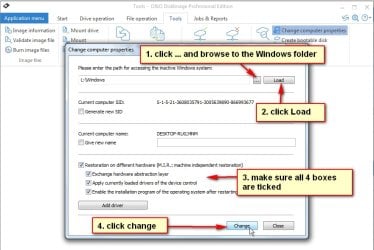
In the O&O gui click Tools > change computer properties

O&Oadjust.jpg


Then boot 1904v2 and use dism++ to integrate the drivers.
 
Last edited:

My Computers

System One System Two

  • Computer type
    PC/Desktop
    OS
    7 X64
    CPU
    i5 8400
    Motherboard
    gigabyte b365m ds3h
    Memory
    2x8gb 3200mhz
    Hard Drives
    various
    PSU
    pure power 11 400w cm
    Case
    Coolermaster
    Cooling
    cryorig m9i
  • Computer type
    PC/Desktop
    OS
    7x64
    CPU
    g5400
    Motherboard
    ga b365m ds3h
    Memory
    8gb ddr4 2400
    PSU
    xfx pro 450w
Do I download both driver packages? Once downloaded, do I then extract and copy those driver files to my USB flash drive?

YES


In the 1904v2.iso directory I see a sub-folder labeled "Uprograms > Drivers"; is that where I need to copy the driver files?

You can put them there if you like. They can be anywhere that can be seen from the booted media.


Then I just point DISM++ to that sub-folder to add the drivers to my current Windows 7 install?

Yes that is the idea.

In dism++ select the target os by clicking it in the top pane to highlight it in blue.
Then click open session.
Then click Drivers in the left pane.
Then click the ADD button at bottom right and browse to the FOLDER containing the extracted drivers

Do I need to install everything contained in those folders or just the USB Controller drivers to get my mouse and keyboard working again once windows starts to load?

I would put them all in, it is why canonkong provides them
 
Last edited:

My Computers

System One System Two

  • Computer type
    PC/Desktop
    OS
    7 X64
    CPU
    i5 8400
    Motherboard
    gigabyte b365m ds3h
    Memory
    2x8gb 3200mhz
    Hard Drives
    various
    PSU
    pure power 11 400w cm
    Case
    Coolermaster
    Cooling
    cryorig m9i
  • Computer type
    PC/Desktop
    OS
    7x64
    CPU
    g5400
    Motherboard
    ga b365m ds3h
    Memory
    8gb ddr4 2400
    PSU
    xfx pro 450w
As an alternative to using boot media to run the tools, another possibilty is to d/l a copy of win10 x64.

Create another partition on your sdd and install win10 onto that. Hopefully you will be able to boot into that win10 installation and use O&O and dism++ fix your win7 from there. That assumes you have enough space on your ssd. Or install win10 onto a separate internal disk.

In addition, Canonkong recommends gigabyte or msi 5xx mobo for win7. Apparently the asus mobos can work with win7 if they have the correct bios.

canonkong:
500 series mainboards must update the latest bios(above AGESA ComboV2 1.0.8.1)

Looks like 1202 is new enough

Version 1202
2020/10/28 19.58 MBytes

TUF GAMING B550-PLUS BIOS 1202
"1. Updated AMD AM4 AGESA V2 PI 1.1.0.0 Patch B
2. Improve system performance and stability
3. Improved DRAM compatibility

TUF GAMING B550-PLUS|Motherboards|ASUS Global
 
Last edited:

My Computers

System One System Two

  • Computer type
    PC/Desktop
    OS
    7 X64
    CPU
    i5 8400
    Motherboard
    gigabyte b365m ds3h
    Memory
    2x8gb 3200mhz
    Hard Drives
    various
    PSU
    pure power 11 400w cm
    Case
    Coolermaster
    Cooling
    cryorig m9i
  • Computer type
    PC/Desktop
    OS
    7x64
    CPU
    g5400
    Motherboard
    ga b365m ds3h
    Memory
    8gb ddr4 2400
    PSU
    xfx pro 450w
In summary:

1. Because you have asus 5xx mobo it needs bios above 1.0.8.1 - you seem to have that

2. Win 7 needs the two sets of drivers from canonkong, which can be installed using dism++

3. Because you have moved an existing win7 install to a mobo 10 years more recent, it is recommended to use an adjust to new hardware module. There are several around, but as far as I know, the only one available free that will work for your setup seems to be in O&O diskimage pro v14 - on free giveaway .

Or you could try the trial version of O&O diskimage pro v16, which seems to be fully functional for 30 days, though I havent tested to see if the "change computer properties" works in the trial version.


You could do the above using boot media, or you could install win10 onto the machine ( it runs ok without activation) and do it from within win10 by pointing O&O and dism++ at the win 7 installation.
 

My Computers

System One System Two

  • Computer type
    PC/Desktop
    OS
    7 X64
    CPU
    i5 8400
    Motherboard
    gigabyte b365m ds3h
    Memory
    2x8gb 3200mhz
    Hard Drives
    various
    PSU
    pure power 11 400w cm
    Case
    Coolermaster
    Cooling
    cryorig m9i
  • Computer type
    PC/Desktop
    OS
    7x64
    CPU
    g5400
    Motherboard
    ga b365m ds3h
    Memory
    8gb ddr4 2400
    PSU
    xfx pro 450w
WARNING: The following will be a VERY long post as I exhaustively enumerate every step I've taken in my attempt to follow the advice provided by SIW2 and Megahertz07 to resolve my issue.

Preparatory Steps

1. To regain access to my Windows 7 operating system, I removed my SSD from my new hardware configuration and connected it to my old hardware. System booted up without issue and everything worked as it always has for the past 10 years.

2. I updated my ASUS TUF gaming B550-Plus motherboard's BIOS with the latest stable, non-beta version: AGESA V2 PI 1.2.0.1 Patch A (BIOS 2006). Actually I had already updated it previously; but I list it here in the interest of full transparency.

3. As detailed in my previous post, I've downloaded 1904v2.iso and - using Rufus - burned it to a FAT32 USB flash drive and made it bootable.

4. I've downloaded the driver patch files from Canonkong's post, extracted them, and copied them to the Uprograms > Drivers sub-folder of the 1904v2.iso directory of my USB flash drive.

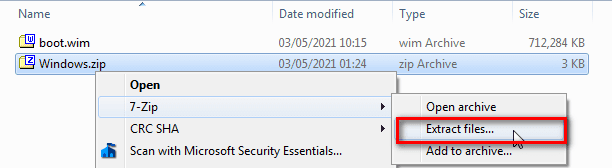
5. Following SIW2's advice I've "...copy(ied) boot.wim from 1904v2.iso into the recovery folder and rename it winre.wim."

6. I've registered for my free O&O DiskImage 14 Professional license.

7. I've downloaded and installed O&O DiskImage 14 Professional on the SSD drive I'm attempting to make compatible with my new hardware, activating it with the free license I received.

8. Using O&O DiskImage 14 Professional I've made a backup image of my OS.

9. I then used O&O DiskImage 14 Professional to create a boot medium on a second FAT32 USB flash drive.

10. I then removed my SSD from my old hardware configuration and re-installed it to my new computer.

Steps Attempted to Boot the O&O DiskImage 14 Professional from the USB Flash Drive

I spent 8 hours yesterday adjusting, iterating, and testing BIOS settings in an attempt to get the USB flash drive to boot or otherwise get my SSD drive to boot under the new hardware configuration. I will not detail every combination of settings attempted. Rather, I will detail those which produced a result (whether positive or negative) while leaving out the redundancies.

NOTE: All "screenshots" are actually photos taken with a cellphone as I had no means of screenshotting my BIOS screens with an inoperable operating system. I did my best to make them clear enough to read. Apologies in advance for the poor quality.

Settings Universal to All Attempts

universal_boot_configuration_01.jpg

universal_boot_configuration_02.jpg

Scenario 1

Megahertz07 had advised to boot the USB flash drive as UEFI. My initial attempts focused on attempting to do just this.

1. In "BIOS > Boot > CSM (Compatibility Support Module) > Boot Device Control", I set it to "UEFI only".

2. In "BIOS > Boot > CSM (Compatibility Support Module) > Boot from Storage Devices", I set it to "UEFI only".

uefi_only_all.jpg

3. In "BIOS > Boot > Boot Option Priorities > Boot Option #1" I selected my USB flash drive inserted into a USB 2.0 port of the motherboard. In this scenario I chose the UEFI option but neglected to take a screenshot of it; I've inserted the text "UEFI" to the beginning of the option as it would have appeared in the drop down menu selection. To remove all variables, I disabled all other boot options.

uefi_boot_option_01.jpg

4. After saving these settings and exiting BIOS, the computer reset. It went through POST but then stopped at the ASUS logo display screen, failing to boot the USB drive. This screen could only be exited through a Power Off, Reset, or CTRL+ALT+DELETE.

asus_logo_01.jpg

5. Scenario 1 = FAIL

Scenario 2

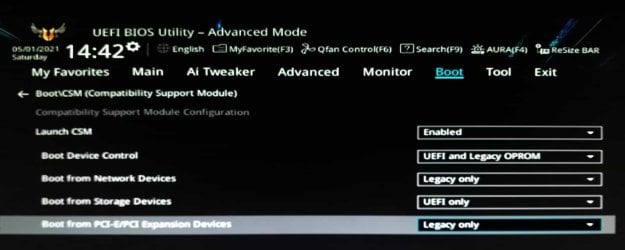
1. In "BIOS > Boot > CSM (Compatibility Support Module) > Boot Device Control", I set it to "UEFI and Legacy OPROM".

2. In "BIOS > Boot > CSM (Compatibility Support Module) > Boot from Storage Devices", I set it to "UEFI only".

uefi_legacy_oprom_01.jpg

3. In "BIOS > Boot > Boot Option Priorities > Boot Option #1" I selected my USB flash drive inserted into a USB 2.0 port of the motherboard. In this scenario I chose the UEFI option but neglected to take a screenshot of it; I've inserted the text "UEFI" to the beginning of the option as it would have appeared in the drop down menu selection. To remove all variables, I disabled all other boot options.

uefi_boot_option_01.jpg

4. After saving these settings and exiting BIOS, the computer reset. It went through POST but then stopped at the ASUS logo display screen, failing to boot the USB drive. This screen could only be exited through a Power Off, Reset, or CTRL+ALT+DELETE.

asus_logo_01.jpg

5. Scenario 2 = FAIL

Scenario 3

1. In "BIOS > Boot > CSM (Compatibility Support Module) > Boot Device Control", I set it to "UEFI and Legacy OPROM".

2. In "BIOS > Boot > CSM (Compatibility Support Module) > Boot from Storage Devices", I set it to "Legacy only".

uefi_legacy_oprom_02.jpg

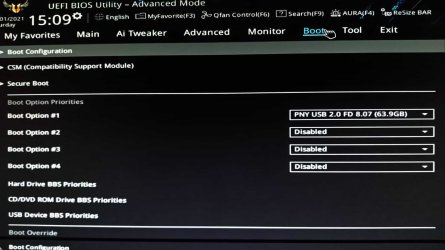
3. In "BIOS > Boot > Boot Option Priorities > Boot Option #1" I selected my USB flash drive inserted into a USB 2.0 port of the motherboard. As "Boot from Storage Devices" is set to "Legacy only" per #2 above, there is no option for choosing UEFI for the USB flash drive this time. Thus, it's simply "PNY USB 2.0 FD 8.07 (63.9GB)". To remove all variables, I disabled all other boot options.

non-uefi_boot_option_01.jpg

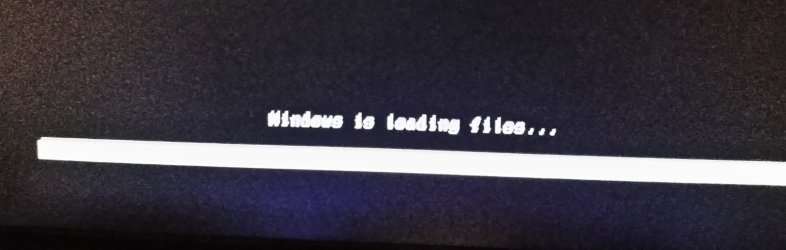
4. On saving the BIOS settings and exiting, the USB flash drive boots, starting with a black and white screen with the text "Windows is loading files..." accompanied by a bar at the bottom of the screen measuring the progress.

windows_loading_files_01.jpg

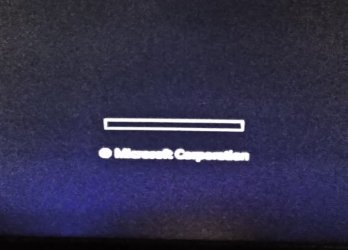
5. A few seconds later the screen refreshes. A bar appears with a green tracking puck and the text "Microsoft Corporation" below it.

microsoft_corp.jpg

6. The screen refreshes again, next displaying the O&O DiskImage 14 Professional splash screen.

o&o_splash_screen_01.jpg

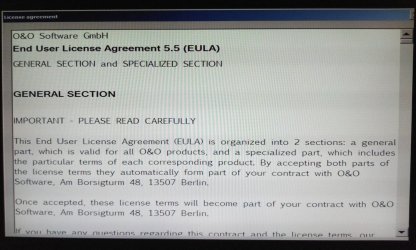
7. After a few seconds this is replaced with the O&O DiskImage 14 Professional End User License Agreement dialog box. Unfortunately, I experience the same problem which initiated this post to begin with; my mouse and keyboard become unresponsive. The computer accepts no input from either and I'm forced to either press the reset button or power off / power back on to exit this screen.

eula_01.jpg

8. Scenario 3 = USB Flash Drive boots but computer fails to accept mouse and keyboard input. Unable to move past the O&O DiskImage 14 Professional EULA dialog box.

Scenario 4

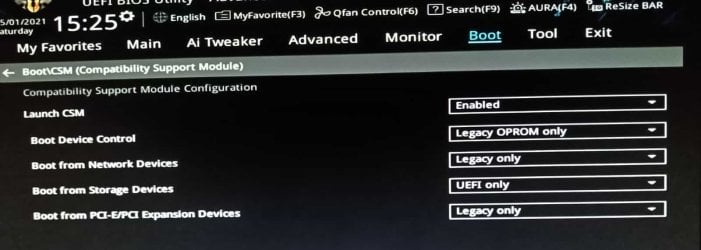
1. In "BIOS > Boot > CSM (Compatibility Support Module) > Boot Device Control", I set it to "Legacy OPROM only".

2. In "BIOS > Boot > CSM (Compatibility Support Module) > Boot from Storage Devices", I set it to "UEFI only".

legacy_oprom_only_01.jpg

3. In "BIOS > Boot > Boot Option Priorities > Boot Option #1" I selected my USB flash drive inserted into a USB 2.0 port of the motherboard. As "Boot Device Control" is set to "Legacy OPROM only" per #1 above, there is no option for choosing UEFI for the USB flash drive this time. Thus, it's simply "PNY USB 2.0 FD 8.07 (63.9GB)". To remove all variables, I disabled all other boot options.

non-uefi_boot_option_01.jpg

4. Scenario 4 = Results are the same as Scenario 3. The computer attempts to boot from the USB flash drive, gets through the O&O DiskImage 14 Professional splash screen, and then freezes on the EULA dialog box where it refuses to accept any input from mouse or keyboard.

Scenario 5

1. In "BIOS > Boot > CSM (Compatibility Support Module) > Boot Device Control", I set it to "UEFI and Legacy OPROM".

2. In "BIOS > Boot > CSM (Compatibility Support Module) > Boot from Storage Devices", I set it to "Legacy only".

uefi_legacy_oprom_02.jpg

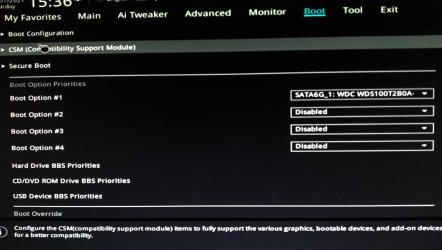
3. In "BIOS > Boot > Boot Option Priorities > Boot Option #1" I selected my SATA Western Digital SSD this time. To remove all variables, I disabled all other boot options.

sata_01.jpg

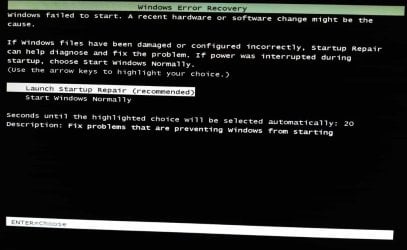
4. On saving the BIOS settings and exiting, the SATA SSD boots. A "Windows Error Recovery" window appears. I choose "Launch Startup Repair (recommended)".

windows_error_recovery_01.jpg

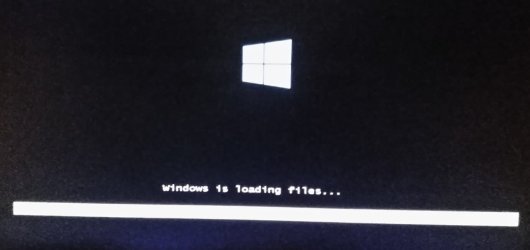
5. After making the choice in #4, a screen appears displaying a light blue Windows logo followed by the text "Windows is loading files..." and a bar at the bottom of the screen measuring loading progress.

windows_loading_files_02.jpg

6. After a few moments this is replaced by Windows loading a Safe Mode / Repair Mode. Of special note is my mouse and keyboard work in this mode. At least that's some small progress.

windows_repair_mode_01.jpg

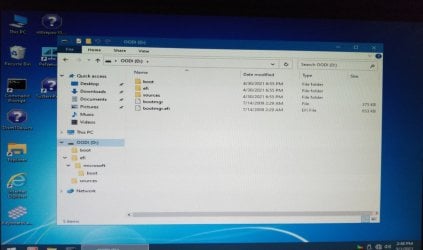
7. I navigate to the USB flash drive on which I created the boot media for O&O DiskImage 14 Professional. Of special note is the GUI of Windows 7 has been replaced by a Windows 10 GUI. My assumption is this is the result of "...copying boot.wim from 1904v2.iso into the recovery folder and rename it winre.wim" way back in Preparatory Step #5 at the beginning of this post. So at least that worked :)

windows_repair_mode_02.jpg

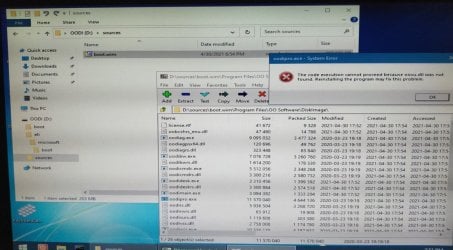
8. I then navigate to and double-click the oodipro.exe file to see if that will start up O&O DiskImage 14 Professional in the hope of running the "Adjust to new hardware feature" as instructed by SIW2. Unfortunately, I get an error message instead.

windows_repair_mode_03.jpg

9. Scenario 5 = Able to boot into a Repair / Safe Mode of Windows and use mouse and keyboard. Unable to start up O&O DiskImage 14 Professional from my boot media USB flash drive to adjust to new hardware.

Scenario 6

1. In "BIOS > Boot > CSM (Compatibility Support Module) > Boot Device Control", I set it to "UEFI and Legacy OPROM".

2. In "BIOS > Boot > CSM (Compatibility Support Module) > Boot from Storage Devices", I set it to "Legacy only".

uefi_legacy_oprom_02.jpg

3. In "BIOS > Boot > Boot Option Priorities > Boot Option #1" I selected my SATA Western Digital SSD this time. To remove all variables, I disabled all other boot options.

sata_01.jpg

4. On saving the BIOS settings and exiting, the SATA SSD boots. A "Windows Error Recovery" window appears. I choose "Start Windows Normally" (the screenshot shows "Launch Startup Repair (recommended)" highlighted, but I did choose "Start Windows Normally" in this instance).

windows_error_recovery_01.jpg

5. Instant BSOD! Flashes for a split second then screen goes black.

6. Scenario 6 = FAIL.

Scenario 7

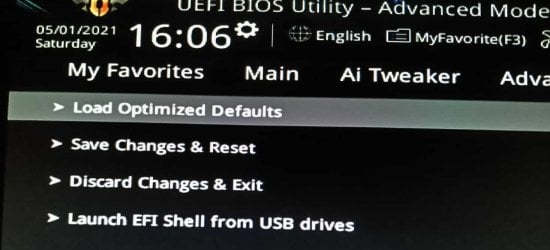
1. Less a test and more a question. I noticed in my BIOS' exit screen an option to "Launch EFI Shell from USB drives":

secure_boot_03.jpg

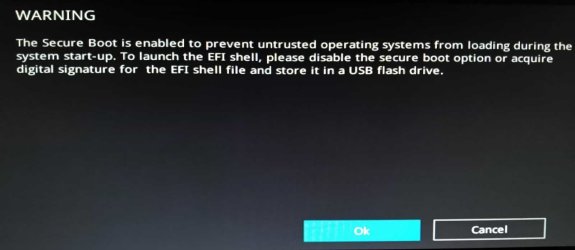
2. I clicked it once just to see what would happen. It gave me the following WARNING message:

secure_boot_04.jpg

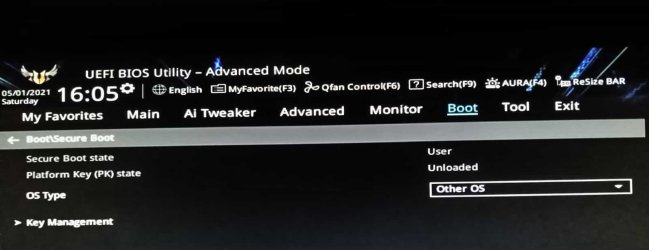
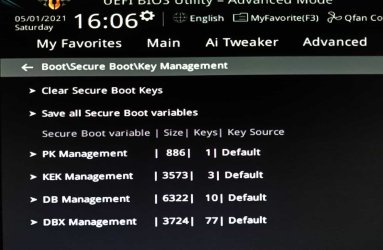
3. I then examined the BIOS > Boot > Secure Boot options. Here are those screnshots:

secure_boot_01.jpg

secure_boot_02.jpg

4. I can't find an option to disable the Secure Boot state. It doesn't show in the screenshot, but it's a grey text entry rather than a white text entry indicating it's simply informing the user of a setting's state but which can not be clicked on to change. I was thinking if the Secure Boot state could be disabled, I'd then be able to test the "Launch EFI Shell from USB drives": BIOS exit option. Would this be worth pursuing? Thoughts, opinions, advice?

In Closing

Though some small progress was made in being able to enter a Windows Repair Mode / Safe Mode in Scenario 5 as well as have my mouse and keyboard work in that state, I'm still unable to get my mouse and keyboard to work with the USB flash drive boot media version of O&O DiskImage 14 Professional. Consequently, I'm unable to adjust my operating system to the new hardware as instructed by SIW2. Any suggestions on where to go from here?
 

My Computer

Computer type
PC/Desktop
Computer Manufacturer/Model Number
Custom Build
OS
Windows 7 Professional 64-bit
CPU
AMD Ryzen 7 3700X
Motherboard
ASUS TUF Gaming B550-PLUS AMD AM4
Memory
Corsair Vengeance LPX 16GB (2x8GB) DDR4 DRAM 3200MHz
Graphics Card(s)
Diamond ATI Radeon HD 5850
Hard Drives
Western Digital Blue 3D NAND 1TB Internal SSD - WDS100T2B0A
PSU
ASUS TUF Gaming 750W Bronze PSU
Antivirus
Kaspersky
Browser
Mozilla Firefox 64-bit
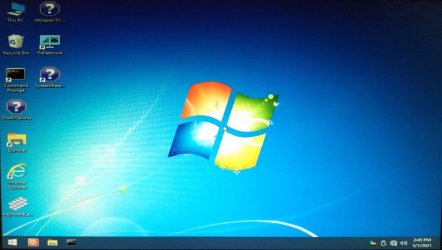
On a whim, I attempted to boot from the USB flash drive to which I had burned 1904v2.iso.

The good news is it DID boot. It entered a Windows recovery/repair mode. The mouse and keyboard work. On the Desktop is a shortcut to the DISM++ app referenced in SIW2's previous posts.

I followed his instructions of selecting my operating system in the top pane and clicking "Open session".

I clicked "Drivers" in the left pane.

I clicked the ADD button at the bottom right and browsed to the sub-folder of the bootable USB flash drive where I had copied Canonkong's driver files.

It started the process.

However, I cancelled the task because it is out of sequence with SIW2's prior instructions to first use O&O DiskImage 14 Professional's "Adjust to new hardware" feature.

I just wanted to give an update on steps I've attempted and their results. It appears if the unresponsive mouse and keyboard issue can be resolved with regard to O&O DiskImage 14 Professional, then I should have no problem using DISM++ to install the drivers from the 1904v2.iso bootable USB flash drive.

So a small victory after yesterday's frustrating results.
 

My Computer

Computer type
PC/Desktop
Computer Manufacturer/Model Number
Custom Build
OS
Windows 7 Professional 64-bit
CPU
AMD Ryzen 7 3700X
Motherboard
ASUS TUF Gaming B550-PLUS AMD AM4
Memory
Corsair Vengeance LPX 16GB (2x8GB) DDR4 DRAM 3200MHz
Graphics Card(s)
Diamond ATI Radeon HD 5850
Hard Drives
Western Digital Blue 3D NAND 1TB Internal SSD - WDS100T2B0A
PSU
ASUS TUF Gaming 750W Bronze PSU
Antivirus
Kaspersky
Browser
Mozilla Firefox 64-bit
Not sure it was a good idea to cancel halfway through installing drivers.
 

My Computers

System One System Two

  • Computer type
    PC/Desktop
    OS
    7 X64
    CPU
    i5 8400
    Motherboard
    gigabyte b365m ds3h
    Memory
    2x8gb 3200mhz
    Hard Drives
    various
    PSU
    pure power 11 400w cm
    Case
    Coolermaster
    Cooling
    cryorig m9i
  • Computer type
    PC/Desktop
    OS
    7x64
    CPU
    g5400
    Motherboard
    ga b365m ds3h
    Memory
    8gb ddr4 2400
    PSU
    xfx pro 450w
Not sure it was a good idea to cancel halfway through installing drivers.

Hadn't planned to. Was expecting a confirmation screen before the process started with a "Continue" or "Cancel" button/option as is standard practice in pretty much every dialog box. Instead it started immediately after selecting the sub-folder where I'd copied the drivers. At which point I cancelled the task immediately.

I do have the backup image I made prior to starting this process to which I could restore if necessary.
 

My Computer

Computer type
PC/Desktop
Computer Manufacturer/Model Number
Custom Build
OS
Windows 7 Professional 64-bit
CPU
AMD Ryzen 7 3700X
Motherboard
ASUS TUF Gaming B550-PLUS AMD AM4
Memory
Corsair Vengeance LPX 16GB (2x8GB) DDR4 DRAM 3200MHz
Graphics Card(s)
Diamond ATI Radeon HD 5850
Hard Drives
Western Digital Blue 3D NAND 1TB Internal SSD - WDS100T2B0A
PSU
ASUS TUF Gaming 750W Bronze PSU
Antivirus
Kaspersky
Browser
Mozilla Firefox 64-bit
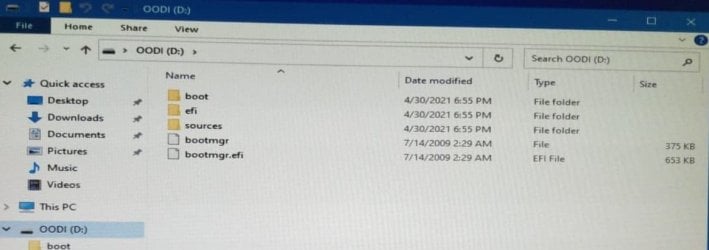
Assuming the O&O boot.wim was created from 1904v2 ( I suspect from your screenshots, that win7 winre.wim was used - because the bootmgr and bootmgr efi files are the size expected from win7 winre. That also explains the microsoft loading bar )

These are the sizes of bootmgr and bootmgr.efi that are expected if using 1904v2

1904v2-OO.png

Compare to yours:

p-windows_repair_mode_02.jpg


If you do use the 1904v2 as the base wim
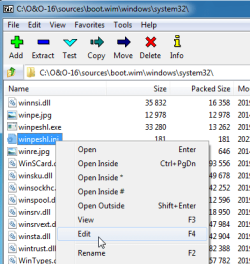
then you could try changing sources\boot.wim\system32\winpeshl.ini

Boot.wim\system32\winpeshl.ini

winpesh-edit.png

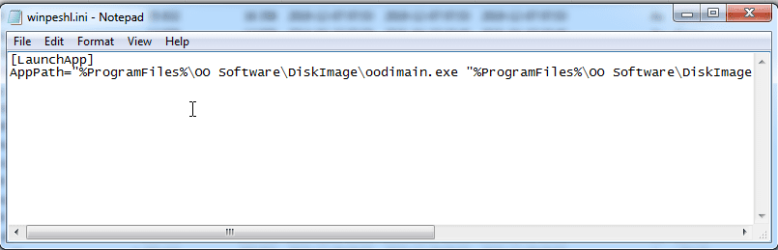
This is o&o
winpeshl-oo.png


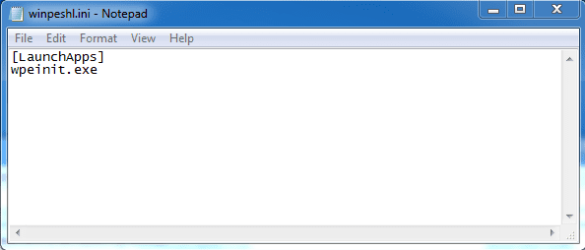
change it to this:

[LaunchApps]
wpeinit.exe


winpeshl-wpeinit.PNG
 
Last edited:

My Computers

System One System Two

  • Computer type
    PC/Desktop
    OS
    7 X64
    CPU
    i5 8400
    Motherboard
    gigabyte b365m ds3h
    Memory
    2x8gb 3200mhz
    Hard Drives
    various
    PSU
    pure power 11 400w cm
    Case
    Coolermaster
    Cooling
    cryorig m9i
  • Computer type
    PC/Desktop
    OS
    7x64
    CPU
    g5400
    Motherboard
    ga b365m ds3h
    Memory
    8gb ddr4 2400
    PSU
    xfx pro 450w
Then it should boot up exactly the same as 1904v2

You can add the drivers to win 7 with dism++

Then look in x:\Program Files\OO Software\DiskImage\ rt click and manually run systemstart.bat

then you can run oodipro.exe and do the adjust

EDIT: Unfortunately:

O&O has made winpeshl.ini read only. So you need to either mount the wim, take off the read only check, edit it, then save the wim.

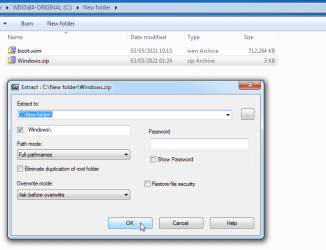
Or add in the new winpeshl.ini to the wim, if you know how to do that.
 
Last edited:

My Computers

System One System Two

  • Computer type
    PC/Desktop
    OS
    7 X64
    CPU
    i5 8400
    Motherboard
    gigabyte b365m ds3h
    Memory
    2x8gb 3200mhz
    Hard Drives
    various
    PSU
    pure power 11 400w cm
    Case
    Coolermaster
    Cooling
    cryorig m9i
  • Computer type
    PC/Desktop
    OS
    7x64
    CPU
    g5400
    Motherboard
    ga b365m ds3h
    Memory
    8gb ddr4 2400
    PSU
    xfx pro 450w
Last edited:

My Computers

System One System Two

  • Computer type
    PC/Desktop
    OS
    7 X64
    CPU
    i5 8400
    Motherboard
    gigabyte b365m ds3h
    Memory
    2x8gb 3200mhz
    Hard Drives
    various
    PSU
    pure power 11 400w cm
    Case
    Coolermaster
    Cooling
    cryorig m9i
  • Computer type
    PC/Desktop
    OS
    7x64
    CPU
    g5400
    Motherboard
    ga b365m ds3h
    Memory
    8gb ddr4 2400
    PSU
    xfx pro 450w
Back
Top