Latency Issues after upgrading to Windows 7.

Volumes

New member
Local time
11:43 PM
Messages
16
Hey guys, I've been having some issues with latency issues recently. It all started after upgrading from Vista to Windows 7.

I have tried upgrading all my drivers, and even downgrading my Network driver thinking it might fix the problem, but to no avail.

I am a big online gamer, so you can understand the frustration. My ping sits around 19-20 but will spike up to anywhere between 50-80 for 5 seconds, then back down. This happens every 15-20 seconds or so.

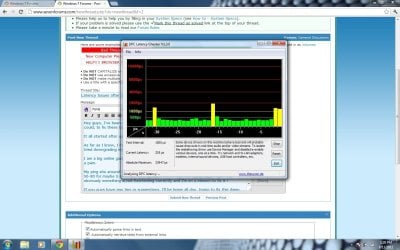
I've left DPC Latency Checker running while I disable both my audio drivers, with no change, as well as my Network driver, and the issue still persists.

Any help would be greatly appreciated ! I don't know what more I can do at this point.

This issue is definitely on my end, because my desktop computer has no latency issues, so I don't believe it is my ISP, and the issues didn't start till I upgrading my OS.
 

Attachments
  • latency checker.jpg
    latency checker.jpg
    137.7 KB · Views: 23

My Computer

OS
Windows 7 Ultimate x64
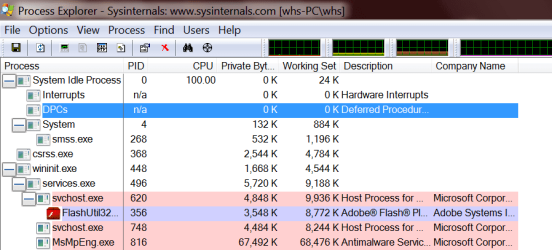
I suggest you run Process Explorer and check which strings are involved (from Properties).

The picture is supposed to give you an idea, but at this time I have no DPCs.
 

Attachments

  • 2012-08-13_2252.png
    2012-08-13_2252.png
    25 KB · Views: 22

My Computer

Computer Manufacturer/Model Number
HP, Dell, Gateway, Toshiba - 4 laptops and 2 desktops
OS
Vista, Windows7, Mint Mate, Zorin, Windows 8
CPU
from 1.6GHz Duo to i7
Monitor(s) Displays
2x HP w2207
Hard Drives
5x HDD, 7x SSD, 12x Externals
Keyboard
with trackball - no mices
Mouse
Trackball mice
Internet Speed
DSL 6000
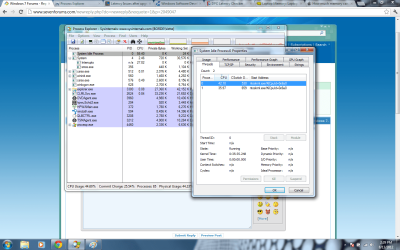
This is what I got, not sure if it's what you're looking for. I'm just learning all of this stuff, so you might need to explain somethings.
 

Attachments

  • latency.png
    latency.png
    124.9 KB · Views: 20

My Computer

OS
Windows 7 Ultimate x64
This is the System Idle Process - that does not help. You have to look at the DPCs like on my pic.
 

My Computer

Computer Manufacturer/Model Number
HP, Dell, Gateway, Toshiba - 4 laptops and 2 desktops
OS
Vista, Windows7, Mint Mate, Zorin, Windows 8
CPU
from 1.6GHz Duo to i7
Monitor(s) Displays
2x HP w2207
Hard Drives
5x HDD, 7x SSD, 12x Externals
Keyboard
with trackball - no mices
Mouse
Trackball mice
Internet Speed
DSL 6000
I do not have a tab next to system idle process like you do in the picture. There is no DPC column in my process explorer.

I must be missing something.
 

My Computer

OS
Windows 7 Ultimate x64
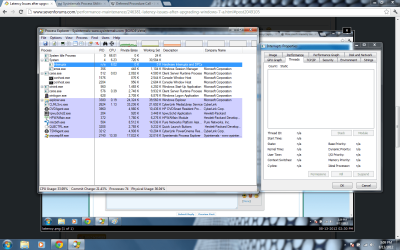
this is the only thing I see with DPC.
 

Attachments

  • dpc interrupts.png
    dpc interrupts.png
    120.7 KB · Views: 20

My Computer

OS
Windows 7 Ultimate x64
Hi,

Experiment with disabling IPv6 in Win7. Although I don't think this is actually your problem, I suspect the upgrade may have messed with your network stack. Disabling IPv6 (via the properties of your network card) will force Win7 to rewrite the options stored in your registry and may solve the problem.

If that doesn't work, just uninstall everything to do with your network card, and reboot. Windows will reinstall it all. If you are using an onboard Nvidia card, you can download and install the latest nvidia chipset drivers which also may resolve the issue.

DD.
 

My Computer

OS
Windows 7 Ultimate x64
I've tried disabling IPv6, no dice!

I'm going to uninstall the network driver and reboot, see if it works.

Be right back :)
 

My Computer

OS
Windows 7 Ultimate x64
Well I uninstalled the Network adapter and rebooted, still no fix.
 

My Computer

OS
Windows 7 Ultimate x64
anything else I could try? this problem is so frustrating.
 

My Computer

OS
Windows 7 Ultimate x64
anything else I could try? this problem is so frustrating.

Sure, but these will be guesses.

- Go into your NIC properties, Power Management, ensure that "allow the computer to turn off this device to save power" is NOT selected.
- Go into the Advanced settings, and turn on Flow Control (or turn it off if it is ON). I would normally advise to have it off when online gaming, but turning it on may give you a more consistent latency rate.
- Ensure "Interrupt Moderation" is off.
- Try different duplex settings. This setting can have a big impact on latency, and it is not always obvious which one to choose. By default, you probably have it set to auto-negotiate. Normally you would want the fastest full duplex available for your NIC, but I have seen instances where setting it to fastest half duplex greatly improved ping times.

Good Luck!
 

My Computer

OS
Windows 7 Ultimate x64
Was this a clean install or did you Install on top of Vista?
 

My Computer

Computer type
PC/Desktop
Computer Manufacturer/Model Number
Self Build
OS
MS Windows 7 Professional 64-bit SP1
CPU
AMD FX(tm)-6100 Six-Core Processor Socket AM3+ (942)
Motherboard
ASUSTeK COMPUTER INC. SABERTOOTH 990FX (AM3r2)
Memory
8.00 GB Dual-Channel DDR3 @ 802MHz (11-11-11-36) 1.5Volts
Graphics Card(s)
NVIDIA GeForce GTX 560 Ti
Sound Card
Onboard Realtek HD
Monitor(s) Displays
shimian (1920x1080@60Hz)
Screen Resolution
1920*1080
Hard Drives
OCZ-AGIL ITY3 SATA Disk Device 120GB
PSU
Corsair TX 750
Case
Corsair
Cooling
WaterCooled
Keyboard
Microsoft Wired
Mouse
Logitech USB Optical TiltWheel Mouse
Internet Speed
Realtek PCIe GBE Family Controller 20MB*1MB
Antivirus
Avast
Browser
Firefox
Other Info
150GB Internal Hard Drive for Backing Up Important Files -
Hauppauge Nova-DT Dual DVB-T Tuner Device (+IR) -
USB PC Camera with Mic (SN9C105)
This was installed over Vista.
 

My Computer

OS
Windows 7 Ultimate x64
Start updating drivers of everything, from soundcard, nic, video, etc.
 

My Computer

Computer type
PC/Desktop
OS
Microsoft Windows 10 Professional / Windows 7 Professional
CPU
Intel i5-3570
Motherboard
Lenovo Mahobay
Memory
16GB DDR3
Graphics Card(s)
AMD Radeon HD 7850 2GB
Sound Card
(1) Realtek HD Audio (2) AMD HD Audio
Monitor(s) Displays
LG LS192WS
Screen Resolution
1440 x 900 @ 32bit color
Hard Drives
(1) SUV300S37A/120G (2) ST3500413AS SATA Disk Device AHCI mode enabled.
PSU
Corsair HX620
Case
Thermaltake V4 Black Edition
Cooling
Cooler Master Hyper 212 + Artic Silver 5 on CPU/GPU
Keyboard
Dell SK-8115
Mouse
Razer Copperhead with MAPED mat (awesome!)
Internet Speed
100 Mbps up/down
Browser
Chrome
Start updating drivers of everything, from soundcard, nic, video, etc.

I've updated everything I could.

Do you think performing a clean install could fix the problem?

Can you clean install from a USB, or does it have to be a CD?
 

My Computer

OS
Windows 7 Ultimate x64
Always do a clean install when you can to avoid issues like this, its always easier to track down any problems (if any) after a clean install. It only takes 10mins to install from a USB Stick!!
 

My Computer

Computer type
PC/Desktop
Computer Manufacturer/Model Number
Self Build
OS
MS Windows 7 Professional 64-bit SP1
CPU
AMD FX(tm)-6100 Six-Core Processor Socket AM3+ (942)
Motherboard
ASUSTeK COMPUTER INC. SABERTOOTH 990FX (AM3r2)
Memory
8.00 GB Dual-Channel DDR3 @ 802MHz (11-11-11-36) 1.5Volts
Graphics Card(s)
NVIDIA GeForce GTX 560 Ti
Sound Card
Onboard Realtek HD
Monitor(s) Displays
shimian (1920x1080@60Hz)
Screen Resolution
1920*1080
Hard Drives
OCZ-AGIL ITY3 SATA Disk Device 120GB
PSU
Corsair TX 750
Case
Corsair
Cooling
WaterCooled
Keyboard
Microsoft Wired
Mouse
Logitech USB Optical TiltWheel Mouse
Internet Speed
Realtek PCIe GBE Family Controller 20MB*1MB
Antivirus
Avast
Browser
Firefox
Other Info
150GB Internal Hard Drive for Backing Up Important Files -
Hauppauge Nova-DT Dual DVB-T Tuner Device (+IR) -
USB PC Camera with Mic (SN9C105)
So, I did a clean install, updated all my drivers, and I'm still having latency problems.

Specifically with a game called League of Legends, if that makes any difference.
 

My Computer

OS
Windows 7 Ultimate x64
Those setting are for a wired ethernet connection :( im running wireless right now.

and I had no problem staying at a constant 19 ping with no spikes, wireless, while I was on Vista.
 

My Computer

OS
Windows 7 Ultimate x64
Those setting are for a wired ethernet connection :( im running wireless right now.

and I had no problem staying at a constant 19 ping with no spikes, wireless, while I was on Vista.


Ahhh, didn't realize this was wireless!

OK, that may actually make it easier. Have you tried this :

Control Panel -> Power Options, click "Change plan settings" for whichever power plan you are currently using. Then "Change advanced power settings". Scroll down until you see "Wireless Adapter Settings" and then "Power Saving Mode". Change whatever it is to "Maximum Performance".
 

My Computer

OS
Windows 7 Ultimate x64
Back
Top