Libraries Icon - Change Default Icon

How to Change the Default "Libraries" Folder Icon in Windows 7

   Information
This will show you how to change the main default Libraries icon to any custom icon that you want instead in Windows 7.
   Warning

  • You can only do this while logged into an administrator account.
  • This will affect all user account's Libraries icon on the computer.
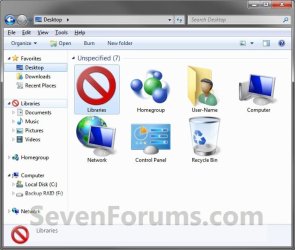
EXAMPLE: Libraries Icon
NOTE: This is the default (left screenshot) and custom (right screenshot) Libraries icon.
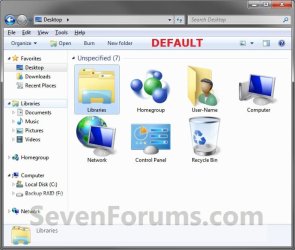
Default.jpg

After.jpg


Here's How:
1. Open the Start Menu and type regedit.exe in the search line, then press enter.

2. If prompted by UAC, then click on Yes.

3. In Regedit, go to the location below: (See screenshot below step 4)
Code:
HKEY_CLASSES_ROOT\CLSID\{031E4825-7B94-4dc3-B131-E946B44C8DD5}\DefaultIcon
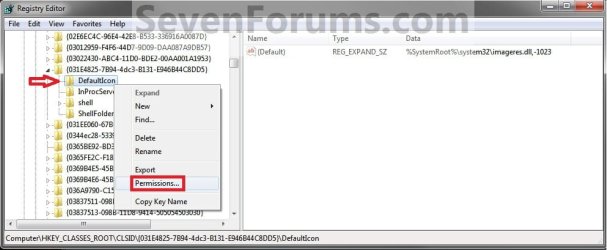
4. In the left pane of regedit, right click on the DefaultIcon key and click on Permissions. (See screenshot below)
Step1.jpg
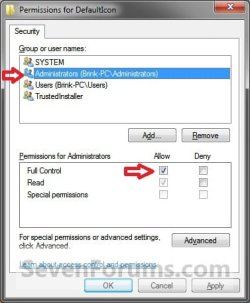
5. At the top, select the Administrators group. At the bottom, check the Allow box to the right of Full Control and click on OK. (See screenshot below)
Step2.jpg
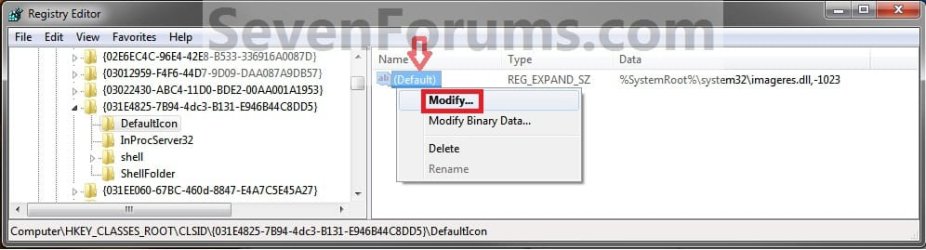
6. In the left pane of regedit, right click on (Default) and click on Modify. (See screenshot below)
Step3.jpg
7. To Restore the Default Libraries Icon
A) In the Modify window from regedit, type in the path below and click on OK.
%SystemRoot%\system32\imageres.dll,-1023
B) Go to step 10.
8. To Use a Icon of Your Own
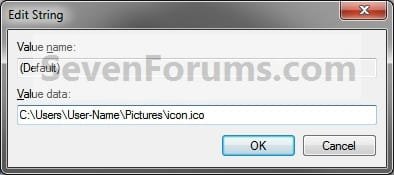
A) In the Modify window from regedit, type in the full path of where you have your custom icon (.ico file) stored at, then click on OK. (See screenshot below)
WARNING: You will need to use a 256x256 pixel icon that was made for Windows 7 and Vista for them to display properly at all of the available icon view sizes in Windows 7. You will also need to leave the icon (.ico file) saved at the exact location you typed below for it to continue to work. If you delete or move this icon, then it will no longer be displayed.
Step5.jpg
B) Go to step 10.
9. To Use another Windows 7 Icon
A) Download and install the free program IconViewer to add the Icons tab in the screenshot below step 9B.
NOTE: Be sure to download the correct 32-bit or 64-bit version for your Windows 7.

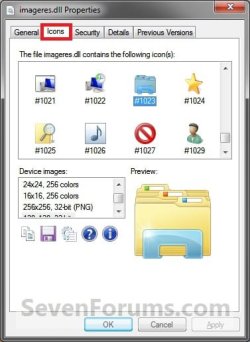
B) In Windows Explorer navigate to the .exe (ex: for program icons) or .dll (ex: Windows 7 icons) file that contains the icon that you want to use for the default Library icon, then right click on the file, click on Properties, and the Icons tab. (See screenshot below)
NOTE: The most common Windows 7 icons come from the C:\Windows\System32\imageres.dll file.
Tip1.jpg
C) Make note of the icon number for the icon that you want to use instead. (See screenshot above)
NOTE: For example, the default Libraries icon number is 1023. I'm going to change it to the 1027 icon number just as an example.

D) In the Modify window from regedit, type in the full path of the .exe or .dll file followed by ,-icon# (fullpath,-####) and click on OK. (See screenshot below)
NOTE: For example, if I want to use the path (step 9B) and the 1027 icon (step 9C), I would type:
%SystemRoot%\system32\imageres.dll,-1027

OR

C:\Windows\System32\imageres.dll,-1027
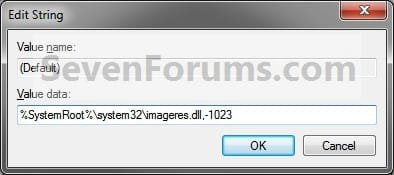
Step4.jpg
NOTE: This is the default Libraries icon value.
10. If you have 64-bit Windows 7 Installed
   Note
To also change the Libraries icon in the "Open" and "Save as" type windows as well in 64-bit Windows 7, you will also need to do this step.

If you have a 32-bit Windows 7 installed, then skip this step since doing steps 1 to 7/8/9 will change the Libraries icon in the "Open" and "Save as" type windows as well.

A) In regedit, go to the location below:
Code:
HKEY_LOCAL_MACHINE\SOFTWARE\Wow6432Node\Classes\CLSID\{031E4825-7B94-4dc3-B131-E946B44C8DD5}\DefaultIcon
B) Repeat steps 4 to 7/8/9 above.
11. Close regedit.

12. Restart the computer to fully apply.
That's it,
Shawn


Last edited:
If you like, as a test with the icon in your Public folder and the registry set for it, create a new user account, and log in to it to see if the Libraries icon has changed for this user account or not.
 

My Computer

Computer type
PC/Desktop
Computer Manufacturer/Model Number
Self built custom
OS
64-bit Windows 11 Pro for Workstations
CPU
Intel i7-8700K OC'd to 5 GHz
Motherboard
ASUS ROG Maximus XI Formula Z390
Memory
64 GB (4x16GB) G.SKILL TridentZ RGB DDR4 3600 MHz
Graphics Card(s)
ASUS ROG-STRIX-GTX1080TI-O11G-GAMING
Sound Card
Integrated
Monitor(s) Displays
2 x Samsung Odyssey G7 27"
Screen Resolution
2560x1440
Hard Drives
1TB Samsung 990 PRO M.2,
4TB Samsung 990 PRO PRO M.2,
TerraMaster F8 SSD Plus NAS
PSU
Seasonic Prime Titanium 850W
Case
Thermaltake Core P3
Cooling
Corsair Hydro H115i
Keyboard
Logitech wireless K800
Mouse
Logitech MX Master 4
Internet Speed
2 Gb/s Download and 100 Mb/s Upload
Antivirus
Malwarebyte Anti-Malware Premium
Browser
Google Chrome
Other Info
Logitech Z625 speaker system,
Logitech BRIO 4K Pro webcam,
HP Color LaserJet Pro MFP M477fdn,
APC SMART-UPS RT 1000 XL - SURT1000XLI,
Galaxy S23 Plus phone
Changing the Libraries and Favourites Icons

So I attempted to change the default icon to a custom icon using
Libraries Icon - Change Default Icon
but i can't seem to get it to change Administrator account, yet when i created a second user account the change was there.

Are there are any tips to fix this?
 

My Computer

Computer type
PC/Desktop
Computer Manufacturer/Model Number
HP
OS
Windows 7 Ultimate x64
Browser
Mozilla Firefox
Hello Dystopiux, and welcome to Seven Forums.

If you have not already, be sure that you restart the PC after doing the steps in the tutorial to fully apply.

Next, make sure that the icon you are using is saved to a location that has full access for all users. For example, in a "C:\Users\Public" folder location. If you need to change the icon's location, then be sure to change it in the registry in the tutorial steps again as well.

If you did already do all of the above, then use the Find and Find Next feature in Registry Editor to search for all {031E4825-7B94-4dc3-B131-E946B44C8DD5} key entries to make sure it's DefaultIcon subkey is set properly for each one found.

Hope this helps for now, :)
Shawn
 

My Computer

Computer type
PC/Desktop
Computer Manufacturer/Model Number
Self built custom
OS
64-bit Windows 11 Pro for Workstations
CPU
Intel i7-8700K OC'd to 5 GHz
Motherboard
ASUS ROG Maximus XI Formula Z390
Memory
64 GB (4x16GB) G.SKILL TridentZ RGB DDR4 3600 MHz
Graphics Card(s)
ASUS ROG-STRIX-GTX1080TI-O11G-GAMING
Sound Card
Integrated
Monitor(s) Displays
2 x Samsung Odyssey G7 27"
Screen Resolution
2560x1440
Hard Drives
1TB Samsung 990 PRO M.2,
4TB Samsung 990 PRO PRO M.2,
TerraMaster F8 SSD Plus NAS
PSU
Seasonic Prime Titanium 850W
Case
Thermaltake Core P3
Cooling
Corsair Hydro H115i
Keyboard
Logitech wireless K800
Mouse
Logitech MX Master 4
Internet Speed
2 Gb/s Download and 100 Mb/s Upload
Antivirus
Malwarebyte Anti-Malware Premium
Browser
Google Chrome
Other Info
Logitech Z625 speaker system,
Logitech BRIO 4K Pro webcam,
HP Color LaserJet Pro MFP M477fdn,
APC SMART-UPS RT 1000 XL - SURT1000XLI,
Galaxy S23 Plus phone
Yep, the Find and Find Next option helped to find the odd subkey with the default icon. Changed it and its working!
:D Thanks Shawn.
 

My Computer

Computer type
PC/Desktop
Computer Manufacturer/Model Number
HP
OS
Windows 7 Ultimate x64
Browser
Mozilla Firefox
You're most welcome Dystopiux. I'm happy to heat that you found it and got it working. :)
 

My Computer

Computer type
PC/Desktop
Computer Manufacturer/Model Number
Self built custom
OS
64-bit Windows 11 Pro for Workstations
CPU
Intel i7-8700K OC'd to 5 GHz
Motherboard
ASUS ROG Maximus XI Formula Z390
Memory
64 GB (4x16GB) G.SKILL TridentZ RGB DDR4 3600 MHz
Graphics Card(s)
ASUS ROG-STRIX-GTX1080TI-O11G-GAMING
Sound Card
Integrated
Monitor(s) Displays
2 x Samsung Odyssey G7 27"
Screen Resolution
2560x1440
Hard Drives
1TB Samsung 990 PRO M.2,
4TB Samsung 990 PRO PRO M.2,
TerraMaster F8 SSD Plus NAS
PSU
Seasonic Prime Titanium 850W
Case
Thermaltake Core P3
Cooling
Corsair Hydro H115i
Keyboard
Logitech wireless K800
Mouse
Logitech MX Master 4
Internet Speed
2 Gb/s Download and 100 Mb/s Upload
Antivirus
Malwarebyte Anti-Malware Premium
Browser
Google Chrome
Other Info
Logitech Z625 speaker system,
Logitech BRIO 4K Pro webcam,
HP Color LaserJet Pro MFP M477fdn,
APC SMART-UPS RT 1000 XL - SURT1000XLI,
Galaxy S23 Plus phone
Having weird problem I can't get full axcess to my regedit thingy. I have right clicked on DefaultIcon and clicked Permissions and then clicked administrator. And then in the check boxes I also clicked Full Control. Then I click Apply and then I get "Windows Security Message Box" "Unable to save permission changes on defaulticon. Access is denied."

Am I doing something wrong or is there another setting to unblock me that I have turned on. I'm not to shore about how to do this kind of thing.

I have already changed my Libraries Icons like documents/images/videos/music. Now I want to change this one to and I can't figure out what I'm doing wrong.

"By the way I have a weird question is there a way to change the other icons to like the open folder icon with the video clip in it as well as the one with the music note in it."

Never mind the questions I am still looking around on here and I found out how to get permission I have already changed the icon.
 
Last edited:

My Computer

Computer type
PC/Desktop
Computer Manufacturer/Model Number
emachine
OS
windows 8 32
Hello Dawn,

That indicates that you will need to use step 3 in OPTION THREE of the tutorial below to take ownership of the DefaultIcon key first, then set permissions.

Take Ownership of file

I'm not sure it's possible to change a library icon to be an icon that will show a thumbnail preview.

Hope this helps, :)
Shawn
 

My Computer

Computer type
PC/Desktop
Computer Manufacturer/Model Number
Self built custom
OS
64-bit Windows 11 Pro for Workstations
CPU
Intel i7-8700K OC'd to 5 GHz
Motherboard
ASUS ROG Maximus XI Formula Z390
Memory
64 GB (4x16GB) G.SKILL TridentZ RGB DDR4 3600 MHz
Graphics Card(s)
ASUS ROG-STRIX-GTX1080TI-O11G-GAMING
Sound Card
Integrated
Monitor(s) Displays
2 x Samsung Odyssey G7 27"
Screen Resolution
2560x1440
Hard Drives
1TB Samsung 990 PRO M.2,
4TB Samsung 990 PRO PRO M.2,
TerraMaster F8 SSD Plus NAS
PSU
Seasonic Prime Titanium 850W
Case
Thermaltake Core P3
Cooling
Corsair Hydro H115i
Keyboard
Logitech wireless K800
Mouse
Logitech MX Master 4
Internet Speed
2 Gb/s Download and 100 Mb/s Upload
Antivirus
Malwarebyte Anti-Malware Premium
Browser
Google Chrome
Other Info
Logitech Z625 speaker system,
Logitech BRIO 4K Pro webcam,
HP Color LaserJet Pro MFP M477fdn,
APC SMART-UPS RT 1000 XL - SURT1000XLI,
Galaxy S23 Plus phone
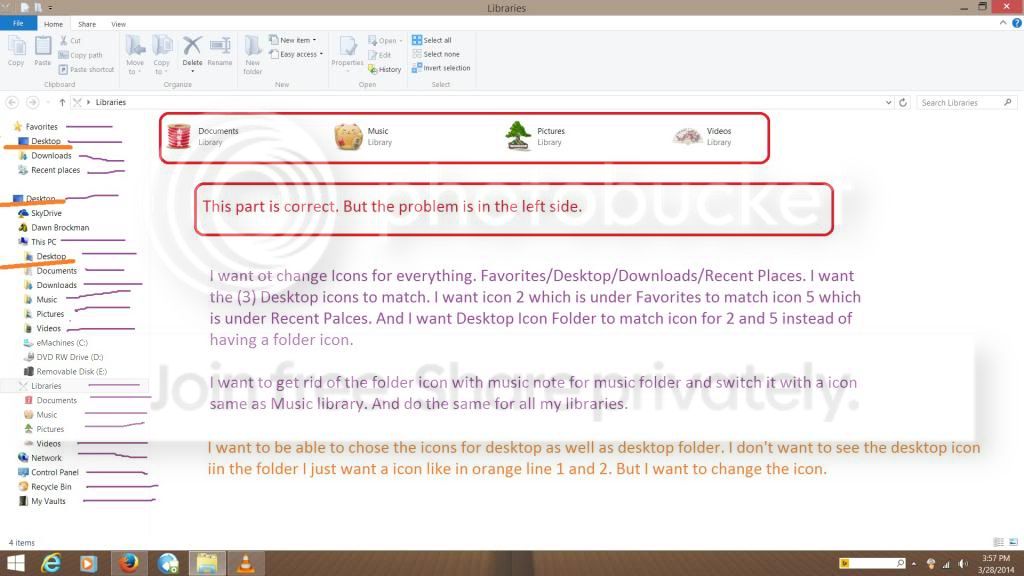
Is there any way to stop showing the thumbnail preview in the sidebar where I have my folders for music and videos and so on. I would like to use a icon instead of the folder. Because now the yellow folders don't match anything.

I have already changed the icons for the videos/pictures/documents/music in the library's section but not for the folder icon on the left hand side.

I am placing a image of what I have already done to my libraries. I have even marked somethings in the paint that came with windows.

What I am trying to do is remove the preview icons in the left side and remove the folder icons all together and just place icons for the same libraries.

Libraries_zps07690988.jpg


Above is a picture of what I mean. I don't mind tinkering with the computer to get it the way I want it. I just don't know how to do these things myself so I am asking. I had also heard there's a way to change you folder icon on your taskbar also. I am also interested in doing this. Also the "My Vault Folder Icon is correct for folder how come when I switched all the folder icons the downloads/documents/ and so on also. I know that's a weird question also.

I just want to remove the folder icon and the preview thing all together and just use a icon to open the folder instead. If possible.
 

My Computer

Computer type
PC/Desktop
Computer Manufacturer/Model Number
emachine
OS
windows 8 32

My Computer

Computer type
PC/Desktop
Computer Manufacturer/Model Number
Self built custom
OS
64-bit Windows 11 Pro for Workstations
CPU
Intel i7-8700K OC'd to 5 GHz
Motherboard
ASUS ROG Maximus XI Formula Z390
Memory
64 GB (4x16GB) G.SKILL TridentZ RGB DDR4 3600 MHz
Graphics Card(s)
ASUS ROG-STRIX-GTX1080TI-O11G-GAMING
Sound Card
Integrated
Monitor(s) Displays
2 x Samsung Odyssey G7 27"
Screen Resolution
2560x1440
Hard Drives
1TB Samsung 990 PRO M.2,
4TB Samsung 990 PRO PRO M.2,
TerraMaster F8 SSD Plus NAS
PSU
Seasonic Prime Titanium 850W
Case
Thermaltake Core P3
Cooling
Corsair Hydro H115i
Keyboard
Logitech wireless K800
Mouse
Logitech MX Master 4
Internet Speed
2 Gb/s Download and 100 Mb/s Upload
Antivirus
Malwarebyte Anti-Malware Premium
Browser
Google Chrome
Other Info
Logitech Z625 speaker system,
Logitech BRIO 4K Pro webcam,
HP Color LaserJet Pro MFP M477fdn,
APC SMART-UPS RT 1000 XL - SURT1000XLI,
Galaxy S23 Plus phone
Back
Top