
How to Change a Library Icon in Windows 7
Information
This will show you how to change any Windows 7 Library icon to any icon that you would like instead of the default icon.
Note
If you would like to use a custom library icon (.ico file) on your computer and would like it to also have it display on another computer that joined or is added to the homegroup as well, then you will need to make sure that the .ico file you are using is saved at a location that each computer on the homegroup as full access to first. For example, in a C:\Users\Public folder or shared user folder.
Tip
For more on libraries managed code, see: Windows 7 Libraries - Managed Code - Windows 7 for Developers
Warning
You will need to use a 256x256 pixel icon that was made for Windows 7 and Vista for them to display properly at all of the available icon view sizes in Windows 7. For more about these type of icons, see: Icons in Windows Vista
OPTION ONE
To Change a Library Icon Using the "Libraries Icons" Program
1. If you have not already, then click on the Download button below and download and save the ZIP file below to your desktop. Next, extract (drag and drop) the LibraryIconChanger.exe file from within the ZIP file.
Replace_Librarie_Icons_by_bluefisch200.zip
Download
2. Run the LibraryIconChanger.exe file.
NOTE: This is a standalone EXE file that only runs and does not install on your computer.
3. In the right pane, select (highlight) the library that you want to change or restore the default icon of. (see screenshot below)
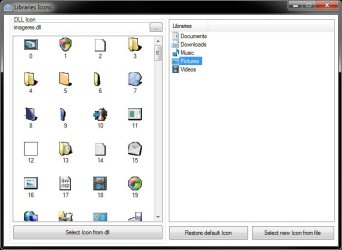
4. Do either step 5, 6, or 7 below for what you would like to do.
5. To Change a Library Icon with a Icon from a DLL File
NOTE: By default, the available DLL icons are from the C:\Windows\System32\imageres.dll file. If you would like to select a icon from within a different DLL icon, then click on the browse
 button, navigate to, and select the DLL file.
A) In the left pane, select an available icon, and click on the Select Icon from dll button. (see screenshot below step 3)
B) Go to step 8.
6. To Change a Library Icon with a Icon File of Your Choice
A) Click on the Select new Icon from file button. (see screenshot below step 3)
B) Navigate to and select a .ico file that you want to use, then click on Open.
C) Go to step 8.
7. To Restore the Default Icon of a Library
A) Click on the Restore default icon button. (see screenshot below step 3)
B) Continue on to step 8.
8. Close the Libraries Icons program. (see screenshot below step 3)
9. Log off and log on, or restart the computer to apply.
OPTION TWO
To Manually Change a Library Icon
1. Set Folder Options to Show hidden files, folders, and drives.
2. In Windows Explorer, navigate to the location below for the library you want to change the icon of. (See screenshot below)
Libraries folder: (ex: Documents, Music, Pictures, Videos)
C:\Users\(User Name)\AppData\Roaming\Microsoft\Windows\Libraries
For "Recorded TV" Library
C:\Users\Public\Libraries
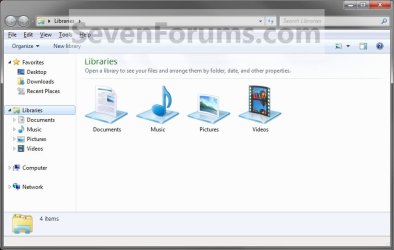
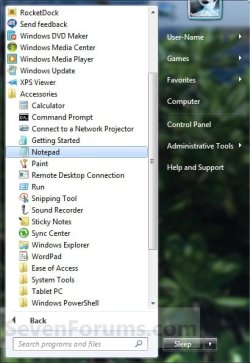
3. Open Notepad by one of the methods below. (See screenshots below)

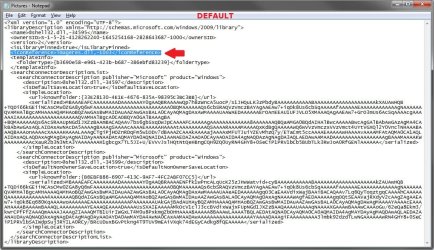
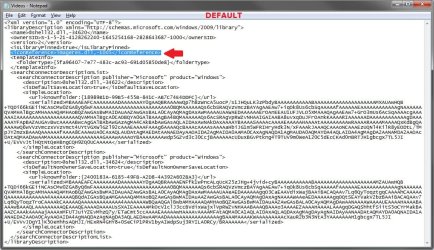
4. Drag the Library icon (from step 2) that you want to change into the blank Notepad and drop it. (See screenshots below)
NOTE: Libraries are .xml files, so they can be edited in Notepad. These are the default entries for the Libraries.
- Documents default- <iconReference>imageres.dll,-1002</iconReference>
- Music default - <iconReference>imageres.dll,-1004</iconReference>
- Pictures default - <iconReference>imageres.dll,-1003</iconReference>
- Recorded TV default - <iconReference>imageres.dll,-1008</iconReference>
- Videos default - <iconReference>imageres.dll,-1005</iconReference>
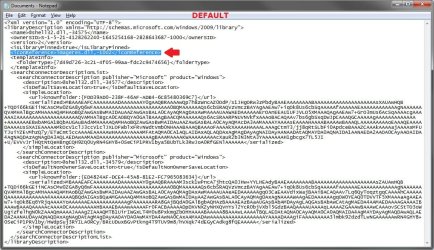


5. To Use a Custom Icon of Yours
A) Look for the line below. (See screenshots above)
NOTE: If this is a new Library that you have created, then the line will not be there and you will need to add the <iconReference>"path to icon w/file extension"</iconReference> line directly under the <isLibraryPinned>-1</isLibraryPinned> line entry.
<iconReference>"path to icon w/file extension"</iconReference>
B) In Notepad, substitute path to icon w/file extension in quotes to the full path of the custom icon that you want to use for the default Library icon instead.
C) Go to step 7.
6. To Use another Windows 7 Icon
A) Download and install the free program IconViewer.
NOTE: Be sure to download the correct 32-bit or 64-bit version for your Windows 7.
B) In Windows Explorer navigate to the .exe (ex: for program icons) or .dll (ex: Windows 7 icons) file that contains the icon that you want to use for the default Library icon, then right click on the file, click on Properties, and the Icons tab. (See screenshot below)
NOTE: The most common Windows 7 icons come from the C:\Windows\System32\imageres.dll file.
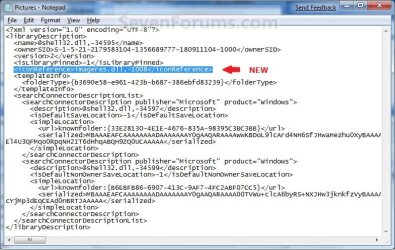
C) Look for the line below. (See screenshots below step 4)
NOTE: If this is a new Library that you have created, then the line will not be there and you will need to add the <iconReference>path to icon w/file extension,-icon#</iconReference> line directly under the <isLibraryPinned>-1</isLibraryPinned> line entry.
<iconReference>path to icon w/file extension,-icon#</iconReference>
D) In Notepad, substitute path to icon w/file extension to the full path of the file that includes the icon you want from step 6B, then substitute icon# with the icon number under the icon you want from step 6B. (See screenshot below)
NOTE: If the file that includes the icon you want in step 6B is in the C:\Windows\System32 folder, then you will just need to type in the file name instead of the full path.
FOR EXAMPLE:
- Let's say I want to change the Pictures Library icon to the icon #1008 (step 6B) included in the C:\Windows\System32\imageres.dll file. I would use imageres.dll,-1008. (See screenshot below)
- Let's say the icon #1008 (step 6B) was included in the C:\Program Files\imageres.dll file. I would use C:\Program Files\imageres.dll,-1008 instead.

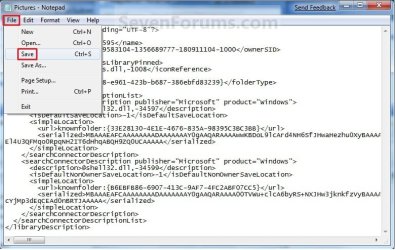
7. In Notepad, click on File and Save, then close Notepad. (See screenshot below)
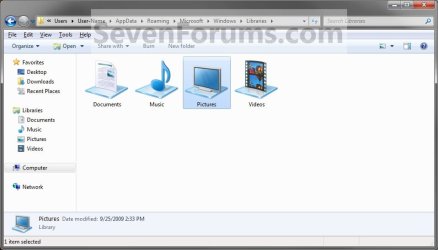
8. The Library icon will now be changed. (See screenshot below)
NOTE: For example, the default Pictures Library icon.
9. Repeat steps 3 to 8 if you would like to change any more Library icons.
10. When done, set Folder Options to Don't show hidden files, folders, and drives.
11. Log off and log on, or restart the computer to fully apply the icon change to all locations for this library folder.
That's it,
Shawn
Related Tutorials
- How to Change the Default Libraries Icon in Windows 7
- How to Hide or Show a Library in the Windows 7 Navigation Pane
- How to Restore the Default Libraries in Windows 7
- How to Fix Libraries when Hidden and Empty in Windows 7
- How to Create a New Library in Windows 7
- How to Include a Folder in a Library in Windows 7
- How to Remove a Included Folder from a Library in Windows 7
- How to Set the Default Save Folder for a Library in Windows 7
- How to Add or Remove the Libraries Desktop Icon in Windows 7
- User Folders in Windows 7 Libraries
- How to Create a Windows 7 Downloads Library with the Correct Icon
- How to Create a Windows 7 Games Library with the Correct Icon
- How to Create a Windows 7 Favorites Library with the Correct Icon
- How to Create a Windows 7 "Searches" Library with the Correct Icon
- How to Create a Windows 7 "Links" Library with the Correct Icon
- How to Change the Windows 7 Default User Folder Icons
- How to Change the Windows 7 Default Folder Icon
- How to Change Windows 7 Default Folder Icons using Resource Hacker
- How to Change Windows 7 Default Control Panel Icons
- How to Change the Open Folder Icon in Windows 7
- How to Change the Default New Library Icon in Windows 7
- How to Add or Remove the Windows 7 Libraries Folder from the Navigation Pane
- How to Turn the Library Pane On or Off in Windows 7
- How to Change a Drive Icon in Vista, Windows 7, and Windows 8
- How to Change the Default Icon for Favorites in Windows 7
- How to Change Windows 7 System Icons Using Resource Hacker
Attachments
Last edited:


