
Library - Remove a Included Folder

How to Remove an Included Folder from a Library in Windows 7


   Information
This will show you how to remove an included folder so that it's contents will no longer be included in a library in Windows 7.

   Note
Libraries let you access and arrange items from one or more folders quickly without moving them from their original location. Libraries themselves don't store your files or folders. Instead, they point to different locations on a hard disk or external drive attached to your computer. This gives you easy access to a category of files no matter where they are stored. For instance, if you have music files on your hard disk and on an external drive, you can access all of your music files from within the "Music" library.

For more information about Windows 7 Libraries see:

   Tip
The full path to the hidden Libraries folder is below.

C:\Users\(User-Name)\AppData\Roaming\Microsoft\Windows\Libraries

OR

%AppData%\Microsoft\Windows\Libraries


Here's How:
1. Open the Start Menu.

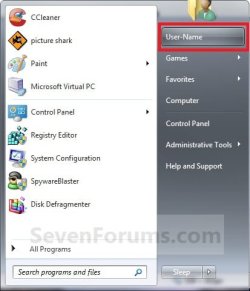
2. Right click on the User Name button and click on Open. (See screenshot below)
Start_Menu_Link.jpg
3. From the Library Properties Page
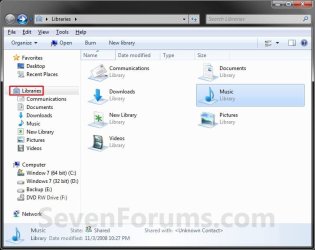
A) Right click on the library (ex: Music) that you want to remove the included folder from, and click on Properties. (See screenshot below)
Libraries.jpg
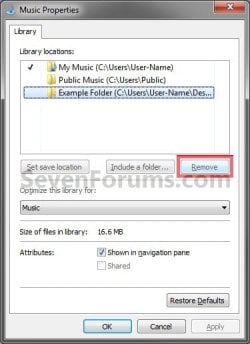
B) Select (highlight) the included folder you want to remove from the library, and click on the Remove button. (See screenshot below)
Properties.jpg
D) Click on OK. (See screenshot above)

E) Go to step 6.
4. From Inside the Library
A) Open the library (ex: Music) that you want to remove the included folder from. (See screenshot below step 3A)

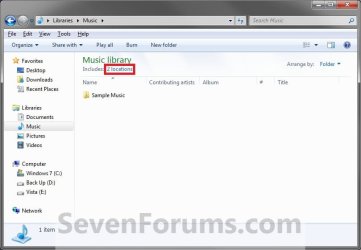
B) Click on the # locations toolbar button. (See screenshot below)
Library.jpg
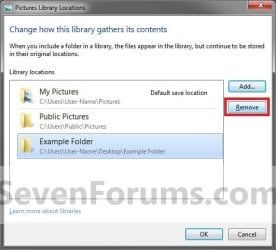
C) Select (highlight) the included folder you want to remove from the library, and click on the Remove button. (See screenshot below)
Example_Add-Remove.jpg
D) Click on OK. (See screenshot above)

E) Close the library window when done. (See screenshot below step 4B)

F) Go to step 6.
5. From the Navigation Pane
A) Click on the drop down triangle to the left of the Library, that you want remove a included folder from, to expand it. (See screenshot below step 5B)

B) Right click on the included folder (subfolder) under the library, and click on Remove Location from library. (See screenshot below)
Remove_Navigation_Pane.jpg
6. Close the Libraries window when done. (See screenshot below step 3A)

That's it,
Shawn


Last edited:
THANK YOU! I could not figure out how to do it, was starting to pull my hair out! Thanks again,

By the way there's a misspelling on the "Note" part of the page. "from their original locatation"

Just want to keep your kick ass site in good shape :D
 

My Computer

Computer Manufacturer/Model Number
Custom Rig
OS
Windows 7 Home Premium 64-Bit
CPU
AMD Phenom X3 720 (Unlocked Quad @ 3.6 Ghz 1.47v.)
Motherboard
Gigabyte 785gx Micro Atx Board
Memory
4 GB G.Skill 1333 DDR3 @ 1.6v
Graphics Card(s)
HIS HD 5850 @ Stock
Sound Card
Realtek Intergrated Sound
Monitor(s) Displays
24' Asus HDMI 1080p Monitor
Screen Resolution
1920X1080
Hard Drives
Seagate 500GB SATA II HD
PSU
550w Corsair ATXv 2.2 41a on the 12v rail.
Case
CoolerMaster 300 Mid-Tower
Cooling
3 Apevia 120mm Blue-LED Fans; Arctic Cooling Freezer Pro r2
Keyboard
Logitech Illuminated Keyboard
Mouse
Logitech G500
Internet Speed
DSL 7 Mbit down/ 1 Mbit Up
You're welcome DBsantos.

OOPS, typo corrected. Thank you. :o
 

My Computer

Computer type
PC/Desktop
Computer Manufacturer/Model Number
Self built custom
OS
64-bit Windows 11 Pro for Workstations
CPU
Intel i7-8700K OC'd to 5 GHz
Motherboard
ASUS ROG Maximus XI Formula Z390
Memory
64 GB (4x16GB) G.SKILL TridentZ RGB DDR4 3600 MHz
Graphics Card(s)
ASUS ROG-STRIX-GTX1080TI-O11G-GAMING
Sound Card
Integrated
Monitor(s) Displays
2 x Samsung Odyssey G7 27"
Screen Resolution
2560x1440
Hard Drives
1TB Samsung 990 PRO M.2,
4TB Samsung 990 PRO PRO M.2,
TerraMaster F8 SSD Plus NAS
PSU
Seasonic Prime Titanium 850W
Case
Thermaltake Core P3
Cooling
Corsair Hydro H115i
Keyboard
Logitech wireless K800
Mouse
Logitech MX Master 4
Internet Speed
2 Gb/s Download and 100 Mb/s Upload
Antivirus
Malwarebyte Anti-Malware Premium
Browser
Google Chrome
Other Info
Logitech Z625 speaker system,
Logitech BRIO 4K Pro webcam,
HP Color LaserJet Pro MFP M477fdn,
APC SMART-UPS RT 1000 XL - SURT1000XLI,
Galaxy S23 Plus phone
Anyway to remove the Public Folders in the Libraries via GPO?
 

My Computer

Computer Manufacturer/Model Number
Dell XPS M1710
OS
Windows 7 Pro
CPU
Intel T7400 (2.16Ghz)
Motherboard
XPS M1710 Motherboard
Memory
Kingston HyperX 4GB 800MHz DDR2
Graphics Card(s)
Nvidia Geforce Go 7900 GTX
Sound Card
Sigmatel Audio HD
Monitor(s) Displays
17" WUXGA UltraSharp TrueLife
Screen Resolution
1920x1200
Hard Drives
320GB Sata 7200RPM 16MB Cache
PSU
130 Watt AC Adapter
Case
Silver/Black XPS 17" Case with 7 sets of multicolor LEDs
Cooling
2 High Speed Fans and Heat Pipes
Internet Speed
Time Warner Roadrunner 20Mb
Other Info
4x BluRay
Hello Scott,

Not that I'm aware of. You can remove them using the method in this tutorial to each of the 4 default Libraries. :)
 

My Computer

Computer type
PC/Desktop
Computer Manufacturer/Model Number
Self built custom
OS
64-bit Windows 11 Pro for Workstations
CPU
Intel i7-8700K OC'd to 5 GHz
Motherboard
ASUS ROG Maximus XI Formula Z390
Memory
64 GB (4x16GB) G.SKILL TridentZ RGB DDR4 3600 MHz
Graphics Card(s)
ASUS ROG-STRIX-GTX1080TI-O11G-GAMING
Sound Card
Integrated
Monitor(s) Displays
2 x Samsung Odyssey G7 27"
Screen Resolution
2560x1440
Hard Drives
1TB Samsung 990 PRO M.2,
4TB Samsung 990 PRO PRO M.2,
TerraMaster F8 SSD Plus NAS
PSU
Seasonic Prime Titanium 850W
Case
Thermaltake Core P3
Cooling
Corsair Hydro H115i
Keyboard
Logitech wireless K800
Mouse
Logitech MX Master 4
Internet Speed
2 Gb/s Download and 100 Mb/s Upload
Antivirus
Malwarebyte Anti-Malware Premium
Browser
Google Chrome
Other Info
Logitech Z625 speaker system,
Logitech BRIO 4K Pro webcam,
HP Color LaserJet Pro MFP M477fdn,
APC SMART-UPS RT 1000 XL - SURT1000XLI,
Galaxy S23 Plus phone
I agree and it does work but when you are building hundreds of Windows 7 computers the more you can do via GPO the better.
 

My Computer

Computer Manufacturer/Model Number
Dell XPS M1710
OS
Windows 7 Pro
CPU
Intel T7400 (2.16Ghz)
Motherboard
XPS M1710 Motherboard
Memory
Kingston HyperX 4GB 800MHz DDR2
Graphics Card(s)
Nvidia Geforce Go 7900 GTX
Sound Card
Sigmatel Audio HD
Monitor(s) Displays
17" WUXGA UltraSharp TrueLife
Screen Resolution
1920x1200
Hard Drives
320GB Sata 7200RPM 16MB Cache
PSU
130 Watt AC Adapter
Case
Silver/Black XPS 17" Case with 7 sets of multicolor LEDs
Cooling
2 High Speed Fans and Heat Pipes
Internet Speed
Time Warner Roadrunner 20Mb
Other Info
4x BluRay
I can understand that. :eek:
 

My Computer

Computer type
PC/Desktop
Computer Manufacturer/Model Number
Self built custom
OS
64-bit Windows 11 Pro for Workstations
CPU
Intel i7-8700K OC'd to 5 GHz
Motherboard
ASUS ROG Maximus XI Formula Z390
Memory
64 GB (4x16GB) G.SKILL TridentZ RGB DDR4 3600 MHz
Graphics Card(s)
ASUS ROG-STRIX-GTX1080TI-O11G-GAMING
Sound Card
Integrated
Monitor(s) Displays
2 x Samsung Odyssey G7 27"
Screen Resolution
2560x1440
Hard Drives
1TB Samsung 990 PRO M.2,
4TB Samsung 990 PRO PRO M.2,
TerraMaster F8 SSD Plus NAS
PSU
Seasonic Prime Titanium 850W
Case
Thermaltake Core P3
Cooling
Corsair Hydro H115i
Keyboard
Logitech wireless K800
Mouse
Logitech MX Master 4
Internet Speed
2 Gb/s Download and 100 Mb/s Upload
Antivirus
Malwarebyte Anti-Malware Premium
Browser
Google Chrome
Other Info
Logitech Z625 speaker system,
Logitech BRIO 4K Pro webcam,
HP Color LaserJet Pro MFP M477fdn,
APC SMART-UPS RT 1000 XL - SURT1000XLI,
Galaxy S23 Plus phone
I guess this is just the way things are but here's what I noticed.

Example:

Even though there's a pictures library and the properties says optimize for pictures, it still displays every file from folders that you include in that library.

I was hoping I could add folders to a library like the pictures library and only have pictures appear, but no.

If anyone knows a way to set this up let me know, but I'm thinking there isn't.
 

My Computer

Computer Manufacturer/Model Number
HP DV9033CL
OS
Windows 7 Professional 32 Bit
Memory
2 GB
Graphics Card(s)
nVidia GeForce Go 7600
Sound Card
Conexant HD Audio Board
Screen Resolution
1440x900
Internet Speed
aDSL 1.5Mbps / 256 Kbps
Hello BFG,

About the only way that I know of is to only have images in the folders that you include in the library instead.
 

My Computer

Computer type
PC/Desktop
Computer Manufacturer/Model Number
Self built custom
OS
64-bit Windows 11 Pro for Workstations
CPU
Intel i7-8700K OC'd to 5 GHz
Motherboard
ASUS ROG Maximus XI Formula Z390
Memory
64 GB (4x16GB) G.SKILL TridentZ RGB DDR4 3600 MHz
Graphics Card(s)
ASUS ROG-STRIX-GTX1080TI-O11G-GAMING
Sound Card
Integrated
Monitor(s) Displays
2 x Samsung Odyssey G7 27"
Screen Resolution
2560x1440
Hard Drives
1TB Samsung 990 PRO M.2,
4TB Samsung 990 PRO PRO M.2,
TerraMaster F8 SSD Plus NAS
PSU
Seasonic Prime Titanium 850W
Case
Thermaltake Core P3
Cooling
Corsair Hydro H115i
Keyboard
Logitech wireless K800
Mouse
Logitech MX Master 4
Internet Speed
2 Gb/s Download and 100 Mb/s Upload
Antivirus
Malwarebyte Anti-Malware Premium
Browser
Google Chrome
Other Info
Logitech Z625 speaker system,
Logitech BRIO 4K Pro webcam,
HP Color LaserJet Pro MFP M477fdn,
APC SMART-UPS RT 1000 XL - SURT1000XLI,
Galaxy S23 Plus phone
Hello I figured out a way for changing configuration in several PC like remove the Public Folders in the Libraries if you make the change just like explained in this post you can copy the files *.library-ms at %AppData%\Microsoft\Windows\Libraries but if you edit any of this files you will notice that it is a xml and have a field <ownerSID> so I think it will only work in cloned PCs but I had no tested yet cuz I will need a way to do this with different PCs if someone know another way via command line, registry, GPO, please post
regards
 

My Computer

OS
XP pro x32, 7 x32 & x64 mostly Ultimate but some times anothers
Back
Top