Linux - Install on Windows 7 Virtual Machine using VirtualBox

   Information
Microsoft Virtual PC is my choice to run Windows virtual machines. However, installing Linux on Virtual PC is not something I would recommend. Main reason is the lack of integration elements; Virtual PC integration components are designed to run well on XP, Vista and 7 virtual machines. For Linux, Virtual PC does not (at least at this moment) offer any integration components.

VirtualBox integration components are called Guest Additions. They install and run well also in any Linux distro. That's why I recommended creating Linux virtual machines in VirtualBox.

I am using Ubuntu 10.10 to make this tutorial. At the moment it is the most Windows like Linux distro available, a safe bet for a beginner to start experimenting Linux.

For more advanced Linux users I recommend using Novell SUSE 11.3 which is a commercial Linux distribution, free to test, or its free counterpart OpenSUSE 11.3. The setup procedure in VirtualBox is exactly the same.

Microsoft Virtual PC, Oracle VirtualBox and VMware Player are at the moment the best free virtualization applications. All have their pros and cons, I'm not going to put them in any order here. Let's just say I'm using Microsoft Virtual PC for all my XP and Vista virtual machines, and VirtualBox for older Windows and Linux machines.

You can download these virtualization applications here:
Microsoft: Virtual PC
Oracle: VirtualBox
VMware: WMware Player

OK, let's start. First, download and install VirtualBox using the link above. Then download latest Ubuntu Linux ISO image here: Download | Ubuntu


Part 1: Create a new virtual machine for Ubuntu

  1. Launch VirtualBox
  2. Click New:
    .
    Linux_in_VirtualBox_1.png

    .
  3. This opens New Virtual Machine Wizard. Click Next:
    .
    Linux_in_VirtualBox_2.png

    .
  4. Give your new virtual machine a name, choose the right OS and version. These are automatically selected if VirtualBox can determine it from the name you gave. Click Next:
    .
    Linux_in_VirtualBox_3.png

  5. Set the amount of RAM you want to assign to Ubuntu. For running a Linux vm (virtual machine), 512 MB is enough. You can assign as much as you want to, maximum being about 512 MB less of your host computer's RAM. Keep in mind though that RAM used by a running vm is away from the RAM Windows can use; assigning more RAM can make your vm run faster and better but at the same time make your Windows crawl so slowly even the vm halts. My recommendation is always leave at least 2 GB for Windows, or if you have under 4 GB of RAM only give maximum of 1 GB to a vm. Click Next:
    .
    Linux_in_VirtualBox_4.png

    .
  6. VirtualBox asks now if you want to create a new vhd (virtual hard disk), or use existing vhd. Choose Create new and click Next:
    .
    Linux_in_VirtualBox_5.png

    .
  7. New Virtual Disk Wizard starts. Click Next:
    .
    Linux_in_VirtualBox_6.png

    .
  8. Click Next to accept Dynamically expanding storage:
    .
    Linux_in_VirtualBox_7.png

    .
    Dynamically expanding vhd means that although the guest consideres the HD being the size given (max value), host Windows only uses as much space on HD as is actually needed; a 20 GB dynamic vhd where only 4 GB is used is seen by Windows host as a 4 GB vhd file, not as a 20 GB file, but the guest OS sees the same vhd file as a 20 GB hard disk with 16 GB free. I recommend 8 to 12 GB for Ubuntu.
  9. You can now accept the default location where VirtualBox offers to save the vhd, or change the location by clicking the small folder symbol. Default save folders are Your_Username\.VirtualBox (VirtualBox 3.2 and older) or Your_Username\VirtualBox VMs (from version 4 Beta). You can also change the original size of vhd here. Click Next:
    .
    Linux_in_VirtualBox_8.png

    .
  10. Click Finish to end New Virtual Disk Wizard:
    .
    Linux_in_VirtualBox_9.png

    .
    [*]Click Finish to end New Virtual Machine Wizard:
    .
    Linux_in_VirtualBox_10.png

    .
    [*]Now choose the virtual machine you just created and click Settings:
    .
    Linux_in_VirtualBox_11.png

    .
    [*]Choose Storage from the left pane, CD/DVD from under the title IDE controller, and click the small CD symbol on the right:
    .
    Linux_in_VirtualBox_12.png

    .
    [*]Now you need to tell VirtualBox which install media you want to use. You can assign any of the host system's CD/DVD drives to vm , or an ISO image to act as a CD/DVD drive. For now, you want to use the Ubuntu ISO you downloaded earlier. Browse to its location, choose it and click Open:
    .
    Linux_in_VirtualBox_13.png

    .
    [*]Now choose Display from the left pane, assign the maximum 128 MB video RAM to virtual machine's emulated video card:
    .
    Linux_in_VirtualBox_14.png

    .
    [*]Next you need to setup network controller. Click Network on the left pane, choose Enable Network Adapter, choose Bridged Adapter, and choose your host computer's network adapter from drop down list:
    .
    Linux_in_VirtualBox_15.png

    .
    [*]
    Click OK to save edited settings:
    .
    Linux_in_VirtualBox_16.png

    .

Part 2: Install Ubuntu on a virtual machine
  1. Choose Ubuntu vm, click Start:
    .
    Linux_in_VirtualBox_17.png

    .
  2. When vm starts, it shows you the first screen of Ubuntu setup. Choose the language you want from over 60 languages, or wait 30 seconds for English to be selected:
    .
    Linux_in_VirtualBox_18.png

    .
  3. Ubuntu starts now in so called Live Mode. Double click Install Ubuntu icon:
    .
    Linux_in_VirtualBox_19.png

    .
  4. Once again, choose your installation language:
    .
    Linux_in_VirtualBox_20.png

    .
  5. Choose Download updates while installing. You might also want to install Fluendo MP3 plugin offered for better audio features. Click Forward:
    .
    Linux_in_VirtualBox_21.png

    .
  6. Choose Erase and use the entire disk. Notice please, we are now talking about the virtual hard disk we created earlier, not the actual hd on your host computer. In other words, this does not mean your HD with Windows on it will be erased ;) Click Forward:
    .
    Linux_in_VirtualBox_22.png

    .
  7. Click Install Now:
    .
    Linux_in_VirtualBox_23.png

    .
  8. Choose your time zone:
    .
    Linux_in_VirtualBox_24.png

    .
  9. Choose your preferred keyboard layout. To avoid confusion, I recommend choosing the same you are using on your host computer's Windows. Click Forward:
    .
    Linux_in_VirtualBox_25.png

    .
  10. Tell Ubuntu your name, choose the computer name and set up a password. Click Forward:
    .
    Linux_in_VirtualBox_26.png

    .
  11. Installation starts, you have now some 20+ minutes for a coffee break, or you can watch a presentation about Ubuntu by clicking those arrow symbols on left and right:
    .
    Linux_in_VirtualBox_27.png

    .
  12. When installation is finished, you have to unmount (deattach) Ubuntu ISO image before reboot. Before clicking Restart Now, Open Devices menu from vm window, click CD/DVD devices, choose Unmount CD/DVD Device:
    .

    Linux_in_VirtualBox_29.png

    .
  13. Click Restart Now:
    .
    Linux_in_VirtualBox_28.png

    .
  14. When Ubuntu has booted, click your username to open a password prompt. Type your password, click Log In:
    .
    Linux_in_VirtualBox_30.png


    .
    Linux_in_VirtualBox_31.png

    .
  15. To fully integrate Ubuntu vm to your Windows 7 desktop, to allow networking and for instance cross platform copy & paste, you need to install VirtualBox Guest Additions. Click Devices menu, choose Install Guest Additions:
    .
    Linux_in_VirtualBox_32.png


    .
  16. If the CD/DVD icon appears on the desktop, right click it and choose Open With Autorun Prompt:
    .
    Linux_in_VirtualBox_33.png


    .
  17. If the CD/DVD icon does not appear on desktop (happens sometimes), open Ubuntu's Places menu, and choose VBOXADDITIONS. Choose then Open Autorun Prompt from VBOXADDITIONS window:
    .
    Linux_in_VirtualBox_34.png


    .
    Linux_in_VirtualBox_36.png


    .
  18. Choose Run to start Guest Additions setup:
    .
    Linux_in_VirtualBox_35.png

    .
  19. You must now enter the administrative password. It is the same you chose for your account, so enter it now:
    .
    Linux_in_VirtualBox_37.png

    .
  20. When Guest Additions are set up, you must press Return (Enter) to close the window:
    .
    Linux_in_VirtualBox_38.png

    .
  21. Restart Ubuntu:
    .
    Linux_in_VirtualBox_39.png

    .
  22. After reboot, you are ready to go:
    .
    Linux_in_VirtualBox_40.png
That's it. Made easy by Windows 7 and a virtualizaton application.


Kari
 
Last edited:
Nice job Kari! :thumbsup:
 

My Computer

Computer type
PC/Desktop
Computer Manufacturer/Model Number
Custom Build
OS
Windows 10 Pro x64
CPU
Intel Core i5 4440 @Stock
Motherboard
Gigabyte Z97 D3H
Memory
4 x 4GB HyperX Fury DDR3
Graphics Card(s)
Gigabyte GTX 1050Ti O4G
Sound Card
Integrated
Monitor(s) Displays
Dell P2417H
Screen Resolution
1920 x 1080
Hard Drives
Samsung EVO 850 120GB / Toshiba DT01ACA050 1TB 7200prm 32MB
PSU
Riotoro Onyx 750W
Case
NZXT H500 Black-Red
Cooling
Stock CPU + NZXT 120mm + 2x120mm red fans
Keyboard
Modecom Volcano Lanparty
Mouse
Asus ROG Gladius / DeepCool E-Pad Plus
Internet Speed
DOCSIS 50/3 Mbit
Browser
Google Chrome
Other Info
Asus K55VJ(i5 3210M, GT635M / 2GB, 8GB DDR3, 500GB HDD)
Excellent work. Thank you.
 

My Computer

Computer Manufacturer/Model Number
Home built
OS
Windows 7 Ultimate 32 bit
CPU
Intel(R) Pentium(R) 4 CPU 3.00GHz
Motherboard
ASUS P4P800-VM Motherboard Chipset: Intel 865G + ICH5
Memory
2.50 GB RAM
Graphics Card(s)
NVIDIA GeForce 7600 GS
Sound Card
SoundMax Integrated Digital Audio (Chip)
Monitor(s) Displays
ViewSonic VX 1962 wm
Screen Resolution
1680 X 1050
Hard Drives
Seagate Barracuda 7200.10 80 GB
ST380215A ATA Device 18.6 GB
Western Digital "My Book" external hard drive 750 GB
Cooling
Fan based
Keyboard
Microsoft Comfort Curve Keyboard 2000 v10 USB
Mouse
Logitec optic USB
Internet Speed
3.01 Mb/s download 0.64 Mb/s upload
That is cool. :cool:
 

My Computer

Computer Manufacturer/Model Number
Samsung NP530U4B-S02IN
OS
Windows® 8 Pro (64-bit)
CPU
Intel® Core™ i5 Processor 2467M (1.60GHz, 3MB L3 Cache)
Motherboard
Samsung Electronics
Memory
6GB DDR3 System Memory at 1,333MHz (on BD 4GB + 2GB x 1)
Graphics Card(s)
AMD Radeon™ HD7550M 1GB DDR3 (Ext. Graphic)
Sound Card
Realtek High Definition Audio
Monitor(s) Displays
35.56cm (14.0) SuperBright 300nit HD LED Display
Screen Resolution
1366x768
Hard Drives
1TB S-ATA II Hard Drive (5400RPM) with ExpressCache 16GB SSD
Internet Speed
sucks
Antivirus
Microsoft Security Essentials
Browser
Google Chrome (Sync enabled)
Great work Kari! :)
 

My Computer

Computer type
PC/Desktop
Computer Manufacturer/Model Number
Dell OP7010
OS
Windows 7 Enterprise (x64); Windows Server 2008 R2 (x64)
Memory
16GB
Monitor(s) Displays
4 Dell 24" LCD
Screen Resolution
1280x1024
Keyboard
Dell
Mouse
Dell Optical
Internet Speed
40meg
Thanks geeks!
 

My Computer

Computer type
Laptop
Computer Manufacturer/Model Number
HP ENVY 17-1150eg
OS
Windows 10 Pro x64 EN-GB
CPU
1.6 GHz Intel Core i7-720QM Processor
Memory
6 GB
Graphics Card(s)
ATI Mobility Radeon HD 5850 Graphics
Sound Card
Beats sound system with integrated subwoofer
Monitor(s) Displays
17" laptop display, 22" LED and 32" Full HD TV through HDMI
Screen Resolution
1600*900 (1), 1920*1080 (2&3)
Hard Drives
Internal: 2 x 500 GB SATA Hard Disk Drive 7200 rpm
External: 2TB for backups, 3TB USB3 network drive for media
Cooling
As Envy runs a bit warm, I have it on a Cooler Master pad
Keyboard
Logitech diNovo Media Desktop Laser (bluetooth)
Mouse
Logitech Performance Mouse MX
Internet Speed
50/10 Mbps VDSL
Antivirus
Windows Defender 4.3.9431.0
Browser
Maxthon 3.5.2., IE11
great job !!!

still to afraid to play around
 

My Computer

Computer Manufacturer/Model Number
Gateway/NV7923u & NV79C52u Laptops
OS
windows 7 professional & ultimate 64bit laptops
CPU
2.27 boost to 2.53 & 2.53 boost to 2.80
Motherboard
Mobile Intel® HM55 Express Chipset ???
Memory
4GB
Graphics Card(s)
Intel® Graphics Media Accelerator HD
Sound Card
realtek High-definition audio support
Monitor(s) Displays
17.3 " HD 1600 x 900
Hard Drives
hatachi Travelstar 5400 500GB & west digital 500GB
Internet Speed
35MB fios
Nice work Kari :D
 

My Computer

Computer type
PC/Desktop
Computer Manufacturer/Model Number
76~2.0
OS
Windows 7 Ult x64 - SP1/ Windows 8 Pro x64
CPU
Intel Core i5-3570K 4.6GHz
Motherboard
Gigabyte GA-Z77X UD3H, f18
Memory
8GB (2X4GB) DDR3 1600 Corsair Vengeance CL8 1.5v
Graphics Card(s)
Sapphire HD 7770 Vapor-X OC 1GB DDR5
Sound Card
Onboard VIA VT2021
Monitor(s) Displays
22" LCD Dell
Screen Resolution
1680x1050
Hard Drives
Samsung 840Pro 128GB SSD,
Seagate Barracuda 500GB SATA2 7200rpm 32MB cache, Seagate Barracuda 1TB SATA2 7200rpm 32MB cache,
PSU
Corsair HX650W
Case
Cooler Master Storm Scout
Cooling
Corsair H80 2x12cm Noctua NF P12 , 2x14cm case fans
Keyboard
Logitech Wave
Mouse
CM Sentinel
Internet Speed
Dismal
Antivirus
Avast
Browser
Opera Next
Other Info
Haswell laptop: HP Envy 17t-j, i7-4700MQ, GeForce 740M 2GB DDR3, 17.3" Full HD 1920x1080, 16GB RAM, Samsung 840 Pro 128GB, 1TB Hitachi 7200 HDD,
Desktop: eSATA ports,
External eSATA Seagate 500GB SATA2 7200rpm,
External WD USB 500GB
thanks brother... i hope it wud work.. gonna give this a try soon... :D
rep added btw...
 

My Computer

OS
Windows 7 Ultimate 64 bit
Thanks, geeks.

Cpu11, about you hoping it would work: the screenshots above are from actual install process, so I would like to say it works ;) As always in computing, I can only say that if you'll do exactly as instructed, it's going to work.

Kari
 

My Computer

Computer type
Laptop
Computer Manufacturer/Model Number
HP ENVY 17-1150eg
OS
Windows 10 Pro x64 EN-GB
CPU
1.6 GHz Intel Core i7-720QM Processor
Memory
6 GB
Graphics Card(s)
ATI Mobility Radeon HD 5850 Graphics
Sound Card
Beats sound system with integrated subwoofer
Monitor(s) Displays
17" laptop display, 22" LED and 32" Full HD TV through HDMI
Screen Resolution
1600*900 (1), 1920*1080 (2&3)
Hard Drives
Internal: 2 x 500 GB SATA Hard Disk Drive 7200 rpm
External: 2TB for backups, 3TB USB3 network drive for media
Cooling
As Envy runs a bit warm, I have it on a Cooler Master pad
Keyboard
Logitech diNovo Media Desktop Laser (bluetooth)
Mouse
Logitech Performance Mouse MX
Internet Speed
50/10 Mbps VDSL
Antivirus
Windows Defender 4.3.9431.0
Browser
Maxthon 3.5.2., IE11
This thread needs a "Staples" That was easy picture.


staples_easy.03.gif
 

My Computer

Computer Manufacturer/Model Number
Sony VAIO VPCF136FM
OS
Windows 7 Professional X64
CPU
Intel Core i7 CPU Q740 @ 1.73GHz
Memory
6 GBytes
Graphics Card(s)
NVIDIA GeForce GT 425M
Hey guys, I'm having trouble mounting the Ubuntu 10.10 iso. Followed the steps given until that point, at which I get the error message:

Failed to open the CD/DVD image
Could not get the storage format of the medium
(VERR_NOT_SUPPORTED)
Result Code:
VBOX_E_IPRT_ERROR (0x80BB0005)
Component:
Medium
Interface:
IMedium {9edda847-1279-4b0a-9af7-9d66251ccc18}
Callee:
IVirtualBox {d2de270c-1d4b-4c9e-843f-bbb9b47269ff}

If anyone has any ideas what is going wrong here it would be a great help.
Running VirtualBox 4.0 on Windows 7 Ultimate x64
 

My Computer

OS
Windows 7 Ultimate x64
Graphics Card(s)
Radeon X300/X550/X1050 Series
Monitor(s) Displays
Toshiba Regza 32" LCD HD TV
Keyboard
Logitech Wave
If you mean you get that error when mounting the Ubuntu ISO in Part 1 step 14 of this tutorial, that error message means that there's a problem with ISO, VirtualBox does not recognize it as an image, which in its turn normally means a damaged ISO.

The easiest way would be to re-download Ubuntu ISO.

Kari
 

My Computer

Computer type
Laptop
Computer Manufacturer/Model Number
HP ENVY 17-1150eg
OS
Windows 10 Pro x64 EN-GB
CPU
1.6 GHz Intel Core i7-720QM Processor
Memory
6 GB
Graphics Card(s)
ATI Mobility Radeon HD 5850 Graphics
Sound Card
Beats sound system with integrated subwoofer
Monitor(s) Displays
17" laptop display, 22" LED and 32" Full HD TV through HDMI
Screen Resolution
1600*900 (1), 1920*1080 (2&3)
Hard Drives
Internal: 2 x 500 GB SATA Hard Disk Drive 7200 rpm
External: 2TB for backups, 3TB USB3 network drive for media
Cooling
As Envy runs a bit warm, I have it on a Cooler Master pad
Keyboard
Logitech diNovo Media Desktop Laser (bluetooth)
Mouse
Logitech Performance Mouse MX
Internet Speed
50/10 Mbps VDSL
Antivirus
Windows Defender 4.3.9431.0
Browser
Maxthon 3.5.2., IE11
Oh yeah... Tried it with a newly downloaded copy of the iso and it works fine. Now I feel stupid :o
 

My Computer

OS
Windows 7 Ultimate x64
Graphics Card(s)
Radeon X300/X550/X1050 Series
Monitor(s) Displays
Toshiba Regza 32" LCD HD TV
Keyboard
Logitech Wave
Happens to all of us sometimes :)
 

My Computer

Computer type
Laptop
Computer Manufacturer/Model Number
HP ENVY 17-1150eg
OS
Windows 10 Pro x64 EN-GB
CPU
1.6 GHz Intel Core i7-720QM Processor
Memory
6 GB
Graphics Card(s)
ATI Mobility Radeon HD 5850 Graphics
Sound Card
Beats sound system with integrated subwoofer
Monitor(s) Displays
17" laptop display, 22" LED and 32" Full HD TV through HDMI
Screen Resolution
1600*900 (1), 1920*1080 (2&3)
Hard Drives
Internal: 2 x 500 GB SATA Hard Disk Drive 7200 rpm
External: 2TB for backups, 3TB USB3 network drive for media
Cooling
As Envy runs a bit warm, I have it on a Cooler Master pad
Keyboard
Logitech diNovo Media Desktop Laser (bluetooth)
Mouse
Logitech Performance Mouse MX
Internet Speed
50/10 Mbps VDSL
Antivirus
Windows Defender 4.3.9431.0
Browser
Maxthon 3.5.2., IE11
Kari bro, thanks a lot for the simplified tutorial... working fine on my windows 7 64 bit... But i am not able to set up a connection... i have already enabled the virtual box host connection, still i m having difficulties in setting up a connection... i use a wired broadband connection with a username and password...

captureaw.png

rox
 

My Computer

OS
Windows 7 Ultimate 64 bit
A virtual machine can not directly use hardware components of your host machine. for instance, a virtual machine like Ubuntu in this case running on VirtualBox does not find the wireless adapter of the host computer. It simply is not able to see it.

Instead, a virtual machine uses so called emulated hardware. The emulated virtual network adapter in your Ubuntu virtual machine is an ethernet, wired, adapter, not wireless. This virtual adapter then uses the resources of your hos PC's real physical adapter to communicate with network.

Simply put, you should do just as told in tutorial, nothing else, and you will be able to connect to network and Internet from your virtual machine. The fact that you are using a wireless connection on your host means nothing to virtual machine; it still uses an emulated wired connection which in its turn uses the resources of your host's wireless connection.

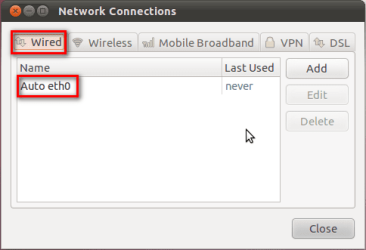
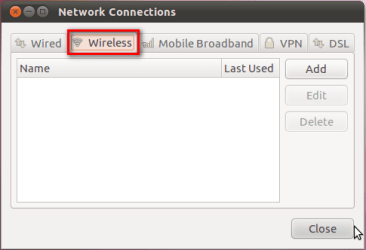
In Ubuntu virtual machine, it should look like this. Wired connection on Auto, no wireless connections:

Tutorial_Ubuntu_VBox_1_16_b.png

Tutorial_Ubuntu_VBox_1_16_c.png

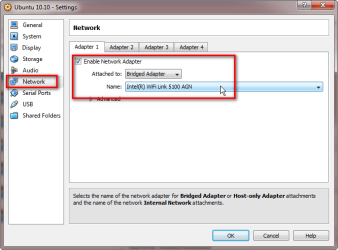
And in virtual machine settings, exactly as told in tutorial Part 1, step 16, you choose bridged connection and your host computers network adapter, in your case the wireless (WiFi) adapter:

Tutorial_Ubuntu_VBox_1_16.png

Kari
 

My Computer

Computer type
Laptop
Computer Manufacturer/Model Number
HP ENVY 17-1150eg
OS
Windows 10 Pro x64 EN-GB
CPU
1.6 GHz Intel Core i7-720QM Processor
Memory
6 GB
Graphics Card(s)
ATI Mobility Radeon HD 5850 Graphics
Sound Card
Beats sound system with integrated subwoofer
Monitor(s) Displays
17" laptop display, 22" LED and 32" Full HD TV through HDMI
Screen Resolution
1600*900 (1), 1920*1080 (2&3)
Hard Drives
Internal: 2 x 500 GB SATA Hard Disk Drive 7200 rpm
External: 2TB for backups, 3TB USB3 network drive for media
Cooling
As Envy runs a bit warm, I have it on a Cooler Master pad
Keyboard
Logitech diNovo Media Desktop Laser (bluetooth)
Mouse
Logitech Performance Mouse MX
Internet Speed
50/10 Mbps VDSL
Antivirus
Windows Defender 4.3.9431.0
Browser
Maxthon 3.5.2., IE11
great instructions, thank you!

i've noticed that i cannot change the resolution of the linux Virtual Machine window :(
its also 800x640 and my monitor is 1920x1200.
is there an easy way to fix this? did i miss it in your tutorial?
 

My Computer

OS
win7
Try to install drivers to the graphic card.
 

My Computer

Computer type
PC/Desktop
Computer Manufacturer/Model Number
Custom Build
OS
Windows 10 Pro x64
CPU
Intel Core i5 4440 @Stock
Motherboard
Gigabyte Z97 D3H
Memory
4 x 4GB HyperX Fury DDR3
Graphics Card(s)
Gigabyte GTX 1050Ti O4G
Sound Card
Integrated
Monitor(s) Displays
Dell P2417H
Screen Resolution
1920 x 1080
Hard Drives
Samsung EVO 850 120GB / Toshiba DT01ACA050 1TB 7200prm 32MB
PSU
Riotoro Onyx 750W
Case
NZXT H500 Black-Red
Cooling
Stock CPU + NZXT 120mm + 2x120mm red fans
Keyboard
Modecom Volcano Lanparty
Mouse
Asus ROG Gladius / DeepCool E-Pad Plus
Internet Speed
DOCSIS 50/3 Mbit
Browser
Google Chrome
Other Info
Asus K55VJ(i5 3210M, GT635M / 2GB, 8GB DDR3, 500GB HDD)
No, Stalker. A virtual machine uses it's emulated hardware and drivers which are included.

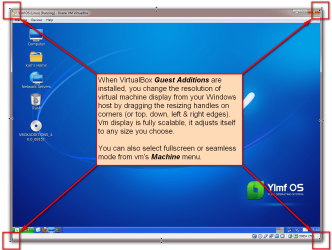
@liquidmonkey, check that you did not forget tutorial part 1 step 15 to set video memory to maximum, and part 2 steps 15 to 21 to install VirtualBox Guest Additions.

When video memory is set, and Guest Additions installed, you simply change the resolution of virtual machine display from host machine by resizing the vm's Explorer window. When you want to you can also select fullscreen or seamless mode from vm's Machine menu.

Kari

Vbox_vm_display_resolution.png
 

My Computer

Computer type
Laptop
Computer Manufacturer/Model Number
HP ENVY 17-1150eg
OS
Windows 10 Pro x64 EN-GB
CPU
1.6 GHz Intel Core i7-720QM Processor
Memory
6 GB
Graphics Card(s)
ATI Mobility Radeon HD 5850 Graphics
Sound Card
Beats sound system with integrated subwoofer
Monitor(s) Displays
17" laptop display, 22" LED and 32" Full HD TV through HDMI
Screen Resolution
1600*900 (1), 1920*1080 (2&3)
Hard Drives
Internal: 2 x 500 GB SATA Hard Disk Drive 7200 rpm
External: 2TB for backups, 3TB USB3 network drive for media
Cooling
As Envy runs a bit warm, I have it on a Cooler Master pad
Keyboard
Logitech diNovo Media Desktop Laser (bluetooth)
Mouse
Logitech Performance Mouse MX
Internet Speed
50/10 Mbps VDSL
Antivirus
Windows Defender 4.3.9431.0
Browser
Maxthon 3.5.2., IE11
Back
Top